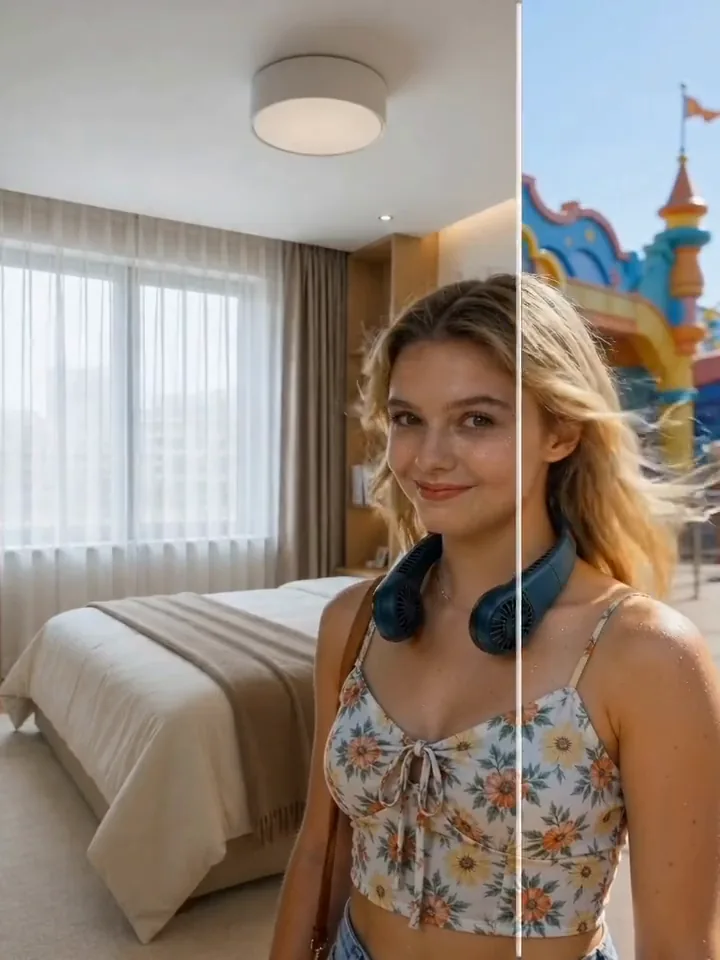
Upload a photo or short video and the background image you want to use. Generate a new scene, then check subject details, lighting and edges before downloading.
Demo preview. Open the workspace to upload your files and generate a new scene.
Target Media
Upload the image or video whose background you want to replace
Background Image
Upload the background you want to switch to
Prepare one source photo or short video and one background image.
Upload one source file or choose existing media from your asset library. Use a clear view of your subject.
Upload a complete scene image or select one from your asset library. Review the displayed credit cost before generating.
Open the completed task in the task center. Review subject details and scene fit, then download the result. Use Re-edit to choose another background for a new task.
Each new version is a separate task. Review the credit cost before you submit.
Choose a scene reference for your subject, generate a variation, and review the output before you publish.
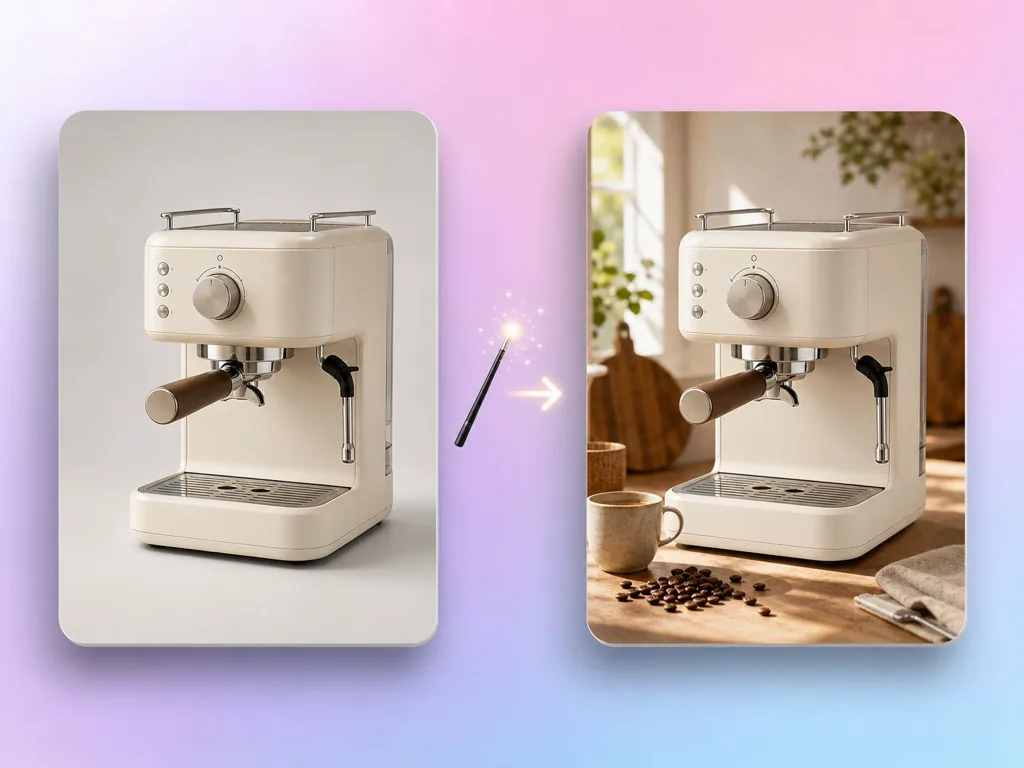
Try a scene reference that shows how the product could be used. Review product details and listing requirements before publishing.
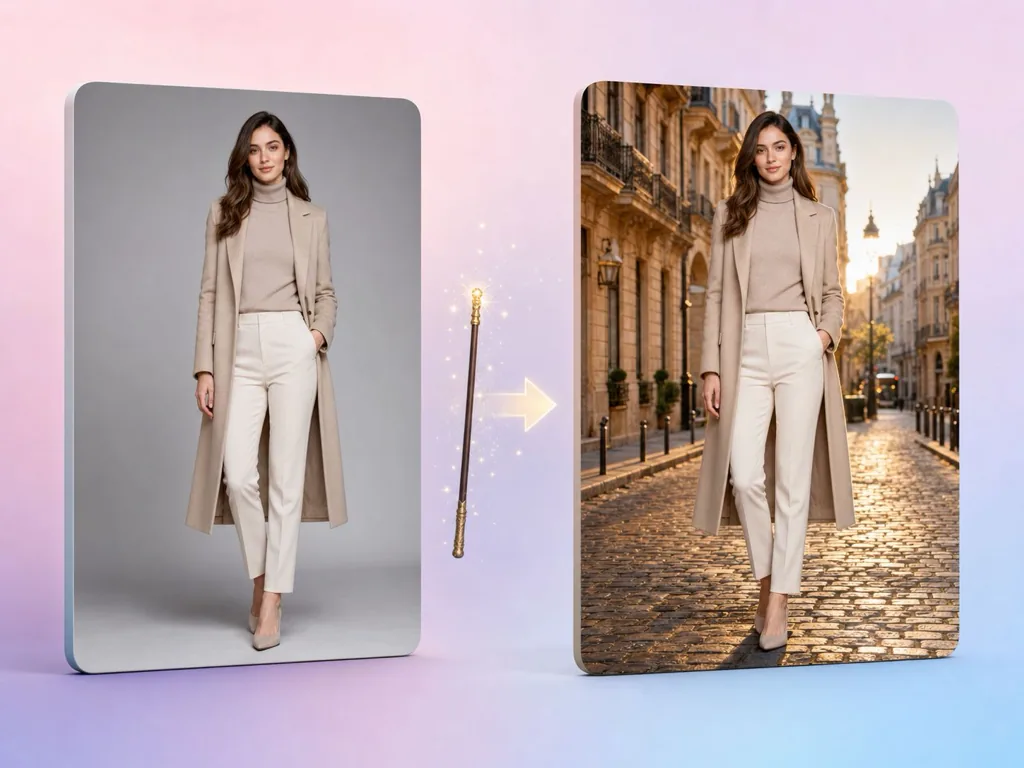
Explore a new setting for a portrait using a background image. Review facial details, hair and edges in the result.
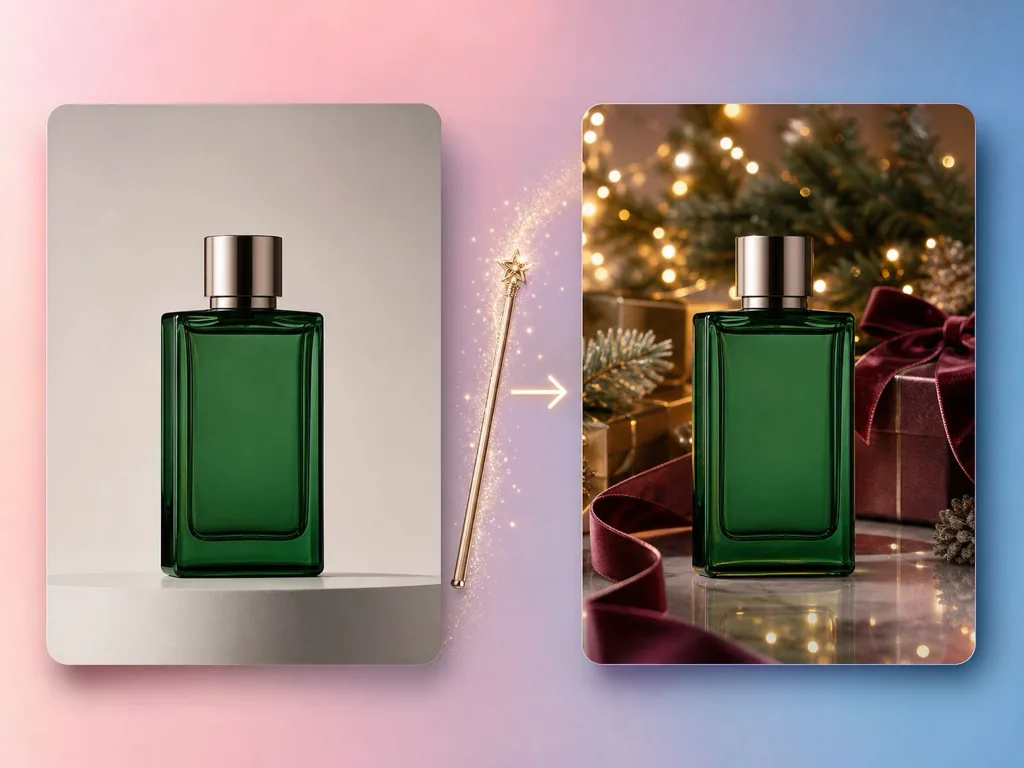
Choose a holiday or seasonal background reference for a new campaign scene.
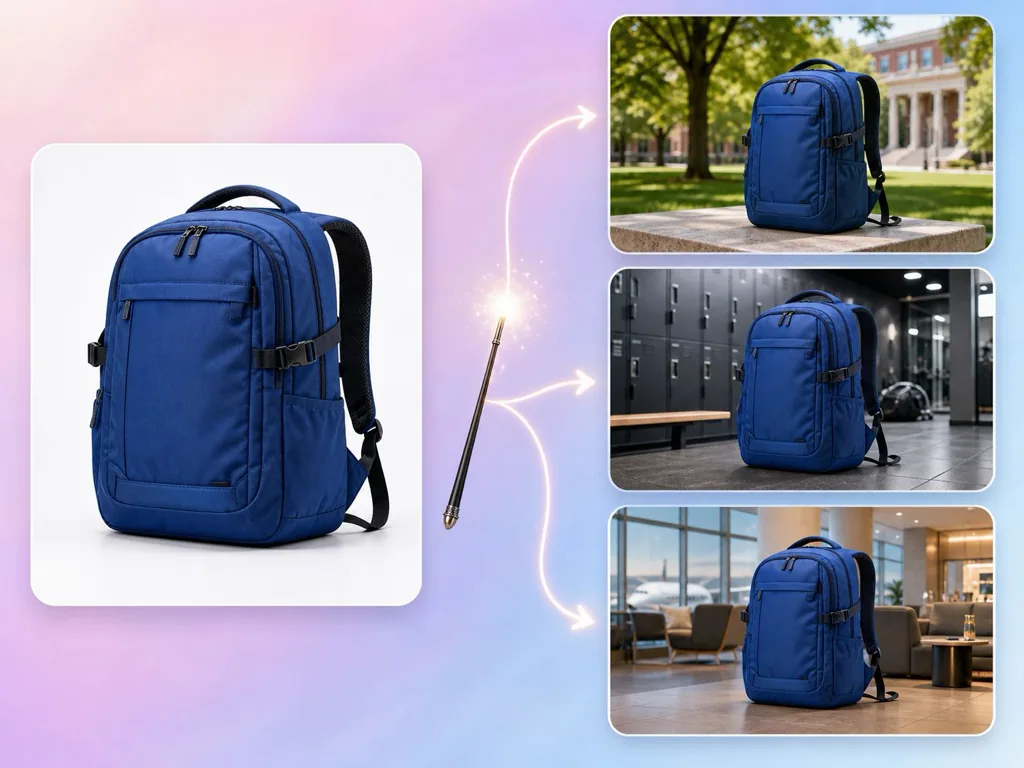
Create another social post concept by generating a new version with a different background.
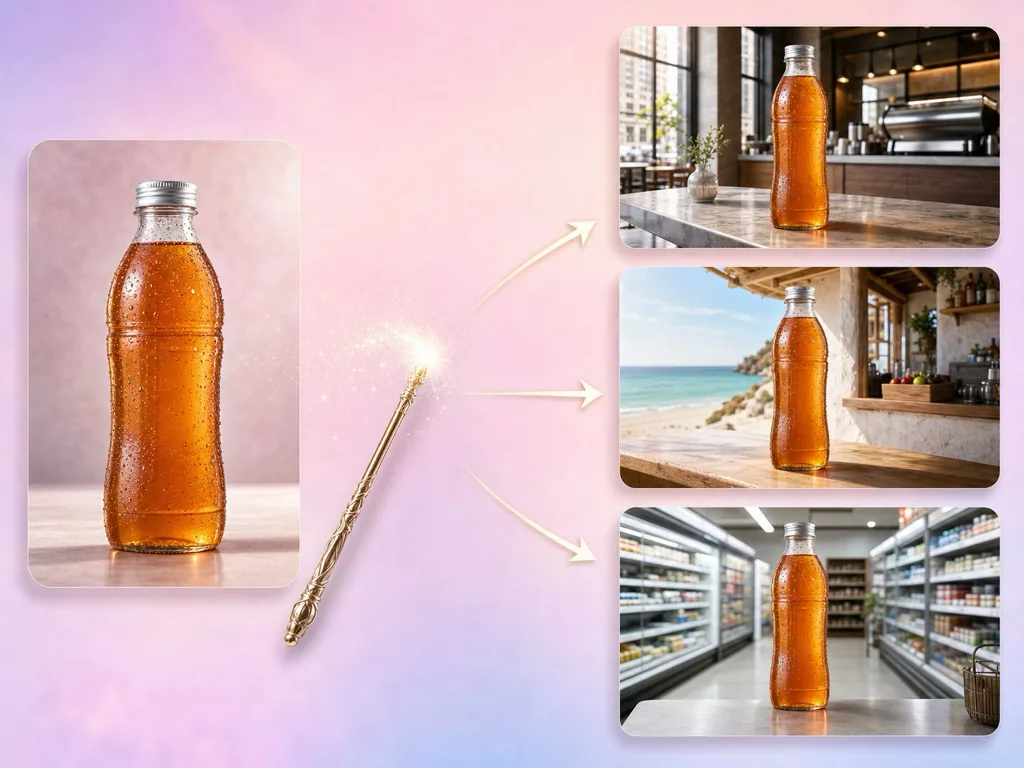
Explore scene references relevant to your audience and review cultural details before publishing.
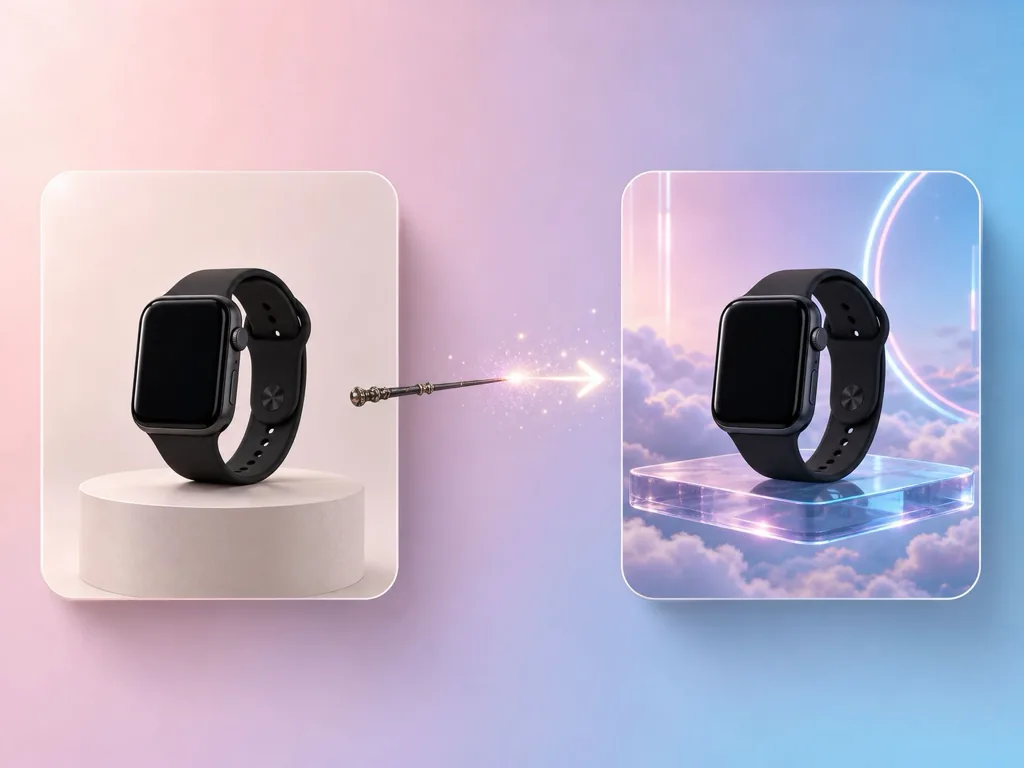
Experiment with a background image for a creative composite, then inspect how the subject fits the scene.
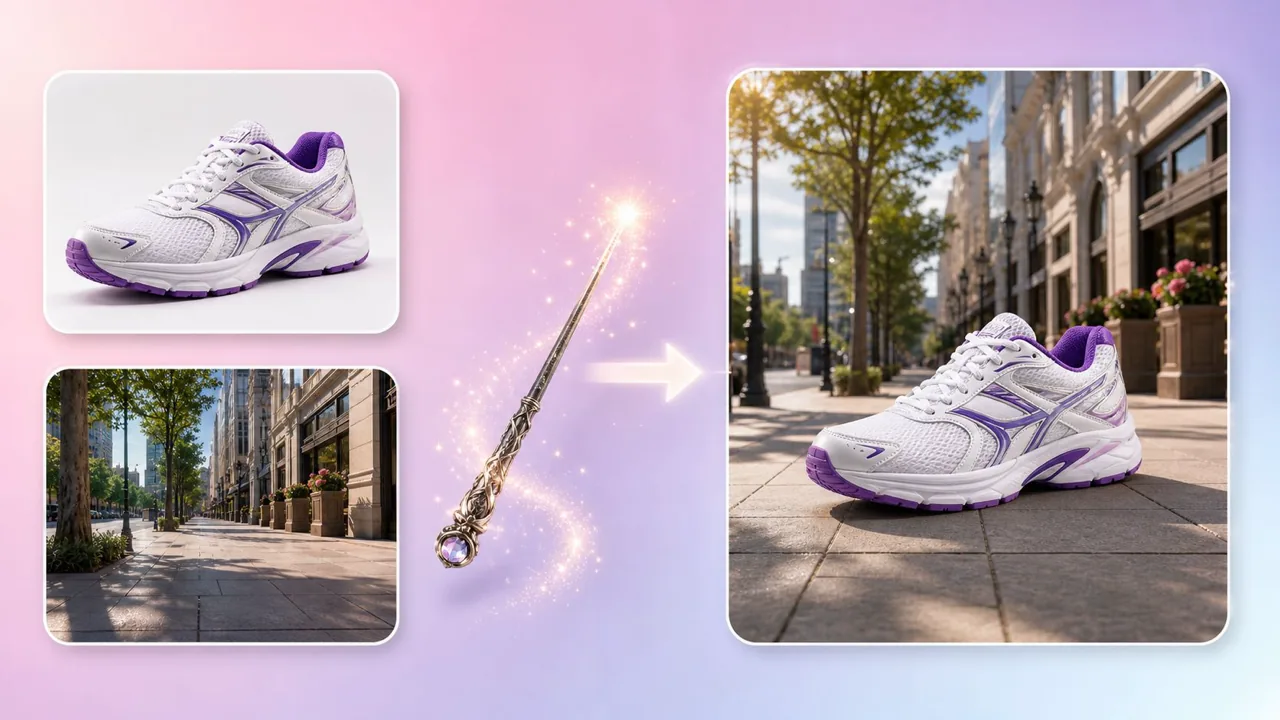
Upload and Generate
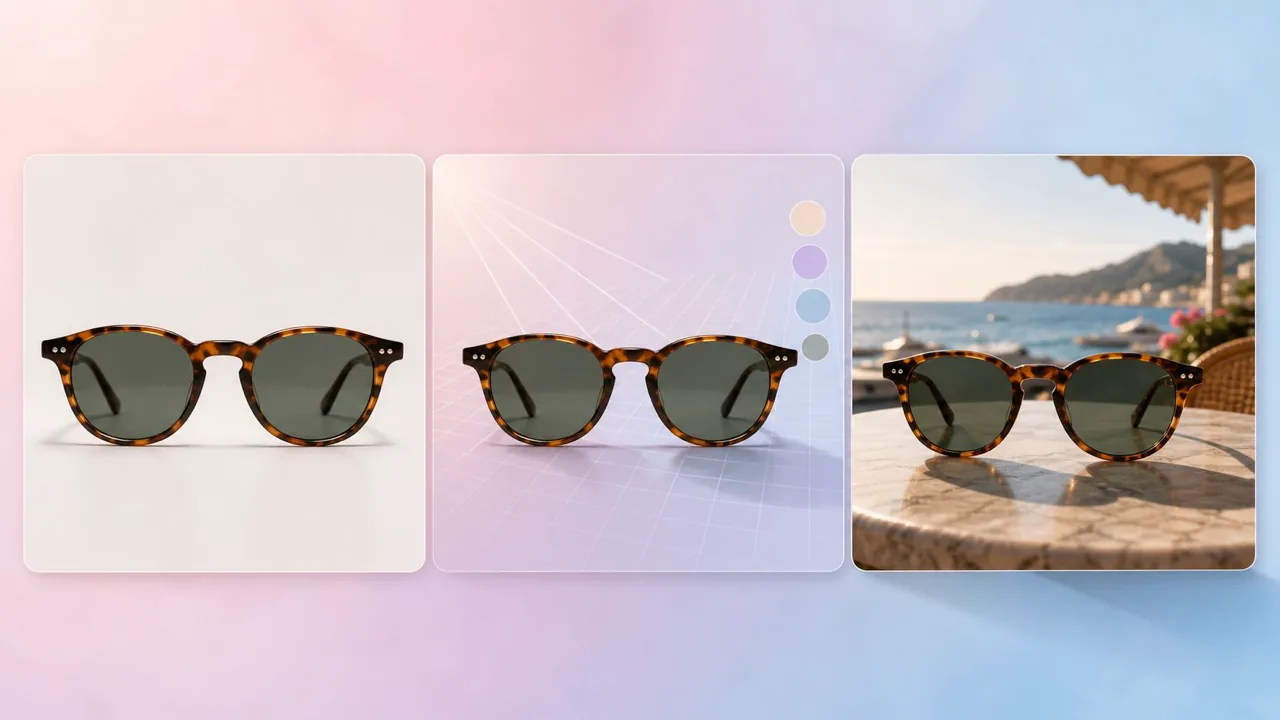
Check the Result
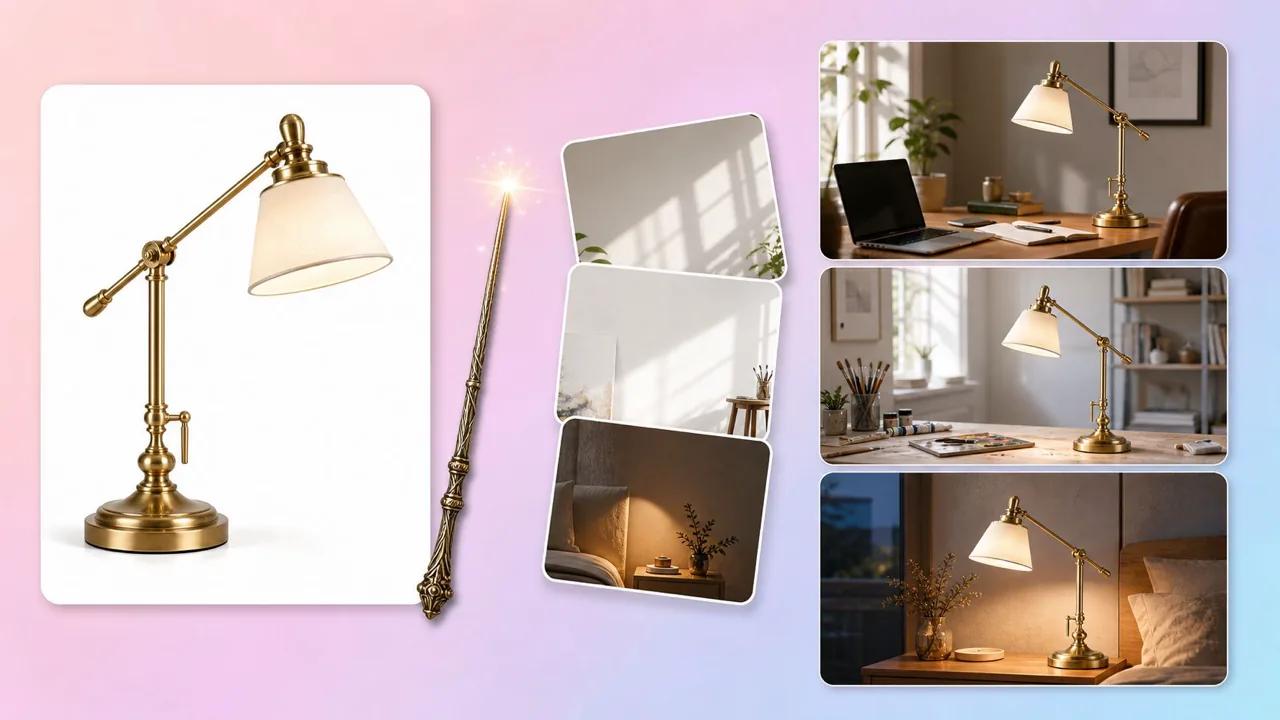
Background References
Only need a clean white background instead of a new scene? Use White Background Image.
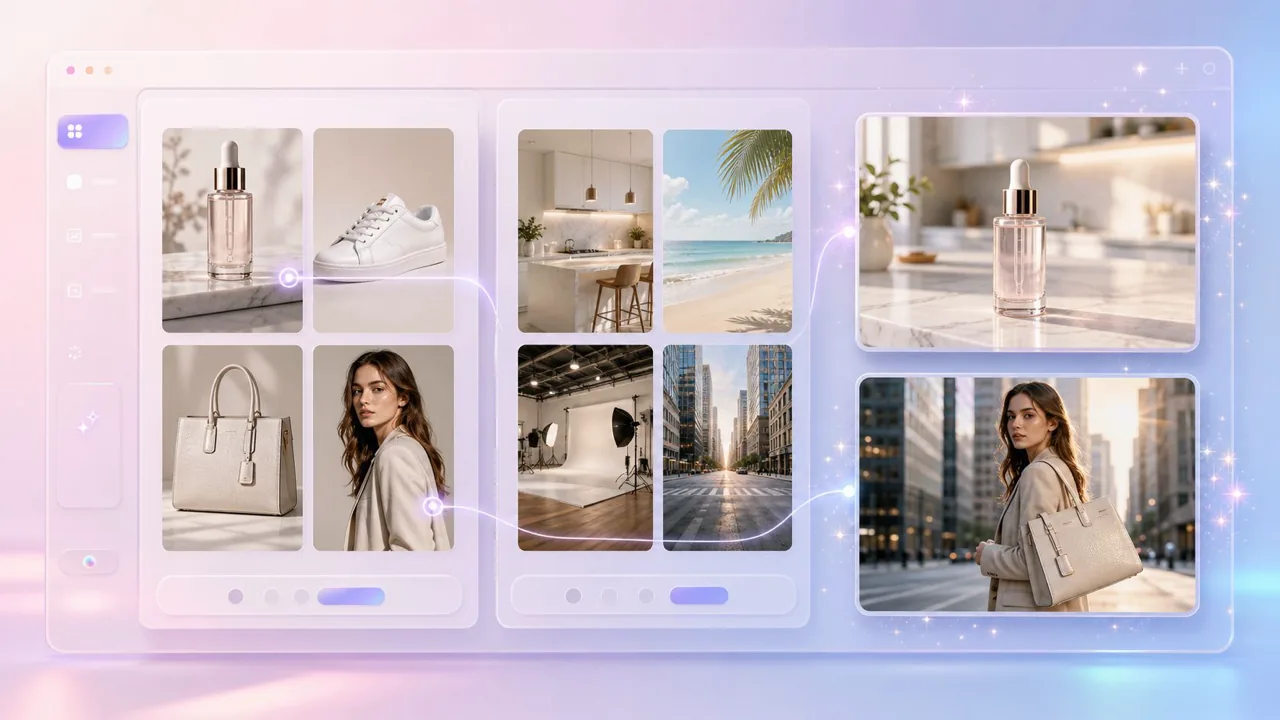
Asset Library
Check Your Files Before Uploading
The new background is an image for both photo and video tasks. Review any additional requirements shown in the workspace.
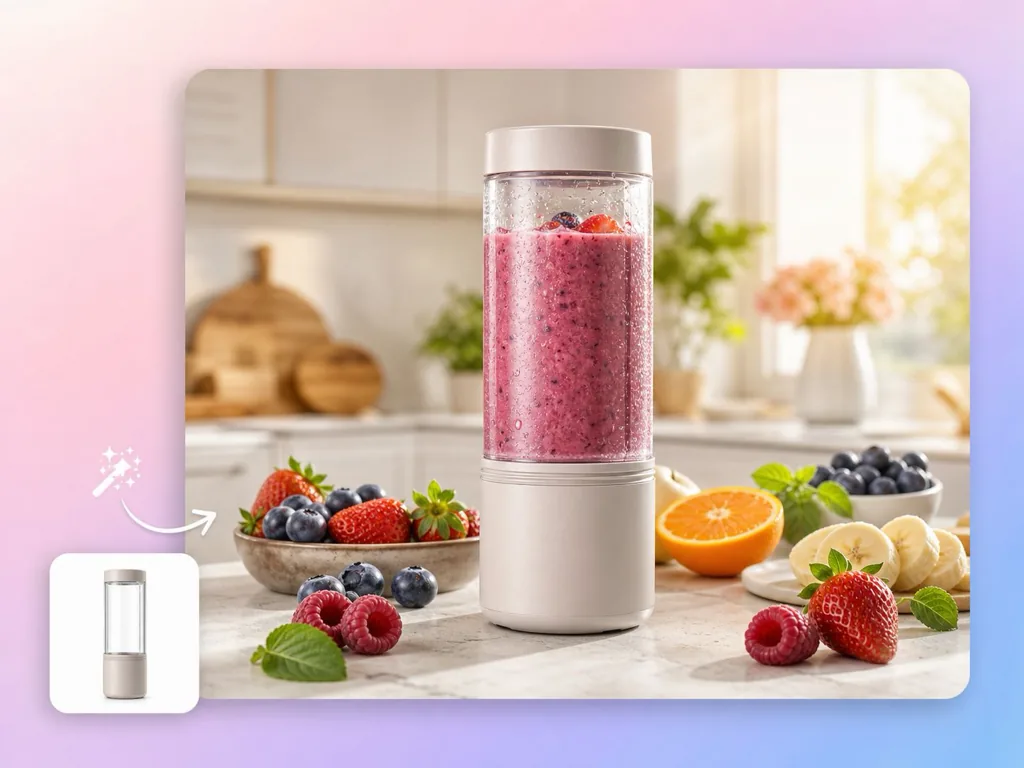
Explore a product in a new scene. Check product accuracy, output quality and platform requirements before publishing.
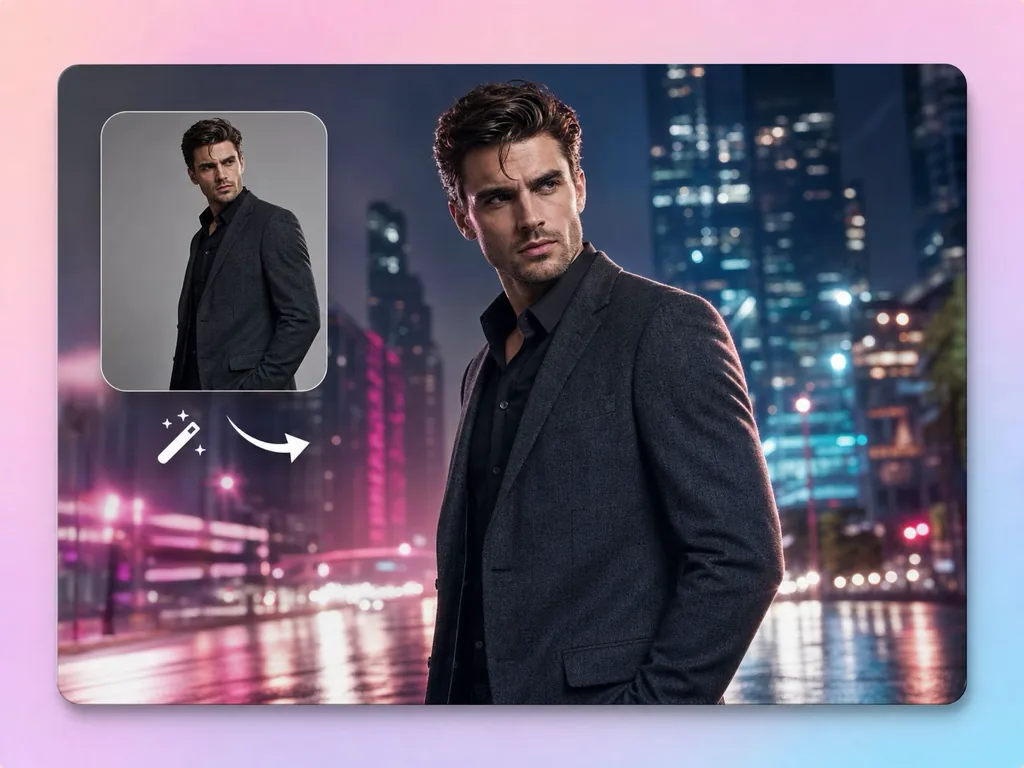
Explore a studio or outdoor scene for a portrait. Check the subject and background fit before use.
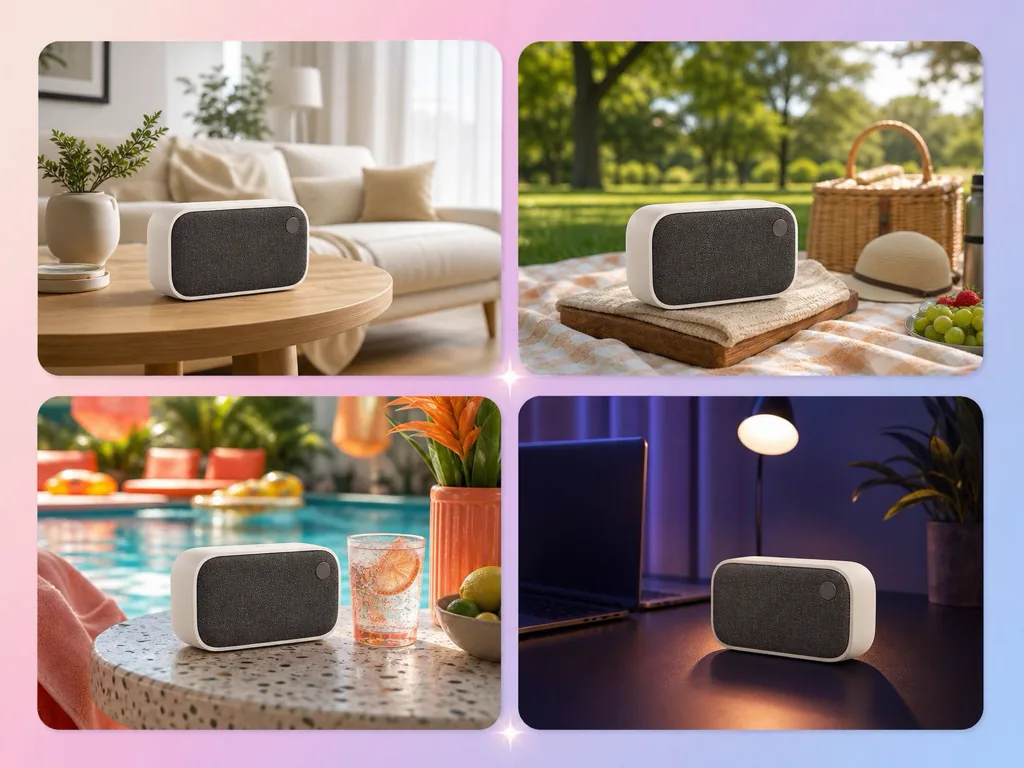
Create separate scene versions for campaign testing by choosing a new background for each task.

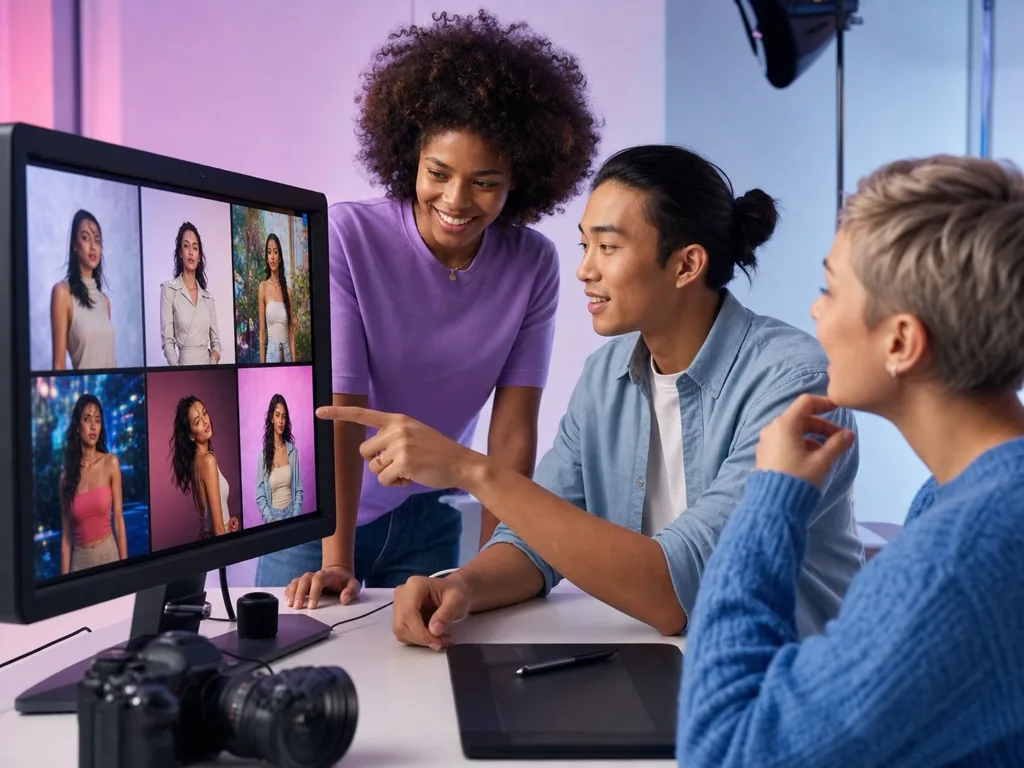

What to look for before you upload a source and a background image, and what to review in the generated photo or video before you publish it.
Zoom in along the subject outline, hair and faces. Look for missing parts, rough edges or changed details.
Check that text, labels and logos on the subject are still accurate. Generated details can differ from the source.
Check that the subject size, lighting direction and camera angle fit the new scene.
For video, watch the whole clip and check timing, motion and audio, which can differ from the source.
Apply a new scene from a background image to one photo or short video per task.
Need a plain white product background instead of a new scene?
Need several listing image types from one product photo?
Use Product Image.
Background Replace
Provide one photo or short video containing your subject, plus one background image. You can upload files or choose existing media from your asset library.
Use it in your browser through the AdsTurbo workspace. For online photo background replacement, upload one source image; for video, upload a 2–15 second clip. Add one background image, review the displayed credit cost, generate the task, and check the result before downloading. The buttons on this page open the workspace; the demo above does not process files.
Yes. Upload an MP4, AVI or MOV target video that is 2–15 seconds long and no larger than 200 MB, then provide a background image. Inspect the completed clip before downloading.
Use clear source media with the subject fully visible. Choose a complete background scene, preferably without people or obstructions. Images can be JPG, JPEG, PNG, BMP or WEBP. Check additional requirements in the workspace.
Image tasks use 17 credits per task. Video tasks use 18 credits per second. Review the displayed total before submitting.
This tool uses a background image as the reference. Upload or select the scene image you want to use; the current Background Replacement interface has no background text-prompt field.
The tool changes the scene around your subject, but generated details can vary. Review edges, faces, product labels and logos before use. For video, inspect the full clip, timing and audio, which may differ from the source.
In our 13 October 2026 test, the photo task returned a 1254 × 1254 PNG and the video task returned an 834 × 1112 MP4 (H.264). These are sample outputs, not fixed specifications. Dimensions, duration, frame rate and audio may differ from your source. Review the downloaded result.
Use Background Replacement when you have a new scene image to apply. If you only need a plain white product background, explore White Background Image and check its own requirements.
Use it to explore product scenes, portrait settings and campaign background variations. Check the result and any usage or platform requirements before publishing.
Use source media and background images you have permission to use, and review generated content before commercial use. Under the AdsTurbo Privacy Policy, private user content is not used to train public AI models without your explicit permission. If a task ends with the Failed status, its credits are returned automatically under the current terms. See the Terms of Service for details.
Bring a source photo or short video and a background image. Open the workspace, review the displayed credit cost, and inspect the result before downloading.
 AdsTurbo