Open the Motion Control workspace, upload a reference motion video and a character image, then generate and review your clip.
This is a preview. Upload your reference video and character image in the Motion Control workspace to generate a clip.
Reference Video
Character Image
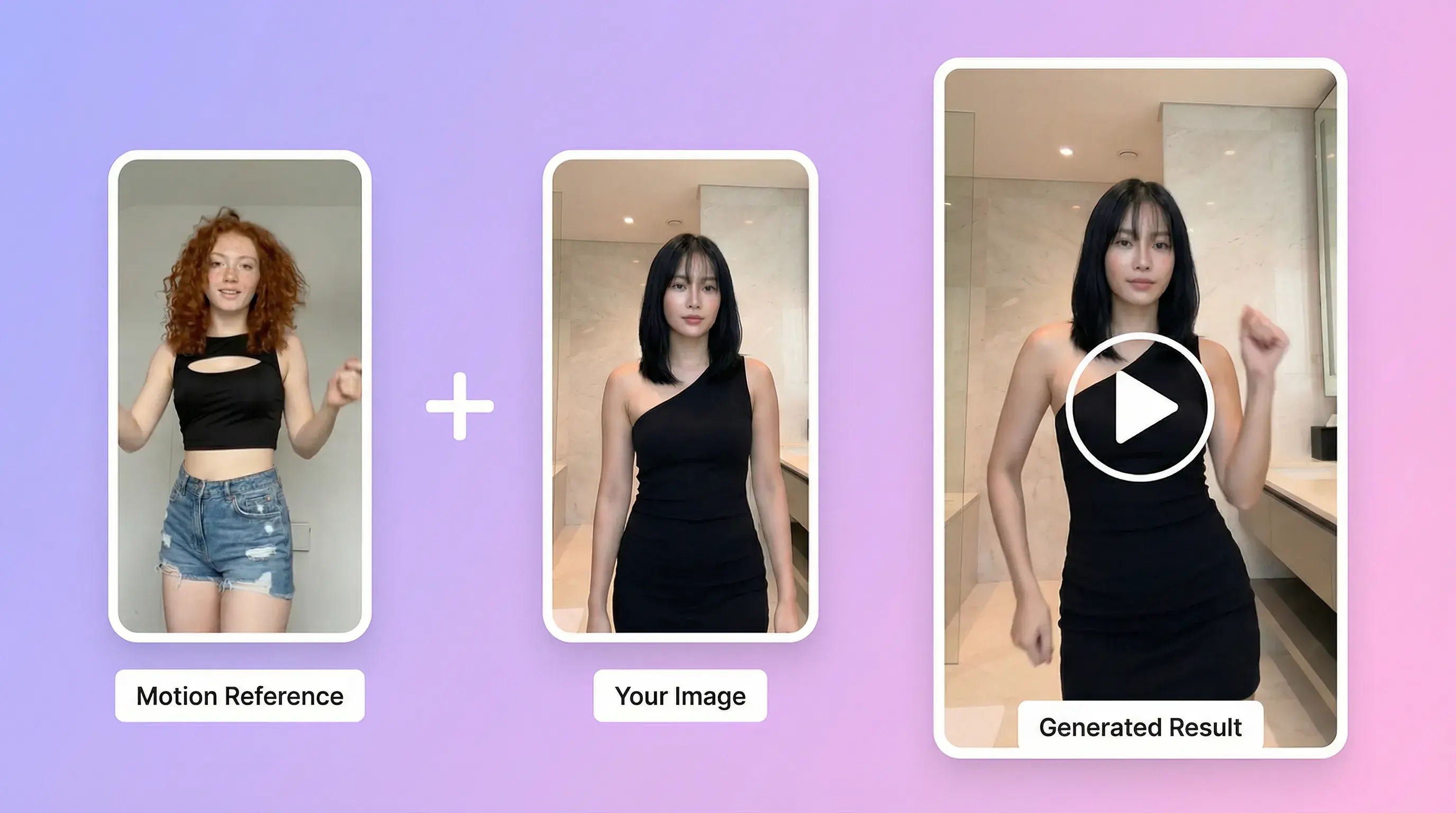
AI Motion Control uses a reference video to guide a character image’s movement. It combines the motion input and the character image to generate a new clip. Upload and generation happen in the AdsTurbo workspace.
Open the Motion Control workspace, then upload one reference motion video and one character image.
Choose 720p or 1080p and the character orientation (match video or match image). Optionally describe the background with a prompt; it does not control the character.
Generate the clip, then review the character, hands and motion before downloading or editing it. Generation takes about 3–4 minutes on average, and actual completion time varies.
Use a reference video to guide movement for your character image.
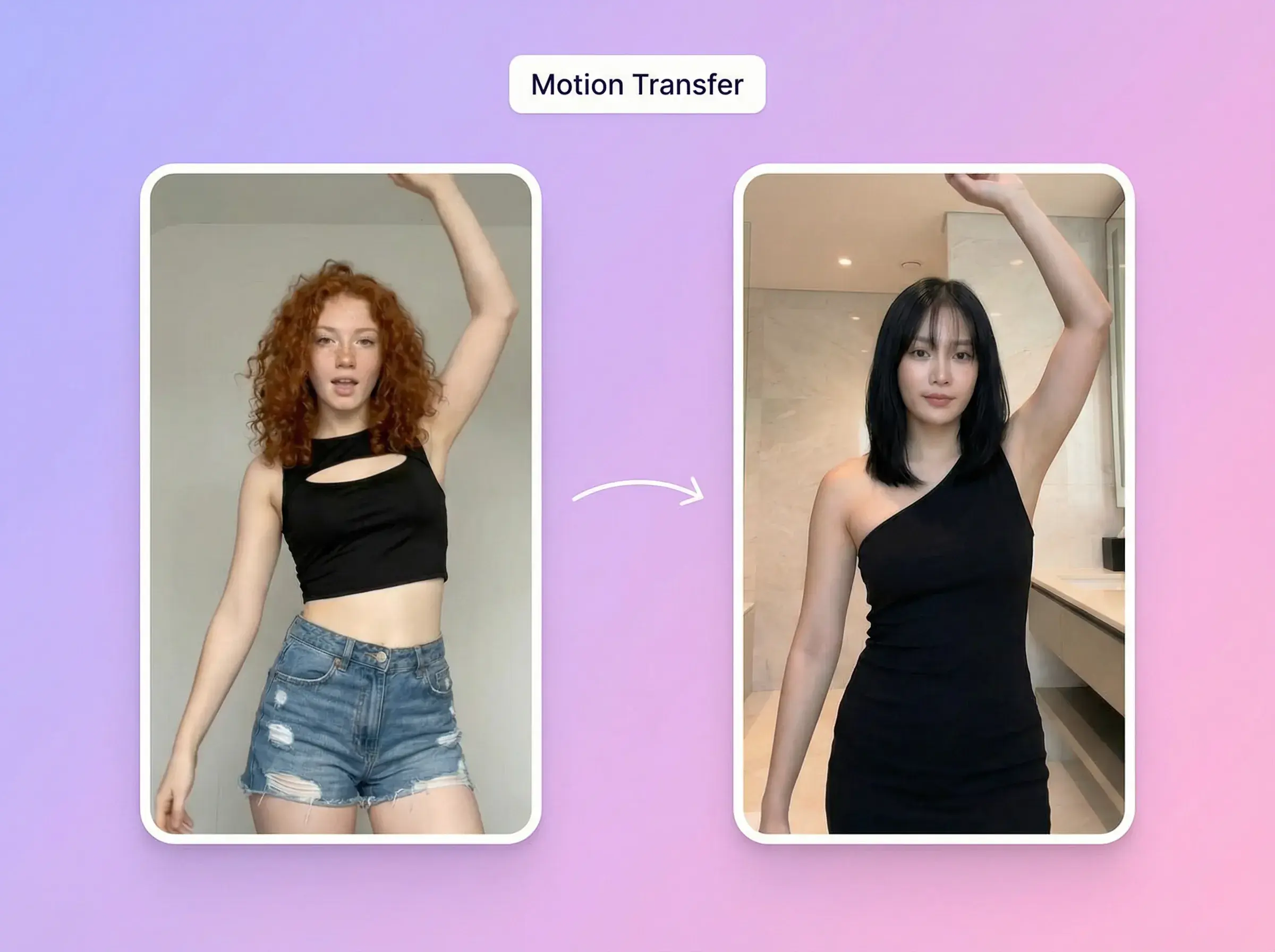
Use a clear reference video with visible body movement.
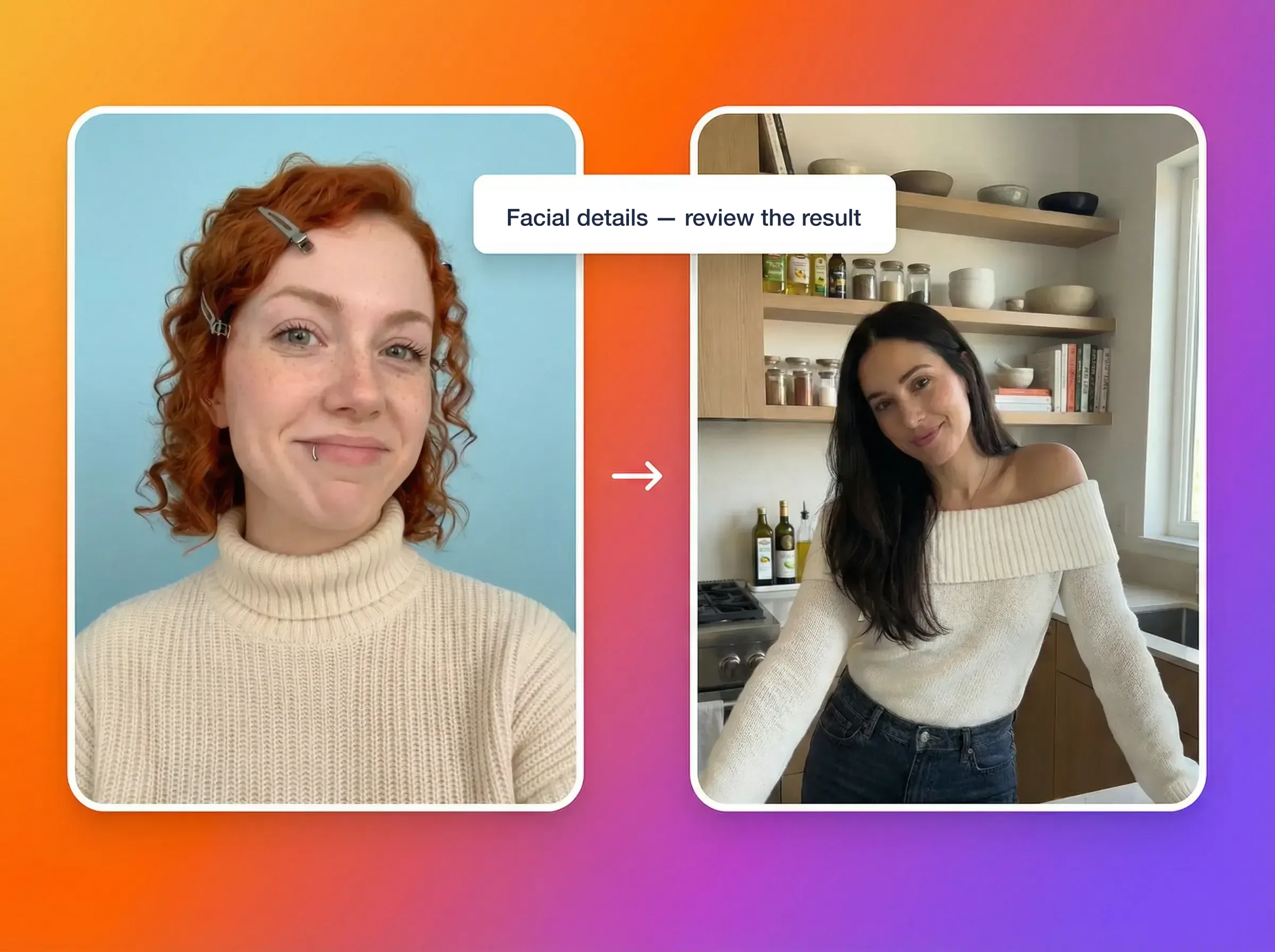
Guide movement with a dance or gesture reference. Review facial details in the result.
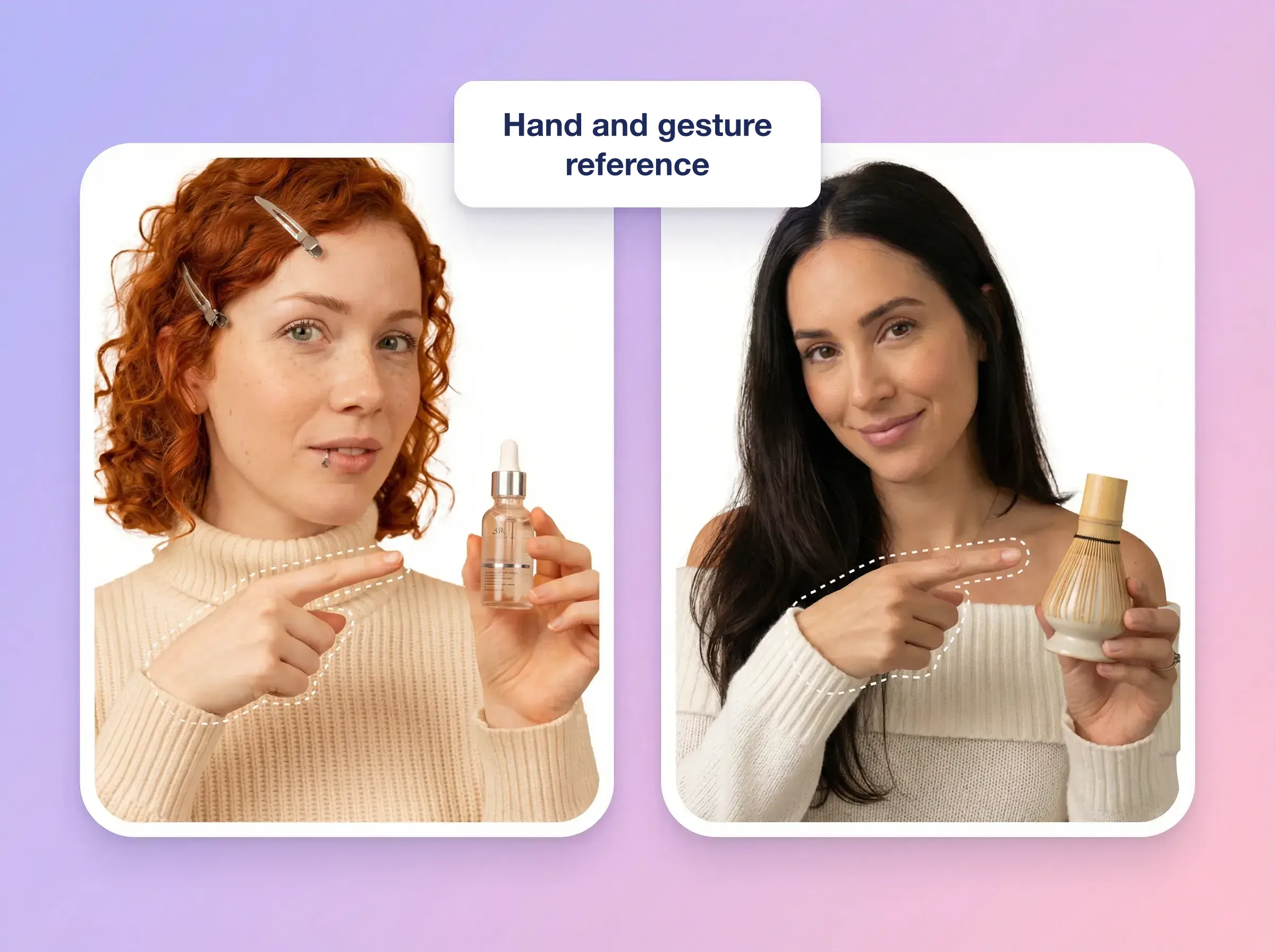
Keep hands visible in the reference and check the generated hand details.
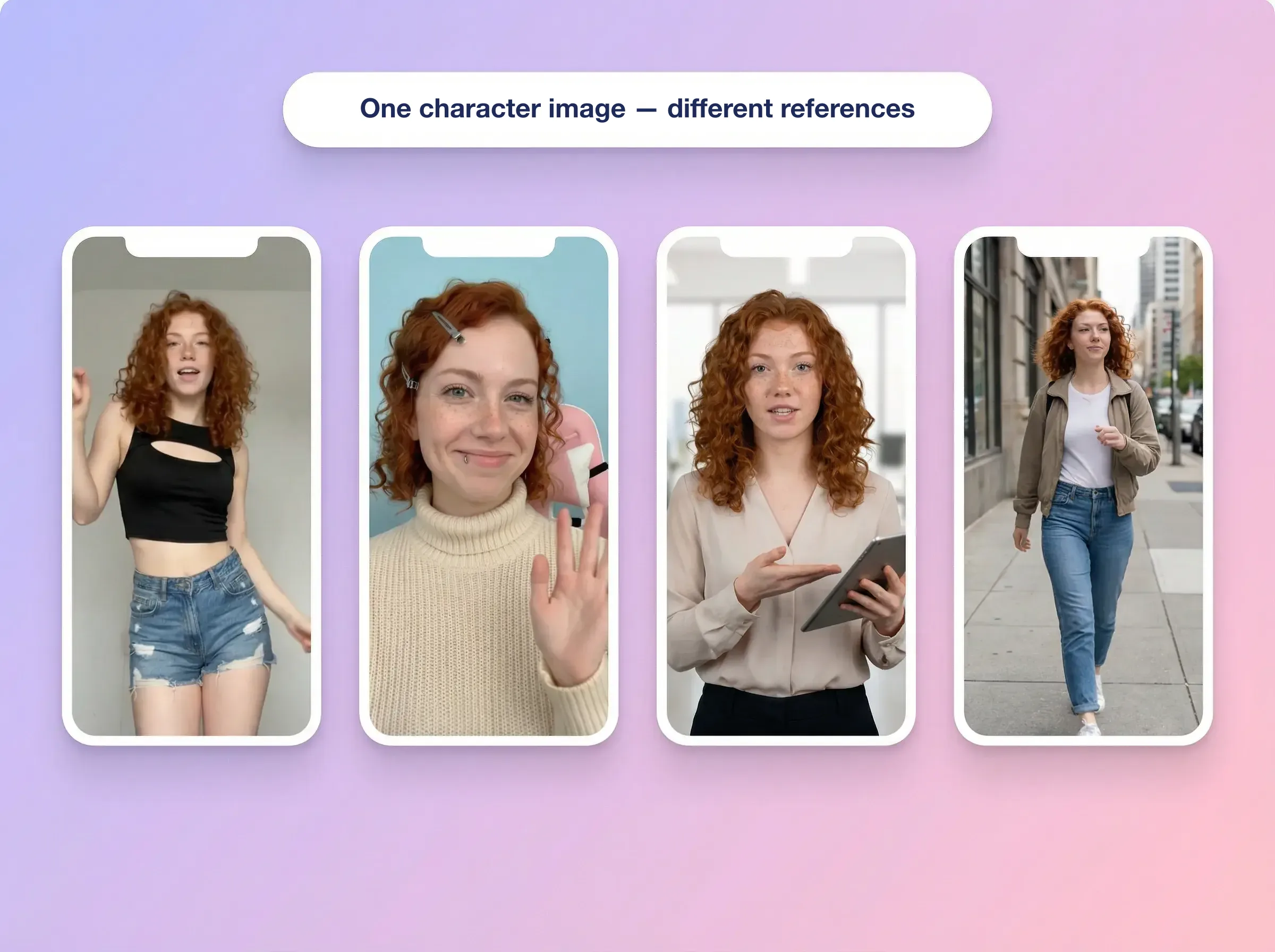
Use one image to define the character’s appearance. Review identity consistency after generation.
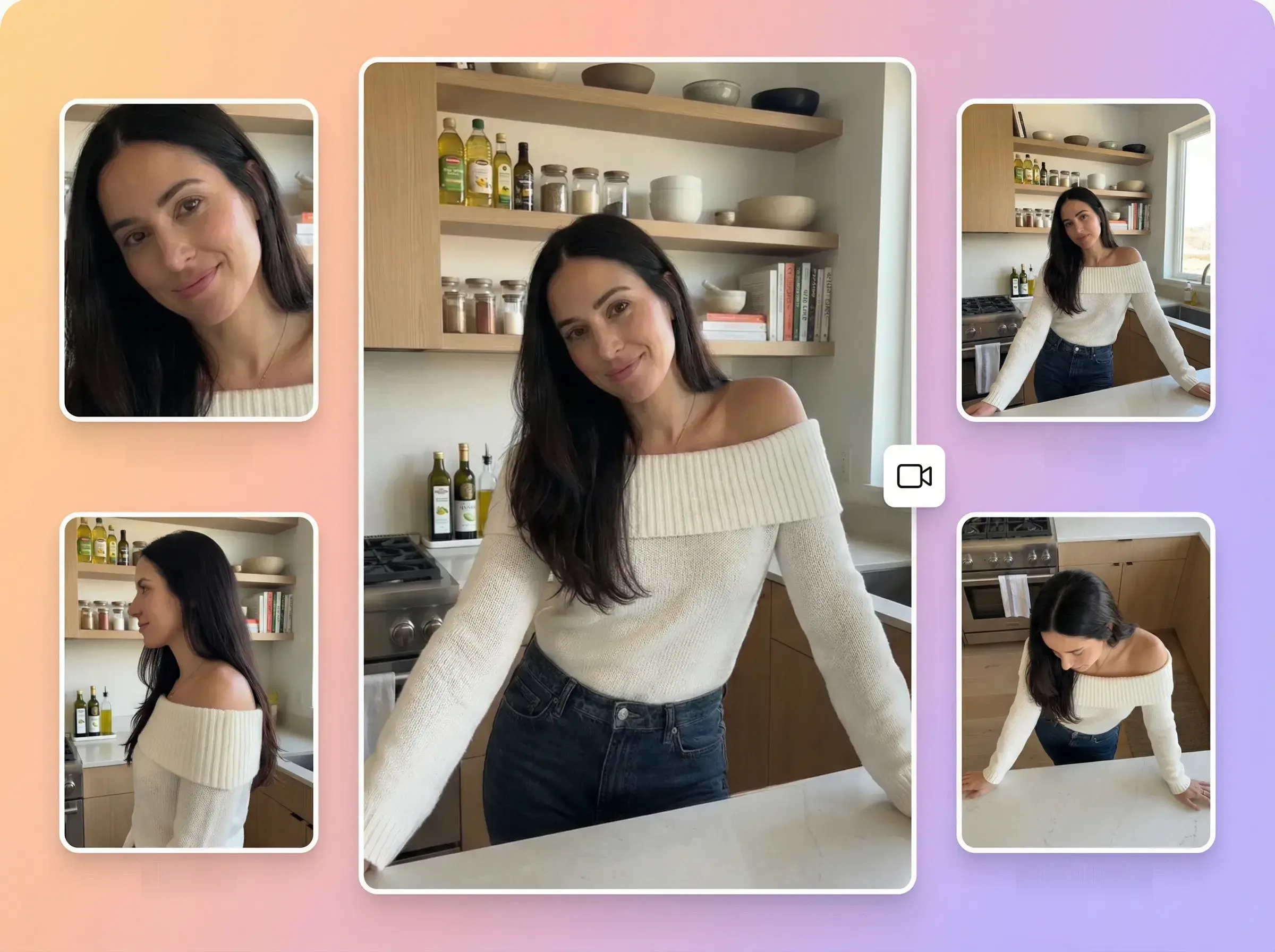
Choose whether the camera angle and framing follow the video or the image. Motion is guided by the reference video.
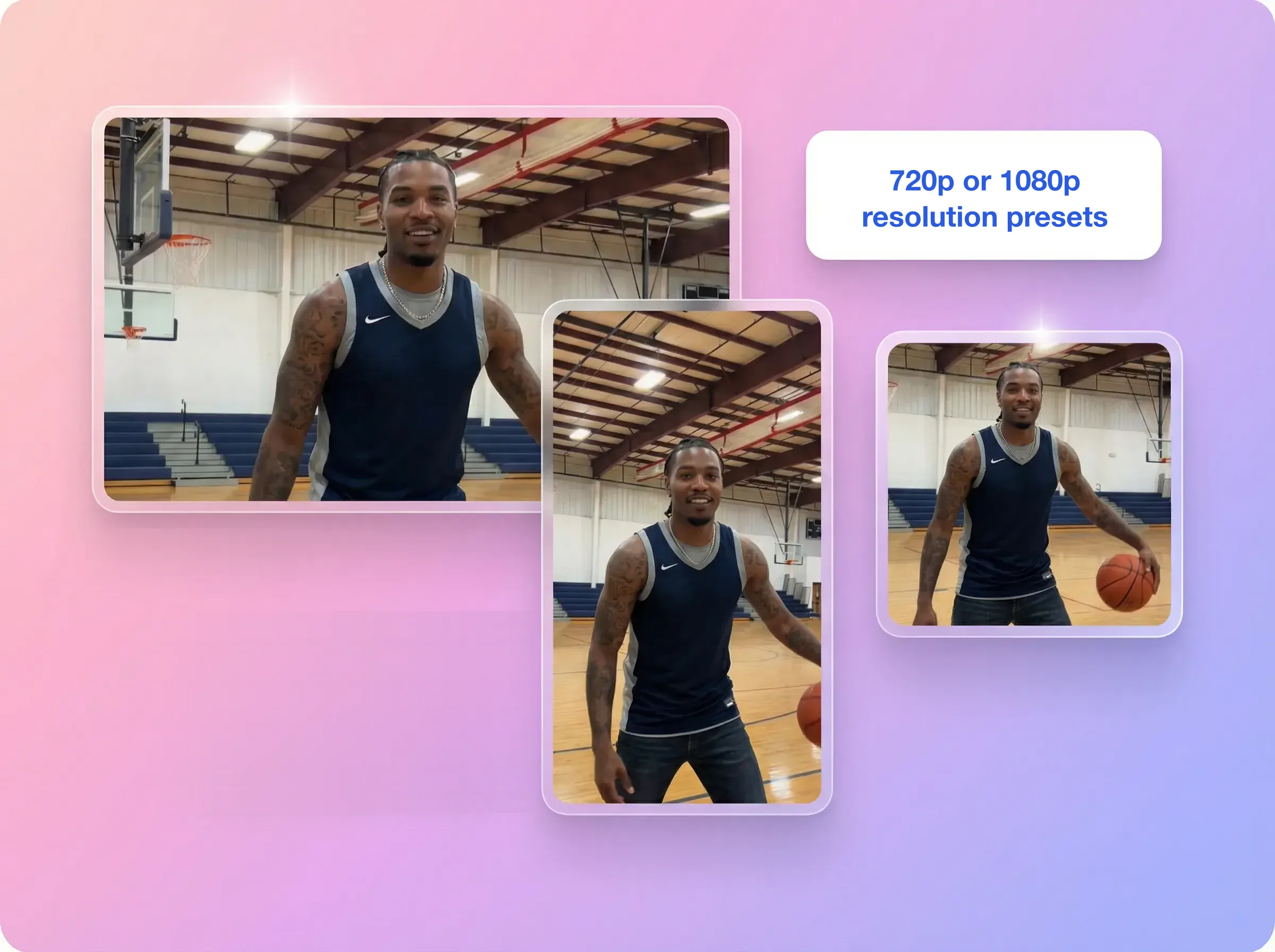
Choose one of the two output resolution presets.
Reference-driven generation
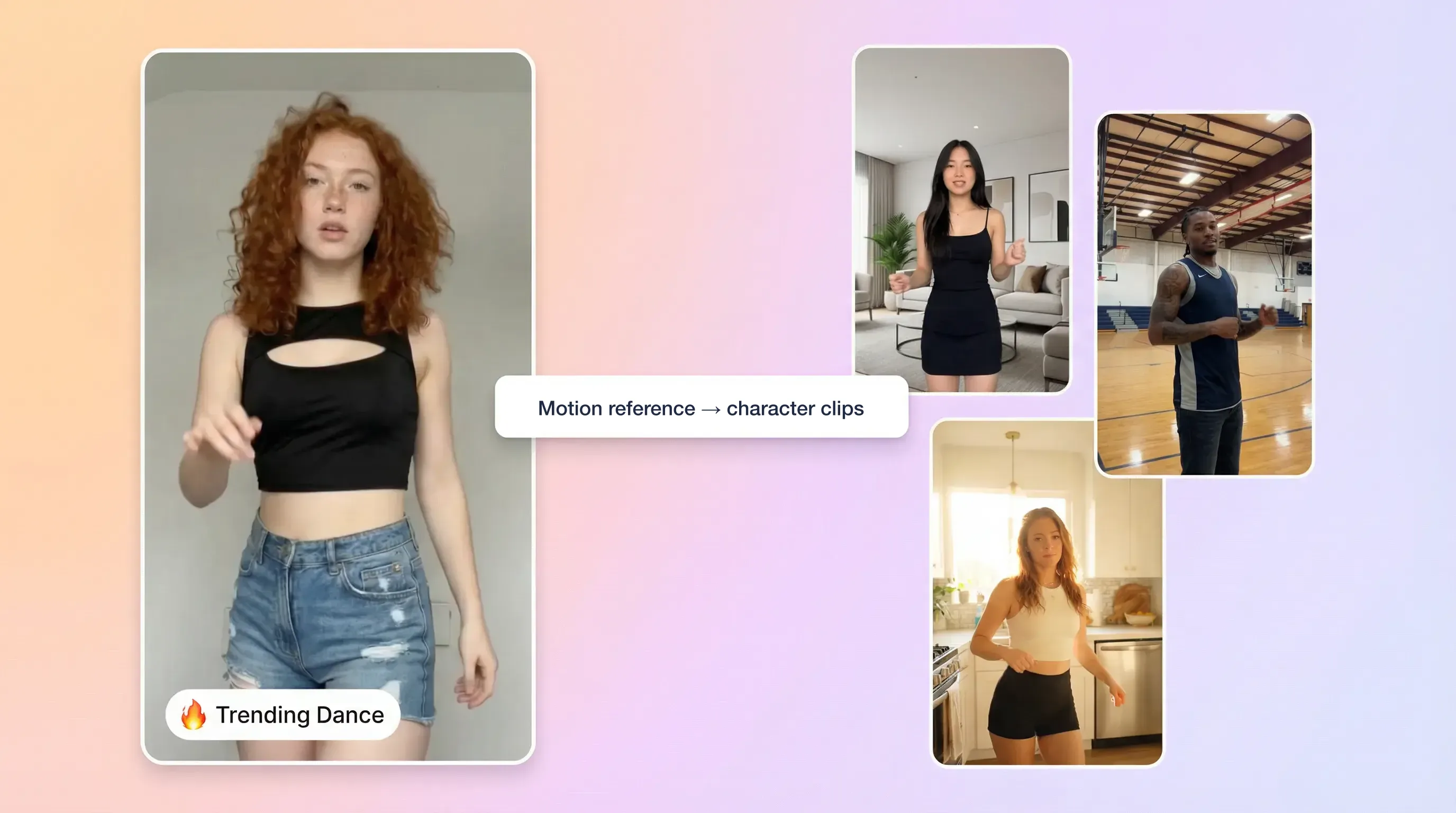
Creative exploration
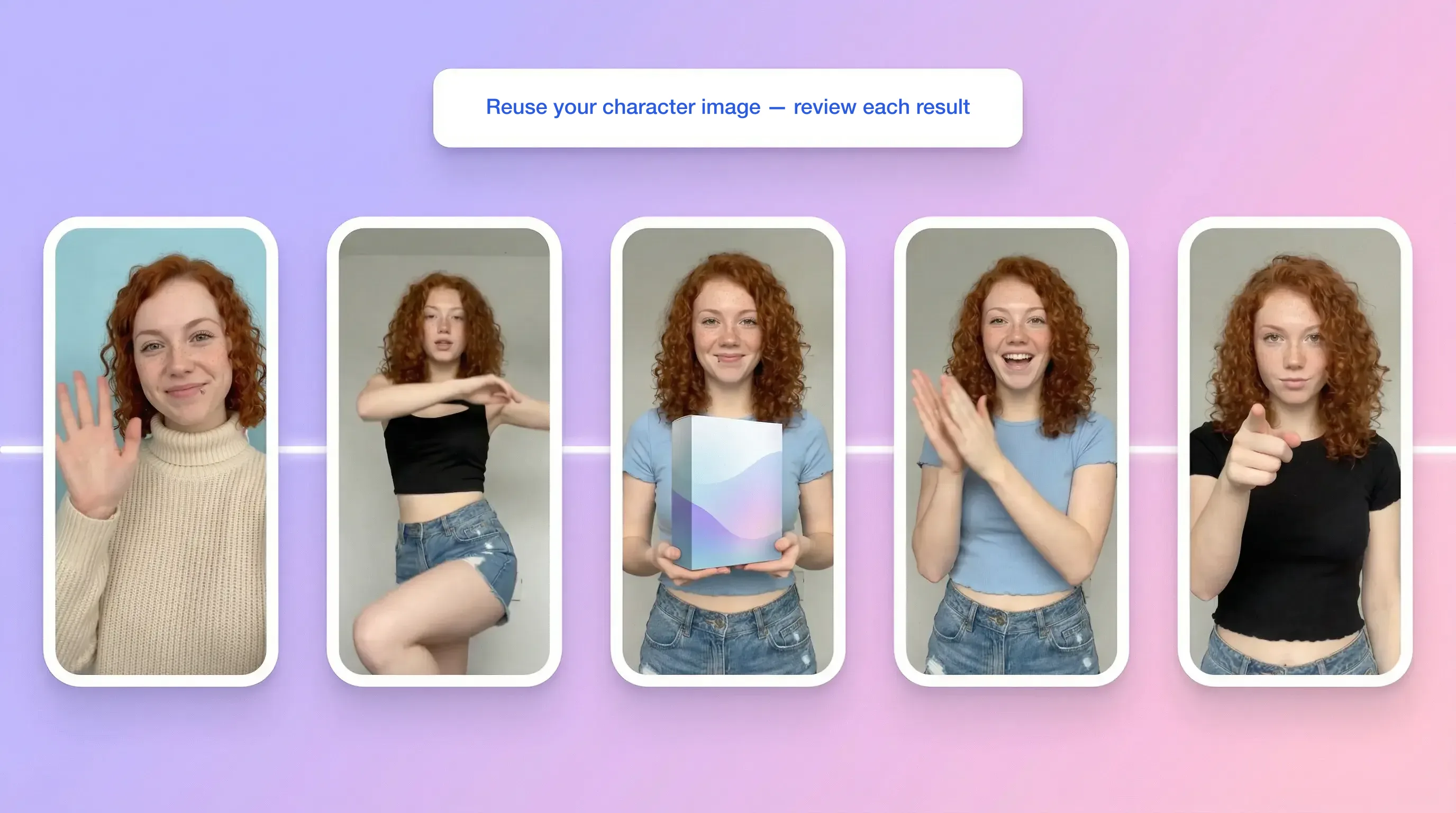
Reuse your character image
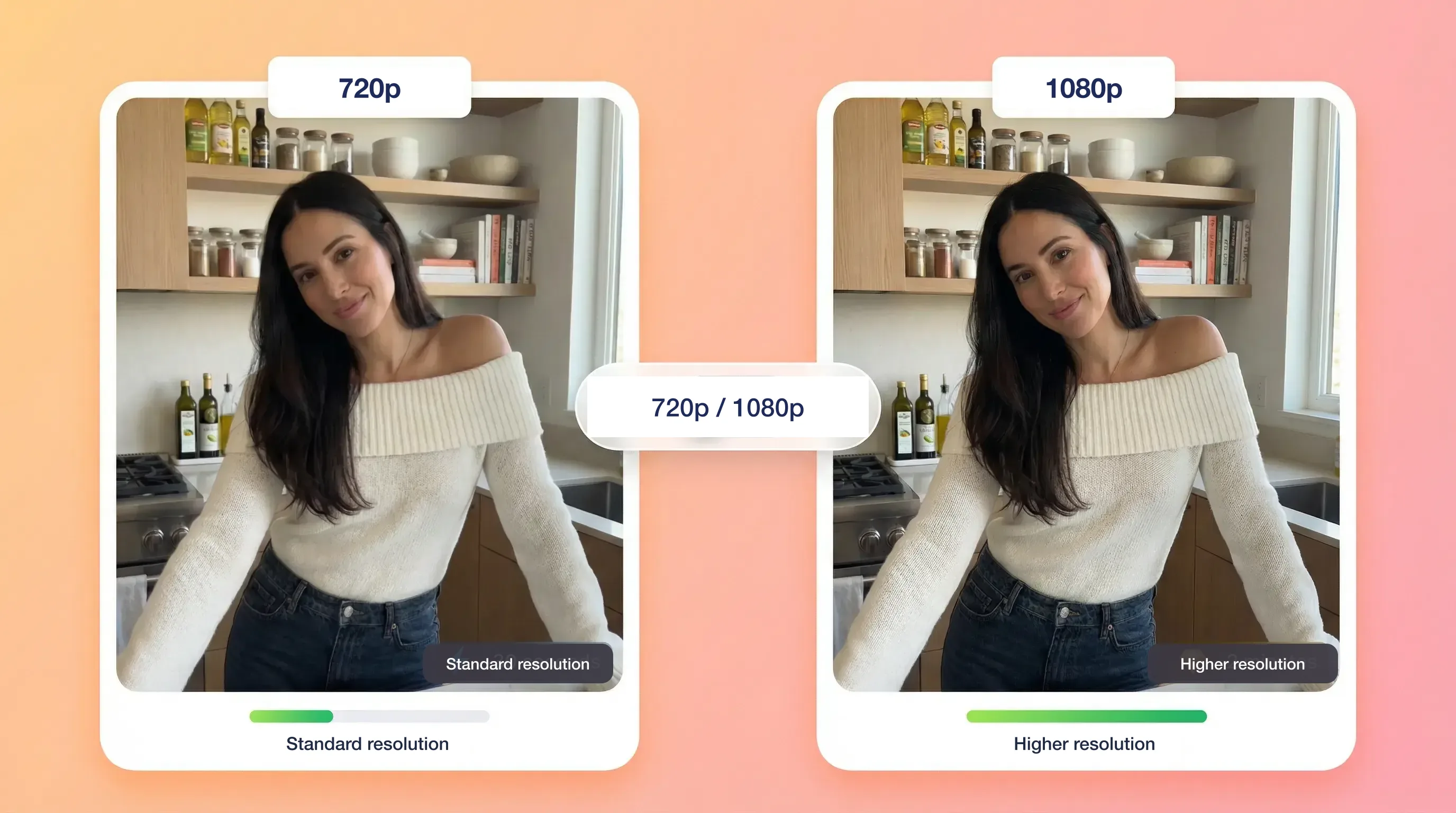
Resolution presets
Inputs, setup and review
Choose a workflow based on your inputs, review needs and project requirements.
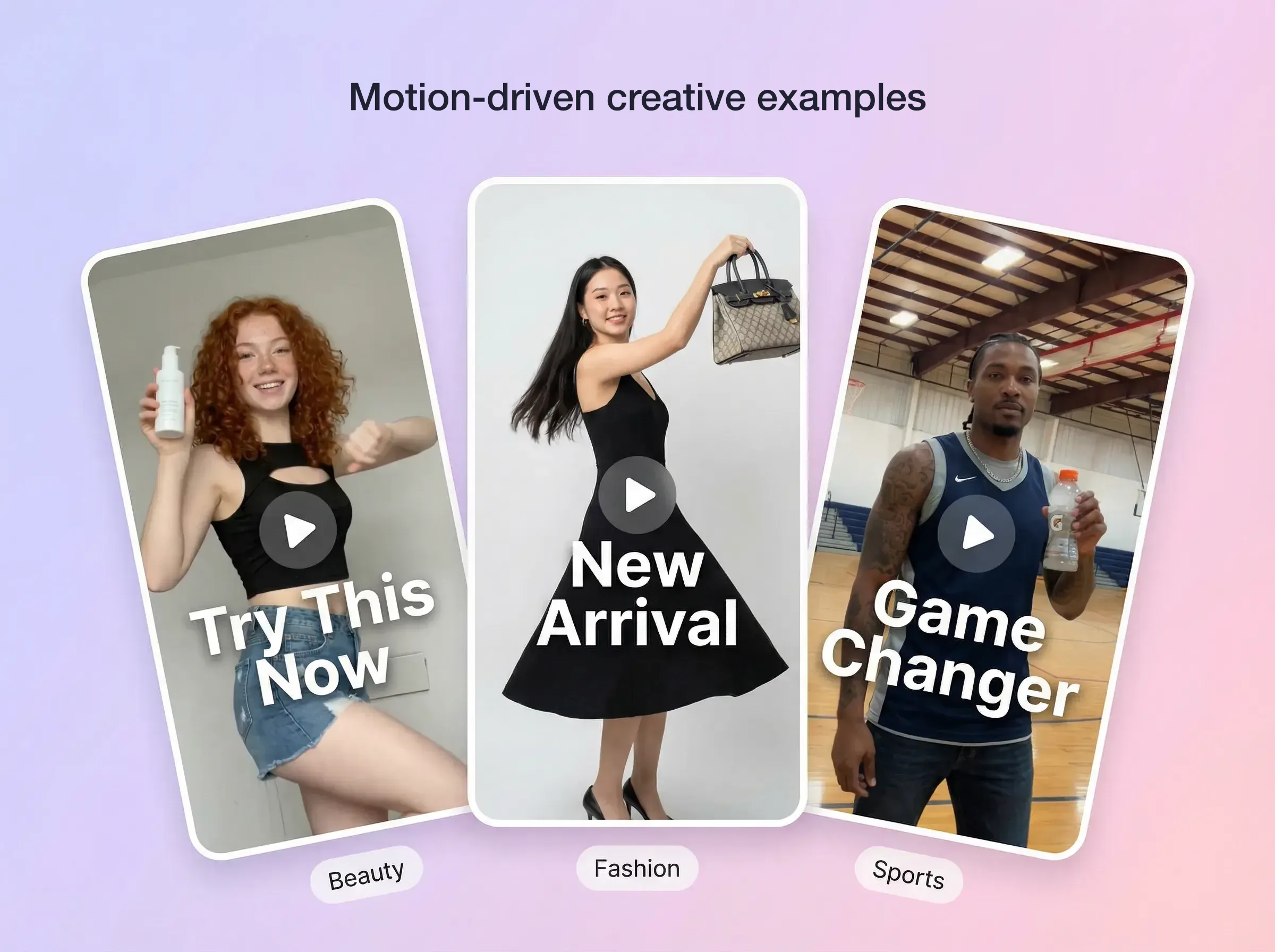
Use a character image with a dance or action reference, then review the clip.
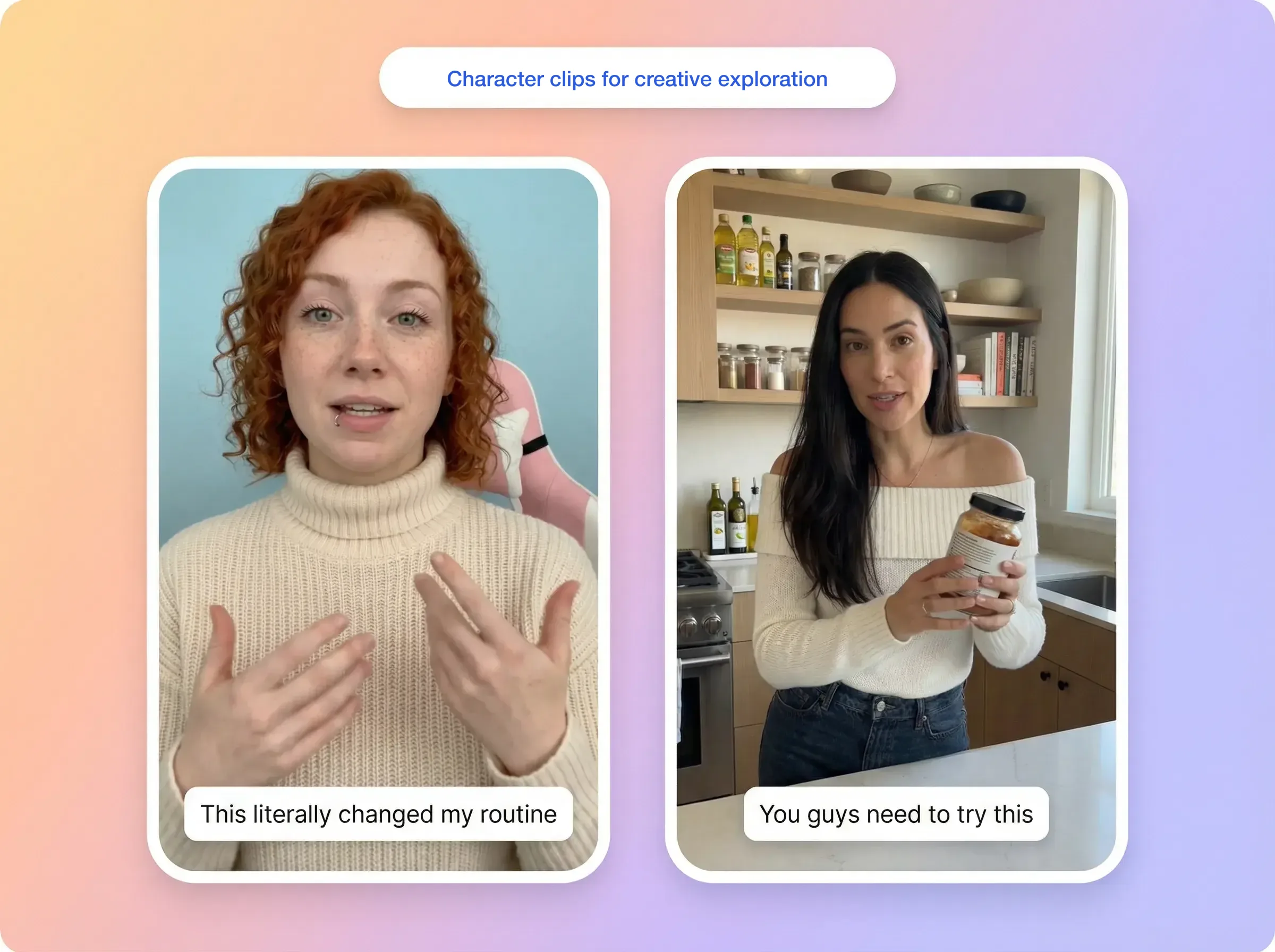
Explore motion-based character clips for editing into ad creatives.
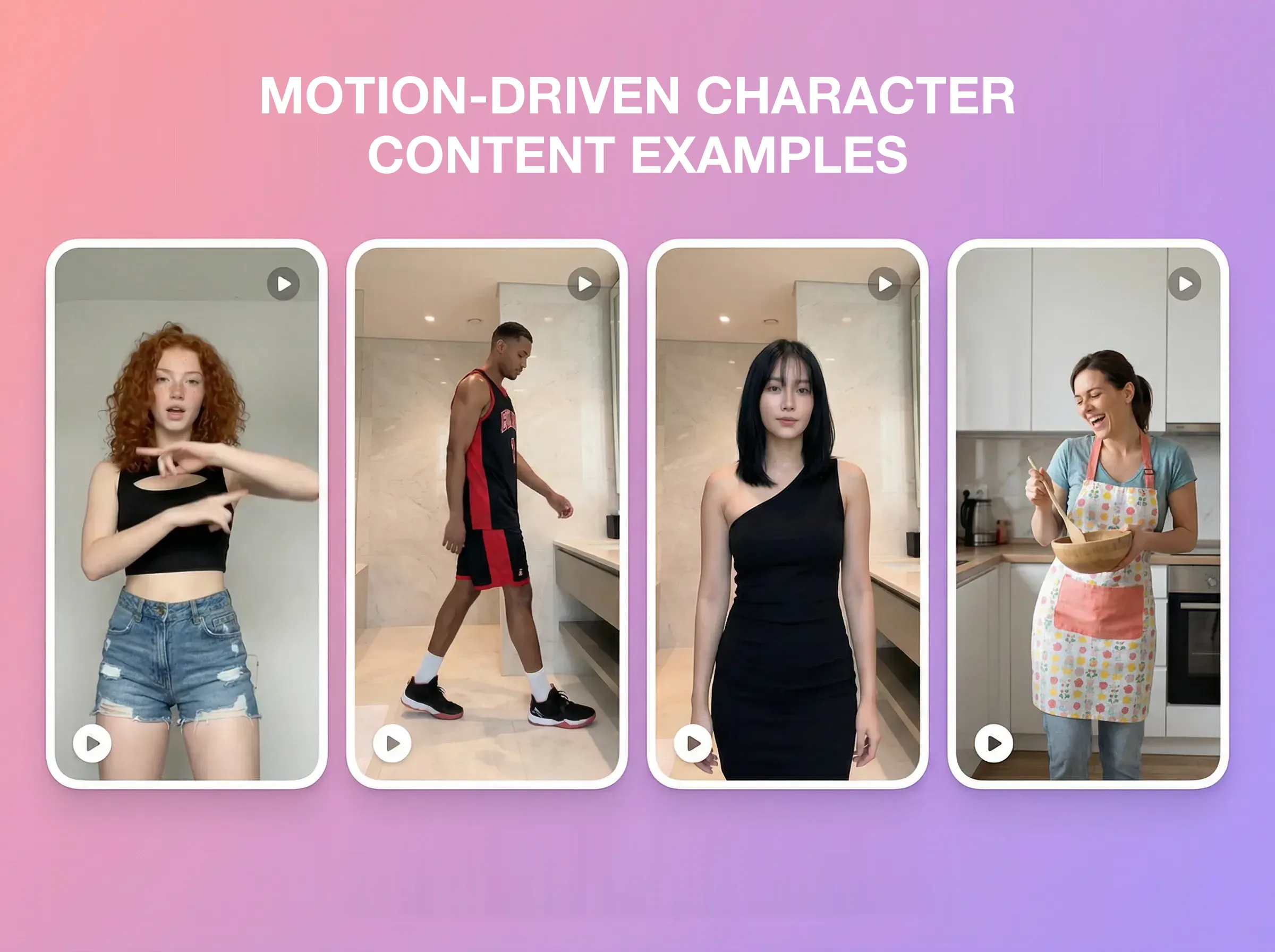
Explore character clips using different motion references.
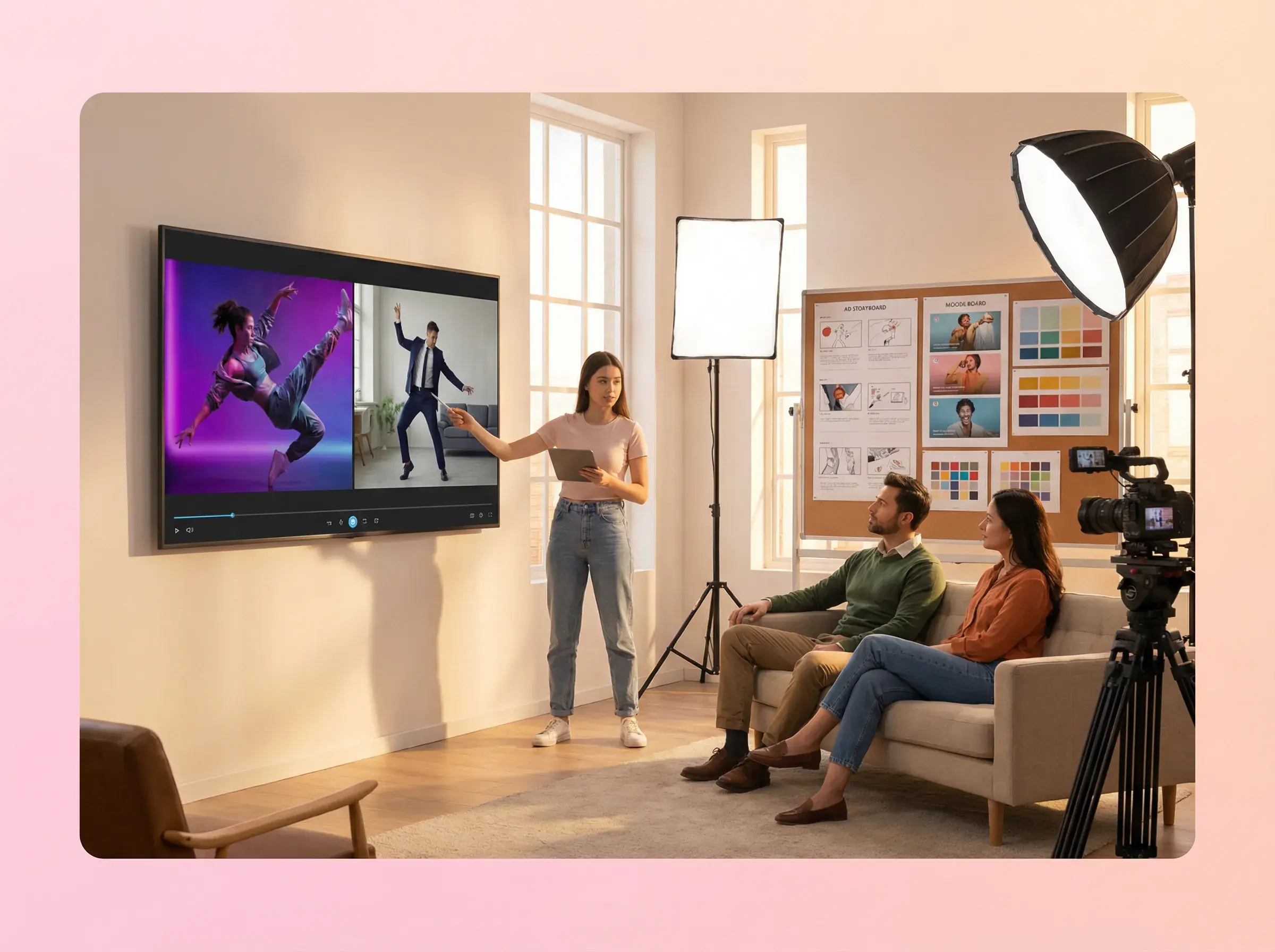
REFERENCE VIDEO + CHARACTER IMAGE
Use one reference motion video and one character image. A clear view of one person’s body and similar framing in both inputs is recommended.
The reference video guides movement while the image defines the character. Generated details may differ, so review the character, hands and motion before use.
Choose a clear, continuous reference with one visible person and limited occlusion. Review fast movement, close-up hands and facial detail carefully.
Use 3–30 seconds with video orientation or 3–10 seconds with image orientation, up to 200MB. These limits apply to the reference upload.
Choose 720p or 1080p in the Motion Control workspace.
Yes. Use the same character image in separate generations with different reference videos. Check character consistency in each result.
Check the current credit estimate in the workspace before generating. As a current example, a 15-second clip costs 315 credits at 720p or 420 credits at 1080p. Credits are refunded if generation fails.
Generation takes about 3–4 minutes on average. Actual completion time varies. Check progress in the workspace.
Yes. The reference video’s original audio is preserved. It cannot be replaced or removed in Motion Control. Need a separate lip-sync workflow for your own audio? Try Lip Sync, a separate AdsTurbo tool.
Yes. Motion Control outputs can be used in commercial content. Use reference videos and character images you have permission to use, and review the result before publishing.
Open the workspace to upload a motion reference and a character image. Choose your settings, then generate and review the result.
 AdsTurbo