Upload a product photo and let AI generate hero banners, lifestyle shots, close-ups, material details, how-to-use visuals, and brand closing images—ready for every marketplace.
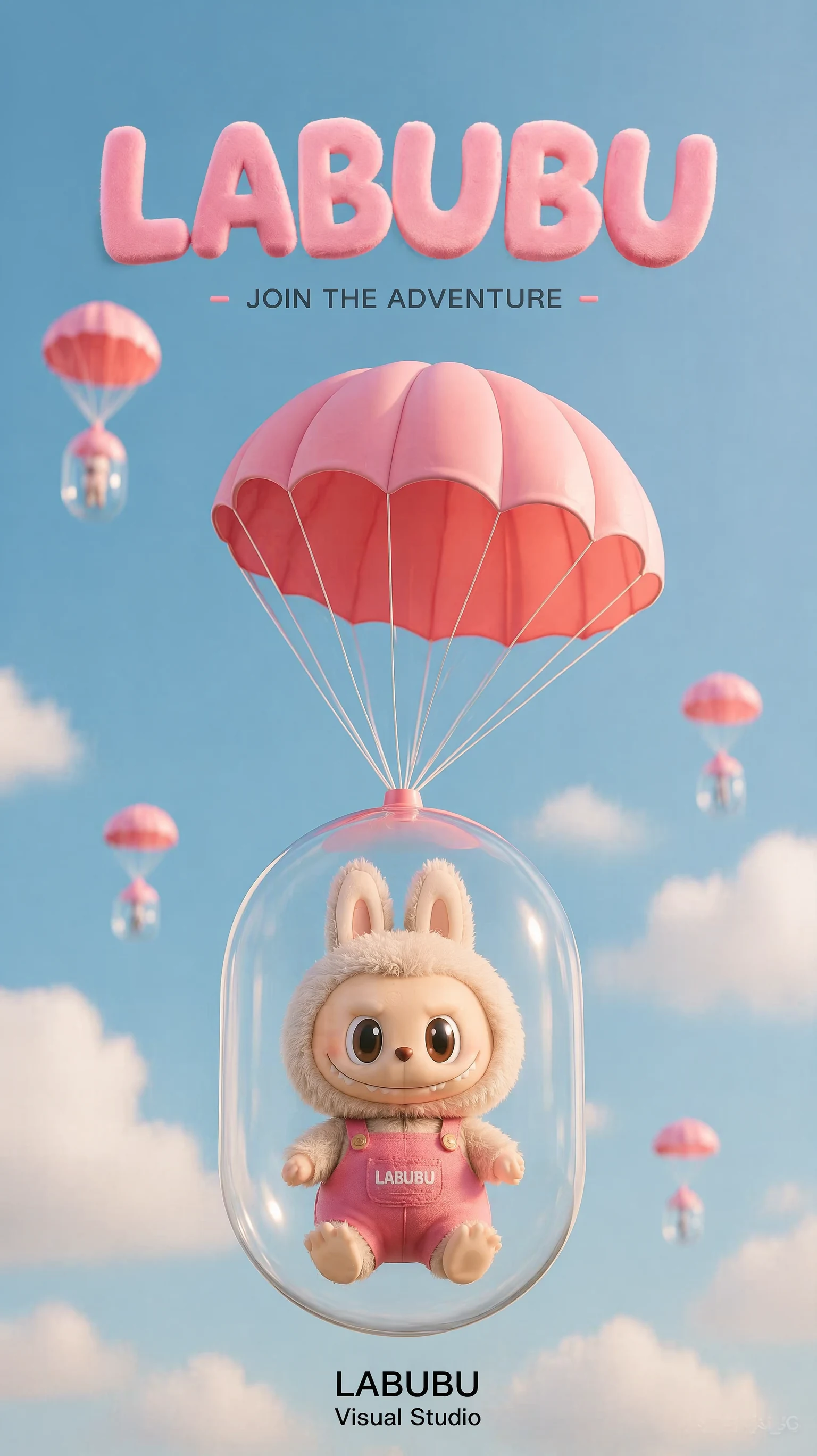
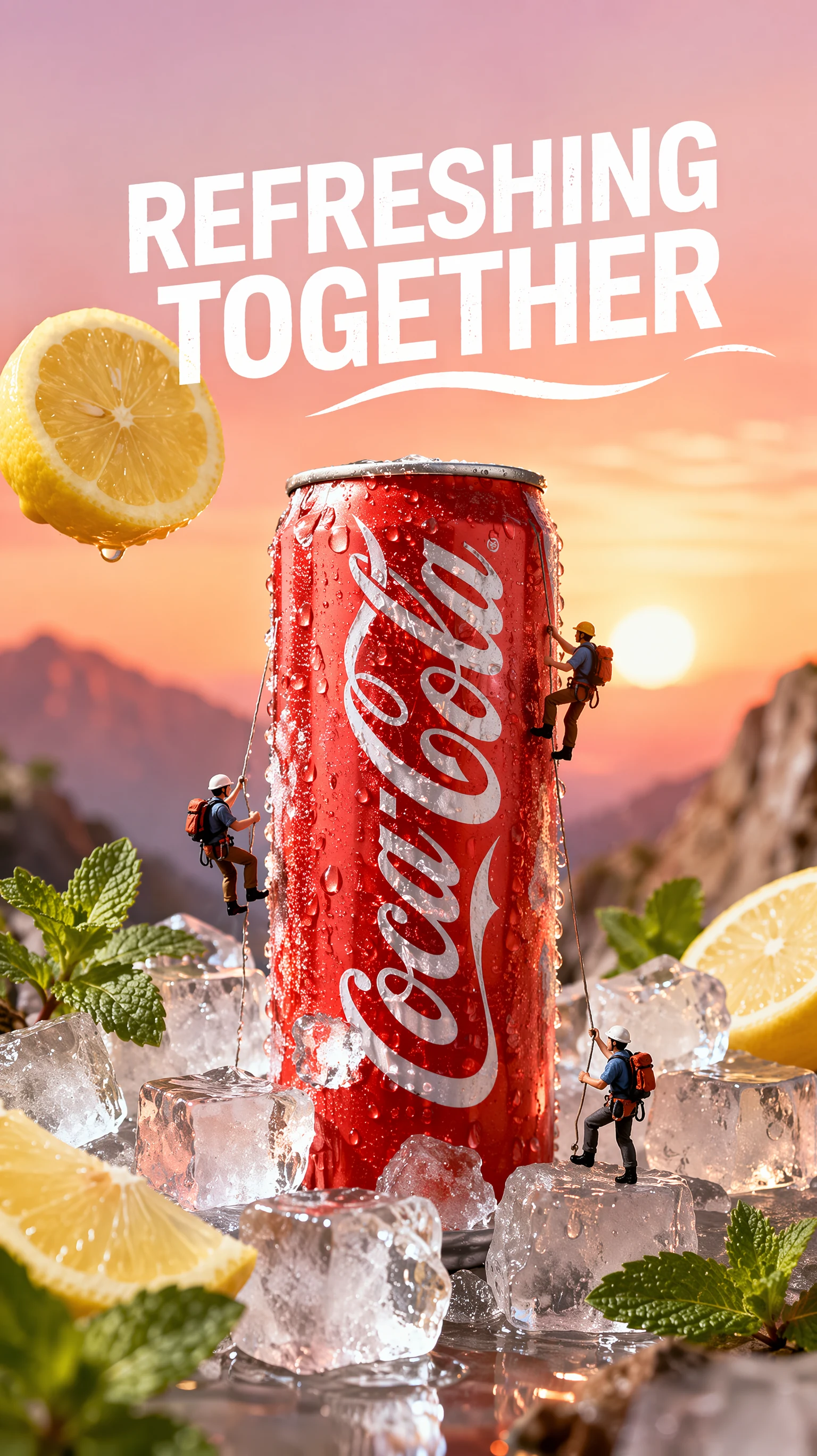
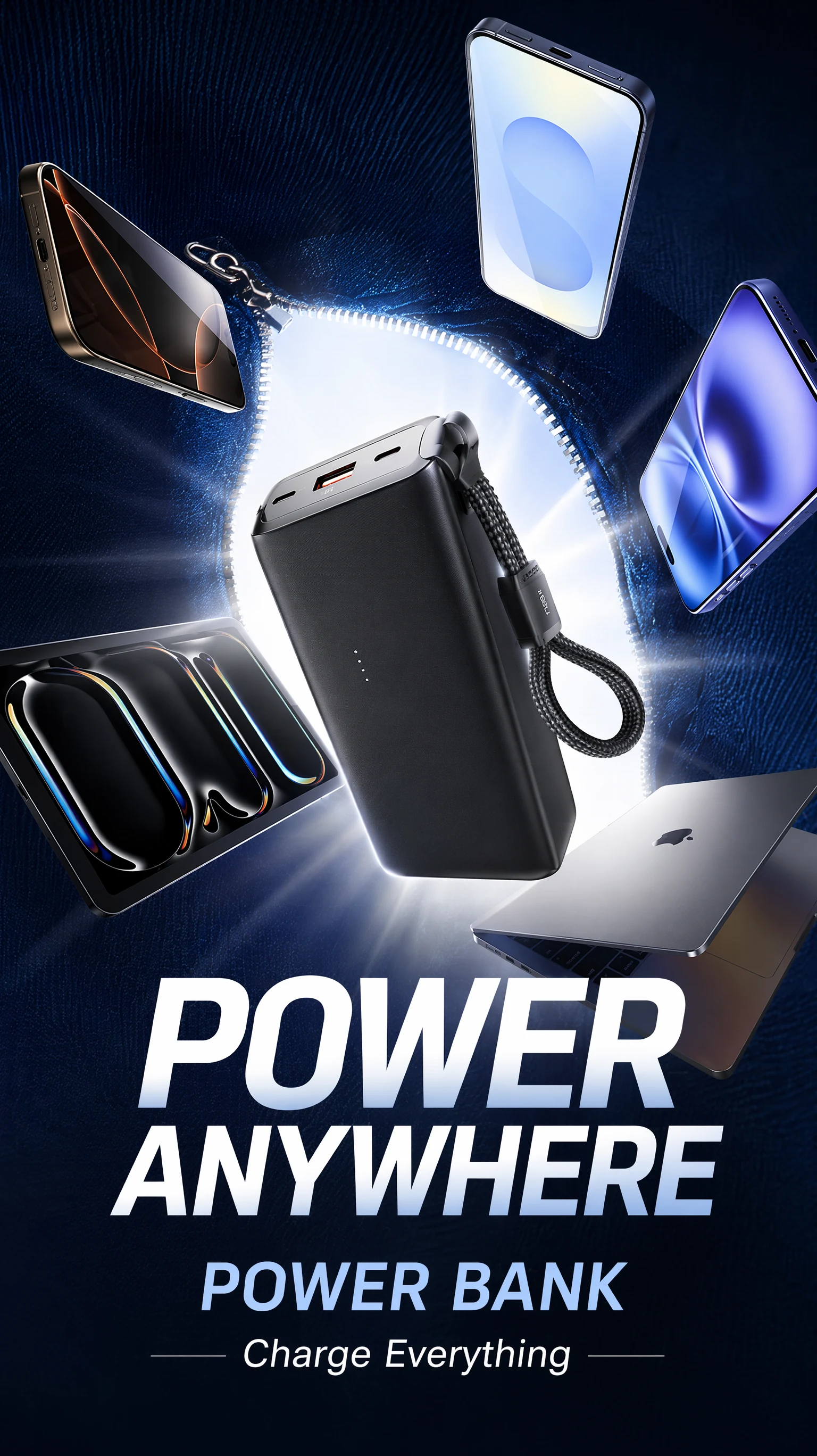
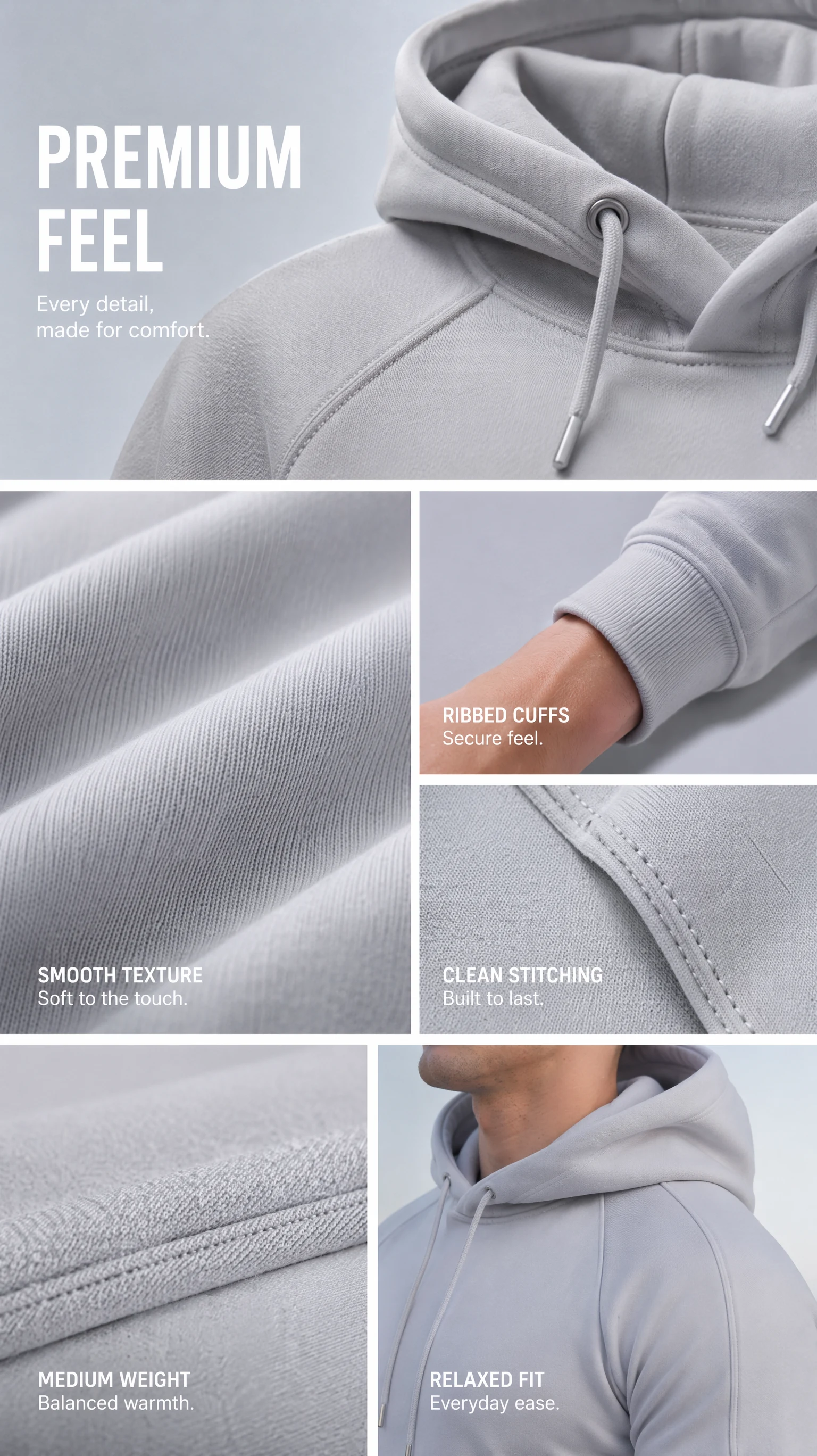
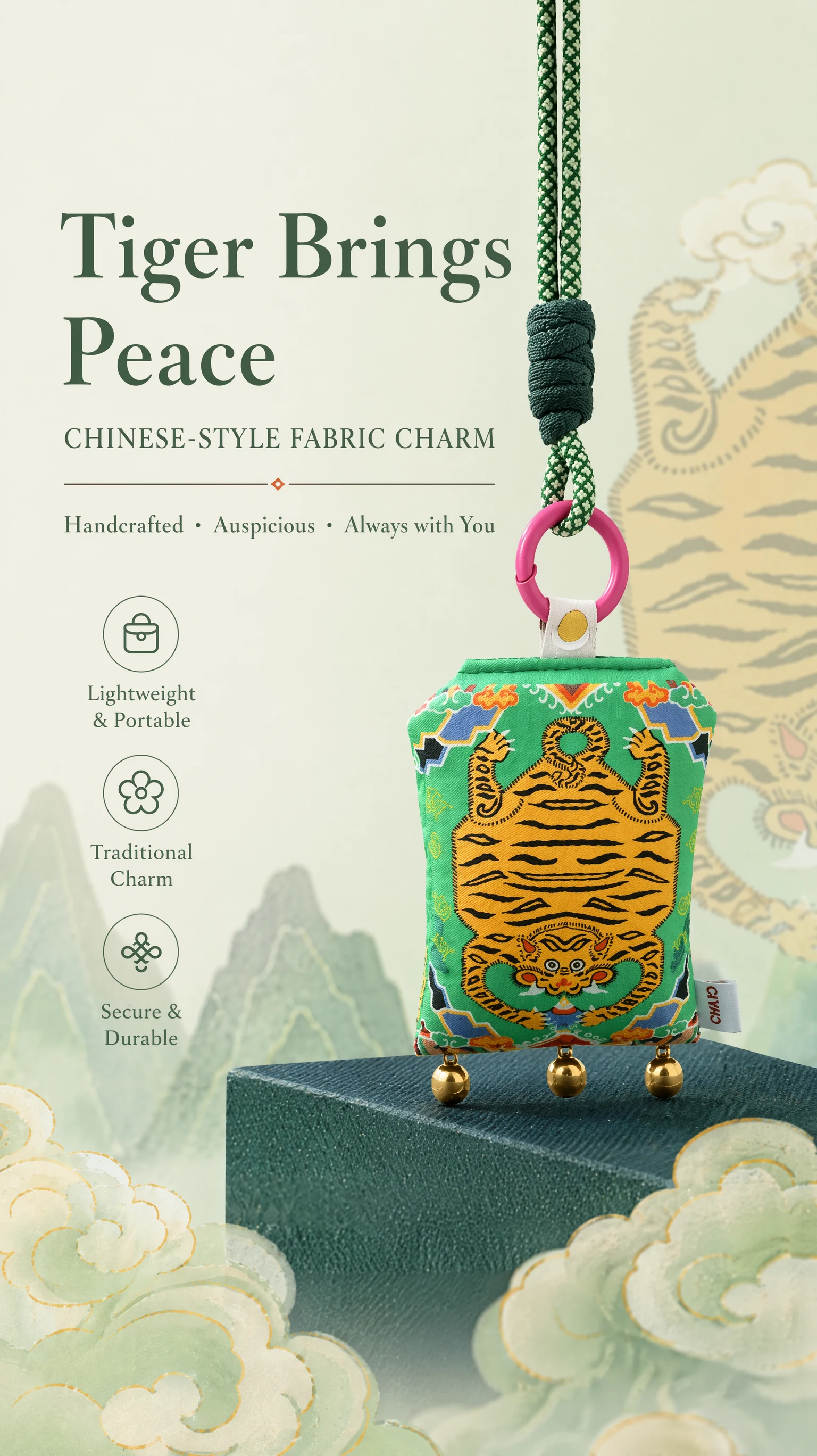
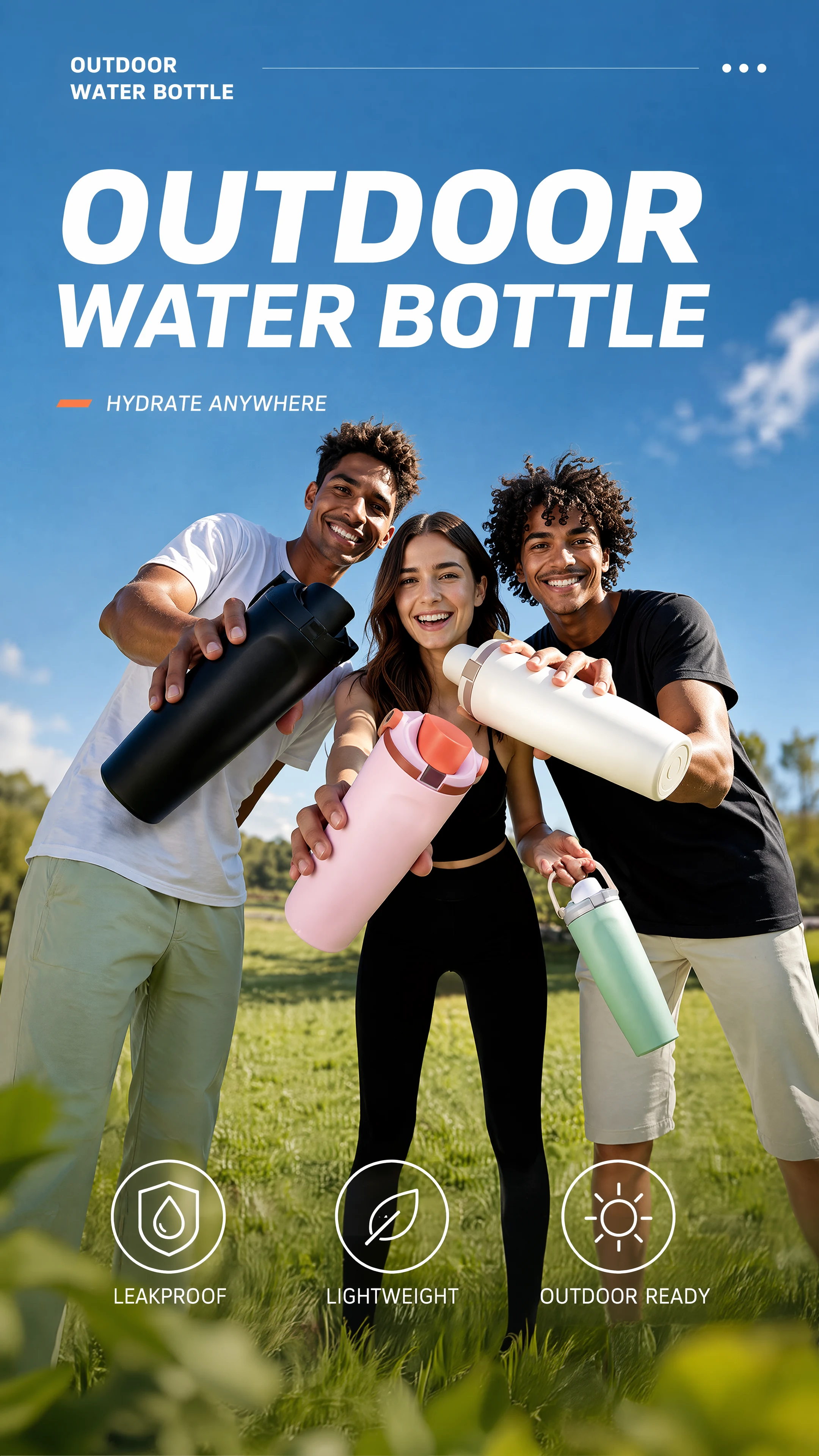
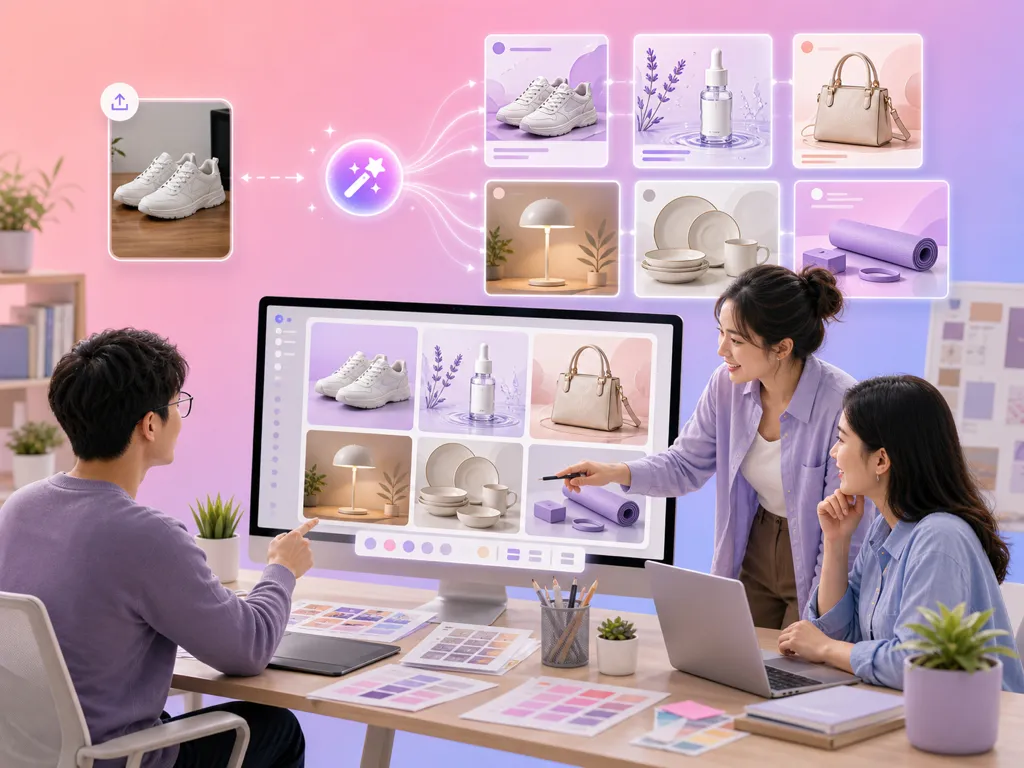
Generate a complete set of e-commerce listing images from a single product photo.
From one photo to a complete listing—every shot covered.
Create attention-grabbing hero images with product placement, background scenes, and marketing copy overlay.
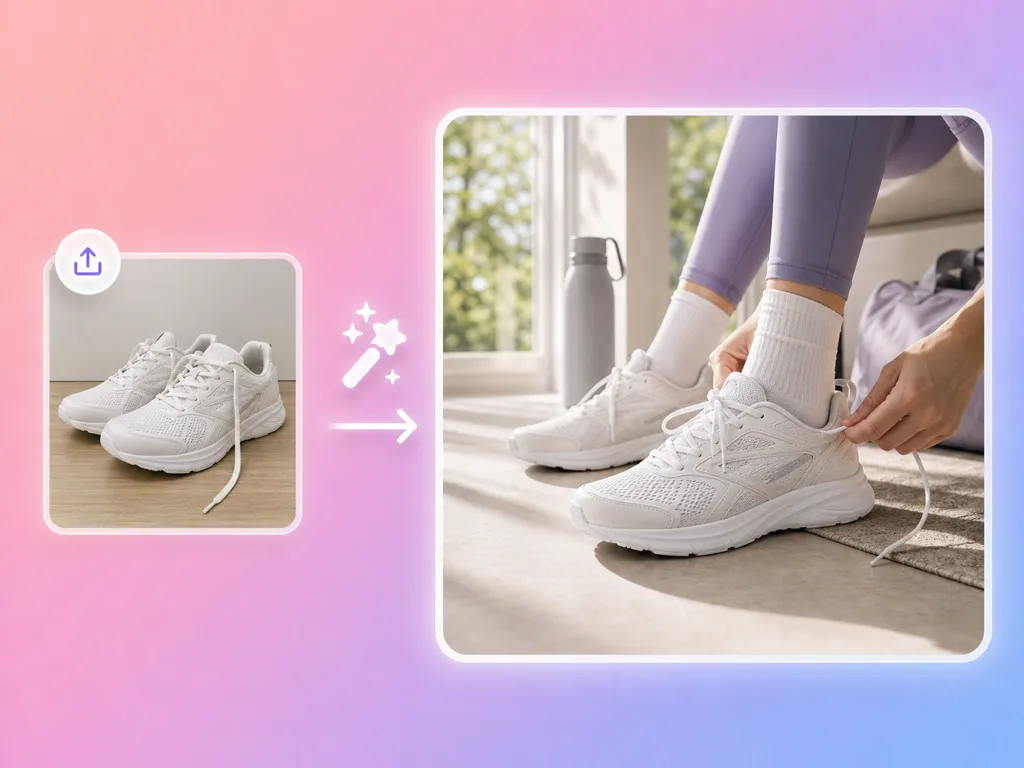
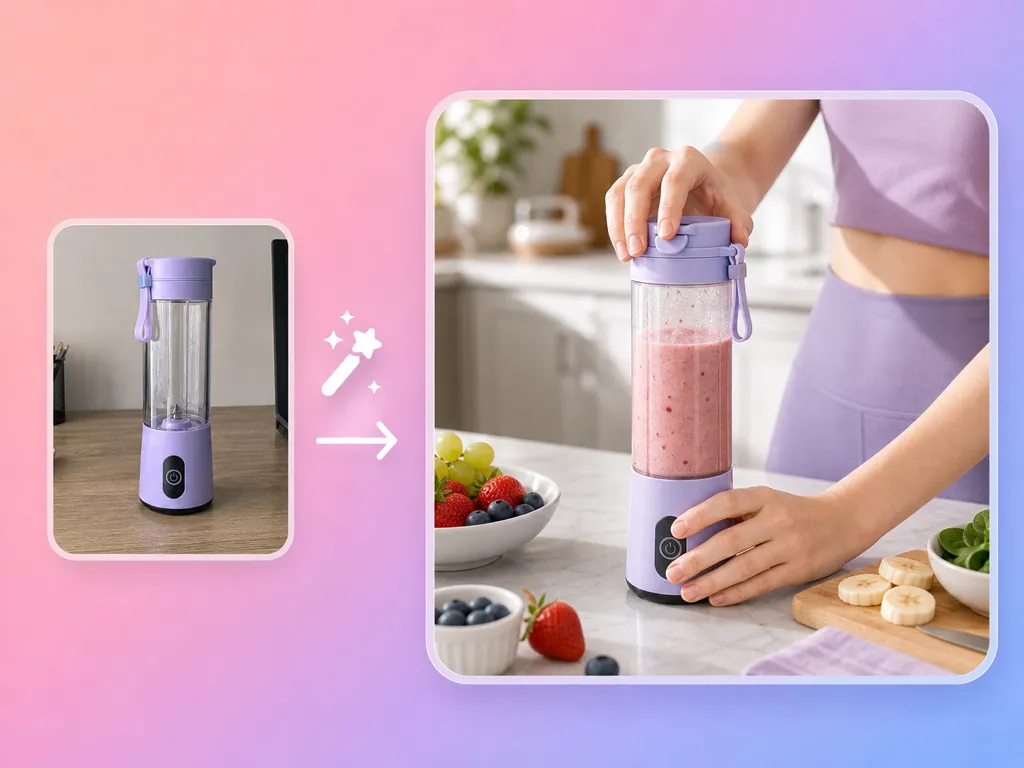
Place your product in realistic lifestyle environments—kitchens, offices, outdoors—to show real-world use.
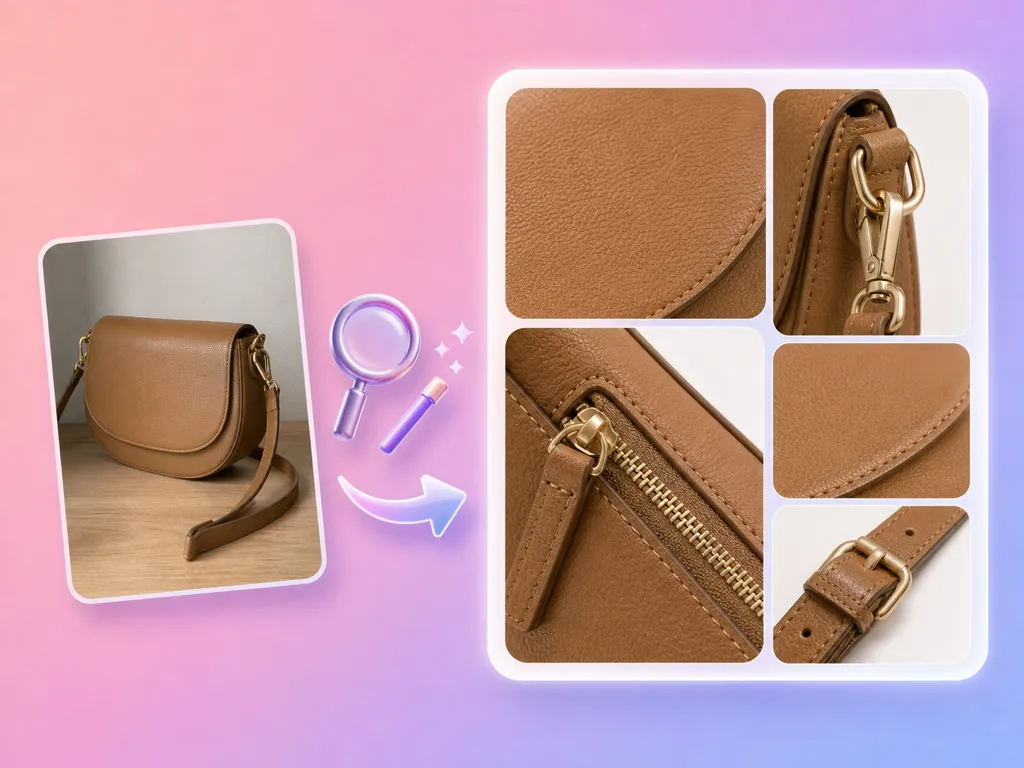
Generate magnified views highlighting texture, stitching, material quality, and fine craftsmanship.
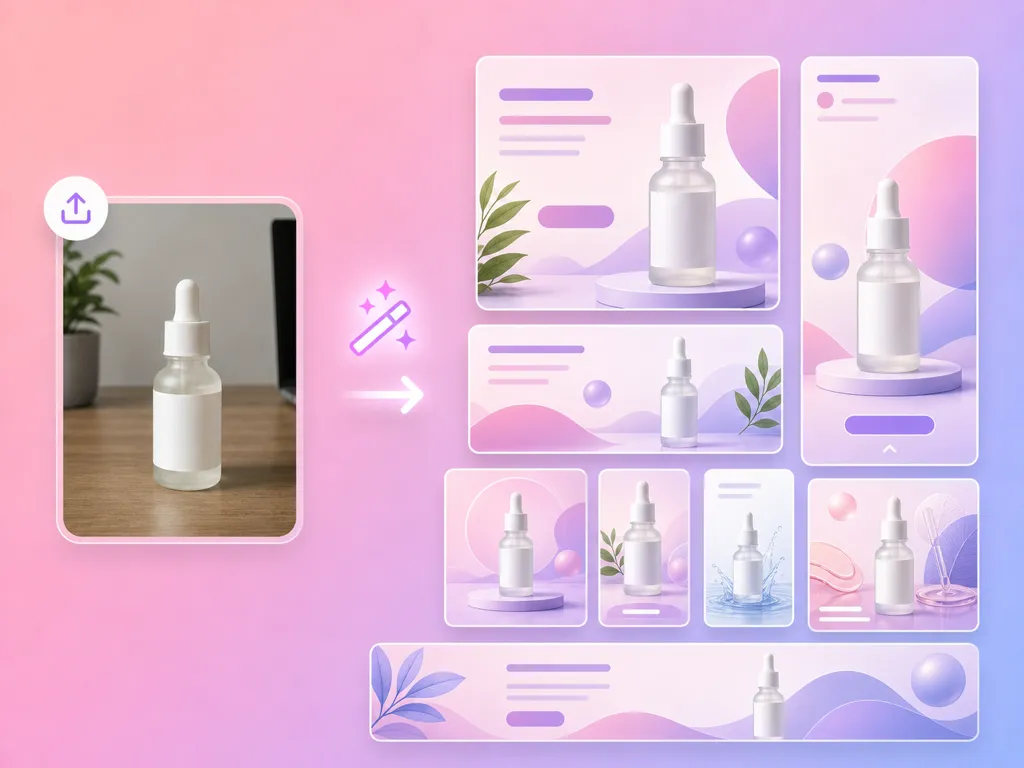
Output images sized for Amazon, Shopify, TikTok Shop, Instagram, and more—no manual resizing needed.
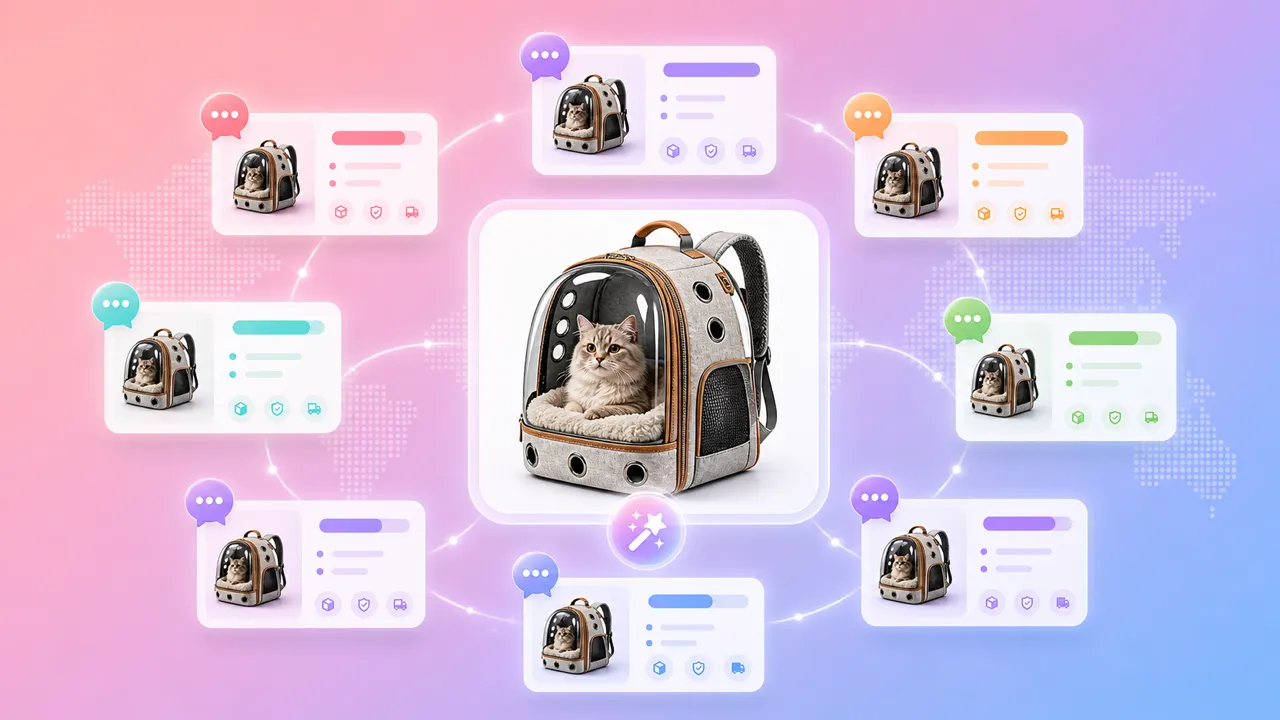
Generate listing images with localized text for English, Chinese, Japanese, Korean, and more markets.
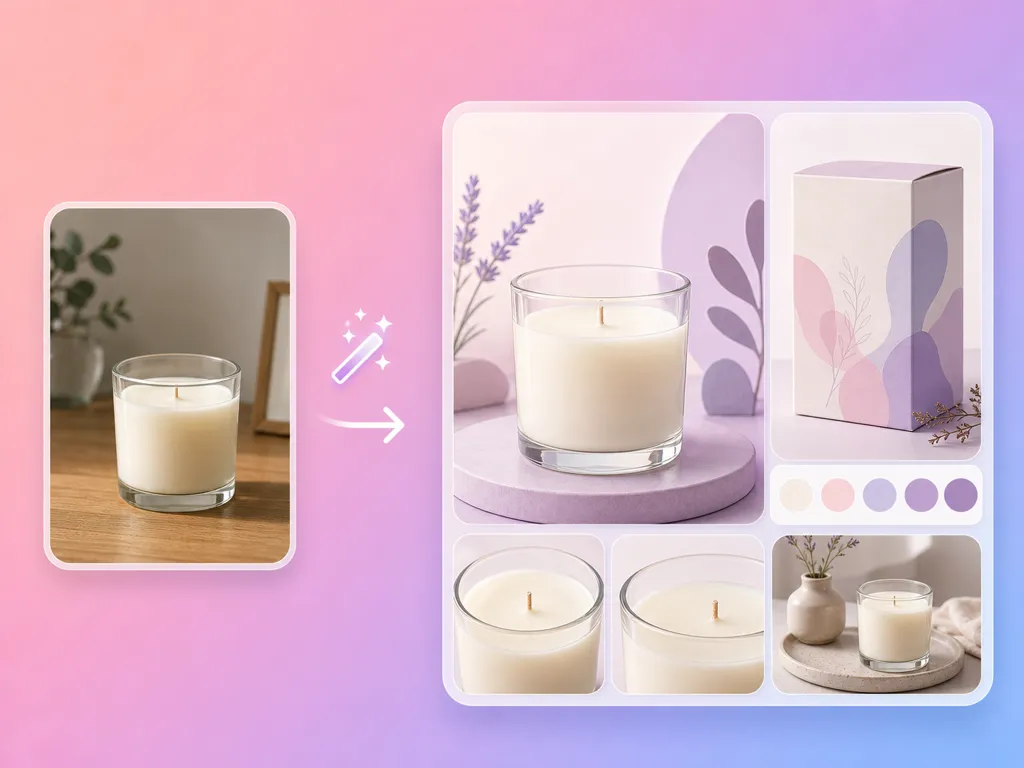
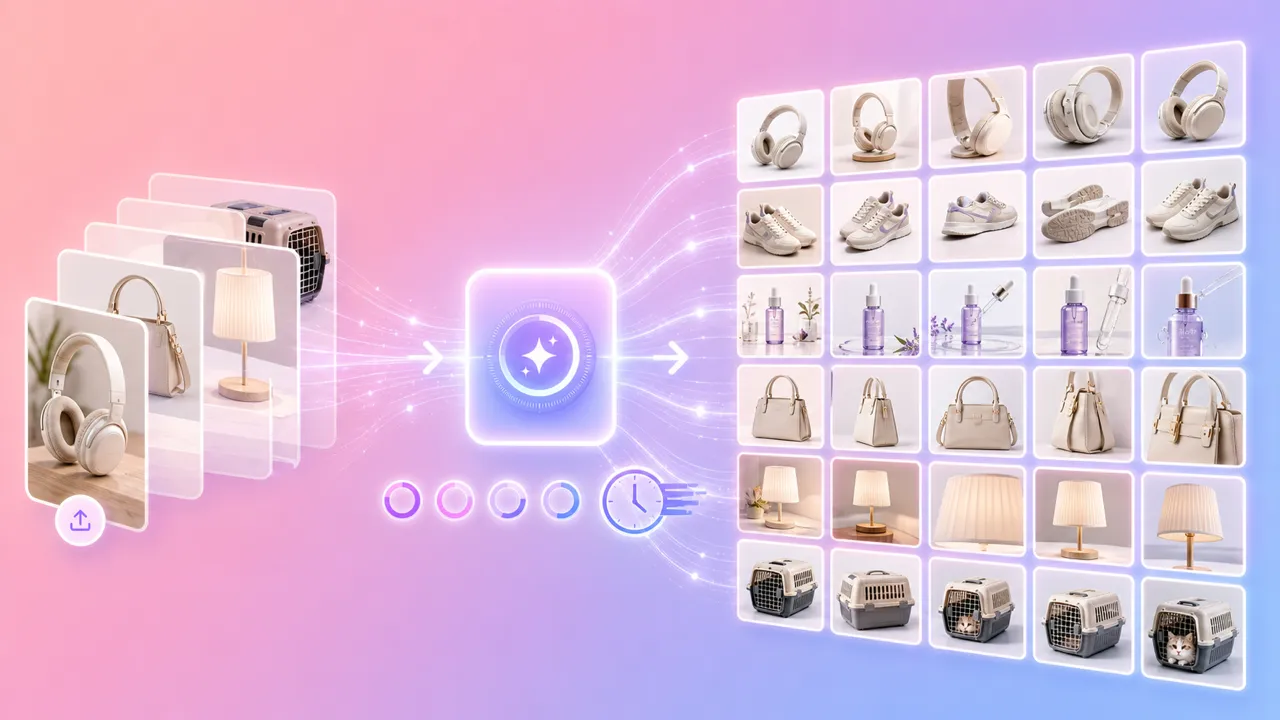
Select from hero, close-up, lifestyle, material, how-to-use, and brand closing—generate all at once.
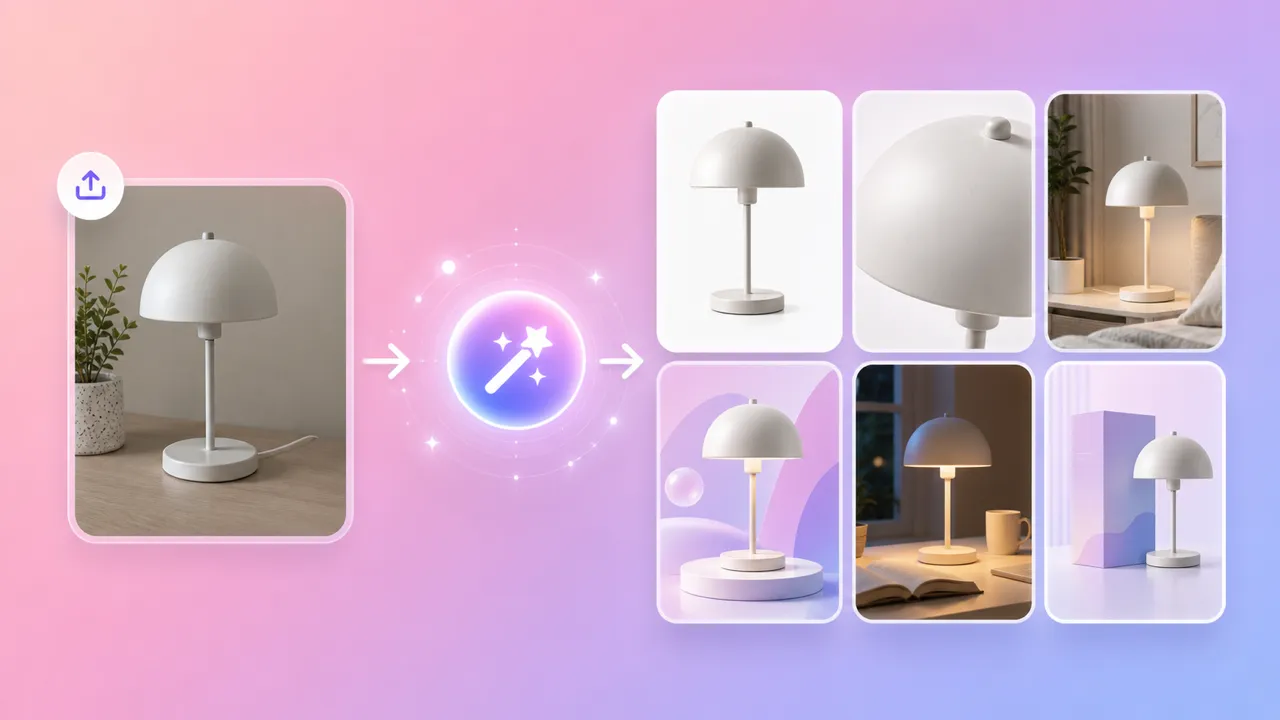
One photo, full set
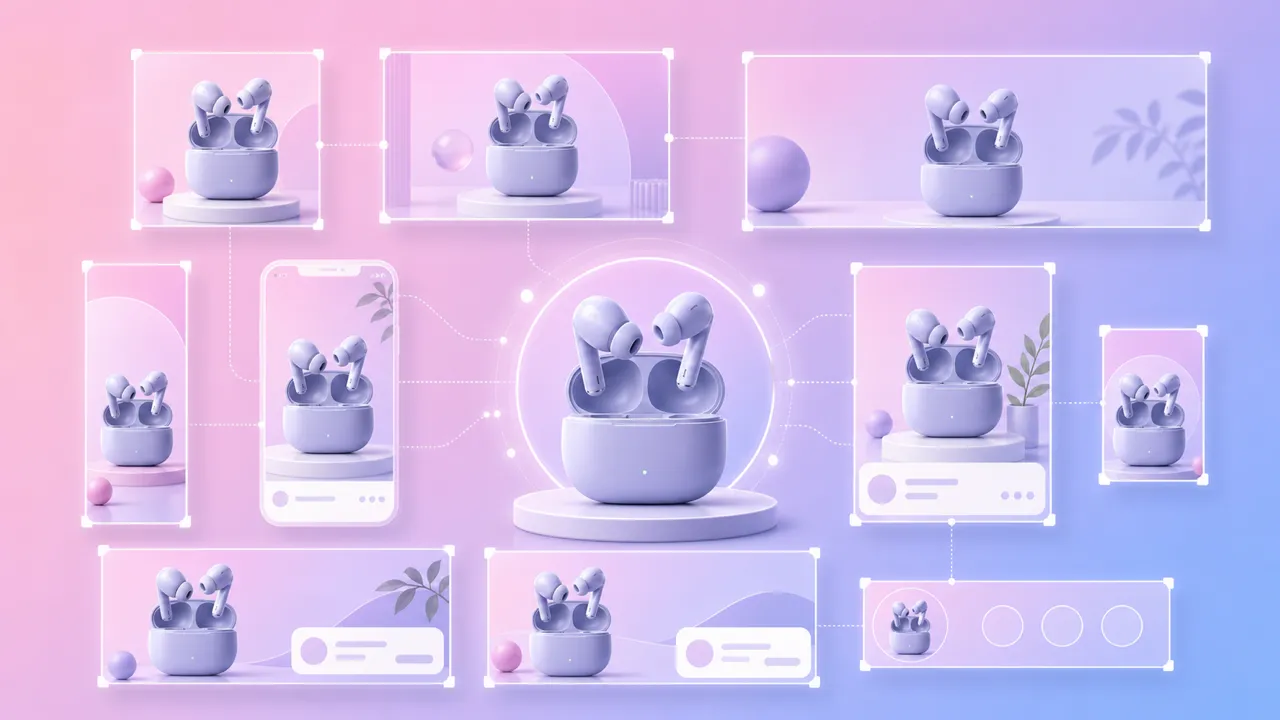
Platform-ready output
Conversion-driven design
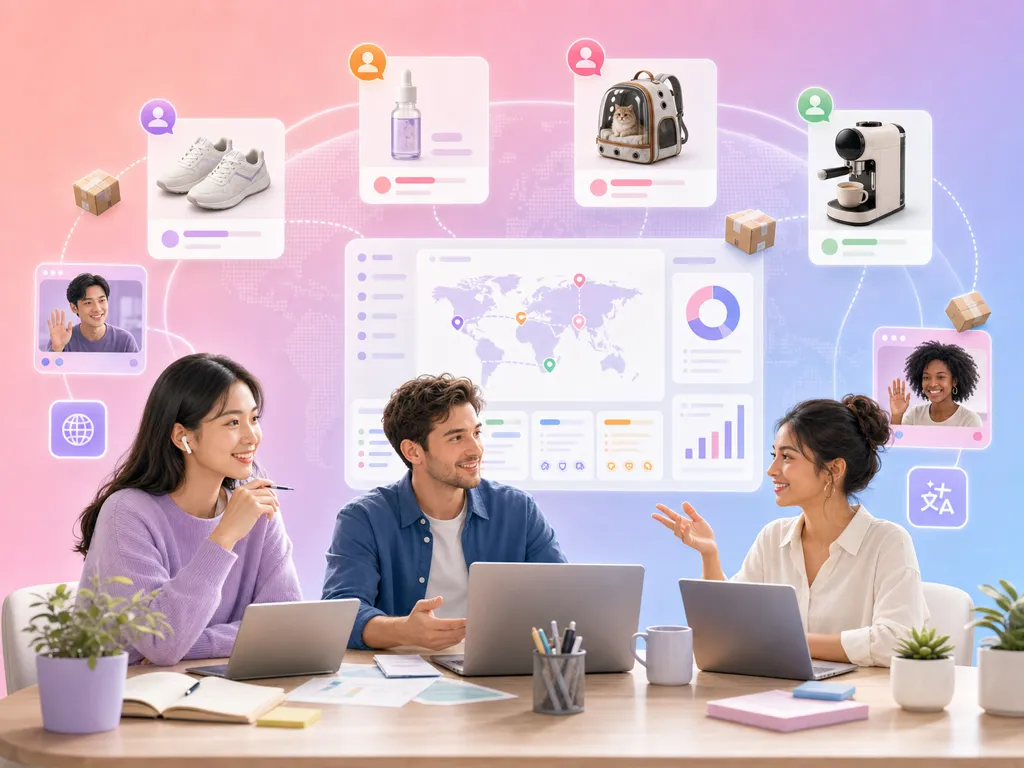
Scale across markets
Speed + consistency + cost
Product Image is built for sellers who need listing-ready visuals fast—without a studio or design team.
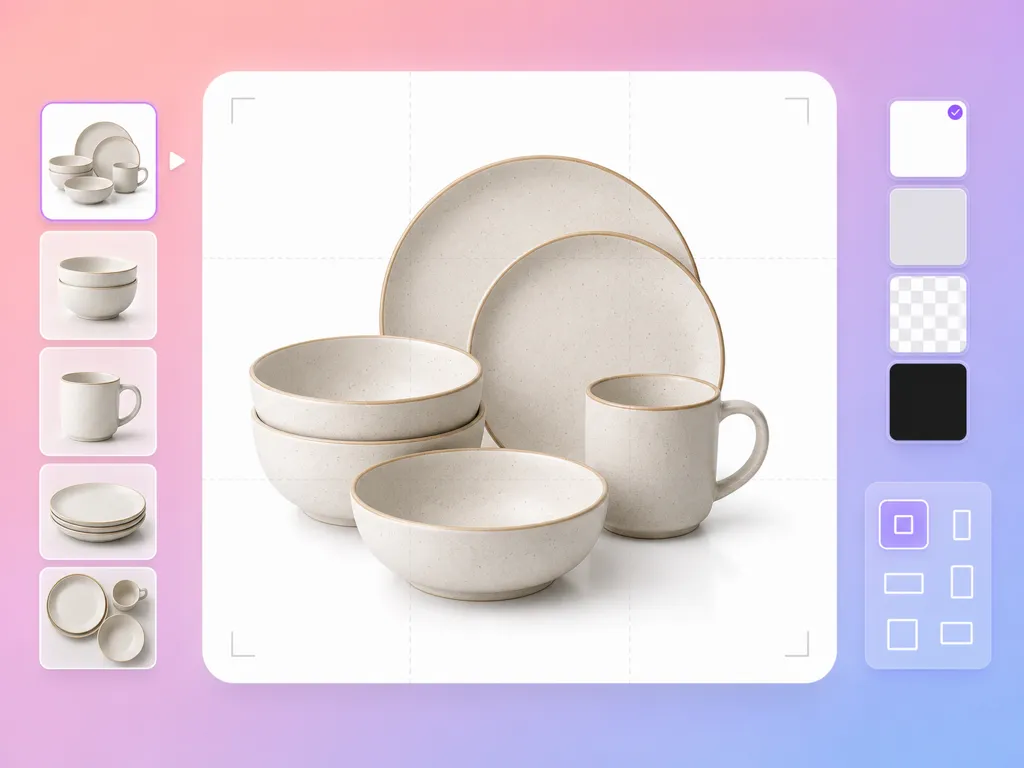
Eye-catching main listing images with product placement, benefit callouts, and marketing-ready compositions.
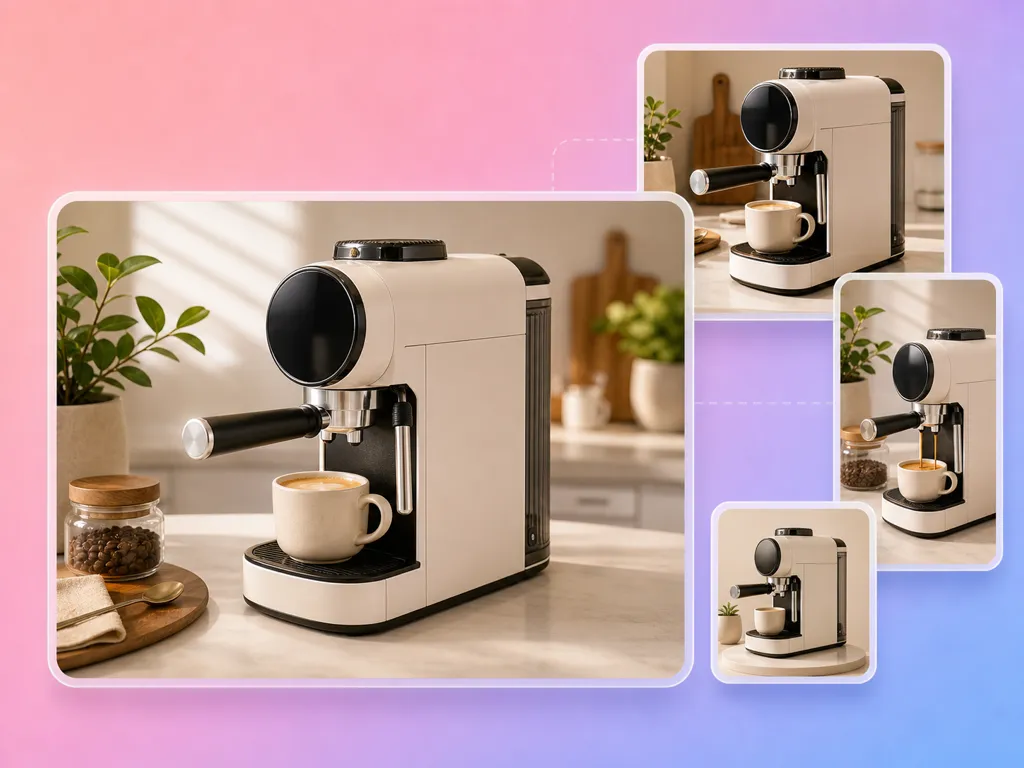
Products placed in realistic environments that help shoppers visualize real-world use and build emotional connection.
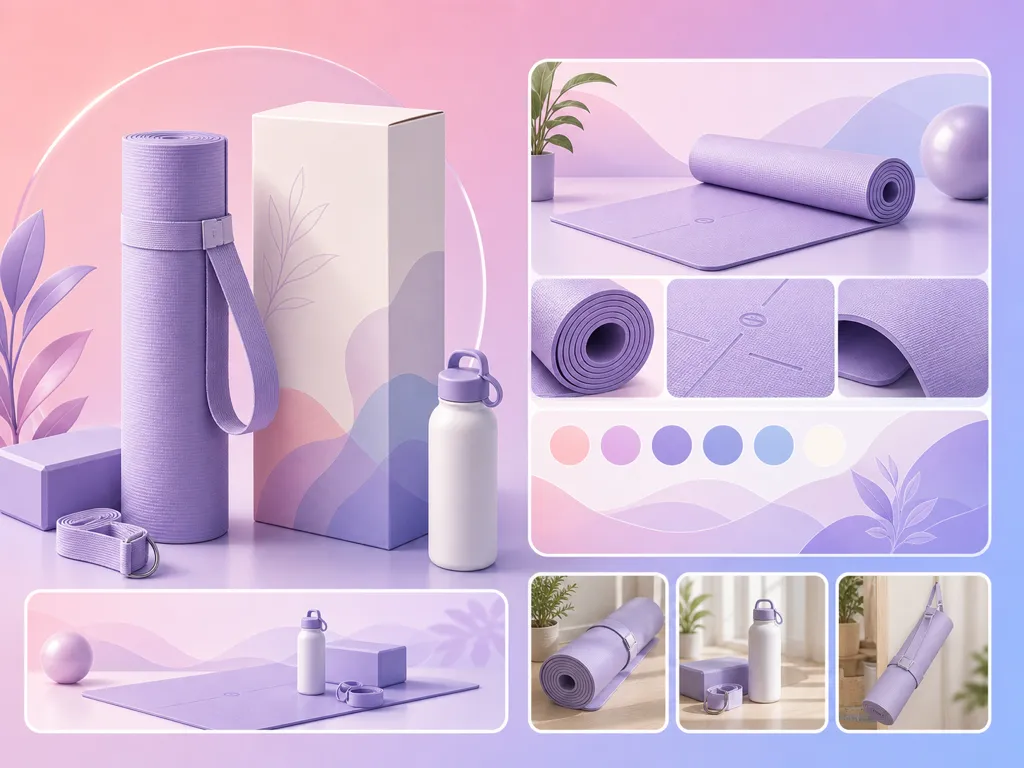
Close-up views showcasing texture, build quality, and craftsmanship to establish product credibility.
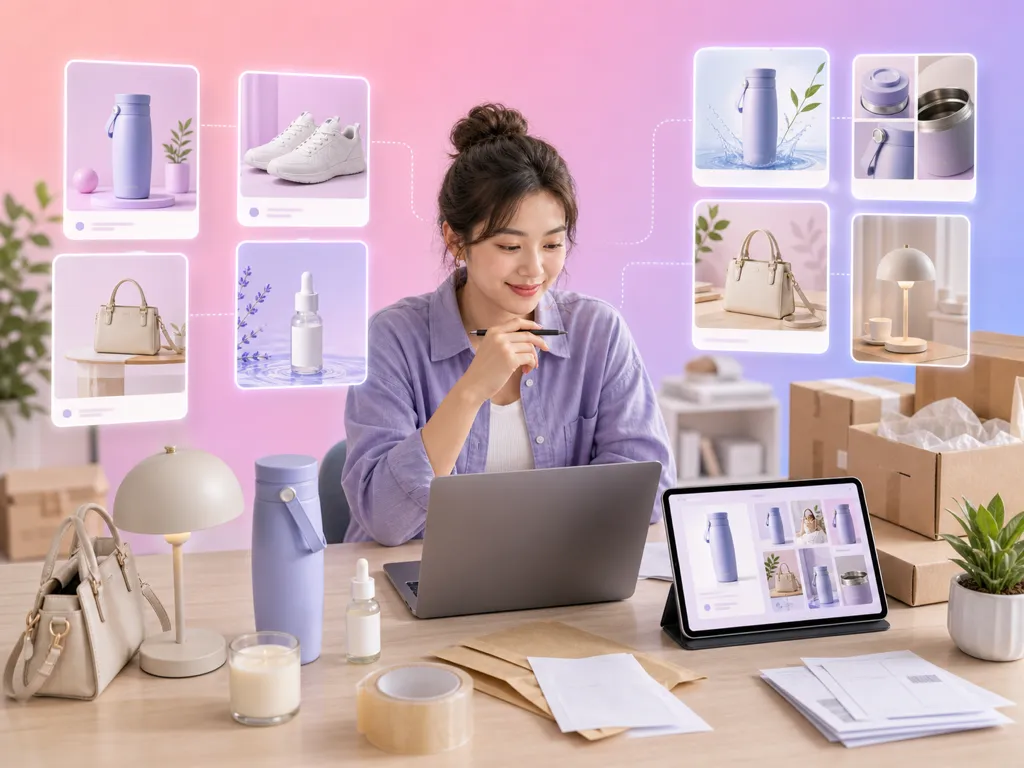
PRODUCT IMAGE
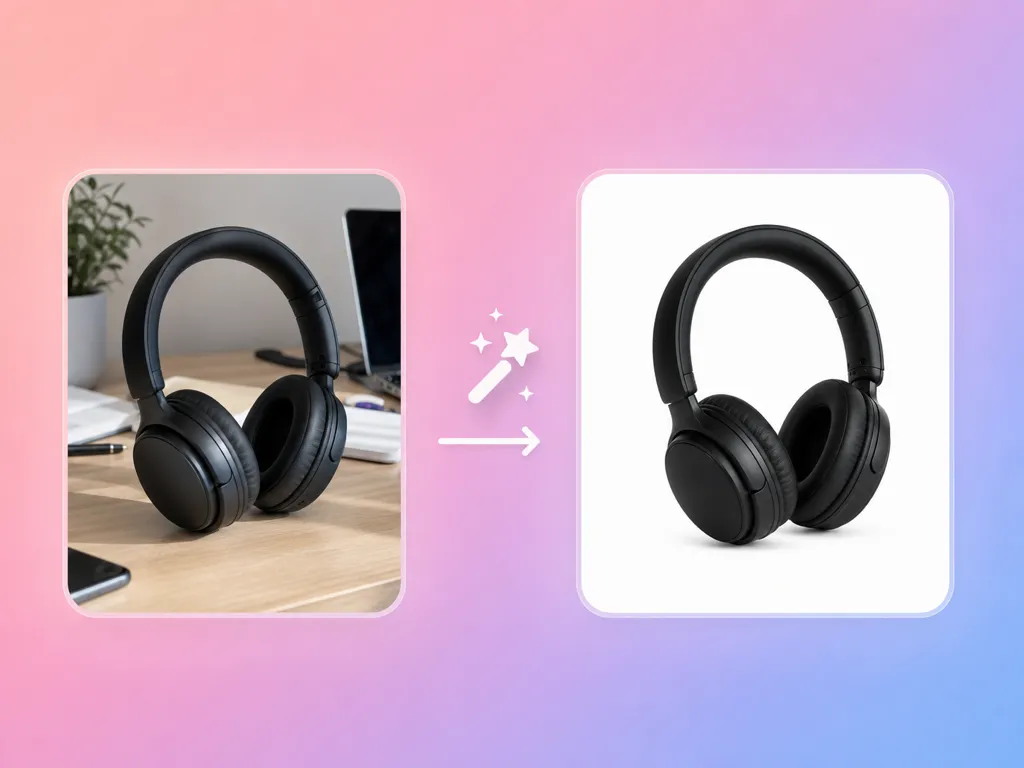
Any clear product image works—JPG or PNG. A clean shot on a plain background gives the best results, but AI can handle most product photos.
Hero banners, close-ups, lifestyle scenes, material/texture shots, how-to-use visuals, and brand closing images—up to 6 types per batch.
Yes—select from 9 aspect ratios designed for Amazon, Shopify, TikTok Shop, Instagram, and other platforms.
Yes—generate text overlays in 7 languages so your listing images are ready for each target market.
Yes—upload each product photo and generate a full image set. Batch workflows help you scale across hundreds of SKUs.
Hero banners, lifestyle shots, close-ups, material details, and more—sized for every platform and localized for every market.
 AdsTurbo