Upload one photo as the first frame, or two photos as the first and last frames. Pick a model such as Kling, Veo or Seedance, describe the motion and camera move, and AdsTurbo turns it into a video you can use in ads.
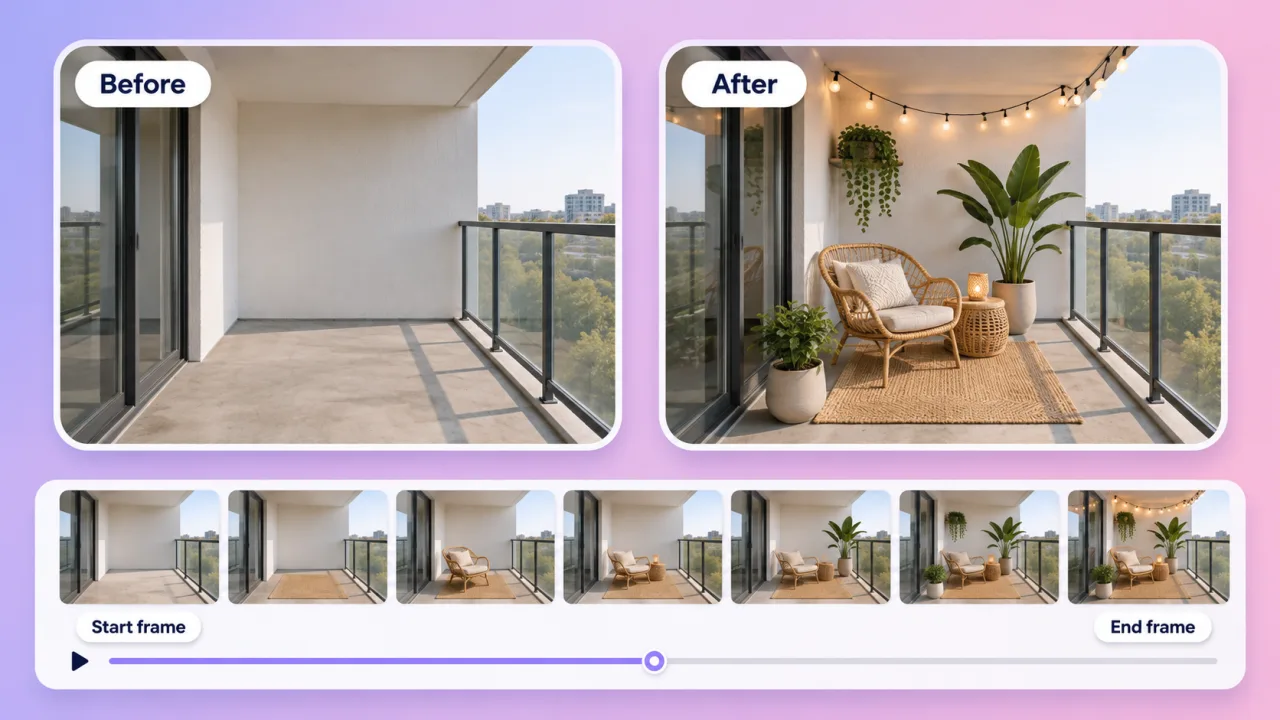
Demo preview. Open the workspace to upload your frames and generate a video.
Image to Video turns a still photo into a short video: the photo becomes the first frame, and the AI animates it from your motion prompt with the video model you choose.
It animates a photo. The model starts from your image and generates movement, camera motion and, on supported models, sound, so a still product shot or portrait becomes a video clip.
One image as the start frame, or two images as the start and end frames. Upload from your device or pick from your asset library, then add a short prompt that describes the motion.
A video in the length, quality and aspect ratio you choose. Depending on the model, that is up to 30 seconds, up to 4K and with or without native audio.
It does not edit an existing video, and an end frame on its own is not enough: every task needs a start frame.
Photo to video in three steps in the AdsTurbo workspace.
In the Studio video mode, switch to Start/End Frames and upload one photo as the start frame. To control where the video ends, add a second photo as the end frame. You can also pick images from your asset library.
Pick one of the video models that support frames, such as Kling, Veo, Seedance, MiniMax or Wan. Choose the length, quality and aspect ratio, then describe what should move and how the camera should travel.
Sign in and start the task. Video generation uses credits, which vary by model, length and quality. When the video is ready, review it and download it for your ads or social posts.
Each generation is a separate task. If the motion is not right, adjust the prompt or try another model and generate again.
One photo or two frames in, a video out, with the model and settings you pick.
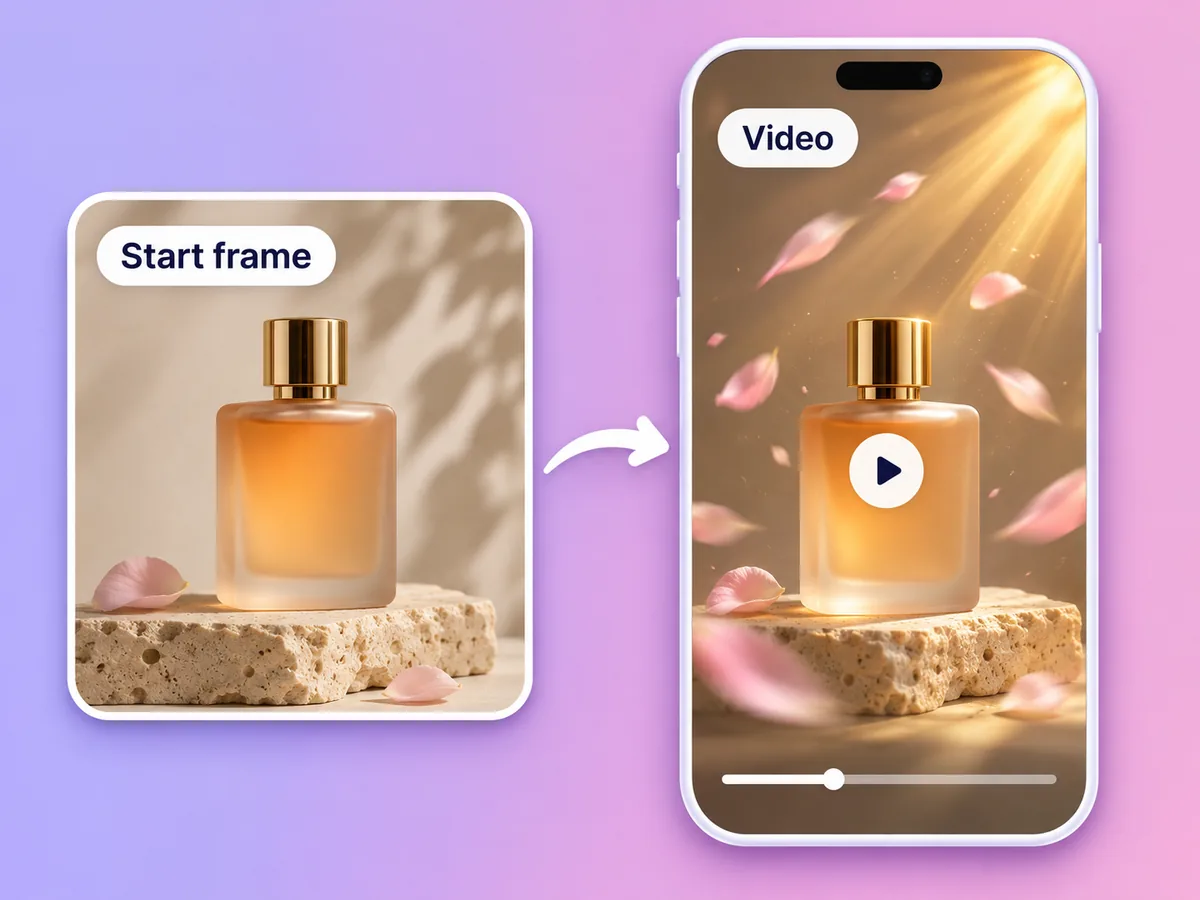
Upload one image as the start frame and describe the motion. The model keeps your photo as the opening shot and brings it to life.
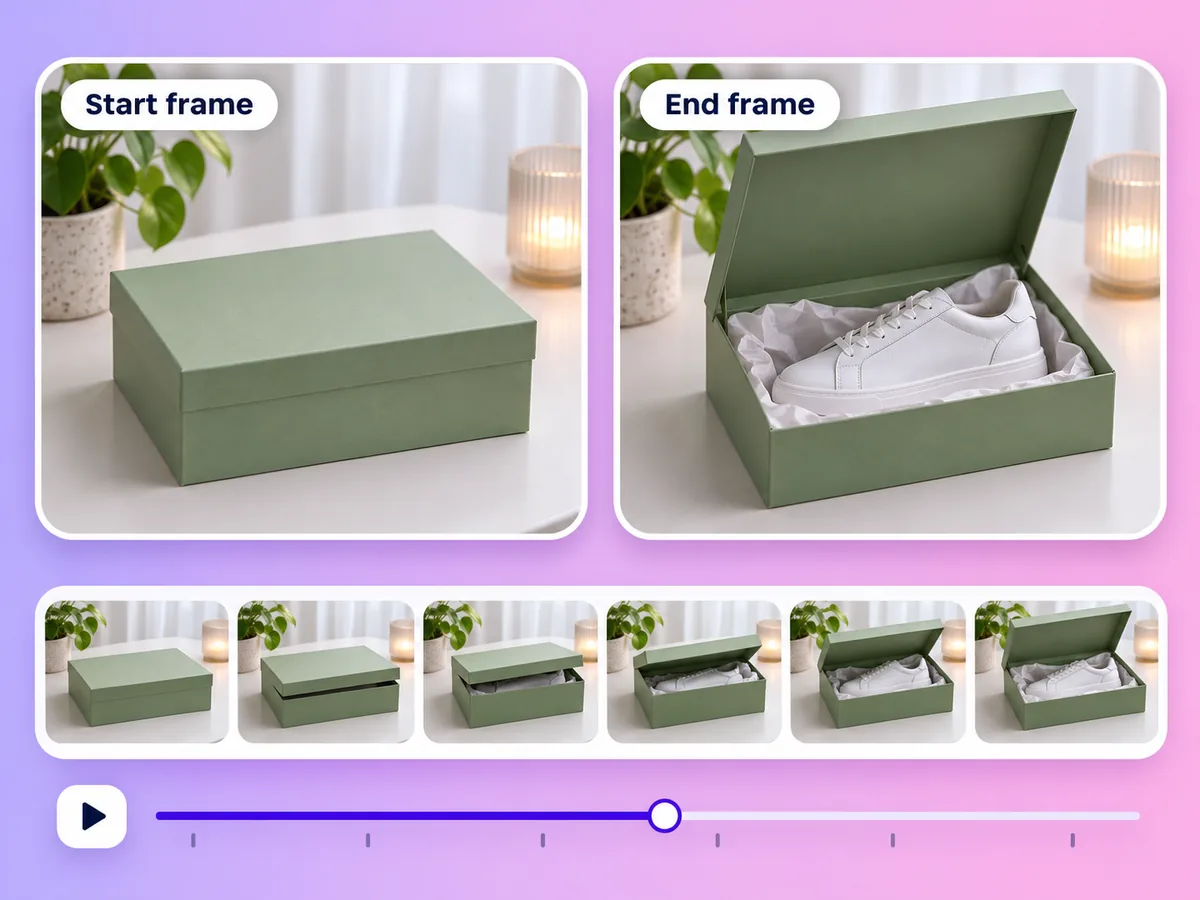
Add a second image as the end frame and the model generates the transition between them, useful for before-and-after shots and reveals.
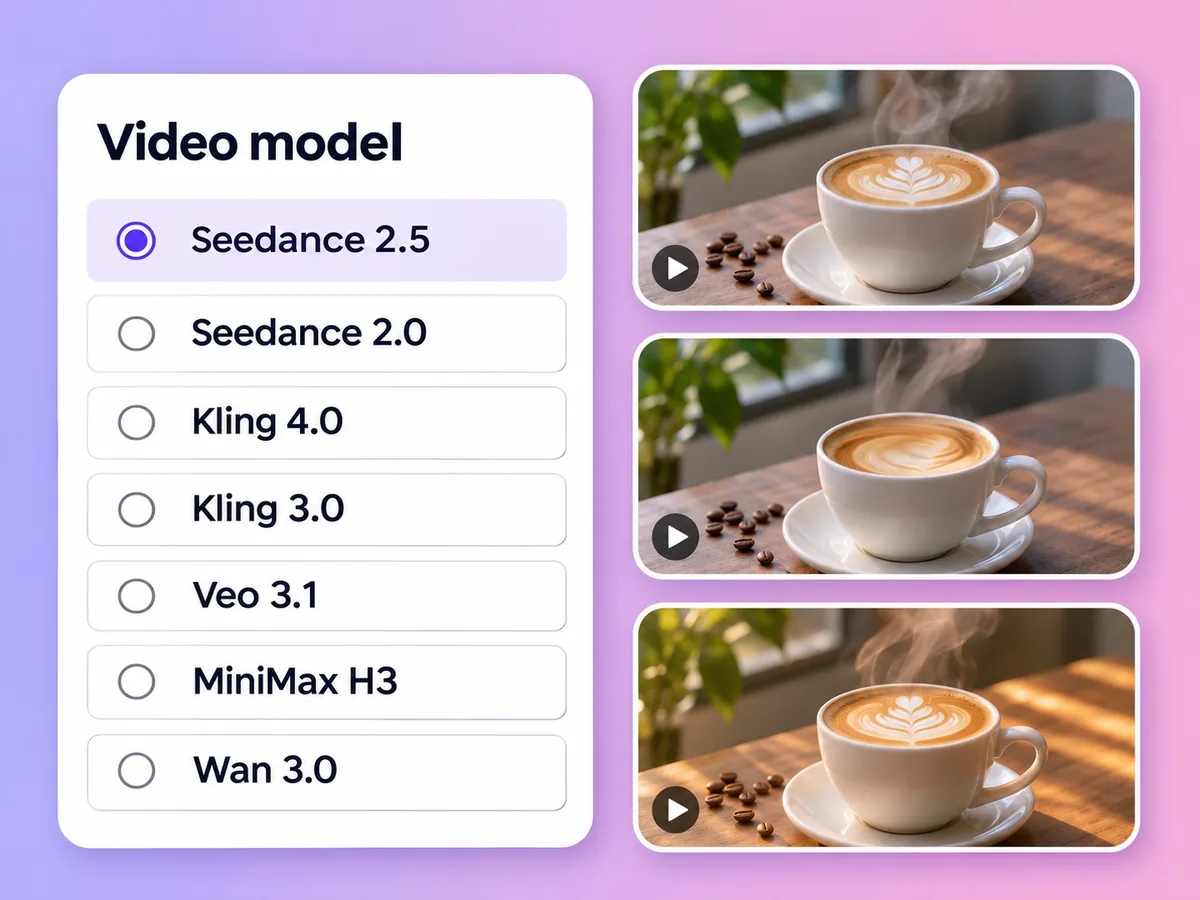
Kling 4.0, Kling 3.0, Veo 3.1, Seedance 2.5, Seedance 2.0, MiniMax H3 and Wan 3.0 all accept image frames, so you can compare looks without leaving the workspace.
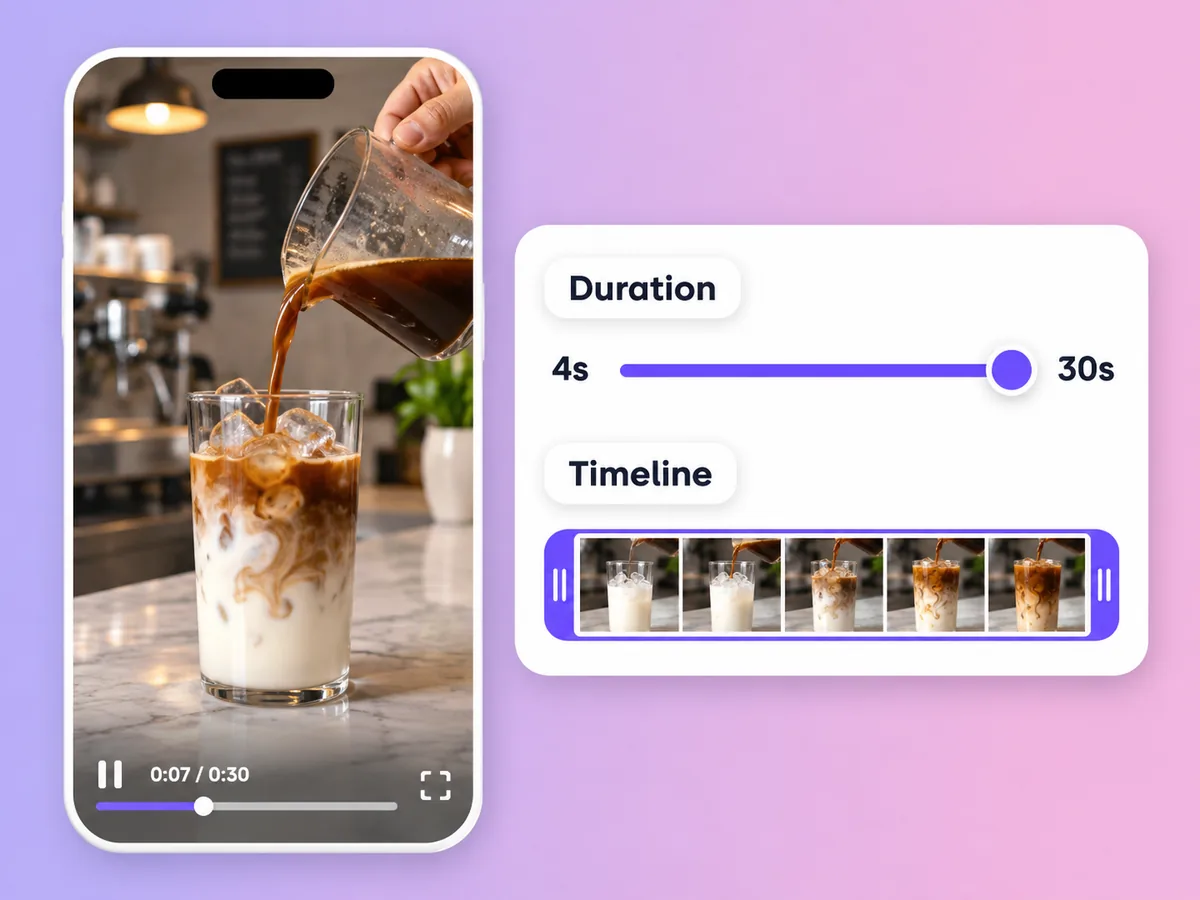
Seedance 2.5, Kling 4.0 and Wan 3.0 go up to 30 seconds per clip. Other models offer shorter lengths, from a few seconds up to 15.
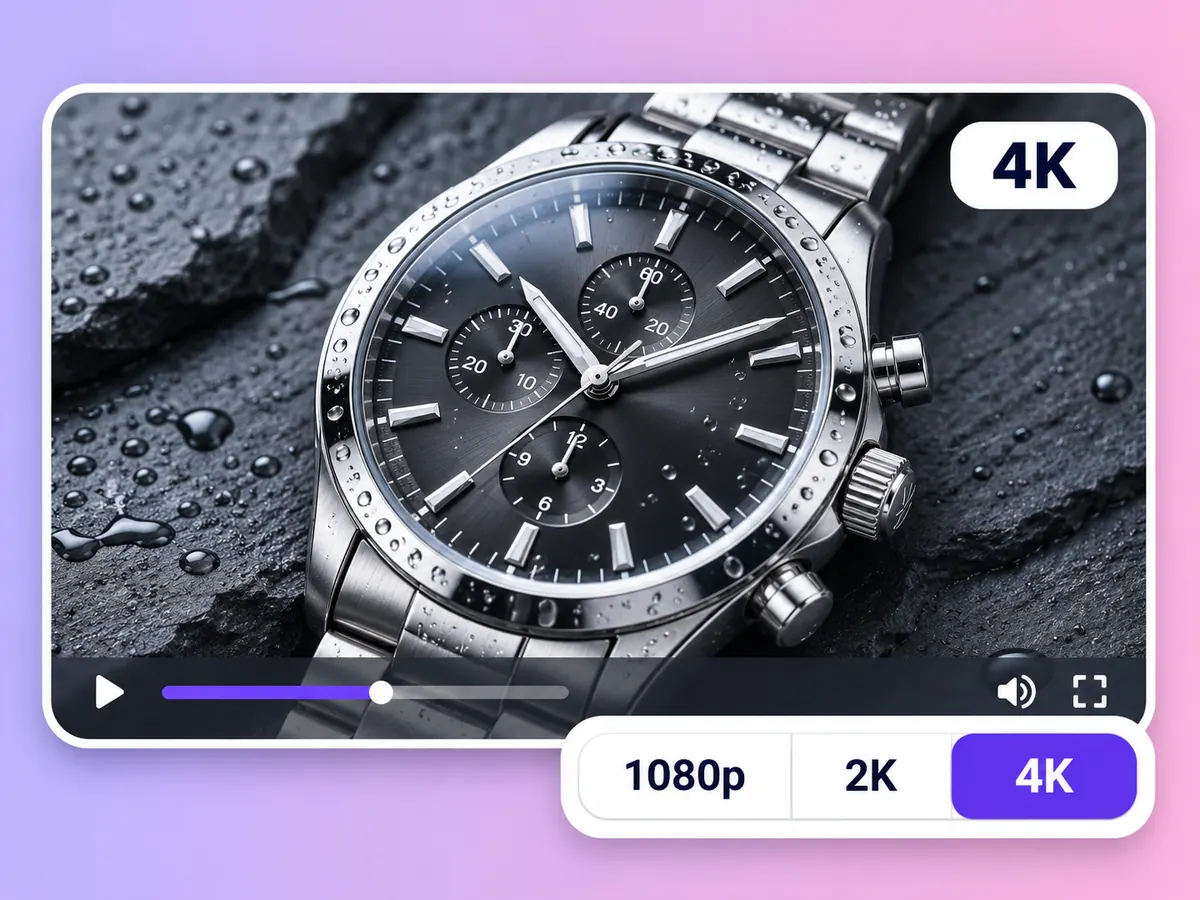
Veo 3.1 offers 4K and MiniMax H3 offers 2K. The other models go up to 1080p.
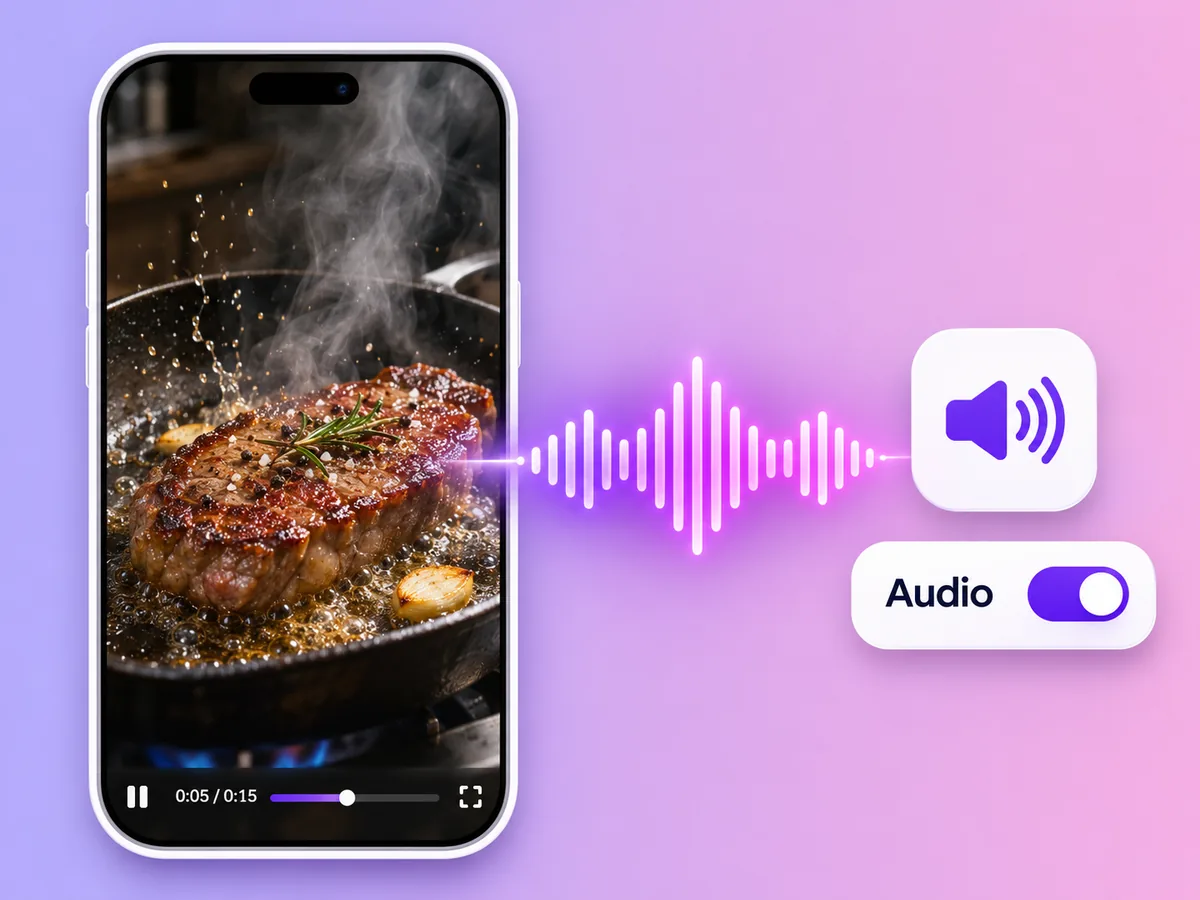
Most frame-capable models can generate sound with the video. Kling 4.0 has no audio option, and Wan 3.0 cannot add audio when you set an end frame.
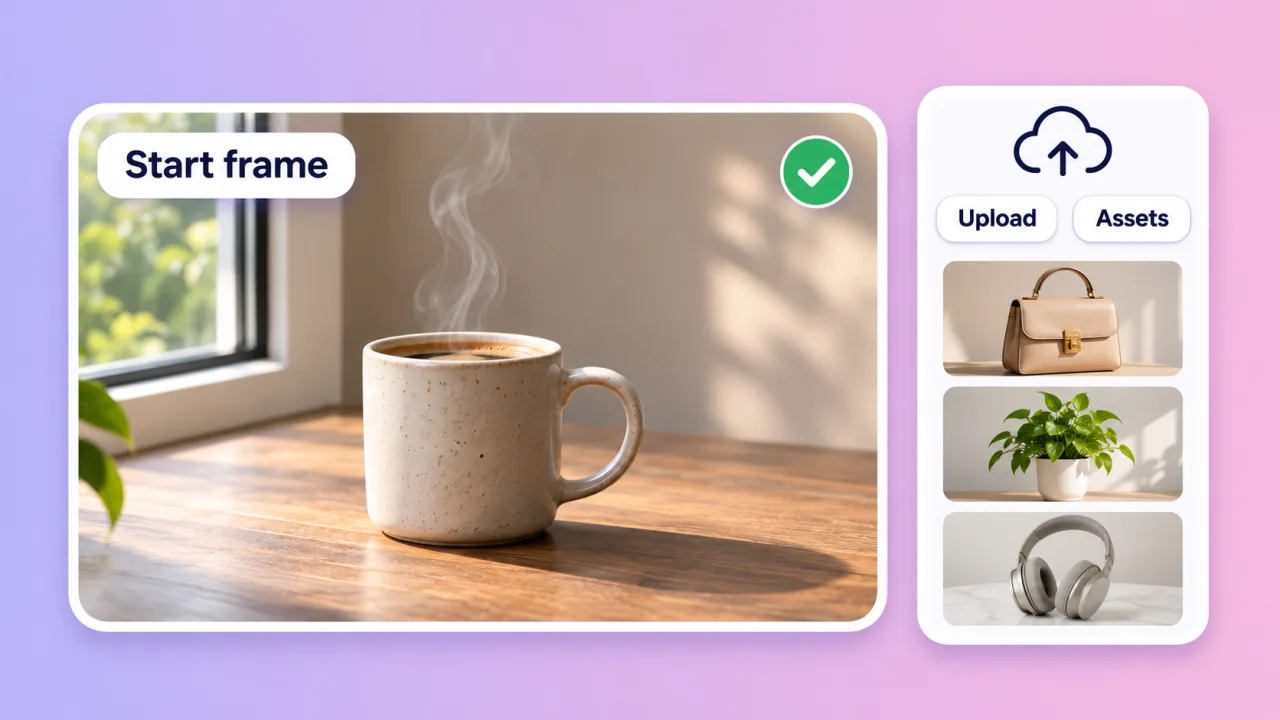
Start frame
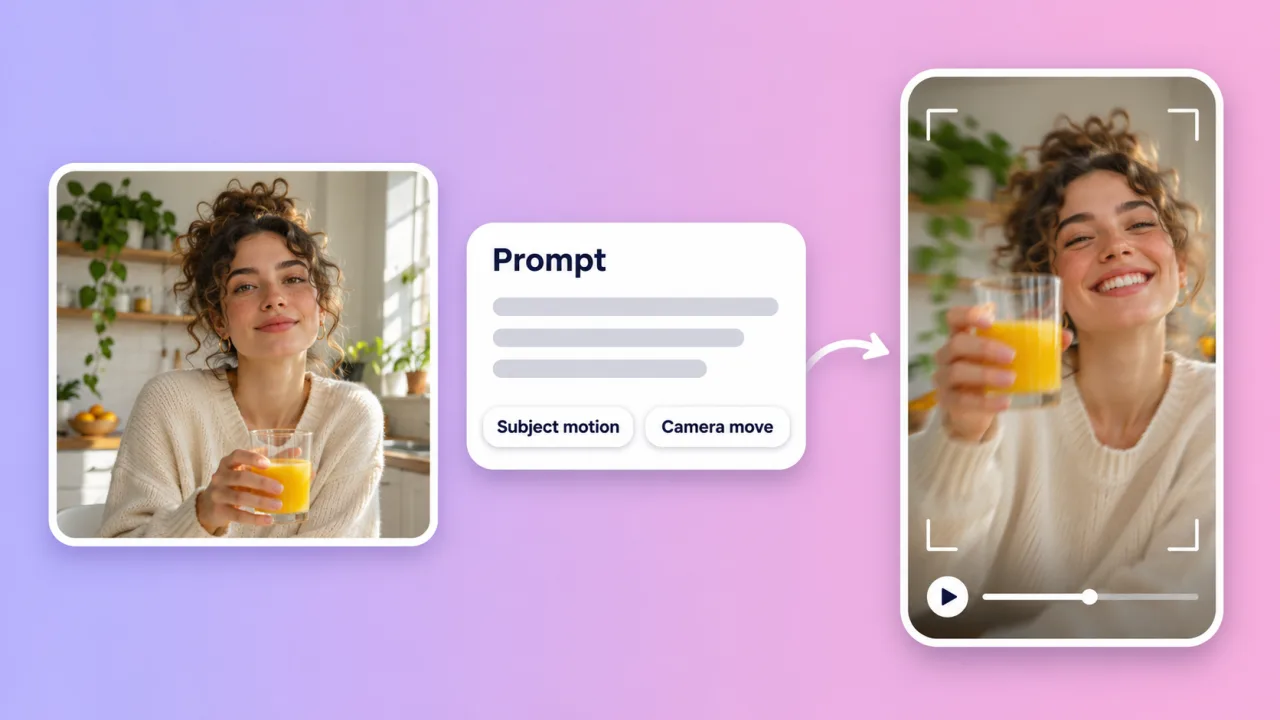
Motion prompt
End frame
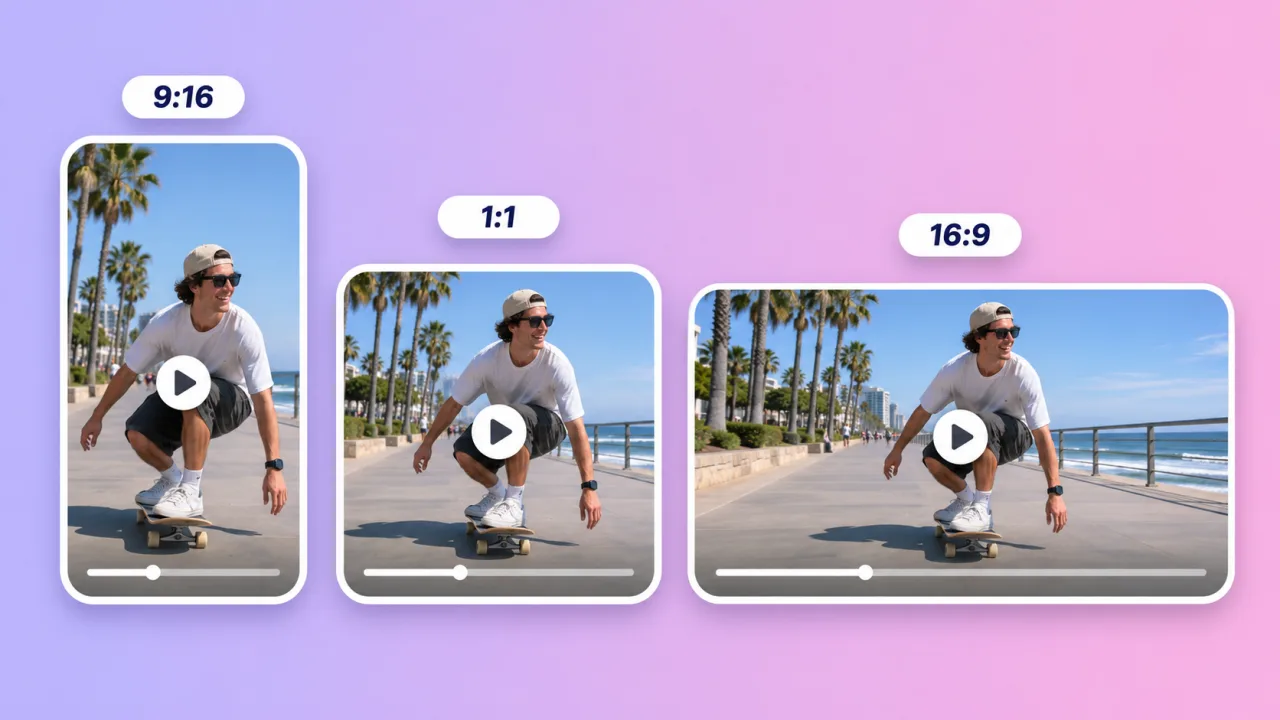
Aspect ratio
Want a UGC-style ad with an AI presenter from a product photo? Try Product Video.
Video models in AdsTurbo that accept a start frame or start and end frames
Based on the AdsTurbo workspace as of November 2026; models and limits may change. Every model accepts a start frame on its own or a start and end frame together; an end frame cannot be used without a start frame.
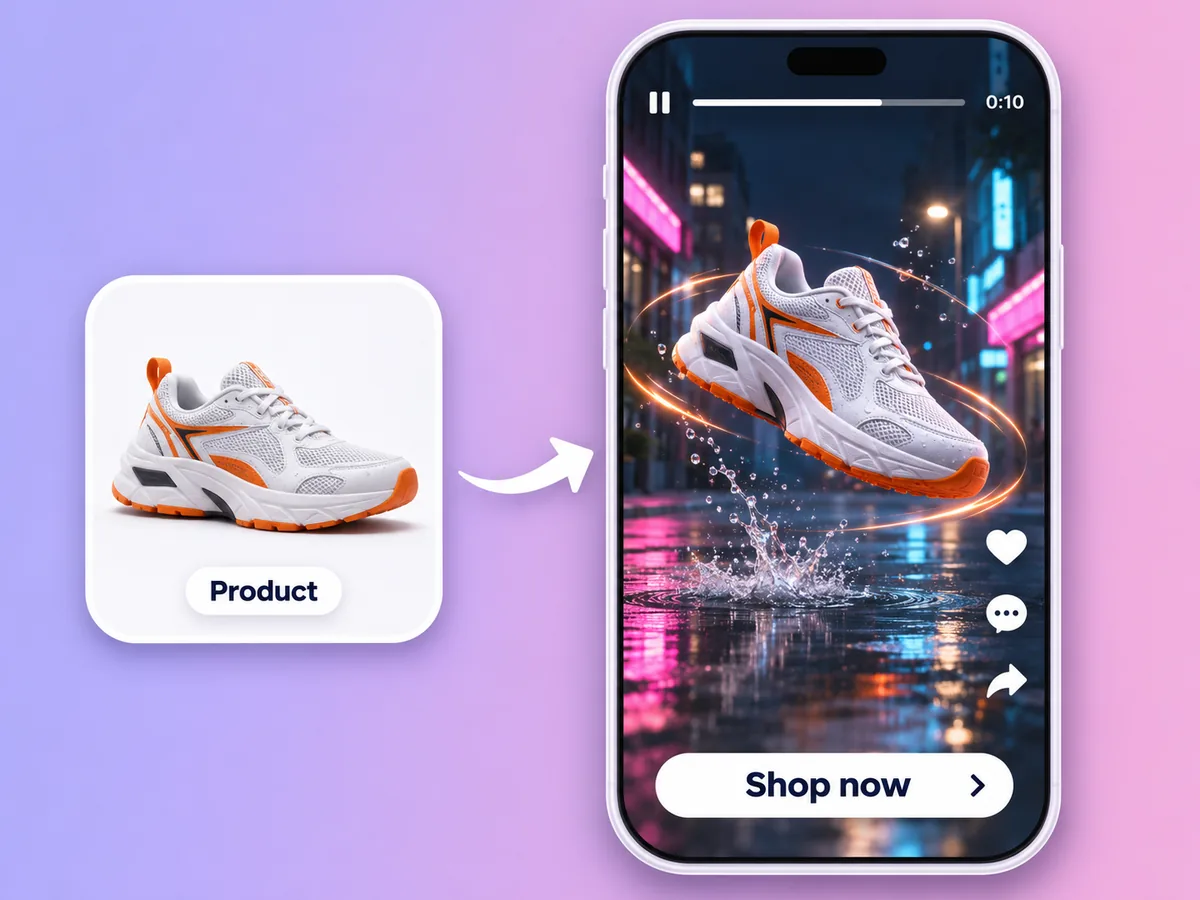
Turn a packshot or lifestyle product photo into a short clip with camera movement for paid social and product pages.
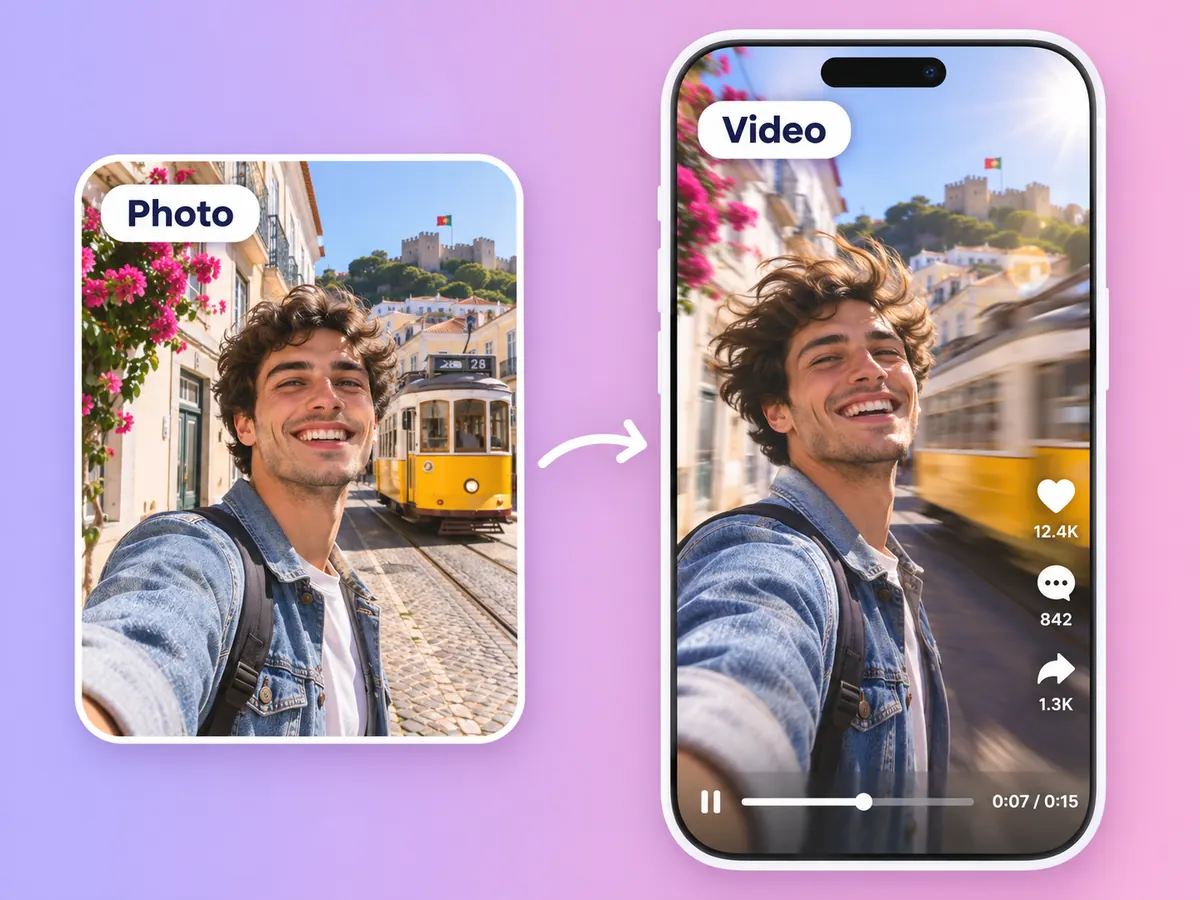
Animate a portrait, travel or street photo into a vertical clip for Reels, TikTok or Shorts.
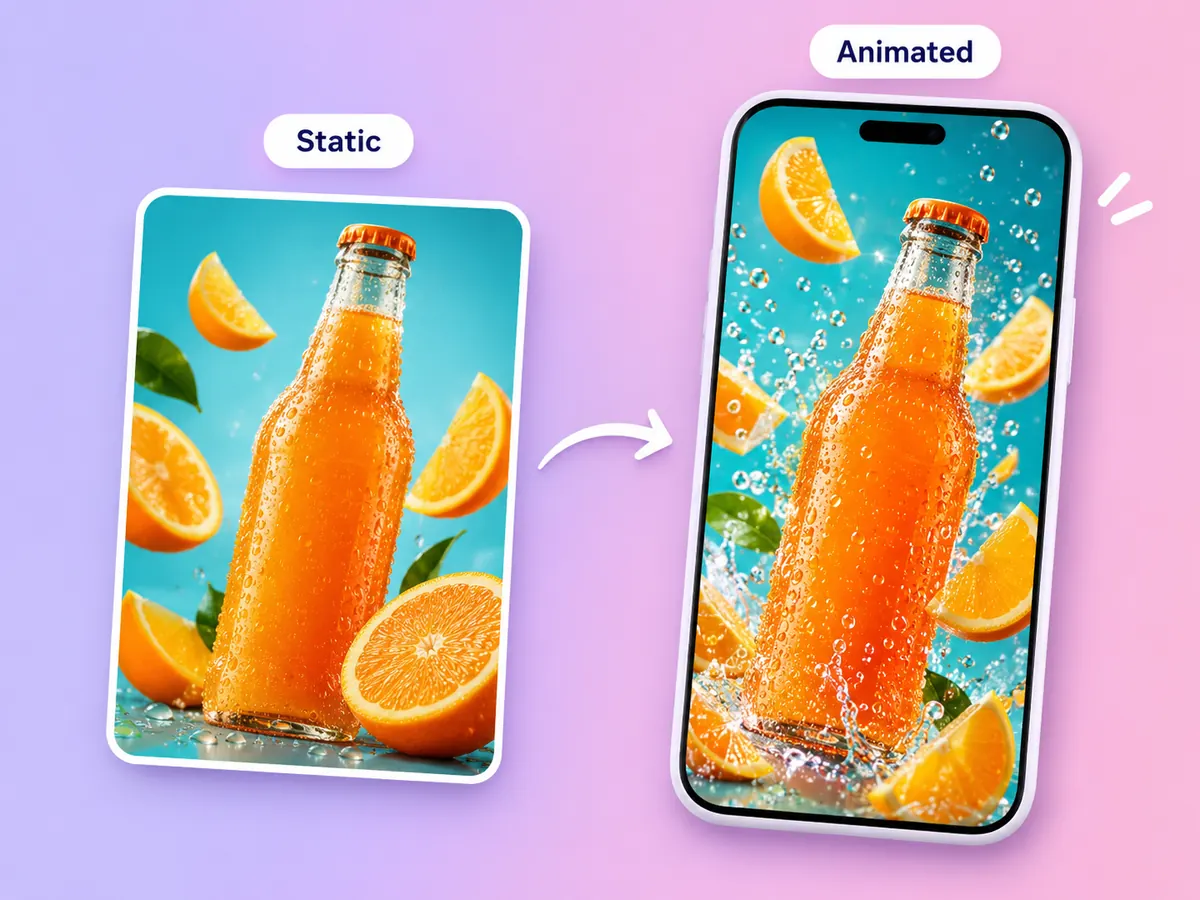
Bring a poster or key visual to life as a moving cover or opener for a campaign.
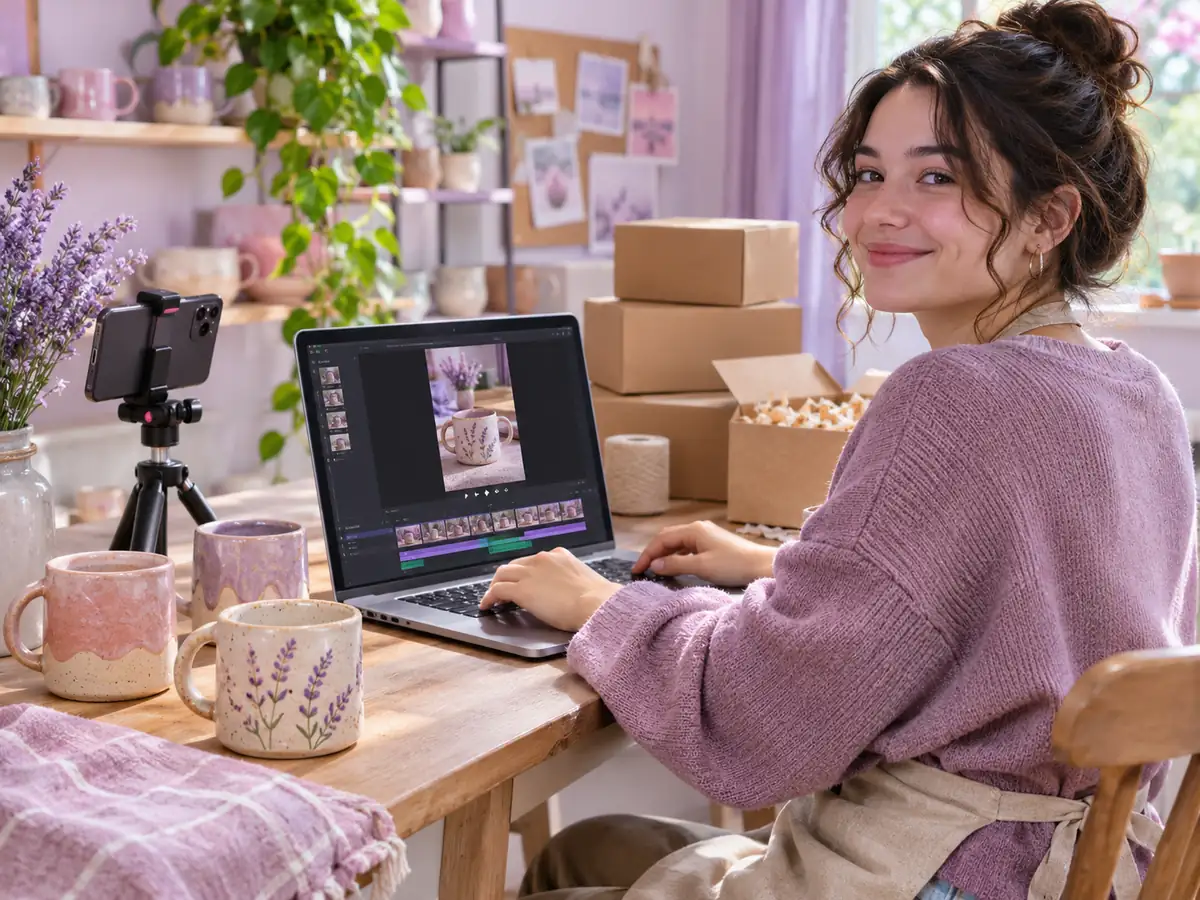
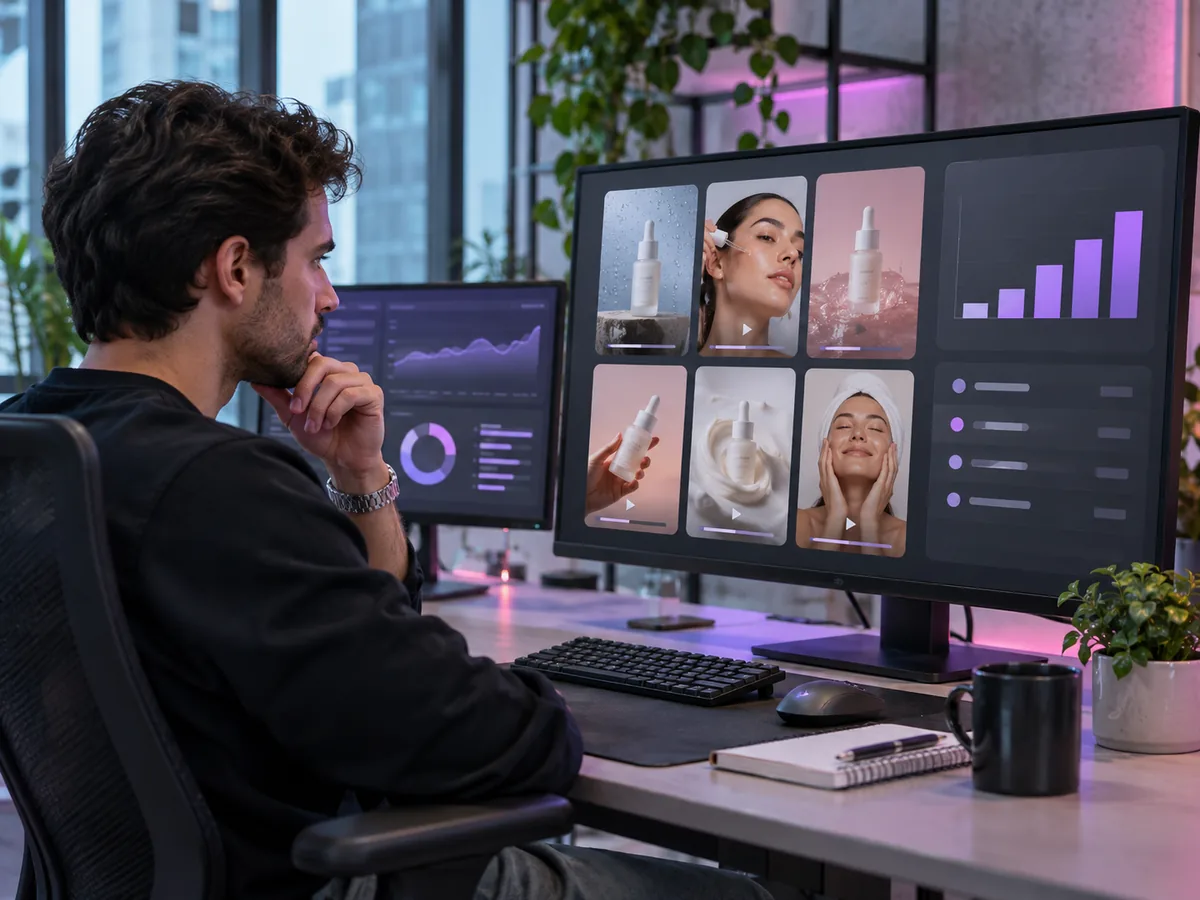
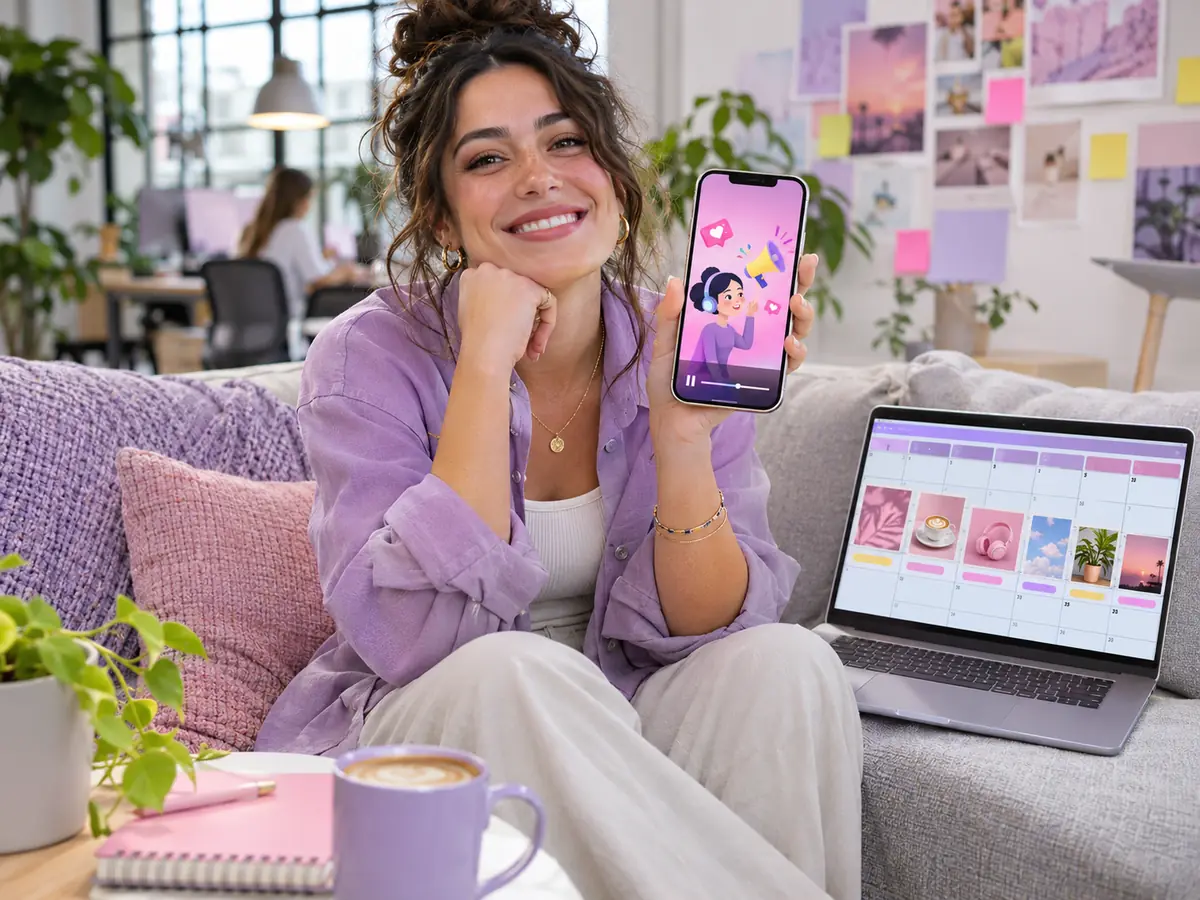
Image to Video
Open the Studio video mode in the AdsTurbo workspace, switch to Start/End Frames and upload your image as the start frame. Pick a model, choose the length, quality and aspect ratio, describe the motion and camera move in the prompt, then generate. When the task finishes, review and download the video.
New accounts can start on the Free plan. Video generation uses credits, and the cost depends on the model, length and quality. Paid plans include HD videos with no watermark and commercial usage rights. See Pricing for plans and credits.
It depends on the clip. For longer videos, Seedance 2.5, Kling 4.0 and Wan 3.0 go up to 30 seconds. For the highest resolution, Veo 3.1 offers 4K on short clips of up to 8 seconds. If you need sound, choose a model with native audio, such as Seedance, Kling 3.0, Veo 3.1 or MiniMax H3. Trying the same photo on two models is often the quickest way to decide.
Yes. Upload one image as the start frame and another as the end frame, and the model generates the motion between them. All seven models support this. An end frame always needs a start frame, and Wan 3.0 cannot add audio when an end frame is set.
It depends on the model: up to 30 seconds with Seedance 2.5, Kling 4.0 or Wan 3.0, up to 15 seconds with Seedance 2.0, Kling 3.0 or MiniMax H3, and 4, 6 or 8 seconds with Veo 3.1. Most models go up to 1080p; MiniMax H3 offers 2K and Veo 3.1 offers 4K.
Describe it in the prompt, for example a slow push-in, a pan to the left or an orbit around the product. The model follows the prompt as closely as it can, so review each result and adjust the wording if needed. Setting an end frame also fixes where the shot finishes.
Paid plans include HD videos with no watermark and commercial usage rights. Only upload images you own or have permission to use, and check each video and the ad platform's rules before you publish. See the Terms of Service for details.
Image to Video animates any image you upload, using it as the first frame or as the first and last frames, with the model and motion you choose. To turn a product image into a UGC-style ad with an AI presenter and voiceover, use Product Video.
Upload a photo, pick a model and describe the motion. Your first video is a few clicks away.
 AdsTurbo