✨AI Video Studio

Remove Logo from Video with AI —erase static watermarks, subtitles and text overlays

Remove logos, watermarks, subtitles, and text overlays from video with AI, or remove logos, watermarks, and text from images. Upload one item, choose a mode, and track it in Task Center.

REMOVE WATERMARKS FROM VIDEO OR IMAGE

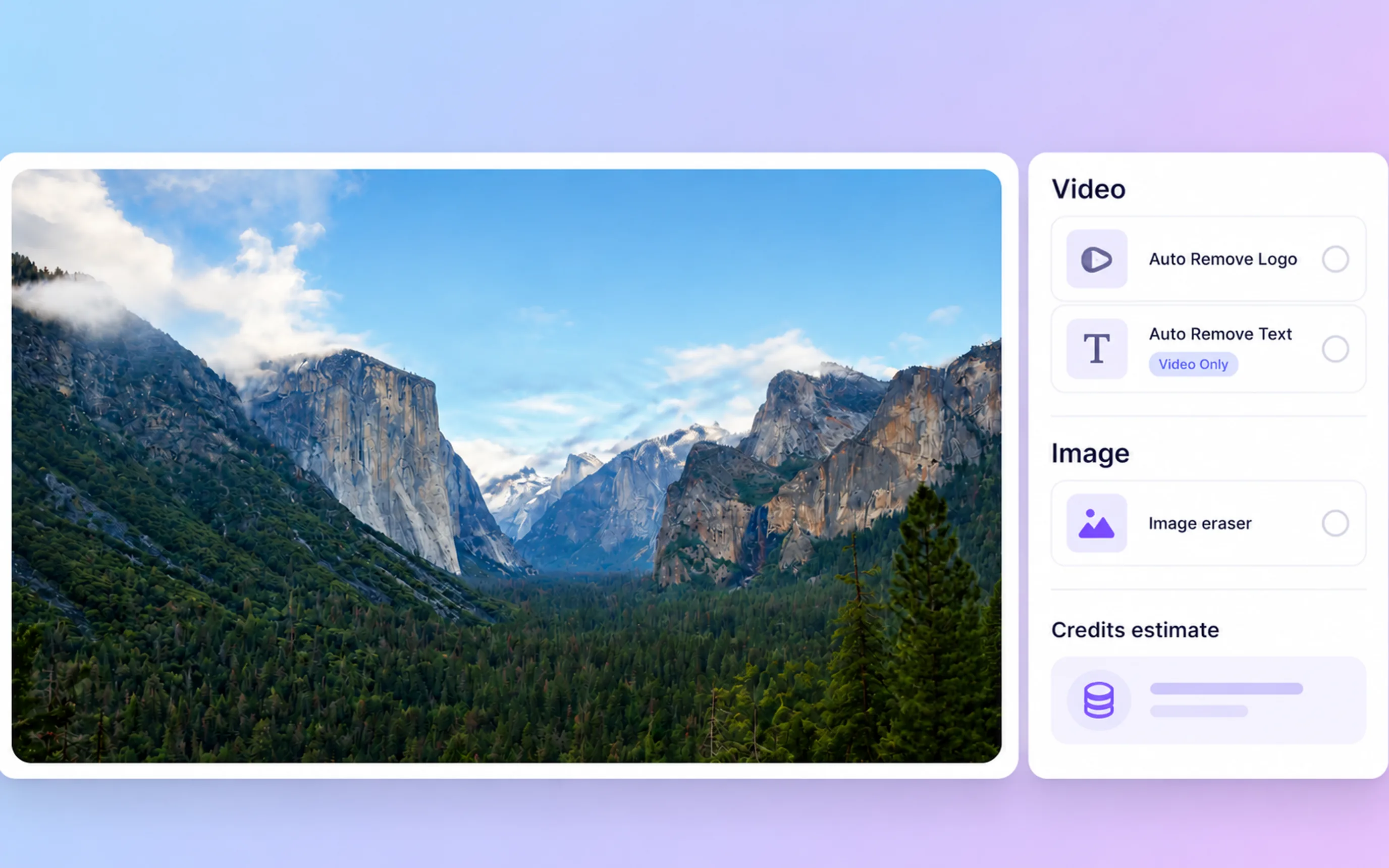
For videos, use the two modes below. For logos, watermarks, and text in images, use the image eraser.

or

Target Media

Video Removal Mode

Remove Logo from Video and Clear Text Overlays

What each removal mode can target in videos and images.

Video subtitles & captions

Video subtitles & captions

Auto Remove Text detects subtitles and burned-in captions in a video and removes them in one asynchronous task. How the area looks afterwards depends on the background behind the text.
SUBTITLETEXT
Video logos & watermarks

Video logos & watermarks

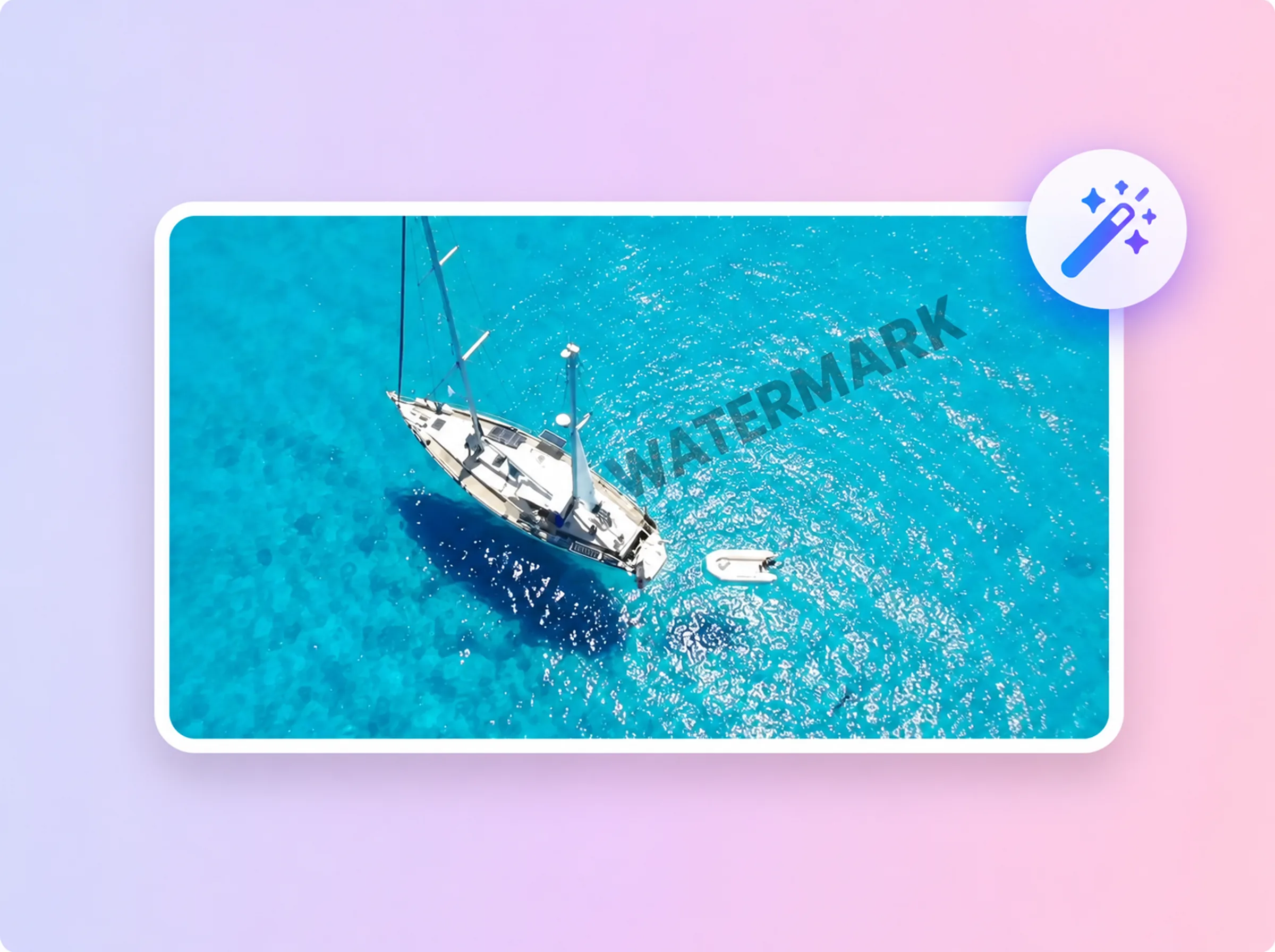
Auto Remove Logo detects static logos and watermarks in a video, such as brand marks or semi-transparent watermark text, and removes them without a manual masking step.

LOGOWATERMARK
Corner badges & stamps in video

Corner badges & stamps in video

Small static badges, stamps, and corner marks in a video are handled by Auto Remove Logo. Check the preview closely where a mark covered detailed or moving areas.

BADGESTAMP
On-screen text overlays in video

On-screen text overlays in video

Promotional captions, labels, and other on-screen text in a video are handled by Auto Remove Text, the same mode used for subtitles.

VIDEOTEXT
Image logos & watermarks

Image logos & watermarks

Upload an image or choose one from Assets, and the image eraser removes logos, watermark text, and stamps from the picture as an asynchronous task.

IMAGELOGO
Image text & captions

Image text & captions

Captions, labels, and watermark text inside an image are handled by the image eraser, the removal flow for images. The separate Auto Remove Text mode is Video Only. Check the preview where text covered a detailed background.
IMAGETEXT

Everything inside AdsTurbo AI Eraser

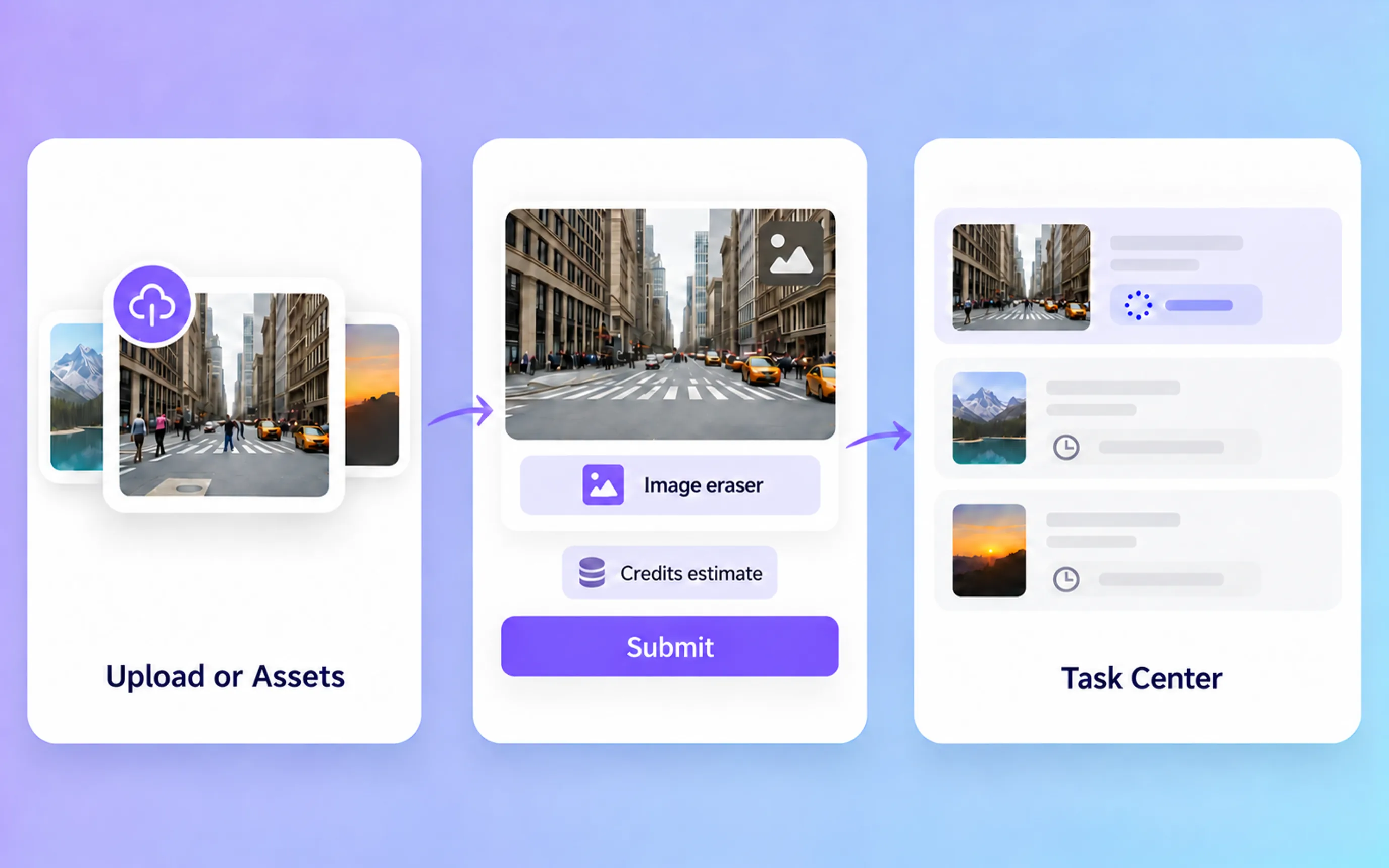
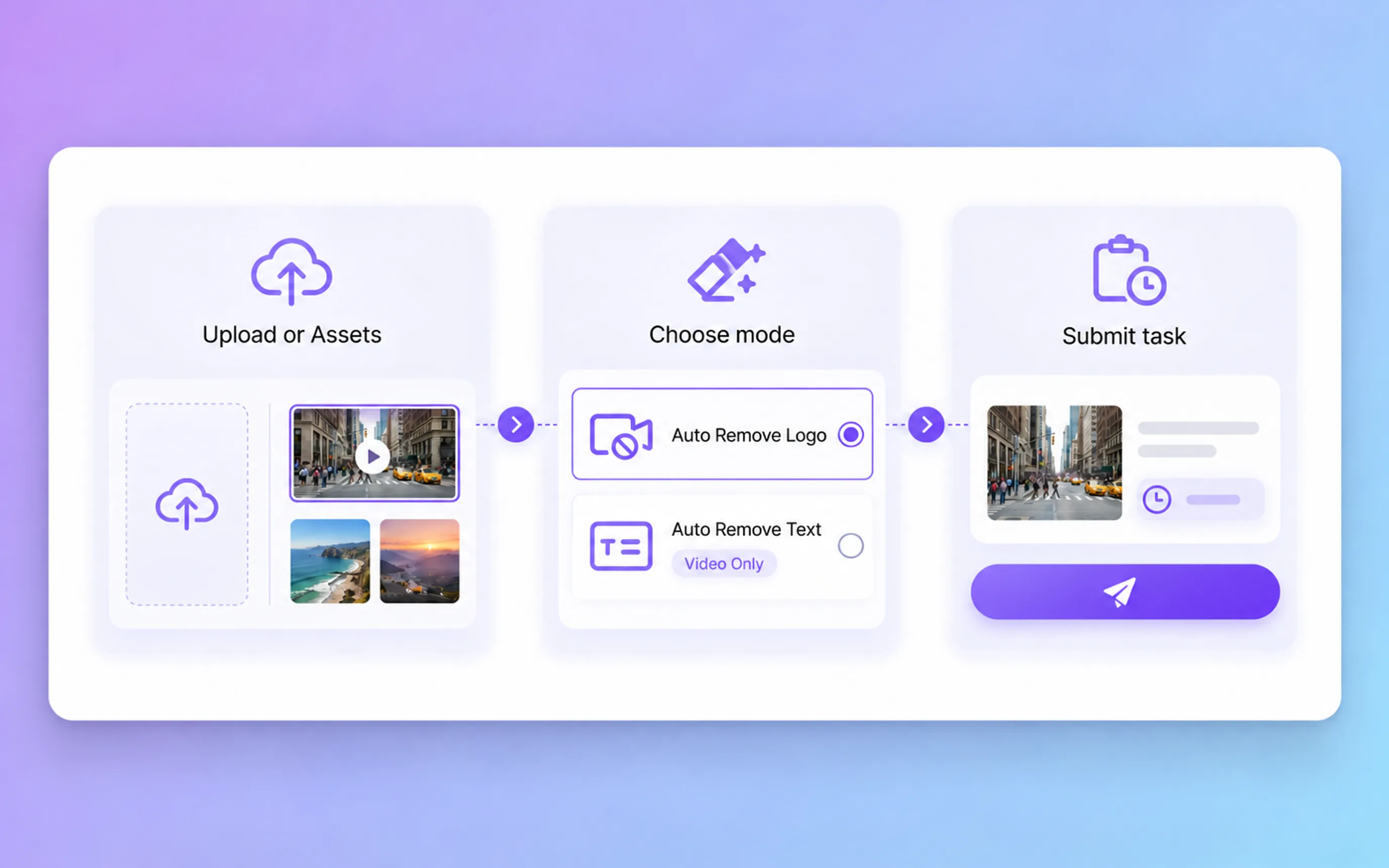
Upload or choose one item from Assets

Step 1 · Source

Upload or choose one item from Assets

  • Upload one video or one image from your device
  • Or pick an item you have already saved in Assets
  • Each task works on a single item, so repeat the steps for every file
Select a supported mode and review estimated Credits

Step 2 · Mode & Credits

Select a supported mode and review estimated Credits

  • Auto Remove Logo targets logos and watermarks in videos
  • Auto Remove Text targets subtitles and text overlays in videos only
  • For images, the image eraser removes logos, watermarks, and text; Credits are estimated from the media type and processing mode before you submit, and estimates for video tasks also factor in video length
Submit the asynchronous task and track it in Task Center

Step 3 · Task Center

Submit the asynchronous task and track it in Task Center

  • Submitting creates a task rather than an immediate result
  • Task Center shows whether the task is pending, running, successful, or failed
  • If the task fails, the Credits charged for it are returned automatically
Review the completed result and download when your account is eligible

Step 4 · Review

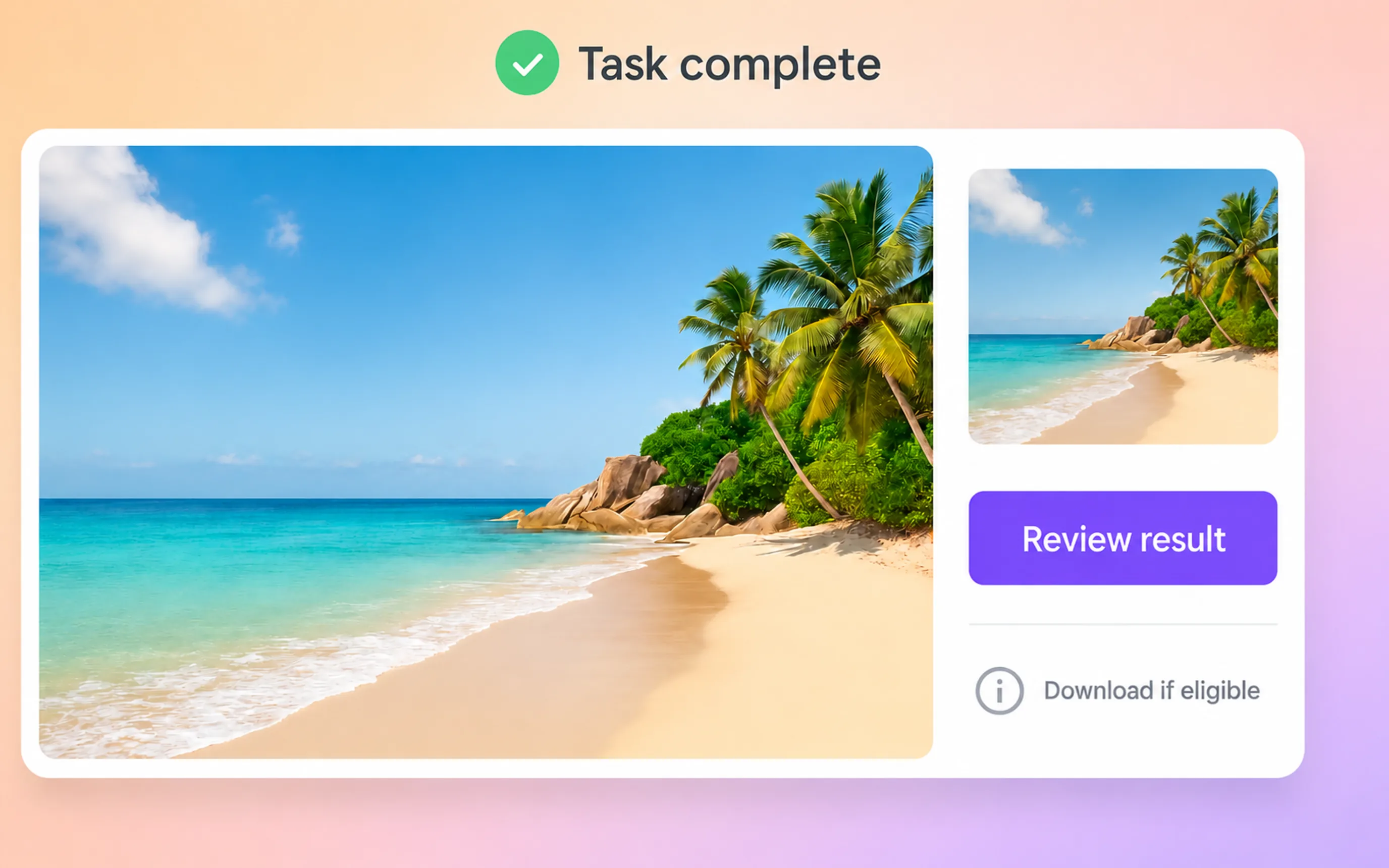
Review the completed result and download when your account is eligible

  • Preview the finished video or image from Task Center
  • Check edges, background, and motion where the overlay used to be
  • Downloading depends on the download eligibility of your current plan

What AdsTurbo AI Eraser supports today

Video and image capability matrix

Video logos
Video text & subtitles
Image logos
Image text
Availability
Available
Available (Video Only)
Available
Available
What it targets
Static logos, watermarks, badges, and stamps
Subtitles, captions, and on-screen text
Logos, watermark text, and stamps in a picture
Captions, labels, and watermark text in a picture
Input source
One video, uploaded or from Assets
One image, uploaded or from Assets
Credits before submit
Estimated from mode and video length
Estimated for the image and mode
Processing
Auto Remove Logo, asynchronous task
Auto Remove Text, asynchronous task
Image eraser / inpainting, asynchronous task
Completed result
Preview in Task Center; download if your account is eligible

Availability reflects the current AdsTurbo workspace. Credits are estimated before you submit, and results depend on the source media.

What AI Eraser can generate

Videos with logos or watermarks removed

Videos with logos or watermarks removed

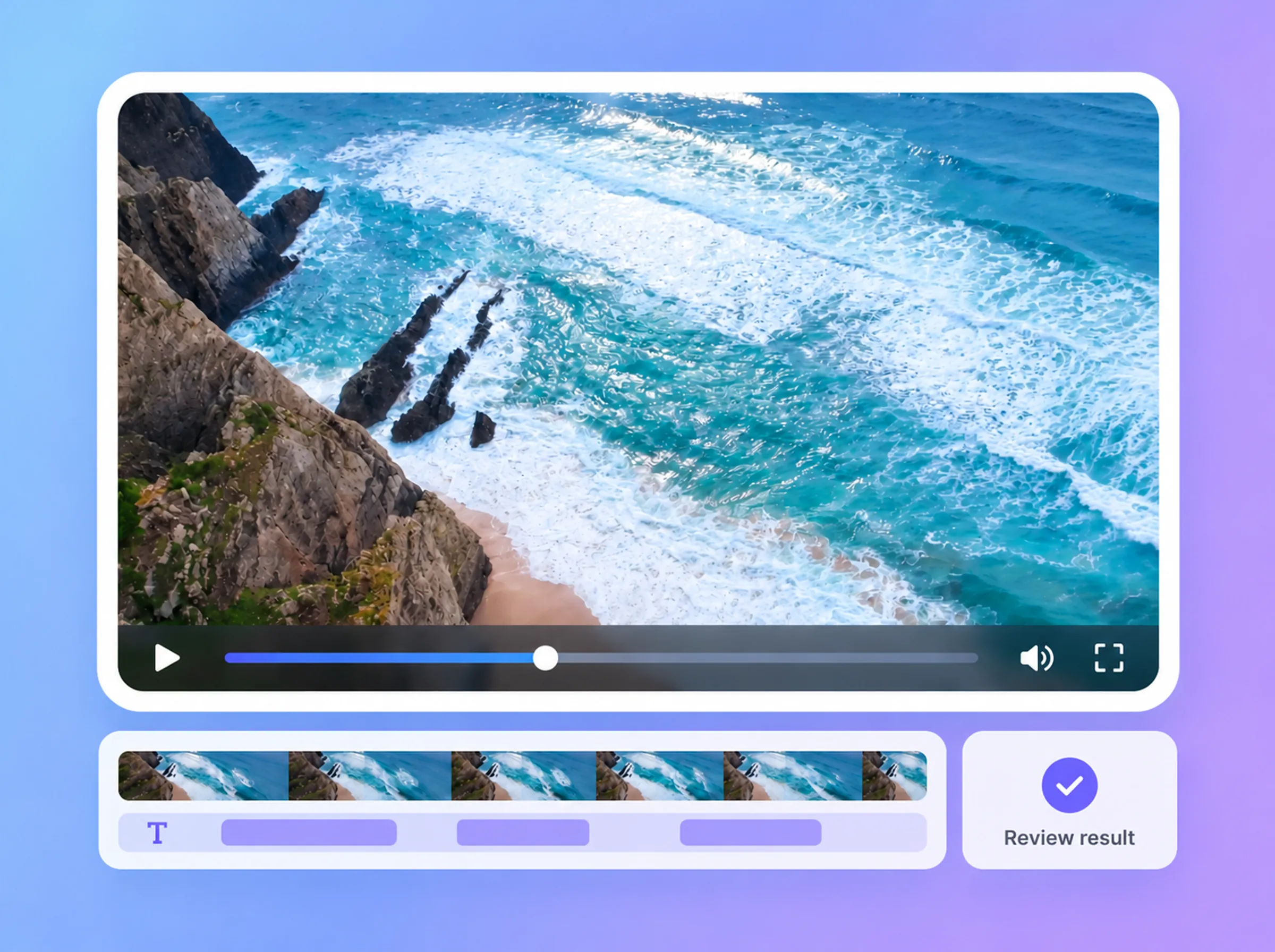
A processed copy of your video with the detected logo or watermark removed, available to preview in Task Center.
Videos with subtitles or text removed

Videos with subtitles or text removed

A processed copy with burned-in subtitles or on-screen text removed by Auto Remove Text. Review it before you reuse the clip.

Images with logos, watermarks, or text removed

Images with logos, watermarks, or text removed

A processed image with the detected logo, watermark, or text removed by the image eraser. Downloading depends on the download eligibility of your account.


Who should use AI Eraser?

Creators & social teams

Creators & social teams

  • Clean up overlays on clips you own or are licensed to edit
  • Remove old captions before adding new subtitles
  • Review each result before you post it
E-commerce & performance marketing

E-commerce & performance marketing

  • Remove watermarks and text from product videos and images you have rights to
  • Clear outdated promotional text from video creatives
  • Check every result before using it in an ad
Agencies & production teams

Agencies & production teams

  • Process client media only with the client's authorization
  • Run one item per task and follow every task in Task Center
  • Check each result and your download eligibility before delivery

For online sellers

Want to create a video ad for your product?

If you sell online, AdsTurbo can also make a ready-to-test video ad from a product page link or from a reference ad you have permission to use. Still choosing a tool? See how it compares with other AI ad tools.

FAQ

AI ERASER

01How do I remove a watermark from a video with AI?

Upload a video or choose one from Assets, select Auto Remove Logo for logos and watermarks or Auto Remove Text for subtitles and text, review the estimated Credits, and submit. The task runs asynchronously; open Task Center to preview the result when it is done.

02Can AI remove logos, subtitles, and text overlays from video?

Yes. For videos, Auto Remove Logo removes static logos and watermarks, and Auto Remove Text removes subtitles and text overlays. For images, the image eraser removes logos, watermarks, and text inside the picture.

03Will the video look natural after removal?

It depends on the source. Results vary with the size and position of the overlay, the background behind it, and how much the scene moves, so some edges or textures may need a second look. Always review the preview before you use the result.

04Does Auto Remove Text work on images?

The Auto Remove Text mode is Video Only. To remove text from an image, such as captions or watermark text, use the image eraser, which handles logos, watermarks, and text in images.

05Do I need to select the watermark region?

No. Both Auto Remove Logo and Auto Remove Text detect the target automatically after you choose the mode. The workspace does not offer a manual region-selection step.

06How many Credits does watermark removal cost?

The cost is estimated dynamically before you submit, based on the media type and removal mode. Video task estimates also take the video length into account. The estimate is shown in the workspace, so there is no fixed price per task.

07Where can I see the result, and can I download it?

Each task appears in Task Center with its current status. When it succeeds, you can preview the result there. Downloading depends on your current account and plan; if your plan does not include downloads, you will be prompted to upgrade.

08What happens to my Credits if a task fails?

If a task ends with the Failed status, the Credits charged for it are returned to your account automatically. It may take a few minutes for them to appear. This is a Credits return, not a cash refund. See the Refund & Credits Policy for details.

09Is it okay to use this feature?

Only process videos and images that you own or have permission to modify. Removing a third-party logo or watermark from content you do not have rights to is not permitted. See the Terms of Service for details.

Remove watermarks, logos and text from video — with AdsTurbo AI Eraser

Auto Remove Logo and Auto Remove Text clean up videos, and the image eraser removes logos, watermarks, and text from images. Track each task in Task Center and review the result before you use it.