
Remove Black Bars from Amazon Product Video: A Clean 16:9 Workflow

Summarize with
Summary
Remove black bars from Amazon product video without stretching or hiding the product. Learn how to crop, center, export, and check a clean 16:9 file. Start editing.
By adsturbo.ai | Published 2026-10-30 | Updated 2026-10-30
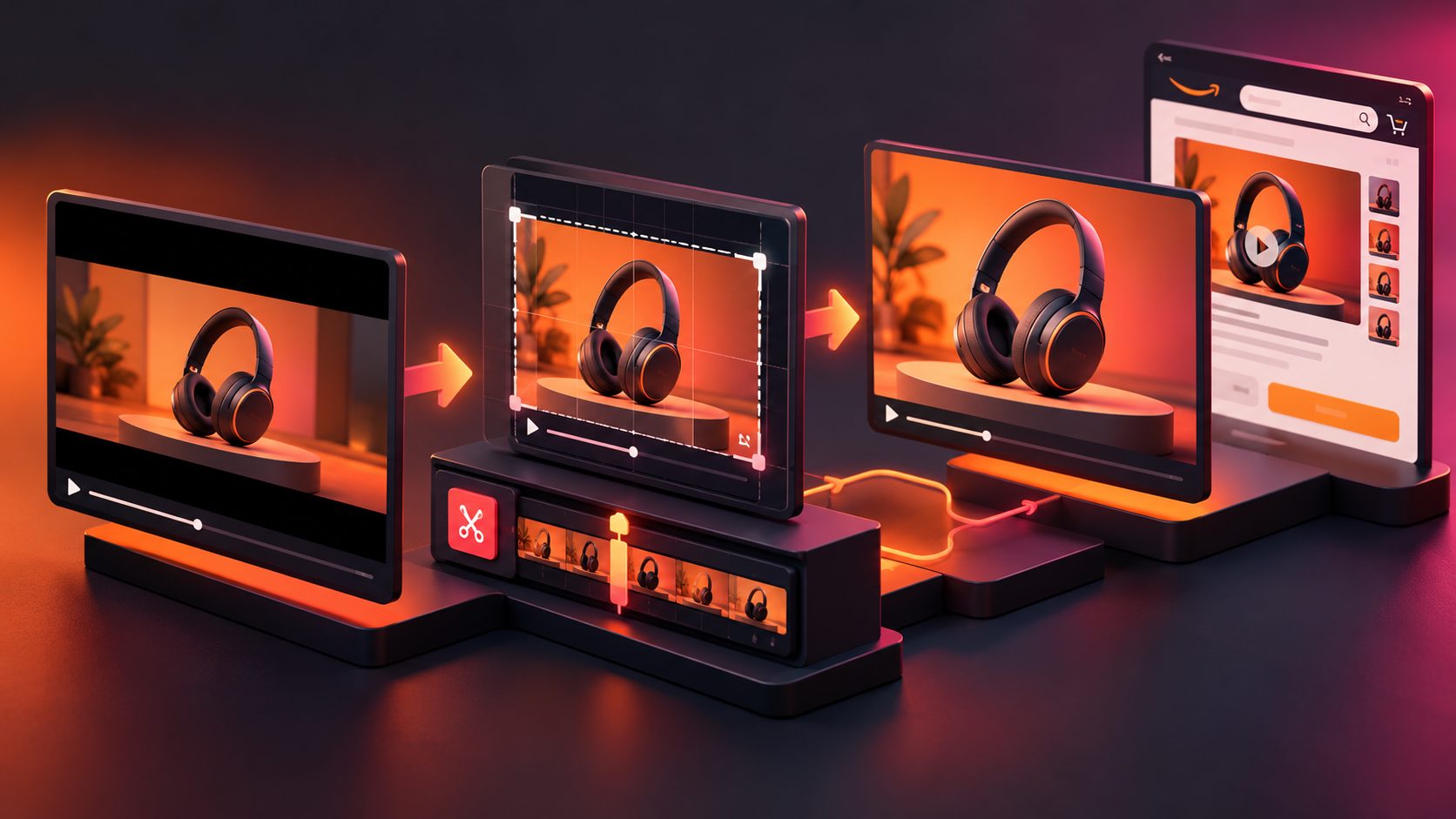
If you need to remove black bars from Amazon product video, the safest solution is usually to crop the encoded empty area, keep the product centered, and export the result on a true 16:9 canvas. Do not stretch the footage or cover the bars with graphics. Amazon’s Sponsored Brands video guidance specifies a 16:9 ratio and rejects black borders on any side, while other Amazon placements can use different specifications. (m.media-amazon.com)
Why do black bars appear on Amazon product videos?
Black bars appear when the video’s visible image does not match the aspect ratio of the editing canvas or Amazon placement. They may be added during filming, editing, export, or playback.
The most common cases are:
- A 2.39:1 or 21:9 clip placed inside a 16:9 project.
- A 4:3 recording fitted into a widescreen canvas.
- A vertical or square video placed inside a landscape project.
- Black pixels already embedded in the source file.
- A project set to one resolution while the clip is exported at another.
There are two different problems:
- Canvas bars: the video itself is clean, but the editor adds empty space around it.
- Baked-in bars: the black area is part of every video frame and must be cropped or covered before export.
This distinction matters because changing the project settings fixes canvas bars, but it cannot remove baked-in pixels.
Is 16:9 always the correct Amazon format?
16:9 is the practical target for many Amazon advertising and listing workflows, but you should match the exact placement before editing. Amazon’s Sponsored Brands creative guidance identifies 16:9 and states that black borders are not accepted. (m.media-amazon.com)
Amazon’s shoppable-video information lists MP4 or MOV files, up to 1080p, a maximum file size of 5 GB, and a duration between 1 and 12 minutes. These are file requirements, not a universal instruction that every Amazon video placement must use the same aspect ratio. (sell.amazon.com)
For a standard horizontal product video, use one of these output sizes:
| Output | Aspect ratio | Best use |
|---|---|---|
| 1920 × 1080 | 16:9 | High-quality master |
| 1280 × 720 | 16:9 | Smaller delivery file |
| 3840 × 2160 | 16:9 | 4K master when the source supports it |
Do not force 16:9 if the Amazon placement specifies another ratio. Amazon Store video tiles, for example, support several tile shapes and aspect-ratio ranges rather than one universal format. (m.media-amazon.com)
How to remove black bars without distorting the product
Use this five-step workflow.
1. Inspect the source before cropping
Pause the video at several points and check whether the black bars remain in the same position. If they do, they are probably baked into the file.
Also check:
- The original frame dimensions.
- Whether the product touches the top or bottom edge.
- Whether captions or logos sit inside the black area.
- Whether the bars change during cuts.
- Whether the subject moves horizontally or vertically.
A single crop rectangle works only when the bars are consistent. If different clips contain different bar sizes, edit each shot separately or place them in a correctly matched sequence.
2. Calculate the crop instead of guessing
For a 16:9 output, the visible frame must satisfy:
width ÷ height = 1.7778
Suppose the source file is 1920 × 1080, but the actual image is 1920 × 800 with black bars above and below. To preserve the full width, the visible image would need to become 1920 × 1080, which is impossible without either:
- Cropping the sides,
- Adding a background treatment,
- Or changing the target ratio.
This is the key quality rule: removing empty pixels can be lossless in content, but changing the composition may not be. If the black bars are part of the source, cropping them may remove some real image near the edges.
3. Crop to the image, then resize to 16:9
Crop only the black pixels first. Then place the remaining image on the intended output canvas.
Avoid using “stretch to fill.” Stretching changes the apparent width of the product, packaging, hands, and people. Amazon product videos depend on accurate visual proportions, so a slightly tighter crop is safer than a distorted product.
If cropping the bars creates a non-16:9 image, choose one of these options:
- Crop further: best when the product has safe space around it.
- Use a clean branded background: useful when cropping would remove important product details.
- Re-edit the original footage: best when you still have the source project.
- Use a different Amazon placement ratio: only when the destination supports it.
4. Recenter the product, not just the crop box
A centered crop is not automatically a centered composition. The product may sit off-center because the original camera framing was designed for another format.
Use a practical “product-safe center” rule:
- Keep the main product inside the middle 70–80% of the frame.
- Leave enough space for captions and interface overlays.
- Check the first three seconds separately from the rest of the video.
- Reposition each shot when the product changes location.
- Keep important claims away from the lower-right corner, where platform controls may overlap.
This is an important difference between technical cropping and conversion-focused cropping. The goal is not merely to remove black pixels; it is to preserve immediate product recognition after the frame becomes smaller.
5. Export once and inspect the final file
Repeated exports can compound compression damage. Make the crop, repositioning, subtitles, and final resize in one editing pass whenever possible.
Before uploading, verify:
- The exported dimensions are genuinely 16:9 if required.
- No black, white, or blurred bars remain.
- The product is not stretched.
- Text is readable on a smaller preview.
- Audio remains synchronized.
- The opening frame does not cut off the product.
- The file plays correctly outside the editor.
A useful final check is to open the exported file in a second player or browser. An editor preview can show the project canvas rather than the actual encoded frame.
Crop, blur, or rebuild: which fix is safest?
| Situation | Recommended fix | Why |
|---|---|---|
| Bars are only editor padding | Change canvas or use “fill” | No source pixels need to be removed |
| Bars are baked into a wide cinematic clip | Crop and recenter | Removes empty space directly |
| Cropping cuts off packaging or hands | Use a clean background fill | Preserves the complete product view |
| Different shots have different bars | Correct clips individually | One global crop may damage some scenes |
| Source is low-resolution | Return to the original footage | Enlarging after cropping can soften details |
| Product moves across the frame | Use keyframed repositioning | Keeps the subject visible throughout |
Blurred backgrounds can solve a ratio mismatch, but they are not the same as removing black bars. They may make a video fill the frame while preserving the whole image, yet the result can look less like a clean Amazon product asset. Use them only when the visual treatment fits the brand and the destination requirements.
For broader cleanup, an AI remove-object workflow for ecommerce video can help when the source also contains unwanted badges, objects, or visual distractions. If the product footage is too soft after cropping, review an AI video upscaling workflow only when that URL is part of your published site structure; otherwise, keep the original high-resolution source as the preferred fix.
Can AdsTurbo help prepare a cleaner product video?
AdsTurbo provides video resolution enhancement, background replacement, subtitles, clip-by-clip editing, and product-video generation. Its Product Video workflow accepts JPG or PNG product images, while its Video Subtitle tool can generate synchronized captions and export either a captioned video or a separate subtitle file.
For sellers rebuilding an asset rather than merely cropping it, a practical workflow is:
- Start with the cleanest product image or original video.
- Set the intended Amazon frame before generating or editing.
- Remove unwanted visual elements before the final export.
- Recenter the product shot by shot.
- Add subtitles only after the composition is stable.
- Export one final review file and inspect it at thumbnail size.
You can also combine product footage with a proof-first Amazon listing FAQ video workflow when the original asset needs clearer demonstrations rather than a simple format correction.
Frequently asked questions
Can I remove black bars without losing quality?
Yes, if the bars are empty pixels and the crop does not remove meaningful content. However, cropping baked-in bars usually requires re-encoding, and enlarging the remaining image can reduce sharpness. The best protection is to work from the highest-resolution original and export only once.
Should I stretch the video to fill 16:9?
No. Stretching changes the proportions of the product and people. Crop, reposition, or use a controlled background treatment instead.
What if the black bars are on the left and right?
Those are usually pillarbox bars caused by a narrower source, such as 4:3 footage inside a 16:9 canvas. Crop the sides only if the product and text remain fully visible.
Does Amazon require 16:9 for every product video?
No universal ratio should be assumed across every Amazon placement. Sponsored Brands guidance uses 16:9 and disallows black borders, while Amazon Store video tiles support multiple formats. Check the specification for the exact destination before exporting. (m.media-amazon.com)
What is the safest final check?
Watch the exported file at full size and thumbnail size. If the product remains recognizable, centered, undistorted, and free of bars in both views, the crop is more likely to work as a product asset.