
Smart Pet Feeder App Pairing Setup Video: A Clear Demo Workflow

Summarize with
Summary
Create a smart pet feeder app pairing setup video that shows Wi-Fi connection, QR scanning, camera sync, and feeding tests. Use this practical workflow.
By adsturbo.ai | Published 2026-10-26 | Updated 2026-10-26
A smart pet feeder app pairing setup video should prove more than that the feeder turns on. It should show the complete path from app installation and Wi-Fi pairing to camera access, feeding schedules, alerts, and a real dispensing test. The strongest videos treat setup as a trust-building product demonstration, not just a screen recording.
For ecommerce sellers, this matters because smart feeders often combine hardware, mobile software, Wi-Fi, cameras, and remote controls. A confusing setup video can create hesitation even when the product itself works well.
What should a smart pet feeder setup video demonstrate?
A smart pet feeder setup video explains how the physical device and mobile app work together. The viewer should be able to understand what to prepare, which button to press, what the pairing indicator means, and how to confirm that the connection is complete.
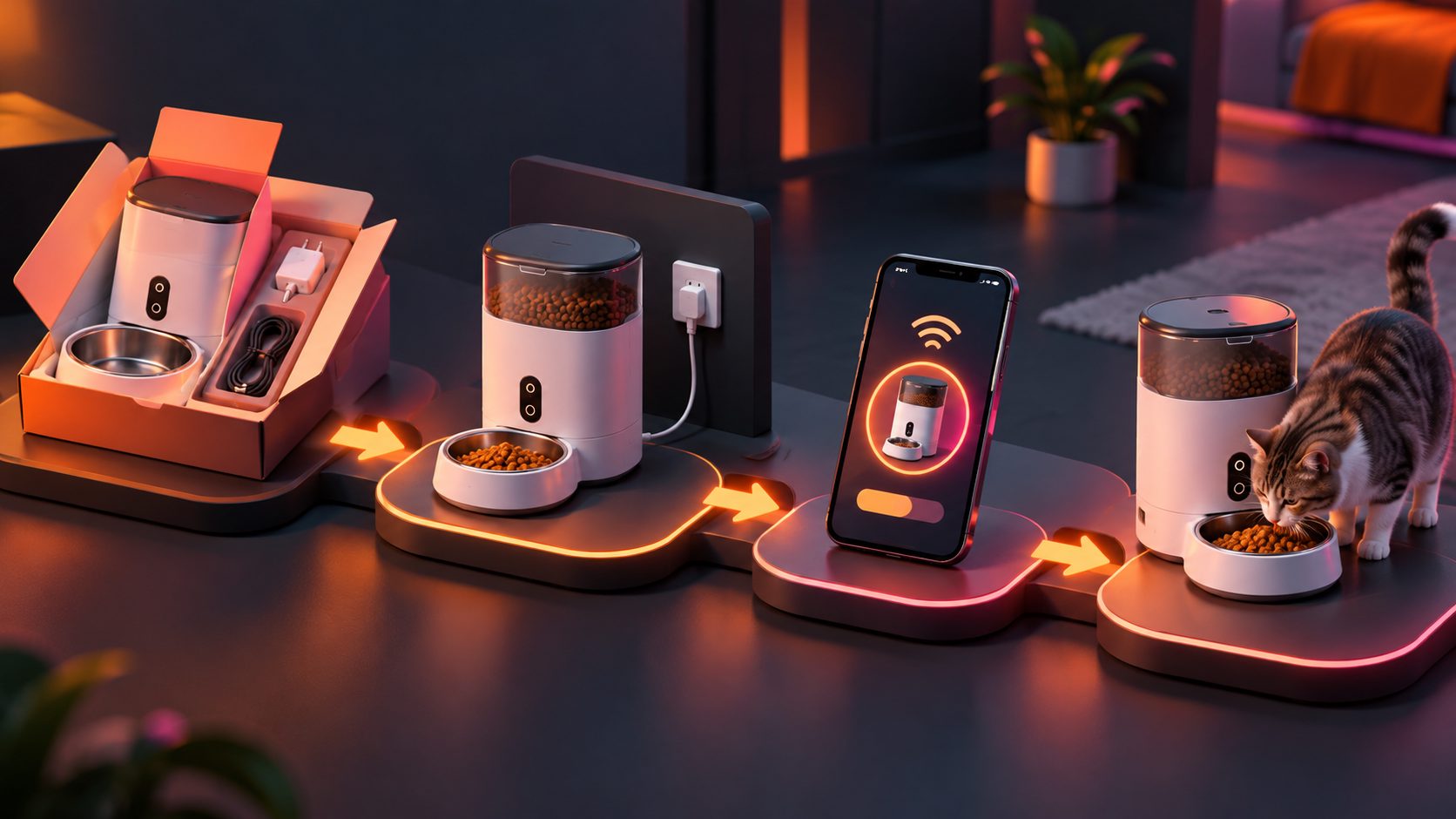
Most setup flows include these stages:
- Download or open the correct feeder app.
- Create an account or sign in.
- Connect the phone to the intended home Wi-Fi network.
- Put the feeder into pairing mode.
- Add the feeder inside the app.
- Enter the Wi-Fi password.
- Complete QR-code, Bluetooth, or hotspot pairing.
- Confirm the camera or live-view connection.
- Set feeding times and portion sizes.
- Test a manual feed and notification.
The exact interface varies by model. Several manufacturer guides instruct users to keep the phone and feeder on the same Wi-Fi network during setup, while some camera-enabled feeders display a QR code on the phone for the feeder camera to scan. (simplepets.com)
That variation is why a good product video should show the actual device flow instead of relying on generic claims such as “easy app control.”
How should the video be structured?
Use a three-layer demonstration: physical action, app response, and success proof. This structure is more useful than showing either the hardware or the phone screen alone.
1. Prepare the viewer before pairing
Open with a short checklist:
- Feeder connected to power
- Phone with the correct app installed
- Wi-Fi name and password ready
- Feeder placed near the router
- Food hopper assembled
- Camera lens unobstructed
Do not begin with a long product introduction. The viewer’s first question is usually, “What do I need before I start?”
A close-up of the setup button, status light, and QR code location can prevent confusion later. If the model uses a reset button, show how long it must be held and what the indicator does afterward. One official manual, for example, describes a rapidly flashing blue light as the signal that the device is ready for app pairing. (cdn4.sharperimage.com)
2. Show the app and feeder at the same time
Use a split-screen or picture-in-picture layout:
- Left side: the person pressing the feeder’s pairing button
- Right side: the app screen showing “Add Device”
- Bottom caption: the expected status-light behavior
This is the central production insight: every important action should have a visible confirmation. If the video shows someone tapping “Next” but does not show what happens on the feeder, the viewer cannot tell whether the process worked.
A useful sequence is:
| Step | Physical view | App view | Proof to show |
|---|---|---|---|
| Pairing mode | Button and indicator light | Add-device screen | Light begins flashing |
| Network setup | Feeder beside router | Wi-Fi selection | Correct network name |
| QR pairing | Phone facing camera | QR code displayed | Audible beep or confirmation |
| Completion | Feeder remains powered | Device marked added | Live status or camera feed |
| Feeding test | Food entering bowl | Manual-feed button | Actual portion released |
3. Finish with a real-world test
A setup video should not end when the app says “connected.” Continue with three practical checks:
- Open the live camera view.
- Trigger one manual feeding cycle.
- Create or display a scheduled feeding time.
If the product includes two-way audio, motion alerts, food-level warnings, or night vision, show only the features relevant to the buyer’s decision. Avoid adding unsupported claims or simulated results.
The final shot should connect the technology to a daily use case: a pet approaching the bowl, the owner checking the camera remotely, or the app confirming a completed feeding.
What causes pairing videos to lose viewers?
The common failure is not always a technical problem. It is often a proof problem: the video skips the exact moment when the viewer needs reassurance.
Avoid these mistakes:
Showing only the app screen
A screen recording cannot prove that the feeder is powered, in pairing mode, or responding correctly. Include a small hardware view whenever the status changes.
Hiding the Wi-Fi requirement
Many smart feeders require the phone to use the same network during initial setup. Some models are especially dependent on a 2.4 GHz connection, so the video should display the model-specific requirement instead of presenting it as universal. A setup guide for one automatic feeder explicitly recommends 2.4 GHz Wi-Fi during first pairing. (youtube.com)
Cutting away during QR scanning
QR scanning is often where users feel uncertain. Keep the phone and feeder camera visible, show the recommended distance if the manual provides one, and include the confirmation sound or on-screen result.
Using a generic success screen
A green “Connected” graphic is weaker than a real result. Show the live video feed, a saved schedule, or food visibly dropping into the bowl.
Overloading the first 15 seconds
Do not introduce every feature before setup begins. Lead with the outcome: “Connect the feeder, open the camera, and schedule the first meal.” Then reveal supporting features after the core task is complete.
An original “pairing proof” framework for ecommerce videos
A useful way to evaluate a setup video is to score each stage across three proof types:
- Action proof: Can viewers see what the user does?
- System proof: Can viewers see how the app or device responds?
- Outcome proof: Can viewers see the real-world result?
For example, pressing the reset button is action proof. The flashing indicator and app progress screen are system proof. A successful camera feed or food release is outcome proof.
A scene is complete only when it includes at least two of the three. The most important scenes—Wi-Fi pairing, camera connection, and first feeding—should include all three.
This framework adds a practical production rule that many basic setup pages omit: do not edit out the transition between user action and device response. That transition is where confidence is created.
How to produce the video efficiently with AI tools
An ecommerce seller can build the demonstration from a small set of assets:
- Product photos in JPG or PNG format
- Screen recordings of the mobile app
- A short physical setup clip
- A voiceover or written step sequence
- Product benefits and troubleshooting notes
AdsTurbo can support product video creation from JPG or PNG product images, while its video subtitle tool can transcribe narration and generate timed captions for social formats. For a more polished result, use clip-by-clip editing to place app screens, close-ups, captions, and feeding footage precisely.
For broader campaign testing, create versions with different openings:
- “Connect your feeder in three steps”
- “See your pet from anywhere”
- “Set the first meal before you leave home”
- “What to do when pairing fails”
You can also adapt the finished tutorial into platform-specific formats. AdsTurbo supports video translation, subtitles, resolution enhancement, and multiple creative variations, which can help sellers prepare localized versions for different markets.
For a related example of designing product videos around visible proof and buyer confidence, see this custom-fit product installation video guide.
Frequently asked questions
Does the phone need to be on the same Wi-Fi network?
Often, yes, during initial setup. The exact requirement depends on the feeder model and app. A good video should show the phone’s network before pairing begins rather than mentioning it only in the description. (simplepets.com)
Should the video show the feeder’s camera?
If the product includes a camera, yes. Pairing is not fully demonstrated until the viewer sees the live feed or another clear camera confirmation.
How long should the setup video be?
For a complete tutorial, aim for roughly 60 to 120 seconds. For paid ads, create a shorter 15- to 30-second version focused on the setup outcome, then link or direct viewers to the full guide.
What if the feeder fails to pair?
Show a short troubleshooting branch: move the feeder closer to the router, confirm the Wi-Fi password, check app permissions, re-enter pairing mode, and repeat the device-add process. If the model requires a reset, display the exact reset action from its manual.
Can one recording create several ad variations?
Yes. Keep the footage modular. Separate the app pairing, camera demonstration, feeding test, and troubleshooting clips so they can be rearranged into tutorials, product ads, and localized versions.
A strong smart pet feeder app pairing setup video is ultimately a proof system. It makes every important action visible, connects the app response to the physical product, and ends with a result that a buyer can understand. For ecommerce sellers, that clarity can turn a complicated connected device into a product that feels easy to adopt.
Create product videos and ecommerce creative variations with AdsTurbo.