
How to Make a Live Photo a Video on iPhone

Summarize with
Summary
Learn how to make a live photo a video using iPhone Photos, fix missing export options, and plan a product-ready clip. Follow the steps.
By adsturbo.ai | Published 2026-10-21 | Updated 2026-10-21
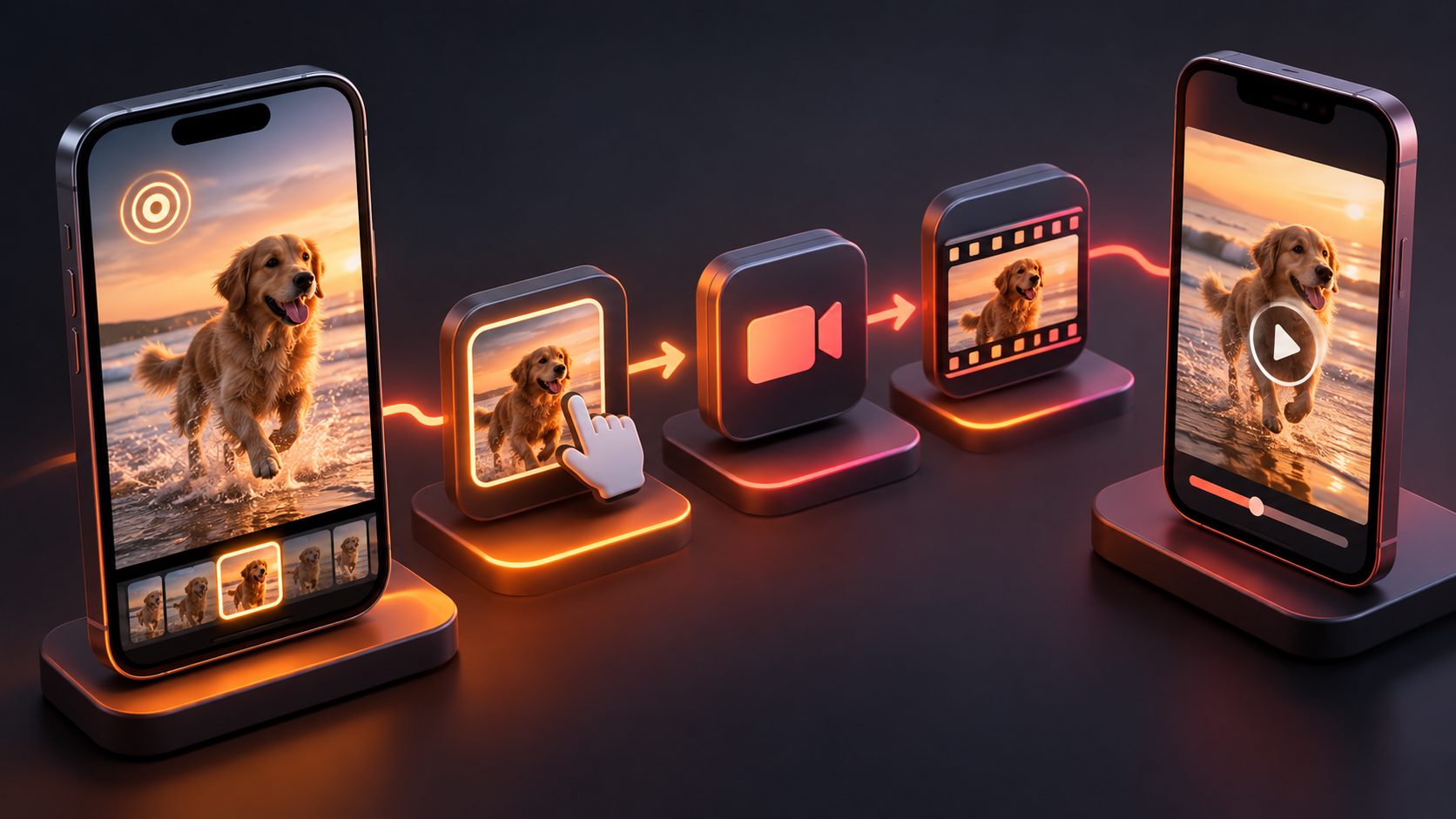
To answer how to make a live photo a video, open the Live Photo in your iPhone’s Photos app, tap the More (…) button, and choose Save as Video. Photos creates a separate video while keeping the original Live Photo. No third-party converter is needed for this basic task. (support.apple.com)
For an ecommerce seller, that export can become a useful product close-up. The important next step is deciding whether the captured movement actually demonstrates something—not simply making a photograph move.
How do you save a Live Photo as a video?
Use the built-in Save as Video command in Photos. Start with the original Live Photo, rather than a screenshot or still-image copy. Apple’s instructions place the export command in the upper-right More menu and identify Recently Saved as the destination for the new video. (support.apple.com)
- Open Photos on your iPhone.
- Find Media Types, then select Live Photos. Depending on your layout, first open Collections.
- Open the Live Photo you want to convert.
- Tap More (…) in the upper-right corner.
- Select Save as Video.
- Open Recently Saved and play the exported clip. (support.apple.com)
Check the beginning, middle, and ending before sharing. For a product shot, look for camera movement, fingers covering the item, or an action that stops halfway through.
Apple’s official Live Photo conversion instructions provide the menu path. Keep the original until you have reviewed the exported video.
What does converting a Live Photo preserve?
Conversion exports an existing captured moment; it does not create new product movement. Apple says Live Photos record what happens 1.5 seconds before and after the shutter press. That gives an untrimmed capture roughly three seconds of surrounding action—not an unlimited video that can reveal additional angles. (support.apple.com)
This distinction matters when choosing footage. A brief turn of a bracelet might show its clasp, while a still bottle on a desk may offer little useful movement.
Use this decision table to choose your next step:
| What you need | Recommended approach |
|---|---|
| The movement already captured | Export with Save as Video |
| Several captured moments together | Export separately, then assemble |
| A complete installation or demonstration | Record a dedicated video |
| A new creative scene from a product image | Use an image-to-video workflow |
| A repeating decorative effect | Consider Loop or Bounce |
Treat the exported clip as source footage. Decide its role before adding a headline, soundtrack, or sales message.
Why is Save as Video missing?
First check whether the asset is still a Live Photo and whether Live playback is enabled. A still-image copy is not the same source asset. For troubleshooting, return to the Live Photos collection, open the original, and inspect the Live control before trying the More menu again. Apple documents both that collection and the Live on/off controls. (support.apple.com)
Try these checks in order:
- Confirm movement: Press and hold the photo to preview it.
- Restore standard playback: If an effect is selected, choose Live and retry.
- Check Live is not off: Re-enable it if necessary.
- Reopen the More menu: Look for Save as Video on the individual photo. (support.apple.com)
Do not confuse changing an effect with exporting a file. Apple defines Loop as repeating the action, Bounce as playing it forward and backward, and Long Exposure as blurring motion. For a straightforward video export, start from standard Live playback. (support.apple.com)
How can you control sound and combine clips?
Review sound separately from motion, and export individual clips before assembling a sequence. Apple’s Live Photo editing tools let you trim the captured range and mute or unmute its audio. Its conversion guide recommends iMovie for combining videos created from Live Photos. (support.apple.com)
A practical assembly workflow is:
- Preview each source Live Photo.
- Trim unwanted opening or closing movement.
- Check whether its audio is muted.
- Export each selected asset.
- Arrange the resulting videos in your editor.
- Play the finished sequence with sound on, then off.
For product content, keep meaningful sounds only when they help explain the item. A zipper closing could support the demonstration; unrelated conversation is a reason to replace or remove the audio.
If you add narration, use the automatic captions workflow for ecommerce video ads to plan transcription and review. Captions should explain speech, not obscure the product.
Is your exported clip useful for a product ad?
Use a Motion–Proof–Crop check before investing in editing. This is an editorial planning framework, not a measured performance benchmark. Its purpose is to distinguish a technically successful export from a clip that clearly answers a shopper’s question.
Evaluate every clip against three questions:
| Check | Pass condition | Reason to reshoot |
|---|---|---|
| Motion | The relevant action is visible and understandable | Shaking or incomplete movement distracts |
| Proof | The clip demonstrates one specific product detail | The headline claims more than the footage shows |
| Crop | The item remains clear in the intended composition | Reframing cuts off the feature being demonstrated |
For example, consider a hypothetical Live Photo of a pouch being zipped shut. It passes Motion if the closure is visible, Proof if the message concerns the zipper, and Crop if the pouch stays in frame.
It does not prove waterproofing or durability. Keep the claim limited to what viewers can actually see.
How can you build a short ad around the footage?
Give the Live Photo export one job: showing a useful product detail. Then add only the context needed to understand it. The following nine-second storyboard is an illustrative production plan, not a tested conversion result or a platform-required duration.
| Timeline | Asset | Message |
|---|---|---|
| 0–2 seconds | Clear product still | Introduce the shopper’s question |
| 2–5 seconds | Live Photo video | Show the relevant action |
| 5–7 seconds | Detail image | Clarify the feature shown |
| 7–9 seconds | End card | Give one next step |
Do not stretch an incomplete action simply to fill this timeline. Record additional footage when the demonstration needs more time.
For a separate image-led creative, AdsTurbo Product Video accepts JPG or PNG product images up to 10MB and supports product introduction, demonstration, and review-style videos. That is a generation workflow—not a claim of native Live Photo conversion. The product-image-to-video seller workflow explains how to plan that alternative.
Frequently asked questions
Does converting delete the original Live Photo?
No. Apple says the original remains in the Live Photos album, while the new video appears in Recently Saved. Review the video before deleting either asset. (support.apple.com)
Can I make the clip longer?
You can assemble exported clips into a longer sequence. Apple recommends iMovie for combining them. Adding more clips provides additional footage; it does not reveal action missing from the original capture. (support.apple.com)
Why did emailing my Live Photo remove the movement?
Apple says Live Photos sent through Mail are sent as still images. Export the Live Photo as a video first, then attach the resulting video when motion matters. (support.apple.com)
Is Live Photo conversion the same as AI animation?
No. Photos exports captured movement. AdsTurbo’s product-video workflow generates video from a supplied product image. Choose the former to preserve an actual moment and the latter for a separate creative treatment.
Start with the native export, check the footage, and keep every product claim tied to visible evidence.