


By adsturbo.ai | Published 2026-10-16 | Updated 2026-10-16
Upscaling video to 4K means creating a 3840 × 2160 output from lower-resolution footage. AI enhancement can make product edges, faces, textures, and motion appear cleaner, but it cannot recover detail that was never captured. The best results come from combining careful source selection, restrained enhancement, visual inspection, and platform-specific export settings. (videoupscaler.dev)
For ecommerce sellers, the practical goal is not simply a larger file. It is a product ad that remains credible when viewed on a large screen, cropped into a vertical placement, or compressed by an advertising platform.
What does upscaling video to 4K actually do?
Upscaling increases the pixel dimensions of each frame. Traditional resizing stretches existing pixels, while AI video super-resolution estimates clearer edges, textures, and frame-to-frame detail from the source. The result can look sharper, but it should not be confused with footage originally captured in native 4K. (support.microsoft.com)
A useful distinction is:
| Process | Main function | Typical limitation |
|---|---|---|
| Standard resize | Enlarges the frame | Usually adds size, not meaningful detail |
| AI upscaling | Reconstructs plausible detail and improves clarity | Can create halos, plastic textures, or invented details |
| Native 4K capture | Records more original image information | Requires suitable camera, lighting, and source quality |
For product advertising, AI upscaling is most useful when the message and composition are already strong but the source is too soft, compressed, or small for the intended placement.
When should you upscale a product video?
Upscaling is worth considering when the original video contains recognizable product detail, stable motion, and readable subject separation. It is less effective when the source is heavily blurred, severely compressed, interlaced, or repeatedly downloaded from social media.
Use this quick Ecommerce Upscale Readiness Score before processing:
- Source quality: Is the original file available, rather than a re-downloaded platform copy?
- Product visibility: Can a viewer identify the product without zooming?
- Motion stability: Do fast movements avoid heavy blur or ghosting?
- Text safety: Are logos, labels, packaging text, and subtitles large enough to inspect?
- Business value: Will the 4K version support a larger placement, crop, or creative reuse?
If the answer is “yes” to at least four points, upscale a short sample first. If the source fails on product visibility or text safety, generating a new product shot may be more effective than forcing the footage into 4K.
This is an important difference from a simple “choose 4K and export” workflow: resolution should be the final delivery target, not the first quality decision.
How to upscale a video to 4K for ecommerce ads
1. Start with the cleanest source
Use the highest-quality original available. Avoid beginning with a clip that has already passed through messaging apps, social platforms, or multiple editing exports. Compression blocks and ringing around edges can become more visible after enhancement.
Check the source for:
- Product labels and fine text
- Skin and hair detail in UGC footage
- Reflective packaging
- Fast hand movements
- Dark scenes and gradients
- Background edges around the product
A 720p or 1080p source can sometimes upscale well, while a badly compressed 4K file may produce a worse result. The original signal matters more than the file name.
2. Clean problems before enlarging
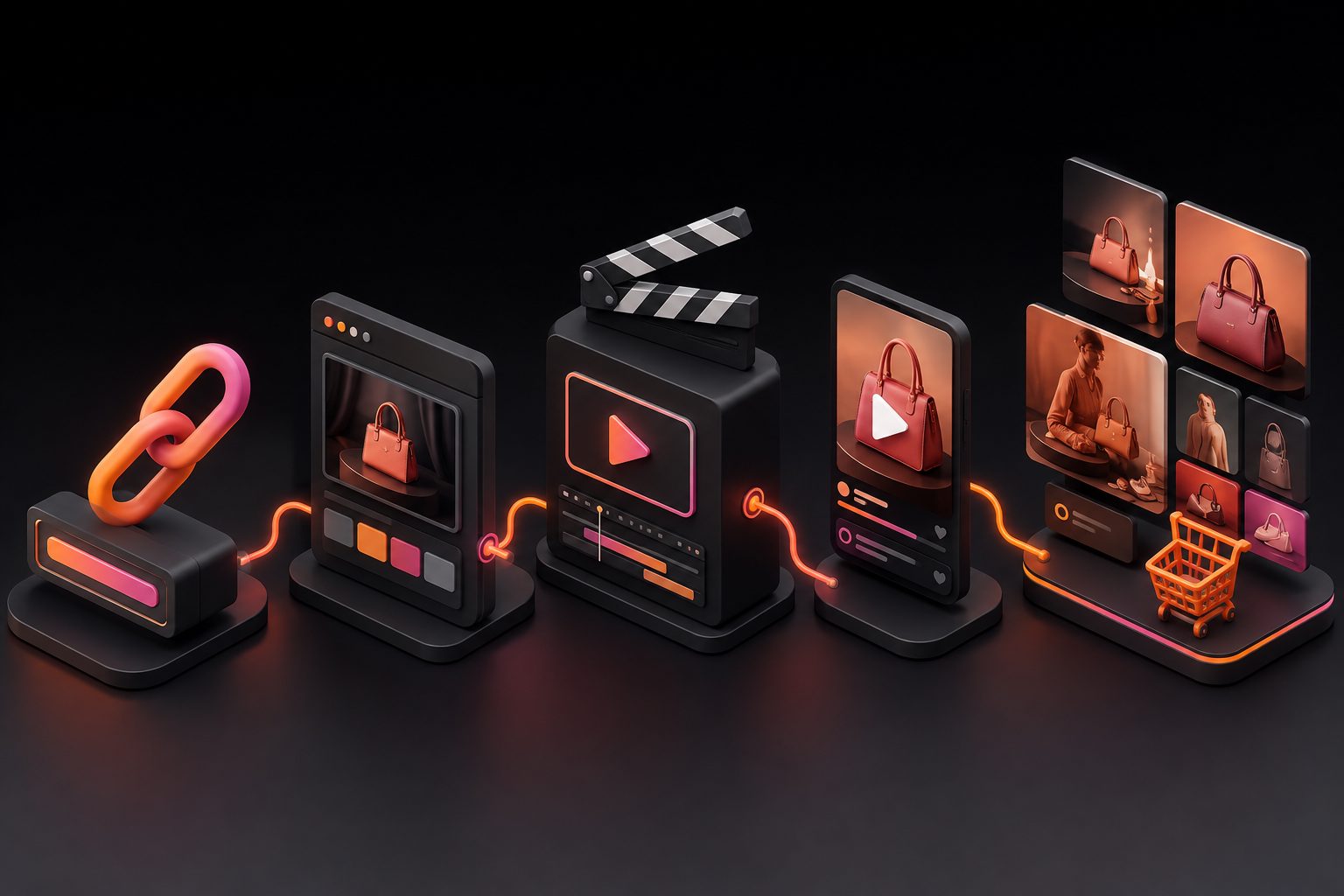
Do not sharpen every defect. Noise reduction, stabilization, cropping, or removal of distracting elements may need to happen before the final upscale. In an ecommerce workflow, the processing order should generally be:
- Trim unwanted footage.
- Correct framing and aspect ratio.
- Reduce obvious noise or compression damage.
- Apply edits such as background replacement or character changes.
- Upscale the approved version.
- Add final subtitles, logos, and platform-specific overlays.
- Export and inspect the result.
This order avoids enhancing footage that will later be cropped, replaced, or heavily edited. AdsTurbo supports tools such as background replacement, character swap, motion control, video translation, subtitles, and AI upscaling, which can be combined according to the creative requirement.
For a broader production workflow, see the guide to AI upscaling video for ecommerce ads.
3. Choose the correct 4K frame shape
“4K” does not define the aspect ratio. A standard landscape delivery is commonly 3840 × 2160, but ecommerce ads may need vertical or square compositions.
Plan the output around the placement:
- 16:9: YouTube, web video, and landscape product demonstrations
- 9:16: TikTok, Instagram Reels, and YouTube Shorts
- 1:1: Some feed placements and catalog-style creatives
Do not stretch a vertical video into a landscape frame. Reframe it, extend the background, or keep the original composition with intentional margins. AdsTurbo Ad Clone supports output formats including 9:16, 1:1, and 16:9 for adapting reference-based ad concepts across placements.
4. Preview a short section before processing the full video
A short preview is one of the most effective ways to control AI artifacts. Select a section that includes the product close-up, a face, motion, and any important text. Review the output at 100% and at the approximate size where customers will see it.
Look for:
- Shimmering edges between frames
- Wax-like skin
- Product logos that change shape
- Text that becomes unreadable
- Extra texture on smooth surfaces
- Ghosting around hands or moving objects
- Excessive sharpening around high-contrast edges
A good upscale should make the video feel cleaner, not obviously “processed.” Current video-upscaling guidance also recommends comparing the result with the original at the same display size instead of judging only the enlarged file. (videoupscaler.dev)
How can sellers protect product accuracy after AI enhancement?
Product accuracy matters more than perceived sharpness. A sharper wrong label, distorted bottle cap, or altered garment texture can reduce trust and create customer-service problems.
Use a three-layer QA check:
- Frame QA: Compare the first frame, product close-up, and final call-to-action frame against the source.
- Motion QA: Watch the video at normal speed for flicker, warping, and inconsistent product geometry.
- Conversion QA: Confirm that the product benefit, offer, subtitles, and CTA remain easy to understand without sound.
If a product has fine printed text, do not rely on AI enhancement to reconstruct it. Replace the text with a clean overlay or use a separate high-resolution product image. AdsTurbo Product Image can generate ecommerce image variations from JPG or PNG product photos, including product banners, lifestyle images, close-ups, detail images, instruction visuals, and brand images.
For a related visual production process, see how to create a product video from a product image.
What should you export after the 4K enhancement?
Export settings should match the destination rather than maximizing every available parameter. A 4K file with poor compression, the wrong aspect ratio, or unreadable captions is not a successful ad asset.
Before delivery, confirm:
- The frame dimensions match the placement.
- The frame rate remains consistent with the source.
- Audio is synchronized.
- Captions are inside the safe area.
- The product remains centered after platform cropping.
- The final file plays from beginning to end.
- The exported file is checked after upload, not only before upload.
For multilingual campaigns, subtitles and translated audio should be reviewed separately. AdsTurbo Video Subtitle can automatically transcribe speech, create time-synchronized captions, and export either a video with embedded subtitles or a separate subtitle file. Its subtitle layouts are designed for short-form placements such as TikTok, Instagram Reels, and YouTube Shorts.
If the source ad is performing well but needs regional adaptation, the video ad multilingual subtitle sync workflow can help organize translation and caption QA.
Common questions about 4K video upscaling
Can you upscale 1080p video to 4K?
Yes. A 1080p video can be exported as 3840 × 2160, and AI enhancement may improve perceived sharpness. However, the output is not equivalent to footage originally recorded in 4K because the missing detail must be estimated rather than directly recovered. (upscalevideo.com)
Does upscaling make blurry video sharp?
It can improve moderate softness, compression damage, and edge clarity, but it cannot reliably fix severe motion blur, missed focus, or a tiny subject. Test a representative close-up before processing the full ad.
Is 4K always better for TikTok or Reels?
Not always. A correctly framed, readable, well-compressed vertical video can perform better operationally than a large file with soft text or poor cropping. Use 4K when you need additional cropping flexibility, a higher-quality master, or delivery to a large display.
Should subtitles be added before or after upscaling?
In most ecommerce workflows, add final subtitles after the main visual enhancement. This keeps text crisp and makes it easier to adapt subtitle size, language, and safe-area placement for each platform.
What is the safest way to judge the result?
Compare the original and enhanced clips at the same viewing size, then inspect product close-ups, faces, text, and fast motion at 100%. The best version is the one that improves clarity without changing what the product looks like.
Final takeaway
Upscaling video to 4K works best as part of a controlled advertising workflow, not as a one-click rescue for unusable footage. Start with the cleanest source, repair major problems before enhancement, preview difficult shots, protect product accuracy, and export for the actual placement.
For ecommerce teams, the most efficient approach is to treat 4K as a reusable master-quality option while maintaining platform-specific versions for vertical, square, and landscape campaigns.