

How to Get YouTube Video URL: Desktop, Mobile, Shorts, and Clean Links

Summarize with
Summary
Learn how to get a YouTube video URL on desktop or mobile, create timestamped and clean links, and turn approved references into ecommerce ad variations. Start now.
By adsturbo.ai | Published 2026-11-03 | Updated 2026-11-03
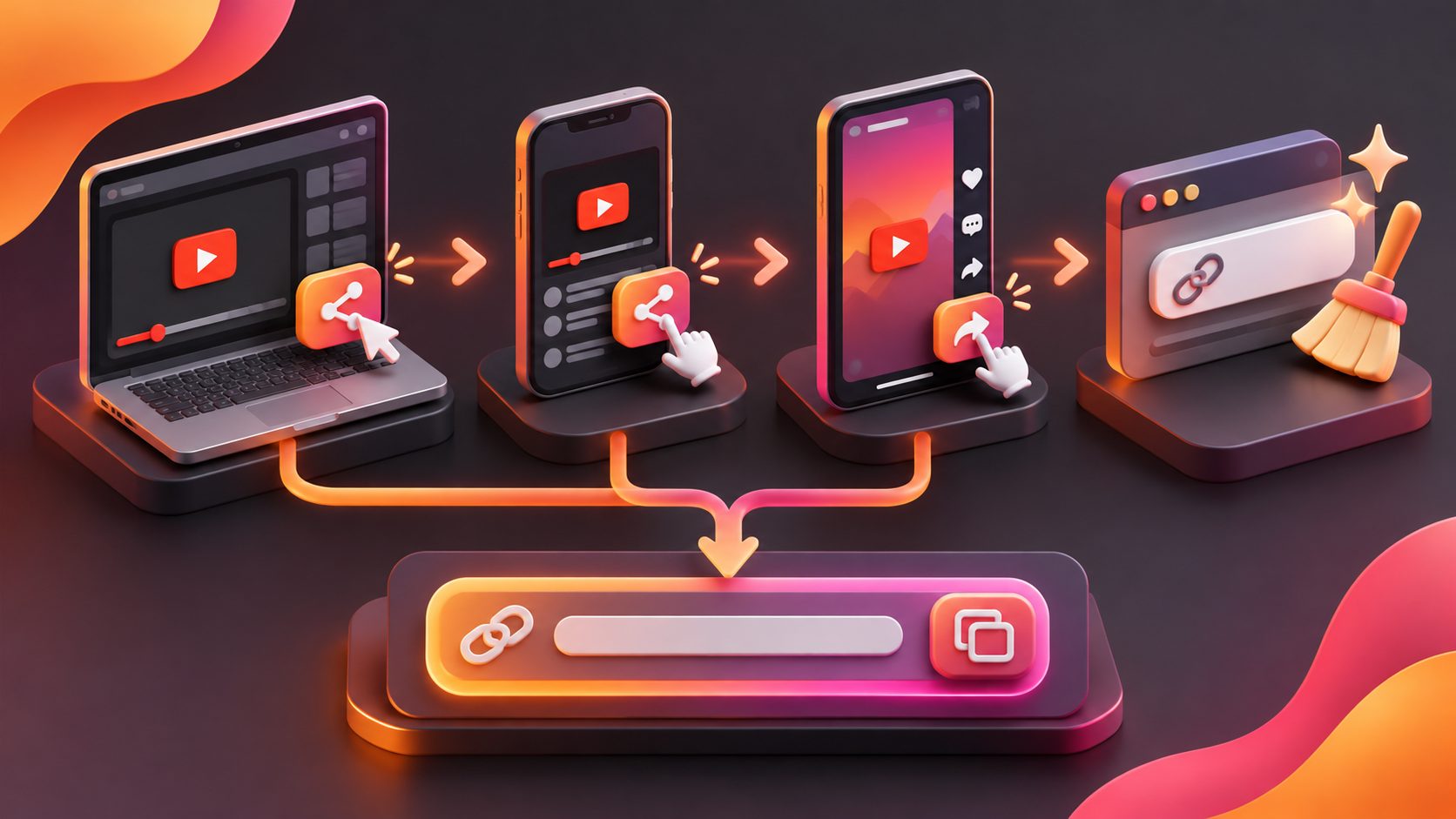
Knowing how to get YouTube video URL is simple: open the video, select Share, then choose Copy link. On a computer, you can also copy the address from the browser bar. The right method depends on whether you need a standard link, a timestamped link, a Shorts URL, or a clean source link for an approved video workflow.
For ecommerce sellers, the copied URL can do more than share a reference with a teammate. It can help organize creative research, identify useful hooks, and support the creation of new product-focused ad variations—provided you own the content or have permission to use it.
What is a YouTube video URL?
A YouTube video URL is the web address that points to one specific video page. It commonly appears in one of these formats:
https://www.youtube.com/watch?v=VIDEO_IDhttps://youtu.be/VIDEO_IDhttps://www.youtube.com/shorts/VIDEO_ID
The video ID is the unique part that identifies the video. Extra parameters may appear after it, such as a playlist reference or a timestamp. These parameters can change how the video opens, so selecting the correct link type matters when passing a source to another person or tool.
YouTube’s official sharing instructions confirm that the Share panel can copy a link and can optionally start playback at a selected time. (support.google.com)
How to get a YouTube video URL on desktop
The fastest desktop method is to use YouTube’s Share button.
- Open the video on YouTube.
- Click Share below the video player.
- Select Copy.
- Paste the link into a document, message, browser field, or workflow tool.
The copied link is usually a short youtu.be URL. It is compact and generally convenient for sharing.
Alternative: copy the browser address
You can also copy the full URL directly from the address bar:
- Open the video page.
- Click the browser address bar.
- Press Ctrl + L on Windows or Command + L on Mac.
- Press Ctrl + C or Command + C.
- Paste the URL where needed.
This method may include additional parameters, particularly if you opened the video from a playlist. For a cleaner general-purpose link, the Share panel is usually preferable.
Right-click to copy a video URL
On many desktop browsers, right-clicking the video player provides options such as Copy video URL or Copy video URL at current time. The second option is useful when a specific moment contains the hook, product demonstration, or call to action you want a teammate to review.
How to get a YouTube video URL on iPhone or Android
The mobile process is nearly identical on iPhone and Android.
- Open the YouTube app.
- Find and open the video.
- Tap Share below the player.
- Tap Copy link.
- Paste the URL into Notes, email, a message, or another application.
If the Copy link option is not immediately visible, scroll through the sharing options or use the system share sheet. You can also open YouTube in a mobile browser, tap the address bar, and copy the URL manually.
For a Shorts video, open the Short first, tap Share, and choose Copy link. The resulting address may use the /shorts/ format, but it still points to the individual video.
How to create a timestamped YouTube link
A timestamped link opens a video at a selected moment instead of at the beginning.
On desktop
- Open the video.
- Click Share.
- Select or enable Start at.
- Enter the time, such as
2:30. - Click Copy.
YouTube’s help documentation specifically supports choosing a start time before copying the link. (support.google.com)
From the video player
You may also be able to right-click the player and choose Copy video URL at current time. This is practical when reviewing a product demonstration or a specific scene with a teammate.
Timestamp links are useful for creative analysis, but they are not always ideal as a production source. If a workflow needs to inspect the entire video, use the standard video URL instead of a link that starts partway through.
How to clean a YouTube URL before sharing it
A clean YouTube URL contains the video destination without unnecessary tracking or playlist parameters. For example:
https://www.youtube.com/watch?v=VIDEO_ID
or:
https://youtu.be/VIDEO_ID
A copied URL may contain additional elements such as:
&list=PLAYLIST_ID
&index=3
&t=150s
Keep the extra parameters when you need playlist context or a precise start time. Remove them only when you want a general link to the video itself.
A practical review checklist:
- Confirm the link opens the intended video.
- Check whether it starts at the beginning.
- Remove playlist parameters if they are irrelevant.
- Avoid changing the video ID.
- Test the final link in a private or logged-out browser window when access permissions matter.
This is especially important when a creative team uses a reference URL for analysis. A link that opens the wrong playlist item can lead to incorrect conclusions about the hook, pacing, or product presentation.
How ecommerce sellers can use a YouTube URL for creative research
A YouTube link is not automatically a downloadable asset or a license to reuse someone else’s content. For advertising, use videos that your business owns, has licensed, or is otherwise authorized to process.
A useful URL-based review framework is:
- Hook: What happens in the first few seconds?
- Problem: What customer concern appears?
- Proof: Is there a demonstration, comparison, testimonial, or result?
- Product reveal: When does the product become clear?
- CTA: What action does the viewer receive?
- Format: Is the video vertical, square, or widescreen?
- Localization: Which spoken language, captions, and on-screen claims need adaptation?
AdsTurbo’s Ad Clone workflow can analyze a reference video and help reconstruct its script structure, pacing, shot logic, and CTA pattern for new advertising variations. Its Ad Clone API can analyze reference clips up to 12 seconds and generate variations in parallel. The useful distinction is that the goal should be structural inspiration and authorized adaptation, not copying another brand’s finished ad.
For related production workflows, see the guide to creating direct video links for Shopify and Meta Ads and the ecommerce ad creative fatigue workflow.
A practical “clean URL” test for ad teams
A simple internal test can prevent most handoff errors:
| Check | Pass condition |
|---|---|
| Destination | The link opens the intended video |
| Start point | Playback begins at 0:00 unless a timestamp is required |
| Format | The URL is a video URL, not a channel or playlist URL |
| Access | The intended reviewer can open it |
| Permission | The business has rights to analyze or reuse the material |
| Notes | The key hook, scene, and CTA are recorded separately |
This six-point check adds value beyond simply copying a link. It turns an unstructured URL into a usable creative brief. For product sellers testing multiple ads, that makes it easier to compare reference videos without confusing the source, timing, or usage rights.
Common questions
How do I get a YouTube video URL from the app?
Open the video, tap Share, and select Copy link. Then paste the URL into the destination app or document.
What is the easiest way to copy a YouTube link on a computer?
Click Share below the video and choose Copy. You can also copy the full address from the browser bar.
How do I get a YouTube Shorts URL?
Open the Short, tap or click Share, and select Copy link. Shorts links commonly use the /shorts/VIDEO_ID format.
How do I copy a link that starts at a certain time?
Use Share, enable Start at, enter the time, and copy the generated URL. On desktop, right-clicking the player may also provide a current-time URL option.
Can I use any YouTube URL to make an advertisement?
No. A URL identifies a video, but it does not grant permission to reuse the content. Use owned, licensed, or otherwise authorized material, and review platform and creator-rights requirements before producing ads.
Turn a reference URL into a structured creative workflow
Once the correct YouTube URL is copied, record the source, timestamp, hook, product angle, and CTA before sending it into a production process. AdsTurbo supports ad cloning, product video creation, video translation, motion control, lip sync, character replacement, AI upscaling, subtitles, and other ecommerce creative workflows. Its Video Subtitle tool can create synchronized captions and export either a captioned video or a separate subtitle file.
For product-led campaigns, sellers can combine a reference video with product images and selling points to create short-form ad variations for launch testing. Keep the source link and rights record attached to every project so the creative process remains traceable.
Explore AdsTurbo’s ecommerce video creation workflows when a clean, approved source URL is ready for production.