
Video to URL: Create Direct Video Links for Shopify and Meta Ads

Summarize with
Summary
Learn how to turn a video into a public, direct URL for Shopify and Meta Ads, avoid broken links, and build a reliable ecommerce workflow. Start now.
By adsturbo.ai | Published 2026-11-02 | Updated 2026-11-02
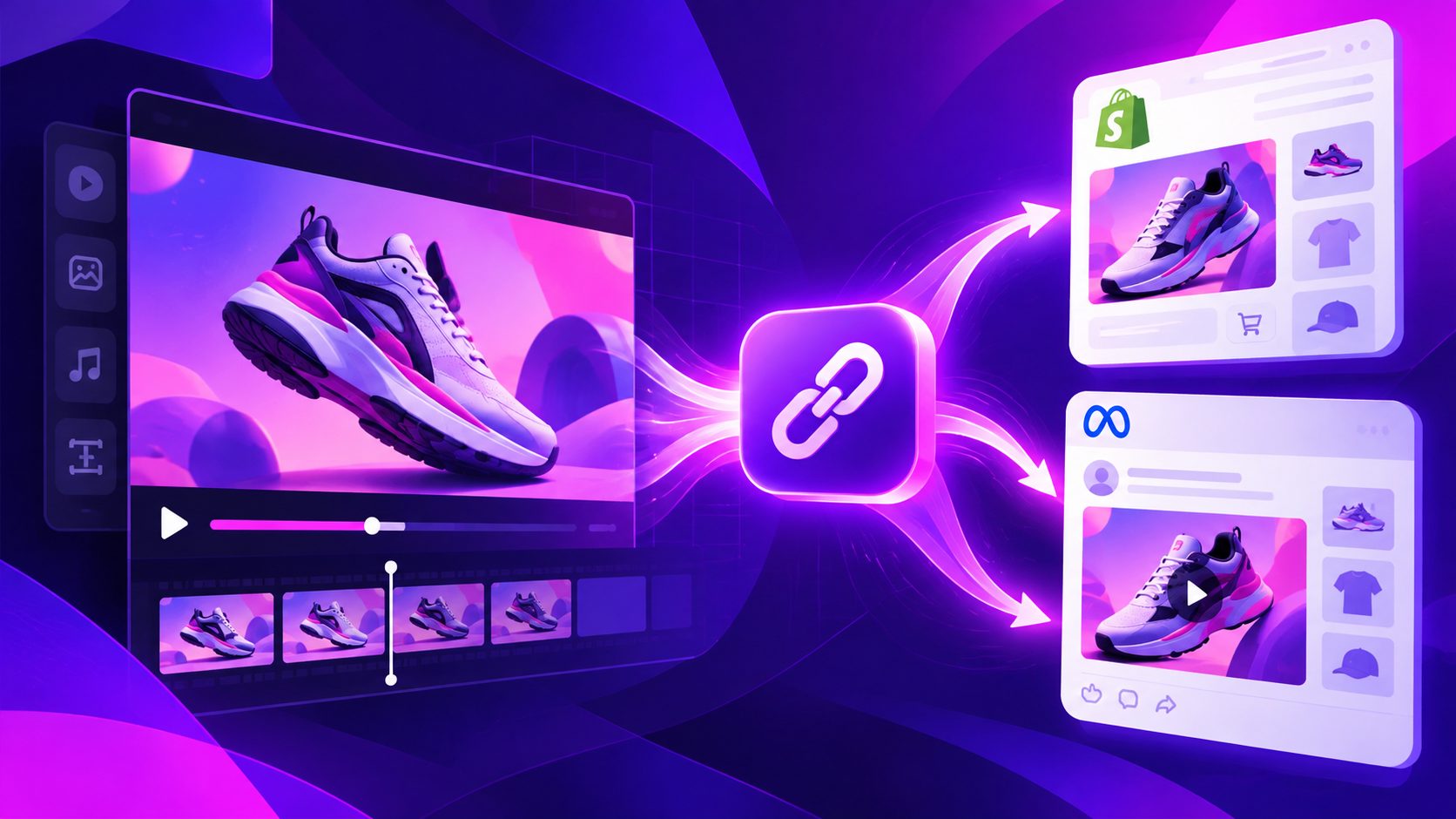
A video to URL workflow converts a local video file into a publicly reachable link that another platform can fetch. For ecommerce, that usually means creating a direct video file URL for Shopify, Meta Ads, a product feed, or an internal content system—not simply copying a Google Drive or Dropbox preview link.
The important distinction is between a video page URL and a direct file URL. A page URL opens a video player. A direct URL points to the actual video asset, such as an MP4 file, so Shopify or an advertising API can download and process it.
What is a direct video URL?
A direct video URL is a public HTTPS address that returns the video file itself when requested. It should not require a login, open an HTML preview page, or depend on a temporary browser session.
For example, these are different types of links:
| Link type | What it opens | Suitable for file ingestion? |
|---|---|---|
| Video player page | A webpage with controls and branding | Usually no |
| Cloud storage preview | A viewer or download screen | Often no |
| Public MP4 URL | The actual video file | Usually yes |
| CDN asset URL | A media file delivered from a content network | Usually yes |
| YouTube or Vimeo page | An external video page | Suitable only where embedding is supported |
This is why Shopify warns that a Google Drive or Dropbox sharing link can fail: the link opens a preview page rather than the video file itself. Shopify’s documentation says that media added from a URL must point to the file itself for non-YouTube and non-Vimeo media. (help.shopify.com)
Video URL versus destination URL: what is the difference?
A video URL tells a platform where to fetch the creative asset. A destination URL tells shoppers where to go after clicking the ad.
For a Shopify Meta campaign, the two URLs may look like this:
- Video URL: the hosted MP4 used in the ad creative
- Destination URL: the Shopify product page or landing page
- Tracking parameters: UTM tags added to the destination URL, not usually to the video file URL
Keeping these separate prevents a common mistake: using the Shopify product page as the video URL, or using a file URL as the shopper’s landing page.
Meta’s hosted-file workflow accepts a file_url parameter for video uploads through its Marketing API. The practical requirement is that Meta can reach and fetch the file from the supplied address. (postman.com)
How to turn a video into a URL
The most reliable process has five steps.
1. Prepare the video file
Use a standard web-friendly export, preferably MP4 with H.264 video and AAC audio. Check the following before uploading:
- The file plays from start to finish.
- The first frame is not blank or corrupted.
- Captions are readable on a mobile screen.
- The aspect ratio matches the placement, such as 9:16 for vertical placements.
- The filename uses simple letters, numbers, hyphens, and underscores.
A clean filename makes asset management easier:
product-name-hook-01-vertical.mp4
Avoid using a private customer video, confidential product data, or sensitive business documents in a public file area. Shopify specifically advises using its public Files area only for content intended to be publicly accessible. (help.shopify.com)
2. Upload the video to a public host
You need a service that returns a stable, externally reachable asset. Common options include:
- Shopify Files or Shopify-hosted product media
- Your own object storage and CDN
- A video hosting platform that provides direct media access
- An application or API that returns a public output URL
For Shopify stores, uploading media to Shopify’s CDN is often more dependable than linking to a third-party preview page. Shopify’s developer documentation describes asynchronous processing and a READY status for uploaded files, which means the final asset should not be used until processing has completed. (shopify.dev)
3. Copy the file URL, not the share page
After processing, copy the URL associated with the actual video asset. A useful diagnostic is to paste the link into a private browser window:
- Open the URL without being logged in.
- Confirm that it loads without authentication.
- Check whether the browser displays the video or downloads the file.
- Inspect the response if you control the server.
- Confirm that the file does not expire immediately.
If the link opens a branded viewer, asks for permission, or redirects through several screens, it is probably not the right URL for an automated upload.
4. Test the URL for platform access
A URL can work in your browser and still fail when a platform fetches it. Test for:
- Public access without cookies
- HTTPS support
- No IP allowlist blocking
- No login or password prompt
- No short expiration window
- Correct MIME type, such as
video/mp4 - No forced download page or HTML wrapper
- Stable redirects
A useful way to classify failures is the FETCH test:
| Check | Question |
|---|---|
| F — File | Does the URL return the video file itself? |
| E — Exposure | Can an anonymous request reach it? |
| T — Type | Is the content type a supported video format? |
| C — Continuity | Will the link remain valid long enough for processing? |
| H — Hand-off | Can the target platform fetch it without browser-only behavior? |
This framework is particularly useful when a link works in Chrome but fails in Shopify or Meta.
5. Use the URL in the target workflow
For Shopify, you can add media through product media, files, or an app workflow. Shopify supports video uploads and can generate processed versions for storefront delivery. (shopify.dev)
For Meta Ads, a public video file URL can be passed to a hosted-file upload workflow. After Meta receives the video, wait for processing before using the resulting video ID in an ad creative. A third-party implementation guide describes the expected sequence as submitting the public URL, checking the processing status, and creating the creative only after the video is ready. (renderly.video)
How AdsTurbo fits into a video URL workflow
A direct URL solves distribution, but it does not solve creative production. Ecommerce teams still need multiple hooks, product demonstrations, subtitles, languages, and format variations.
AdsTurbo can support the production side with:
- Product video creation from a JPG or PNG product image
- Ad Clone workflows for restructuring a reference ad
- Video subtitles with downloadable caption files or embedded captions
- Video translation for localized creative versions
- AI upscaling for low-resolution footage
- Background replacement, character swap, lip sync, and motion control
- API access for image generation, Persona, AI actors, ad cloning, video generation, and task processing
For a broader creative testing workflow, see the guide on swapping ecommerce ad hook variations without rebuilding winning ads. If the source footage is long, repurposing long videos into captioned short-form ads can reduce the amount of manual editing before hosting the final files.
All AdsTurbo generation tasks are asynchronous. A production pipeline should therefore wait for a completed task through status polling or a Webhook callback before attempting to publish or distribute the resulting asset.
Why a video URL fails in Shopify or Meta
Most failures come from one of four causes:
- Preview-page URL: The platform receives HTML instead of video data.
- Private permissions: The browser session is authorized, but the platform is not.
- Premature processing: The host has accepted the file but has not finished transcoding it.
- Unstable hosting: The URL expires, requires a token, or redirects to a temporary location.
Shopify notes that unsupported special characters, unsupported file types, blocked requests, and inaccessible URLs can also cause media-processing errors. (help.shopify.com)
When troubleshooting, do not immediately regenerate the video. First test the existing URL from an anonymous session, verify the response type, and confirm that the asset has finished processing.
Frequently asked questions
Can I use a Google Drive link as a video URL?
Usually not for automated media ingestion. A standard Google Drive sharing link commonly opens a preview page rather than returning the video file directly. Download the file and upload it to a host that provides a public asset URL.
Does a Shopify product URL count as a video URL?
No. A Shopify product URL is a webpage and should be used as the ad’s destination URL. The video URL must point to the hosted video file or a supported external video page.
Can Meta Ads use a video URL instead of an upload?
Meta’s Marketing API supports hosted-file video uploads using a file_url parameter, provided Meta can fetch the asset. The URL should be public, stable, and accessible without browser-only authentication. (postman.com)
Should the video URL contain UTM parameters?
Usually, tracking parameters belong on the landing-page URL. Keep the video asset URL clean unless your hosting architecture specifically requires signed or query-based access.
What is the safest workflow for many ad variants?
Generate and validate each creative, wait for asynchronous processing to finish, store the final public URL with its format and language metadata, then submit it to Shopify or Meta. A simple naming convention and a URL health check prevent many publishing errors.