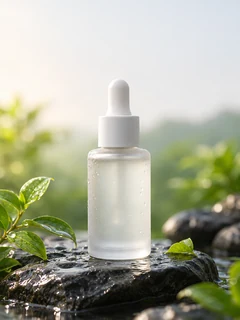
Describe the image you need, add product photos as references and pick a model such as GPT Image 2.6, Seedream 5.5, Nano-Banana 2, Kling Image 4.0 or MiniMax H3-Image. AdsTurbo is an AI product image generator built for ad creatives, listings and campaign visuals.
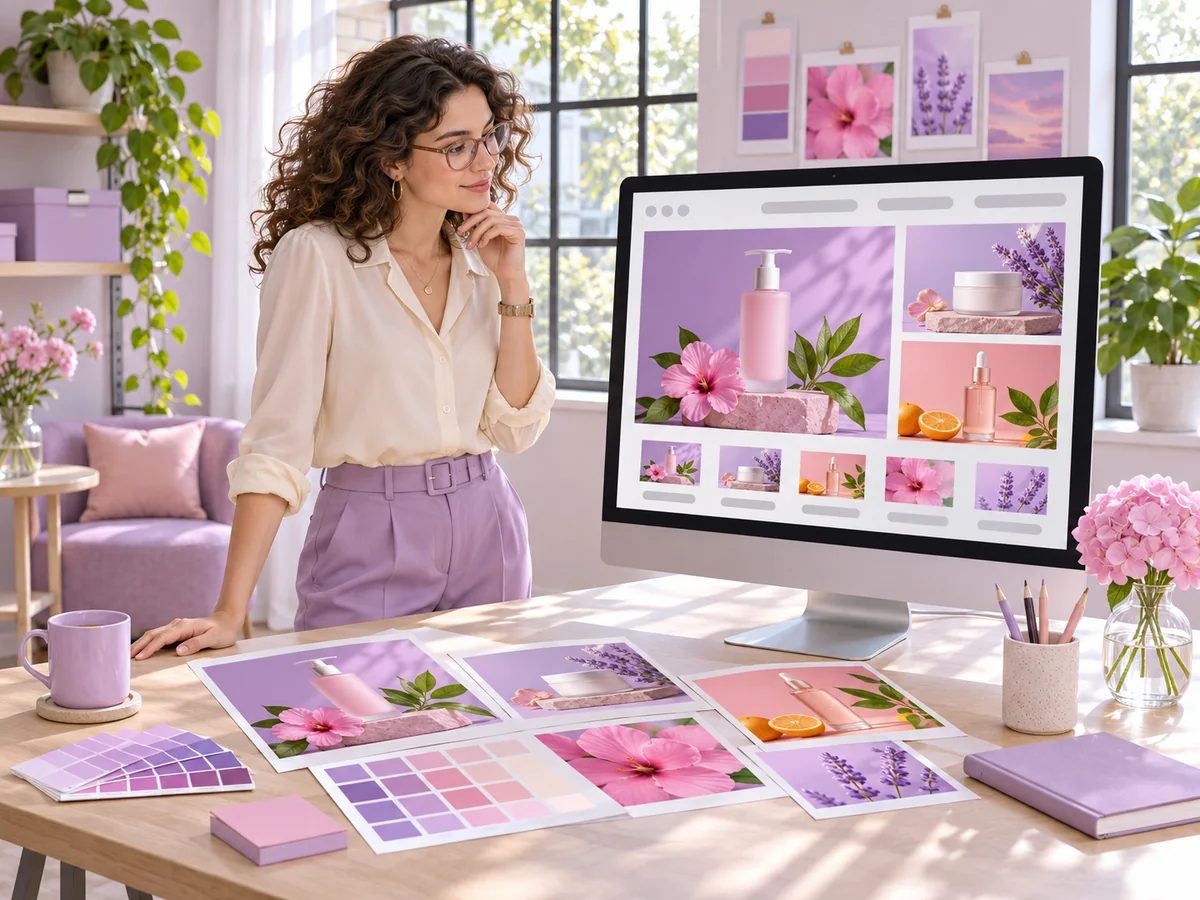
Demo preview. Open the workspace to write your prompt, add references and generate images.
The Image mode in the AdsTurbo workspace turns a text prompt, with or without reference photos, into images for ads, product listings and social posts.
It generates new images from your prompt. Add reference photos and the model edits or builds on them, so you can place a product in a new scene or turn it into a poster.
Nothing is required: a prompt alone is enough. To keep a real product, logo or person in the image, upload reference photos or pick them from your asset library.
Images in the aspect ratio and resolution you choose, up to 4K on most models and 8K on Nano-Banana Pro and Kling Image 4.0, with several images per task.
It is not a photo editor with layers and brushes. Changes are made by prompt, so describe what to keep and what to change.
From prompt to finished image in three steps in the AdsTurbo workspace.
On the workspace home page, switch to Image. Describe the product, the scene, the light and any text you want on the image. To keep a real product in the shot, attach one or more reference photos.
Leave the model on Auto or pick one yourself, such as GPT Image 2.6, Seedream 5.5, Nano-Banana 2, Kling Image 4.0 or MiniMax H3-Image. Set the aspect ratio, resolution and number of images.
Sign in and start the task. Image generation uses credits, which vary by model, resolution and number of images, and credits are returned when generation fails. Review the results and download the ones you want.
Each generation is a separate task. If an image is not right, adjust the prompt or switch models and generate again.
One prompt and a few reference photos in, ad-ready images out, with the model you choose.
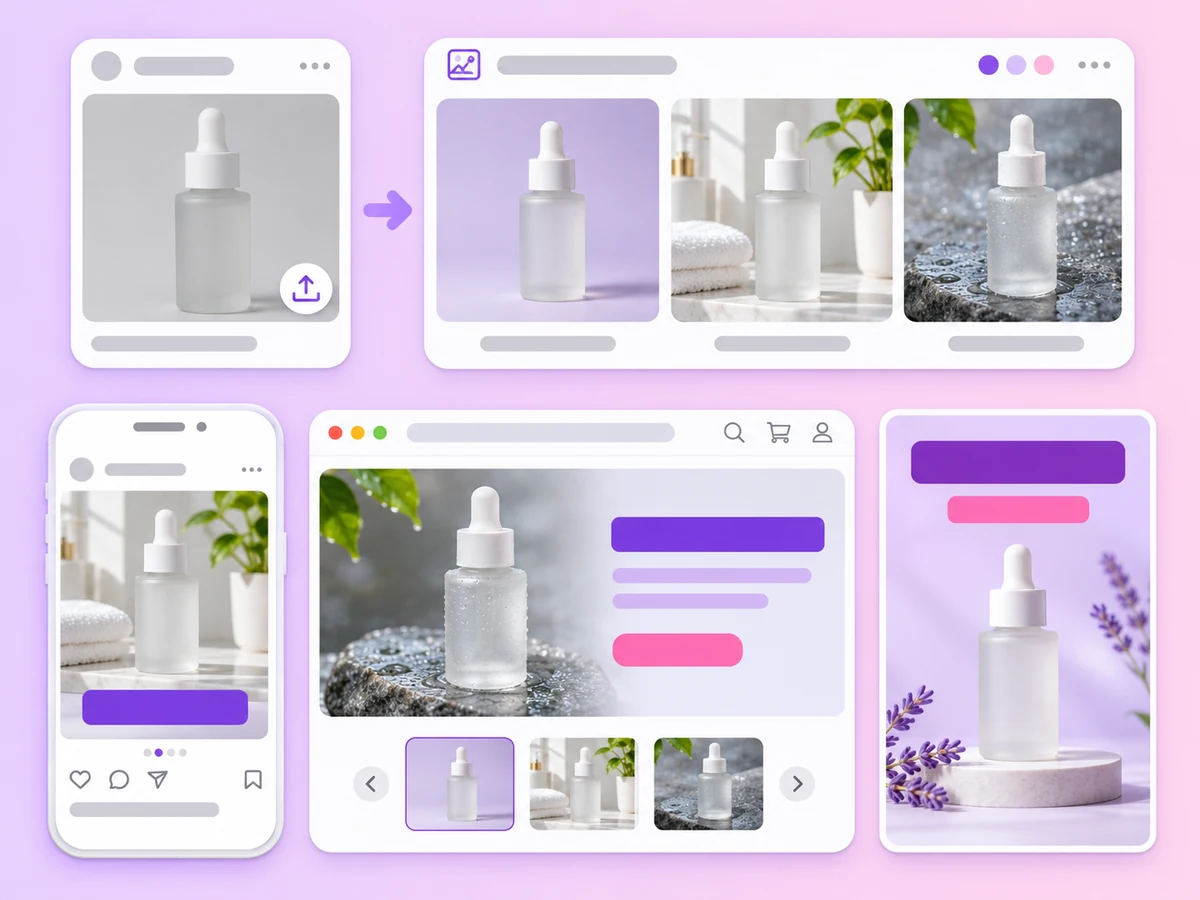
Put your product in a clean studio shot or a lifestyle scene for product pages and marketplace listings.
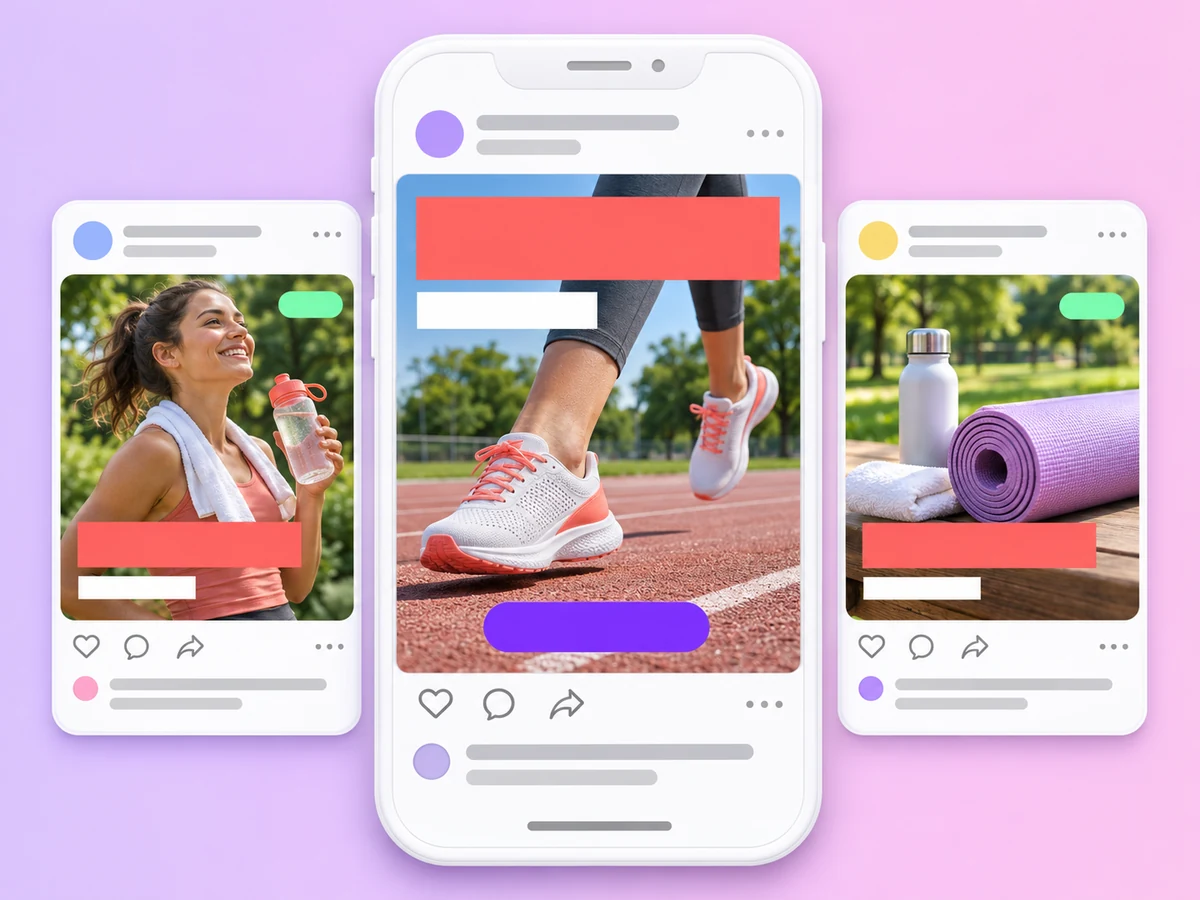
Generate sale banners, launch posters and feed ads with headlines in the image. GPT Image and Nano-Banana models handle in-image text well.
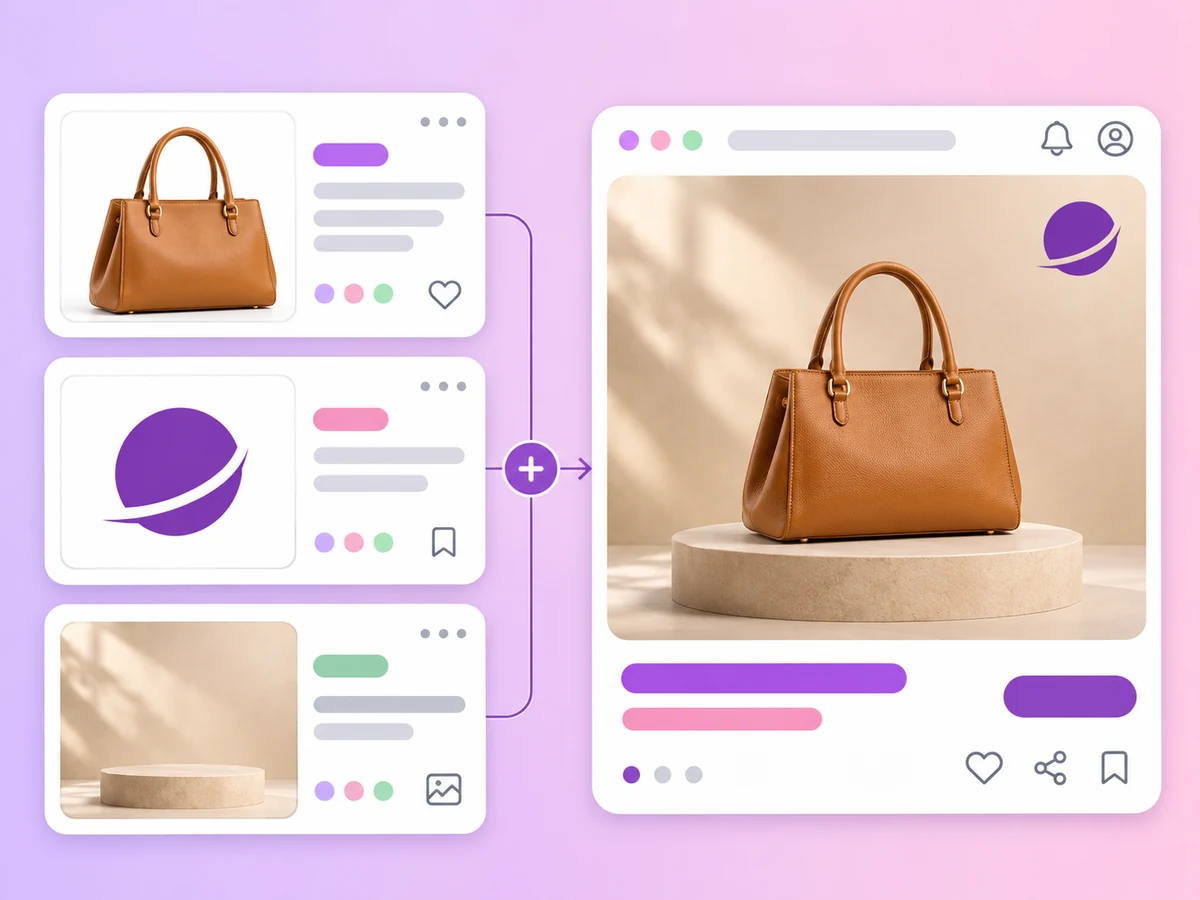
Attach product, logo or model photos and describe the change. GPT Image 2.5, GPT Image 2.6 and MiniMax H3-Image take up to 16 references, Nano-Banana 2.1 up to 14.
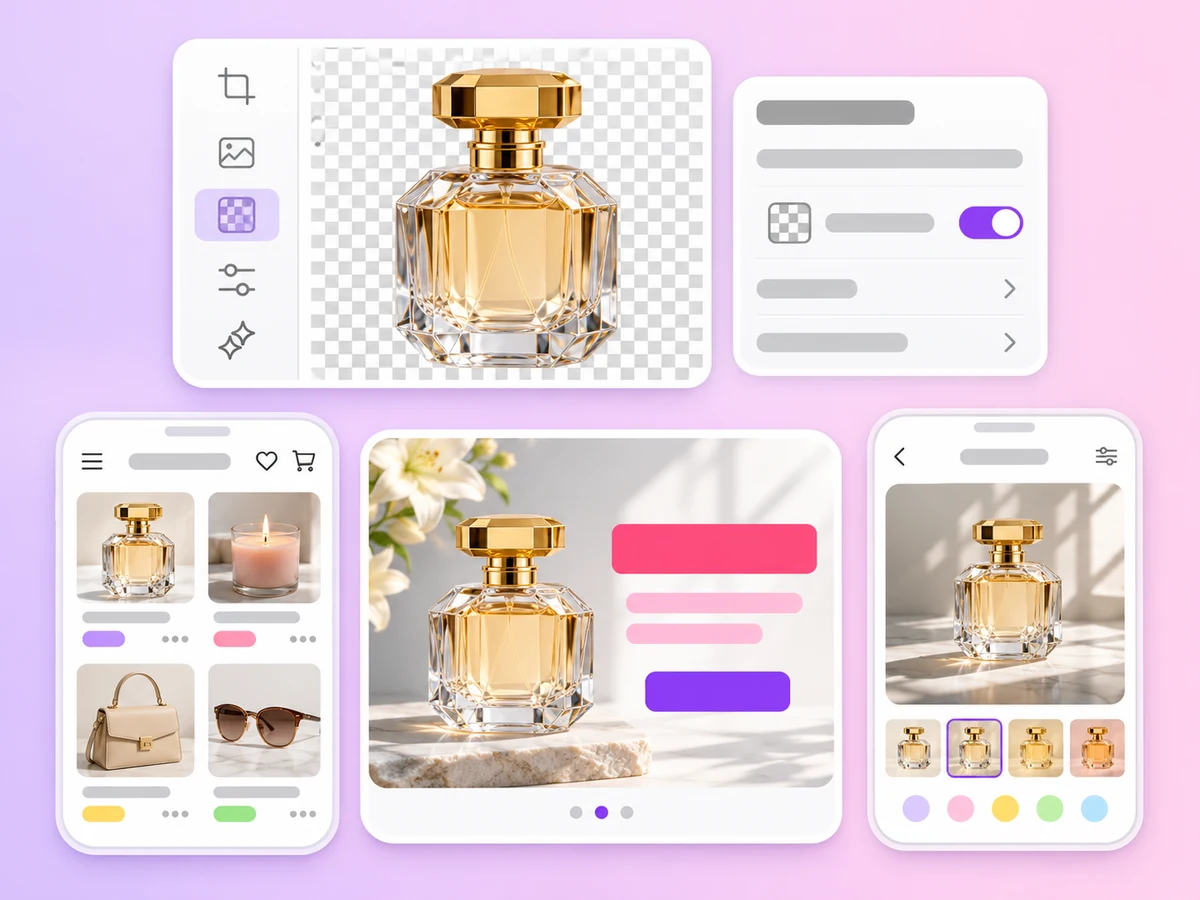
Seedream 5.5 is the only model with a transparent background option, ready for cutouts, stickers and logos.
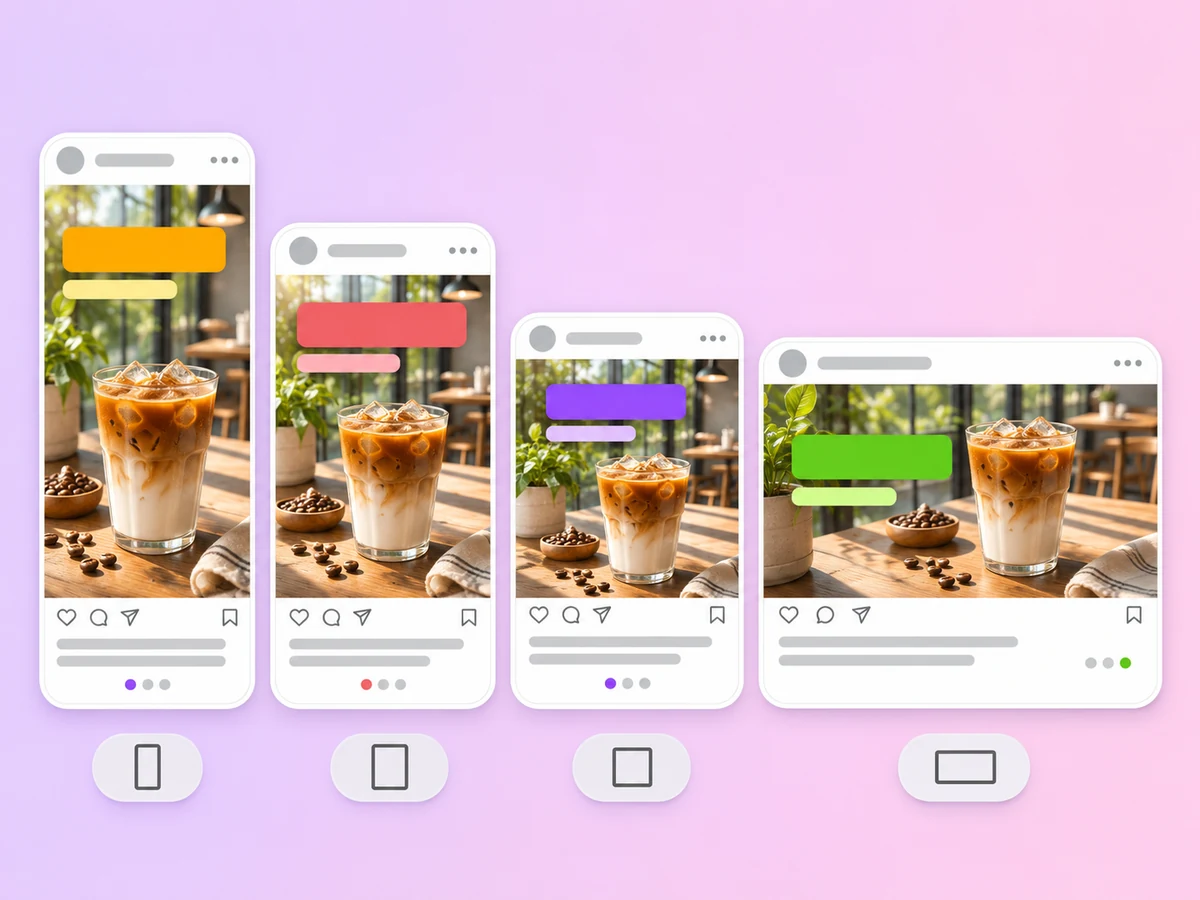
Choose 9:16, 1:1, 4:5, 16:9 and many more, or leave it on auto. Nano-Banana 2, Nano-Banana 2.1 and Seedream 5 Lite also offer 1:8 and 8:1, and Grok Imagine Image 2.0 offers phone ratios such as 19.5:9 and 20:9.
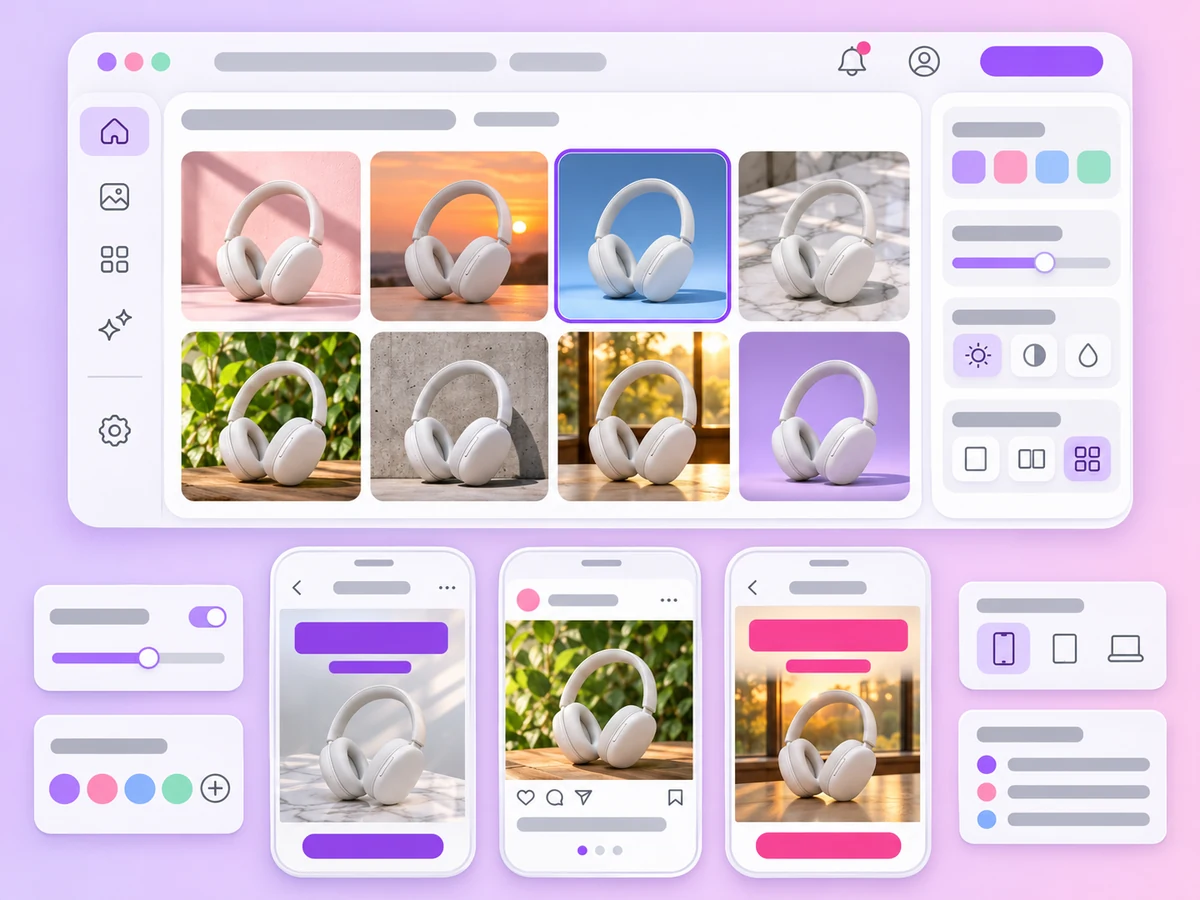
Generate up to 10 images in one task, or up to 14 with Nano-Banana models, to compare variations side by side.
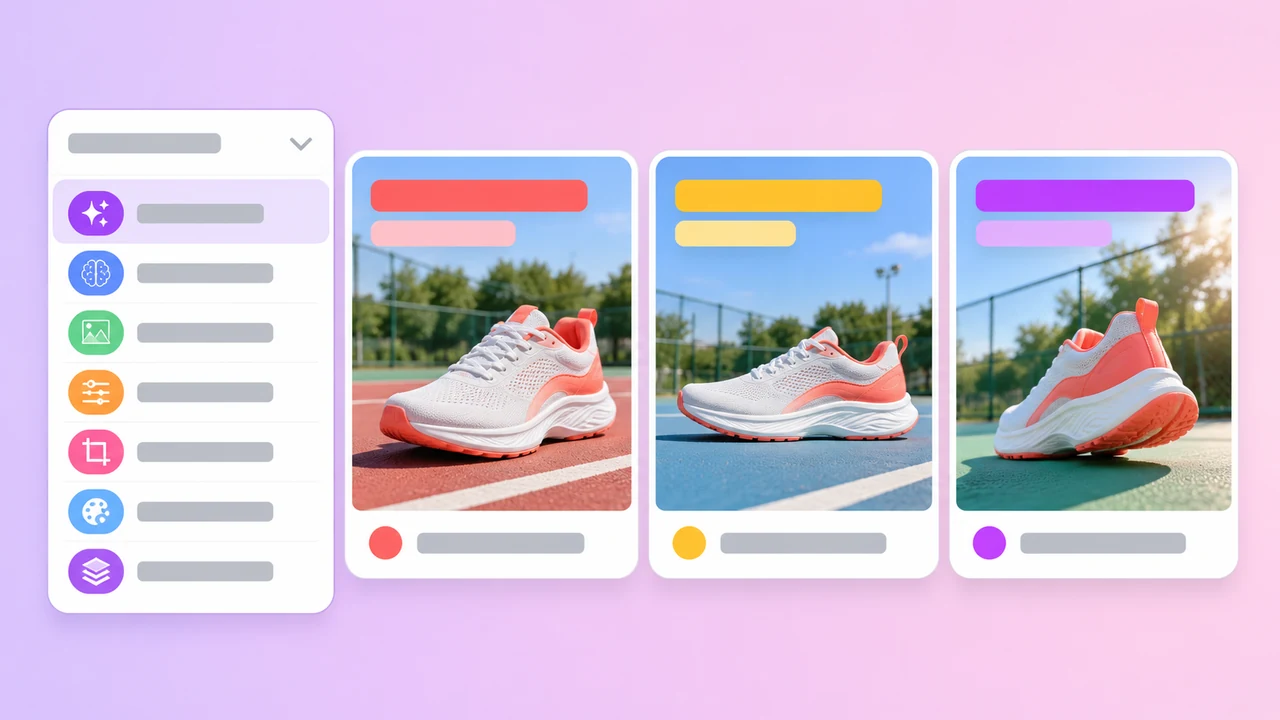
Models
Compare the OpenAI models on GPT Image 2.
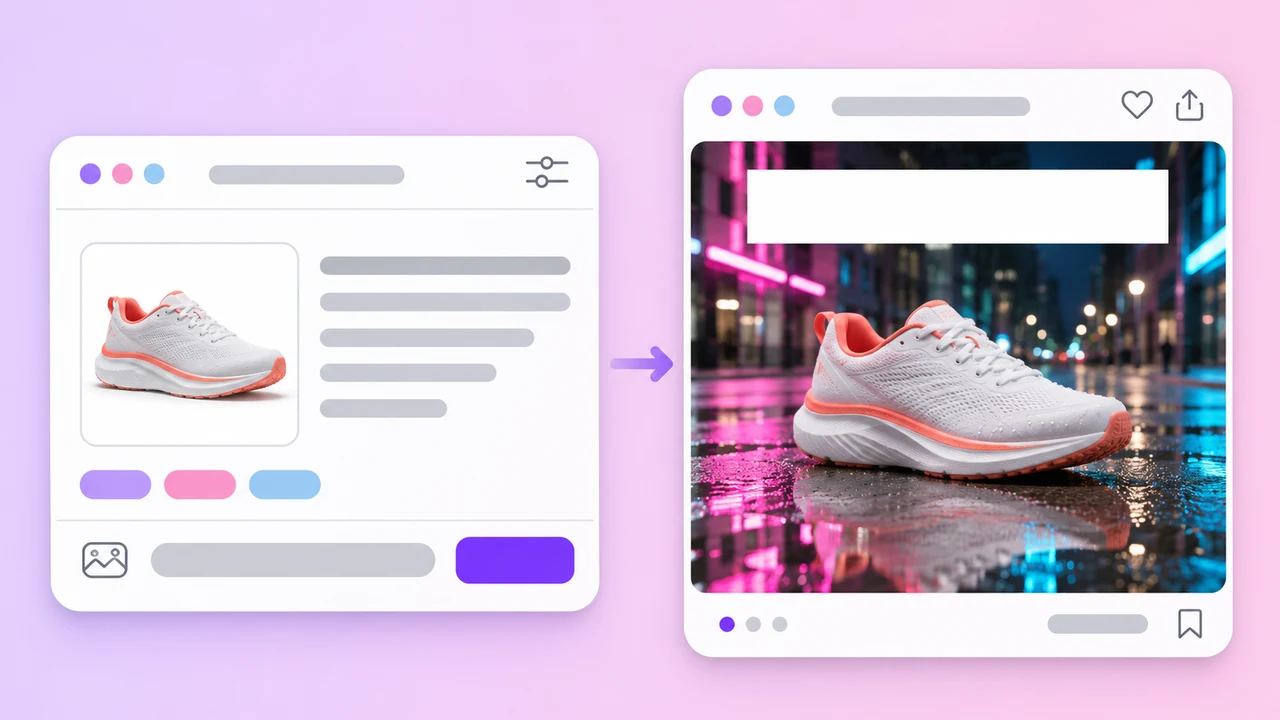
Prompt
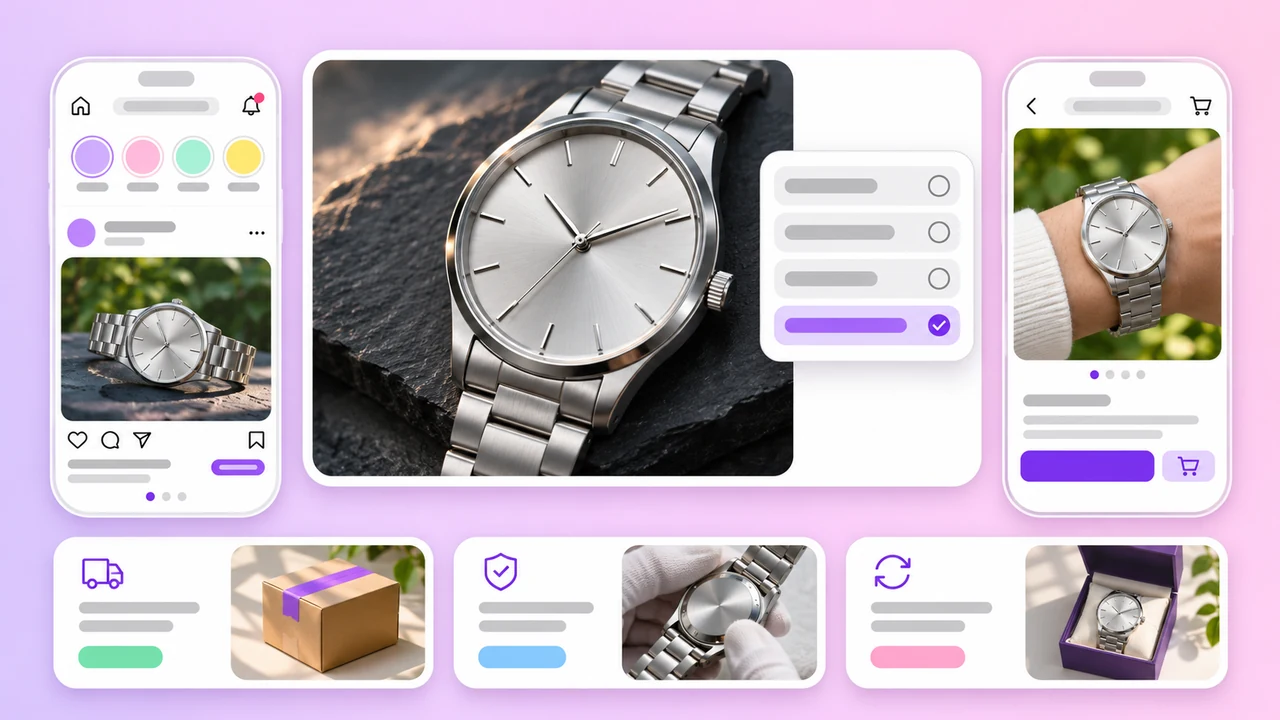
Resolution
For 4K and 8K product shots, see Nano Banana 2.
Image models in the AdsTurbo workspace
Based on the AdsTurbo workspace as of November 2026; models and limits may change. These are third-party models made by the companies listed; AdsTurbo gives you access to them and is not affiliated with those companies.
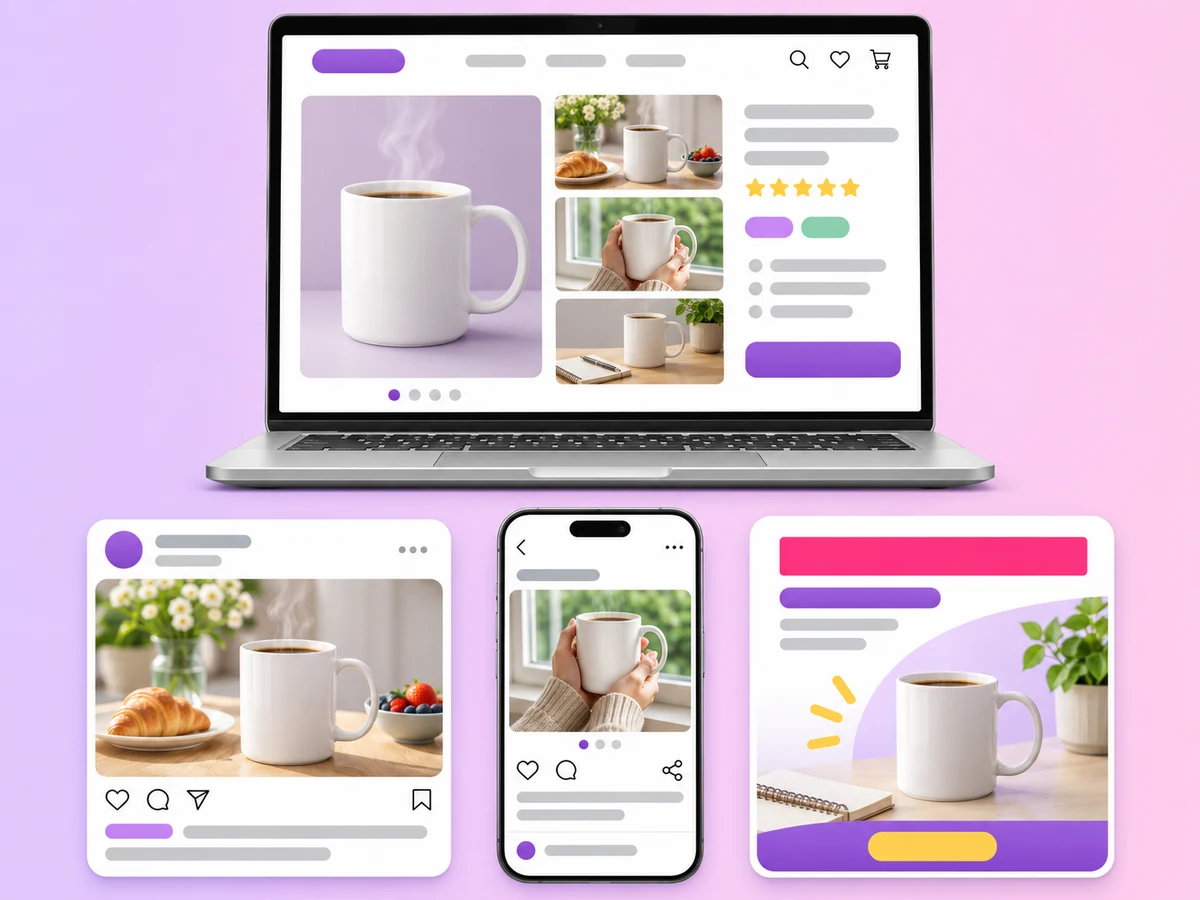
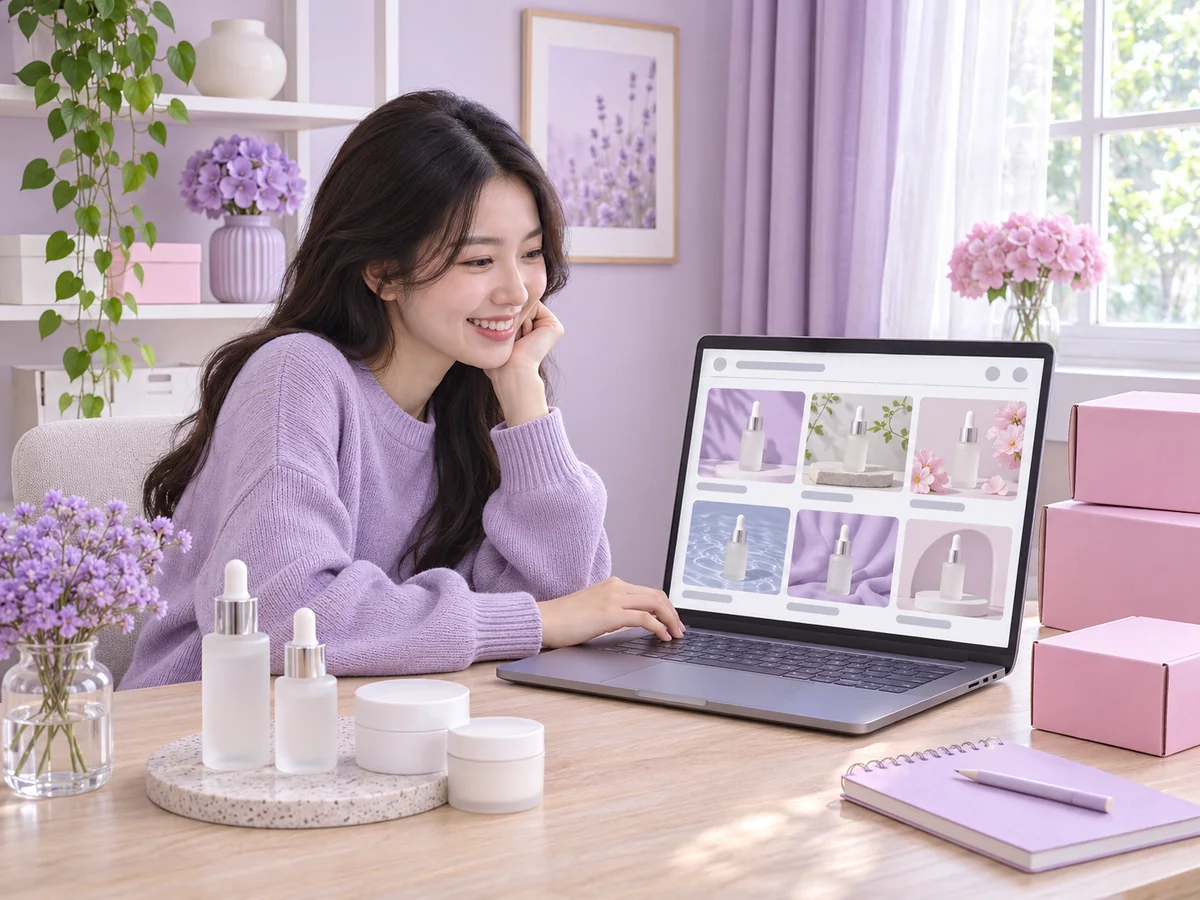
Studio shots and lifestyle scenes of your product for listings, in the ratio each platform needs.
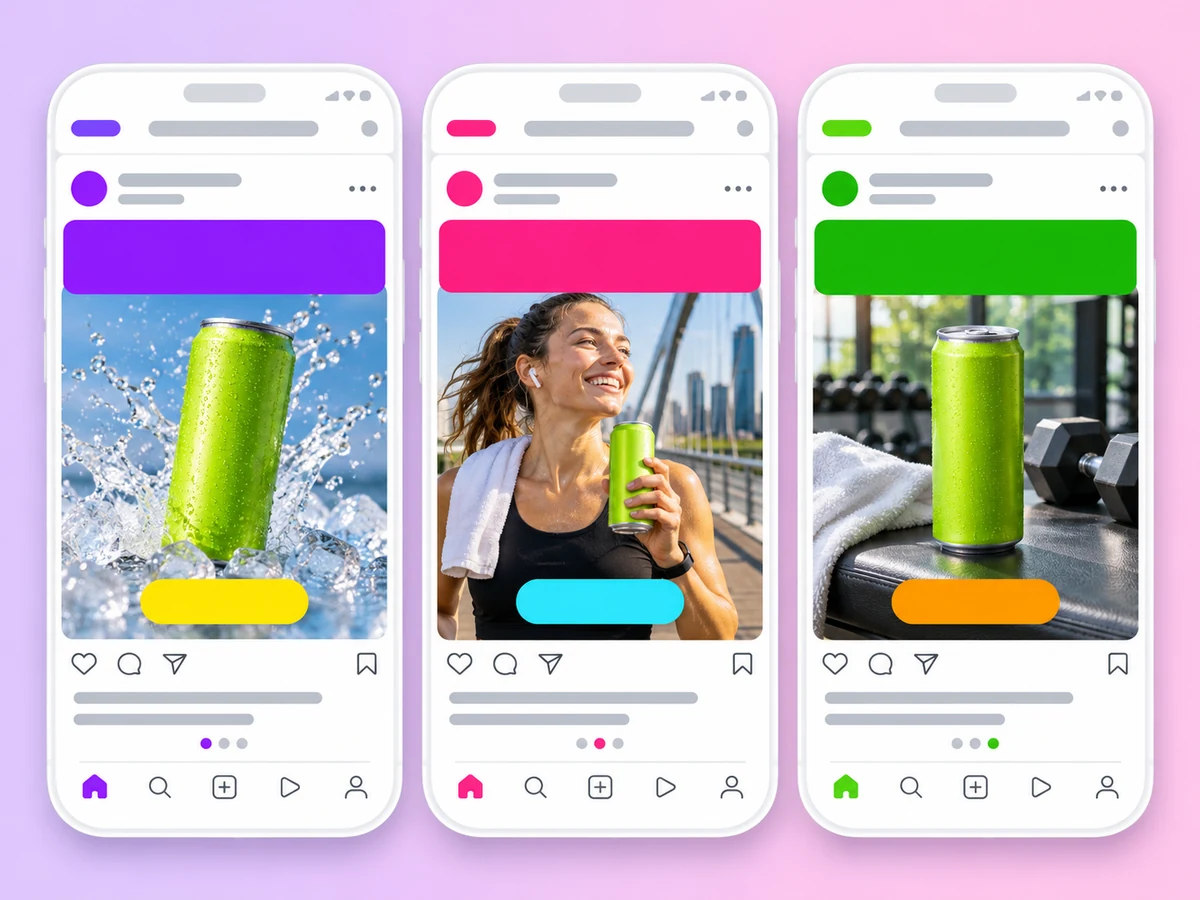
Vertical and square ad images with headlines and offers for Meta, TikTok and other feeds.
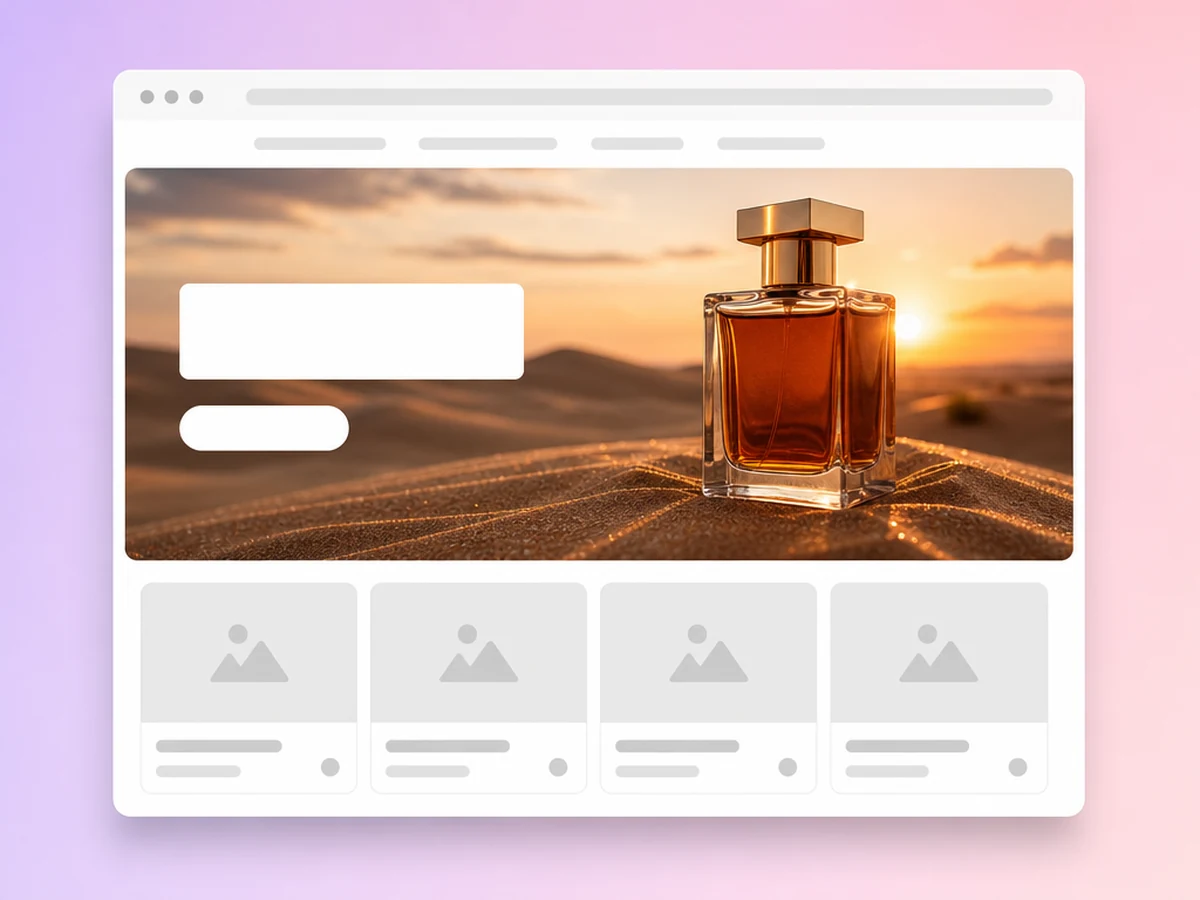
High-resolution hero images and posters for launches, landing pages and seasonal campaigns.
AI Image Generator
Open the workspace home page, switch to Image mode and write a prompt that describes the product, scene and any text. Attach reference photos if you want to keep a real product in the image. Choose a model or leave it on Auto, set the aspect ratio, resolution and number of images, then generate and download the results.
Yes. Upload photos of your product as reference images and describe the new scene. The model builds the image around your product. Check each result for small details such as labels and logos, and regenerate or adjust the prompt if needed. For a ready-made set of listing images, use E-commerce Product Image; for clean cutouts, use White Background Image.
The Image mode offers Auto, MiniMax H3-Image and its Highspeed edition, GPT Image 2.6, GPT Image 2.6 Sunburst, GPT Image 2.5, GPT Image 2, Nano-Banana 2, Nano-Banana 2.1, Nano-Banana Pro, Seedream 5.5, Seedream 5 Pro, Seedream 5 Lite, Grok Imagine Image 2.0 and Kling Image 4.0. They are third-party models from MiniMax, OpenAI, Google, ByteDance, xAI and Kuaishou, available in one workspace.
For headlines and text in the image, start with GPT Image 2.6 or Nano-Banana 2. For a transparent background, use Seedream 5.5, the only model with that option. For the highest resolution, Nano-Banana Pro and Kling Image 4.0 go up to 8K. For phone-screen ratios such as 20:9, try Grok Imagine Image 2.0. If you are not sure, leave it on Auto, or run the same prompt on two models and compare. See GPT Image 2 for the OpenAI models.
It depends on the model. Most offer 1K and 2K; GPT Image 2.5, GPT Image 2.6, MiniMax H3-Image, Nano-Banana 2 and Nano-Banana 2.1 go up to 4K, Seedream 5.5 up to 3K, and Nano-Banana Pro and Kling Image 4.0 up to 8K. Kling Image 4.0 starts at 2K, and Seedream 5 Lite sets the resolution itself. 4K and higher need a subscription plan. Aspect ratios include 1:1, 4:5, 3:4, 9:16, 16:9 and 21:9 on most models, and auto lets the model decide.
Image generation uses credits. The cost depends on the model, the resolution and the number of images, and the workspace shows the cost before you generate. Credits are returned when a generation fails. See Pricing for plans and credits.
Paid plans include commercial usage rights. Only upload reference photos you own or have permission to use, and check each image and the ad platform's rules before you publish. See the Terms of Service for details.
Write a prompt, add your product photos and pick a model. Your first image is a few clicks away.
 AdsTurbo