Run Google's Veo 3.1 from the AdsTurbo workspace. Write a prompt, animate a photo from a start frame, set the first and last frames, or add up to 3 reference images, and get a 4, 6 or 8 second clip at up to 4K with native audio.
Demo preview. Open the workspace to pick Veo 3.1, add your frames and generate.
Veo is a family of third-party video models from Google. AdsTurbo gives you access to Veo 3.1 in the video mode of its workspace, next to Seedance, Kling and the other video models.
Veo 3.1 makes clips of 4, 6 or 8 seconds at 720p, 1080p or 4K, the highest resolution among the video models in AdsTurbo.
Veo 3.1 generates native audio with the video, such as ambient sound and effects, so a clip does not have to stay silent.
Start from a prompt alone, upload a start frame or start and end frames, or add up to 3 reference images to keep a product or person consistent.
AdsTurbo is not affiliated with Google, and this is not the Gemini app or Google Flow. It is a workspace that connects you to Veo 3.1 and other models, with credits, task history and downloads in one place.
From prompt or photo to a Veo 3.1 clip in three steps in the AdsTurbo workspace.
On the workspace home page, switch to Video and choose Veo 3.1 from the model list. Set the aspect ratio to 9:16 or 16:9, the length to 4, 6 or 8 seconds, and the resolution.
Describe the subject, the action, the camera move and the sound. To keep a real product or person in the shot, upload a start frame, start and end frames, or up to 3 reference images.
Sign in and start the task. Veo 3.1 is billed per second of video, and credits are returned if a task fails. When the clip is ready, review it and download it.
With reference images, Veo 3.1 renders in 16:9. One task uses either frames or reference images, not both, and an end frame always needs a start frame.
What Google's Veo 3.1 can do in the workspace, with the limits that apply.
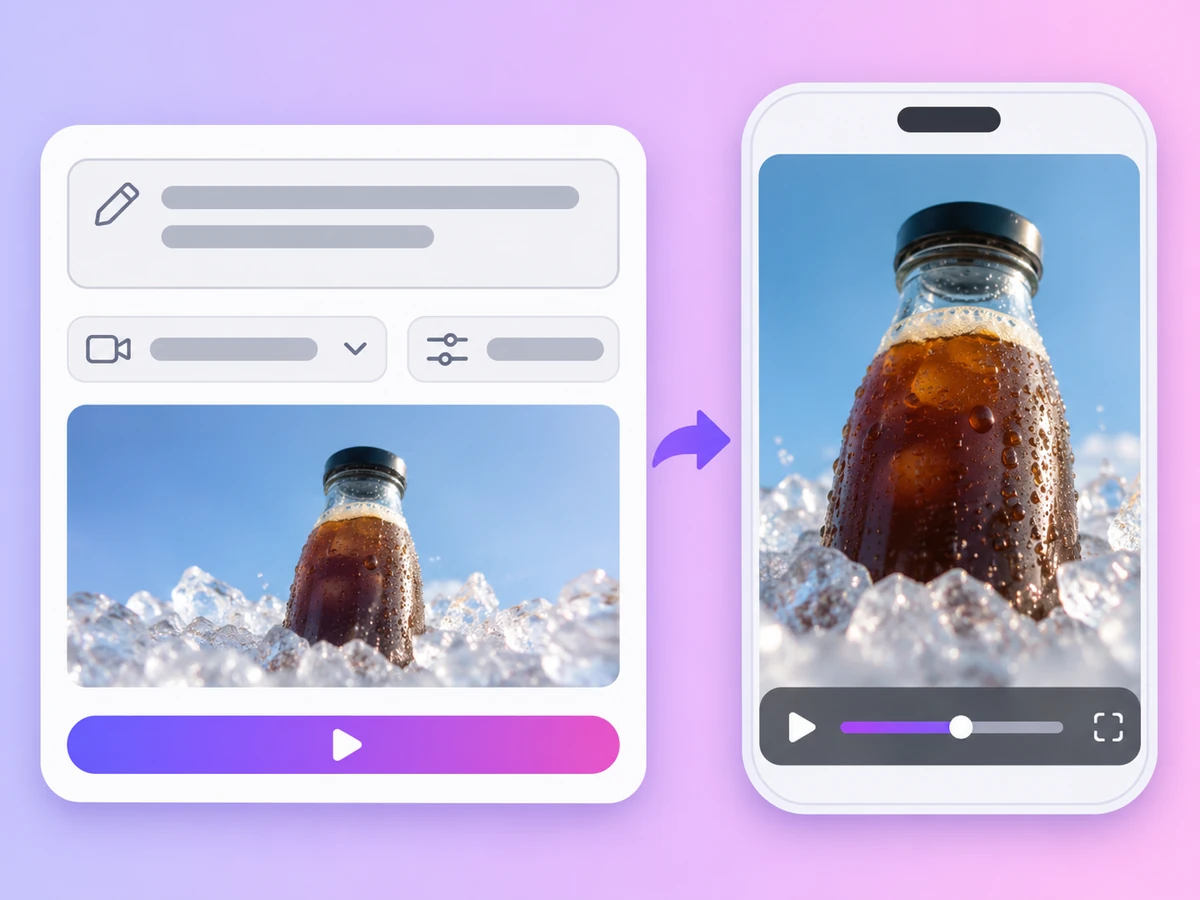
Describe one shot in a few sentences and Veo 3.1 turns it into a clip with motion, light and sound.
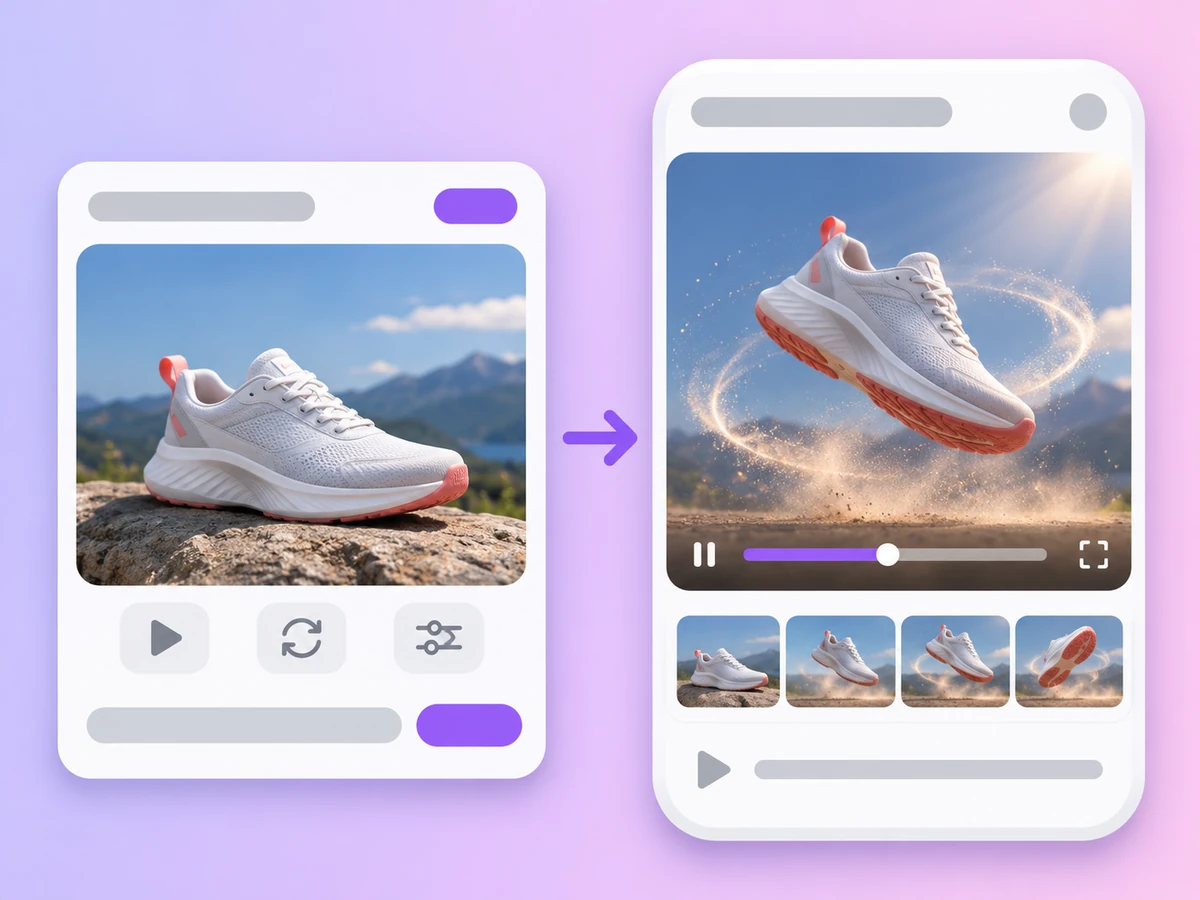
Upload a photo as the opening shot and describe the motion. Add an end frame too when you want to fix where the clip lands.
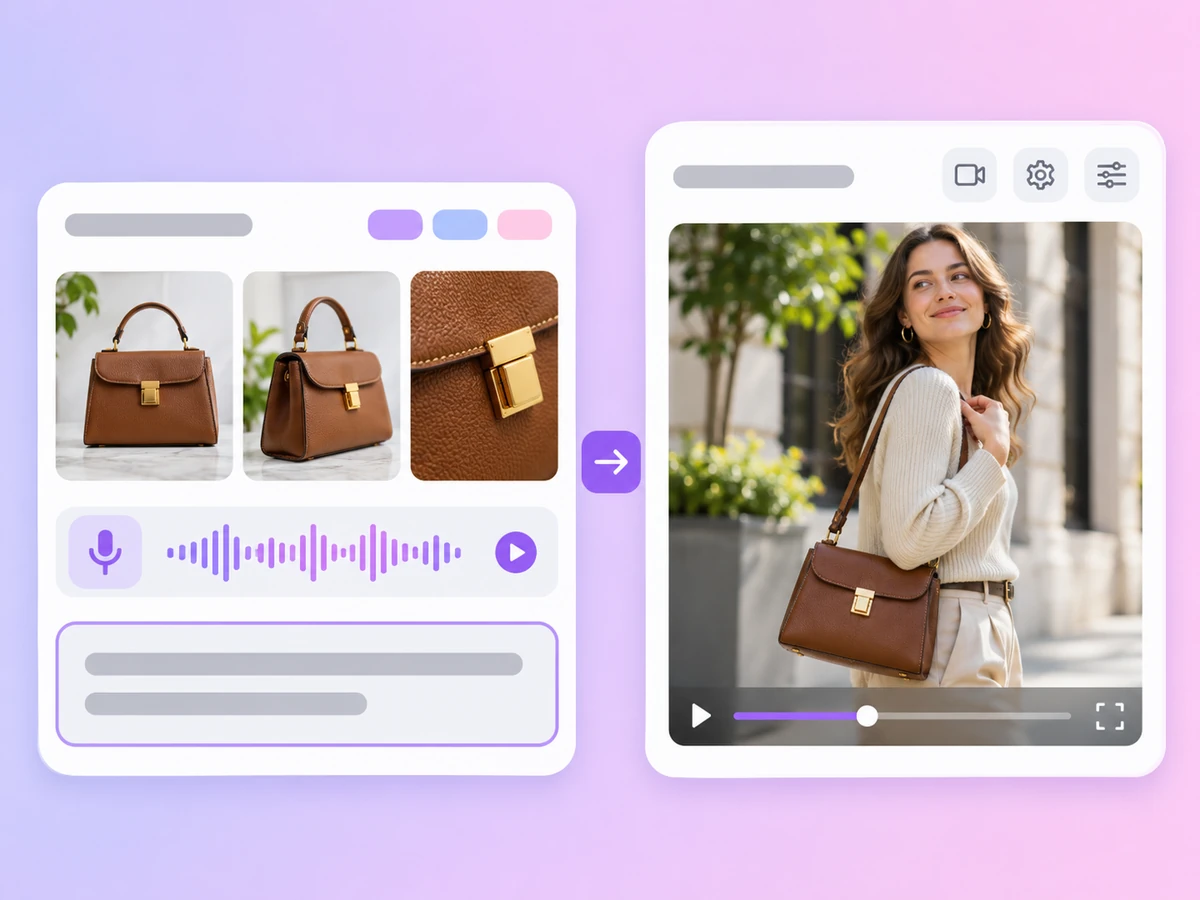
Attach up to 3 photos of a product, a person or a style so they carry into the clip. Clips with references render in 16:9.
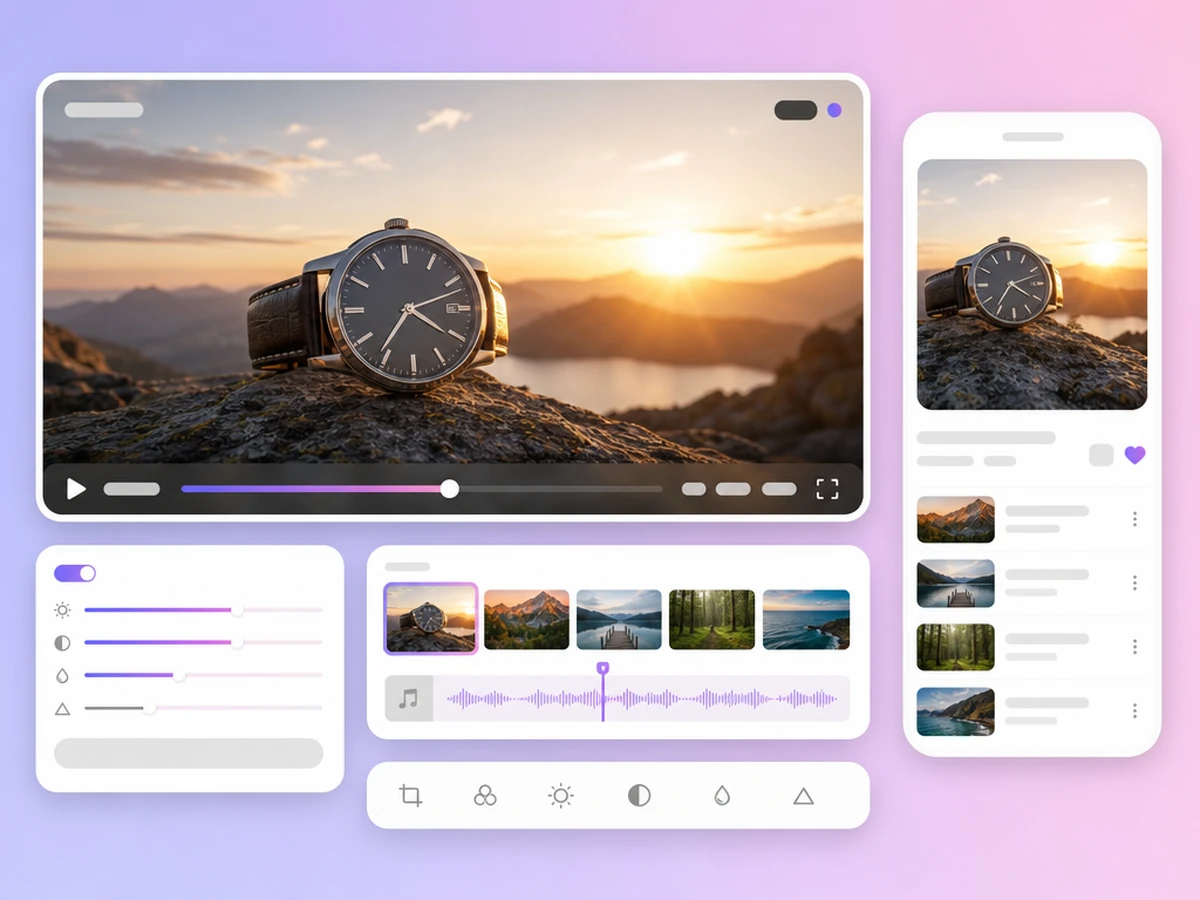
Pick 720p for drafts, 1080p for social, or 4K for hero placements, websites and big screens.
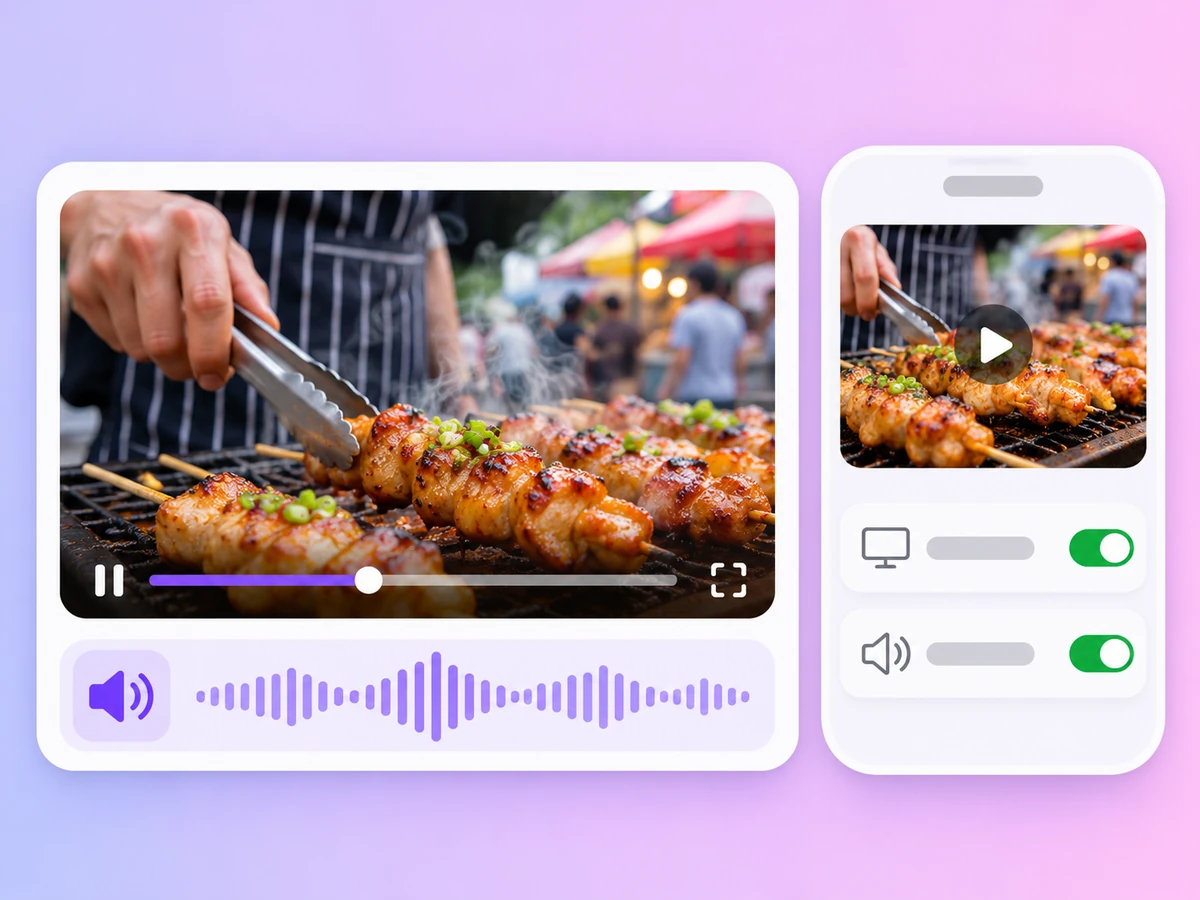
Veo 3.1 generates sound with the picture. Name the sounds you want in the prompt, such as rain, traffic or a pour.
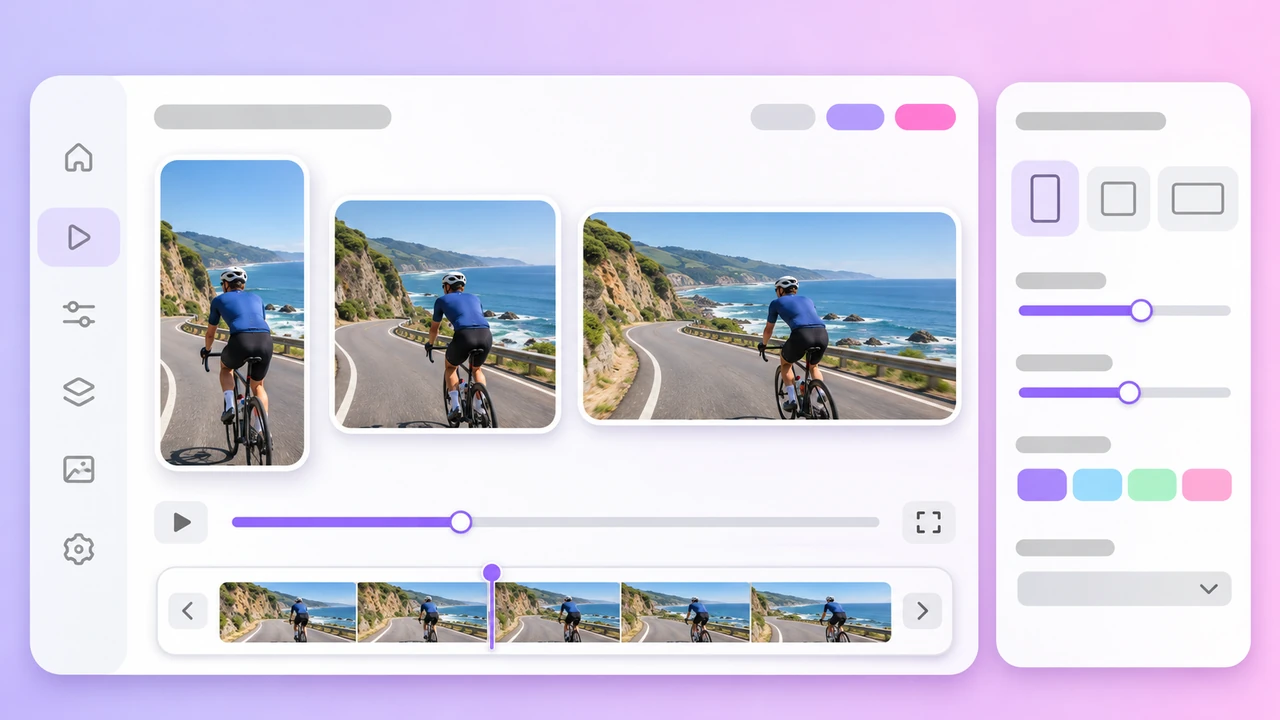
Choose 9:16 for Reels, TikTok and Shorts or 16:9 for YouTube, websites and presentations.
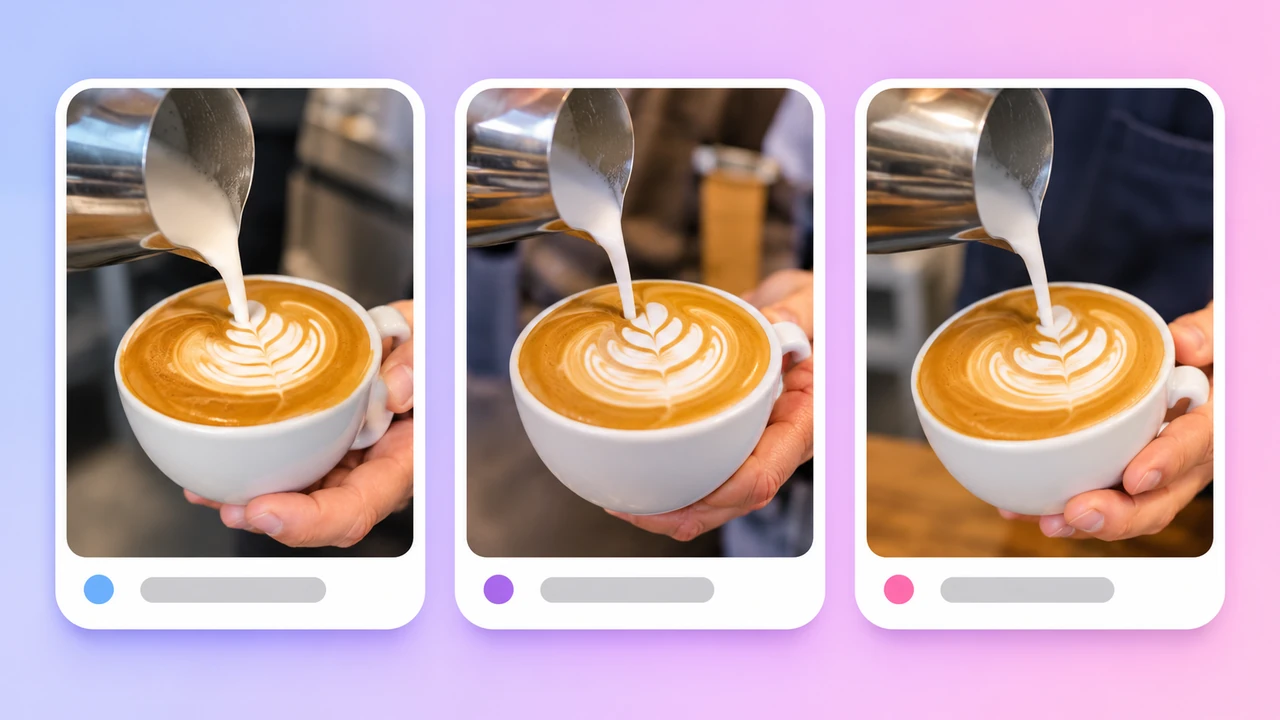
Resolution
Comparing it with other models? See the AI Video Generator page.
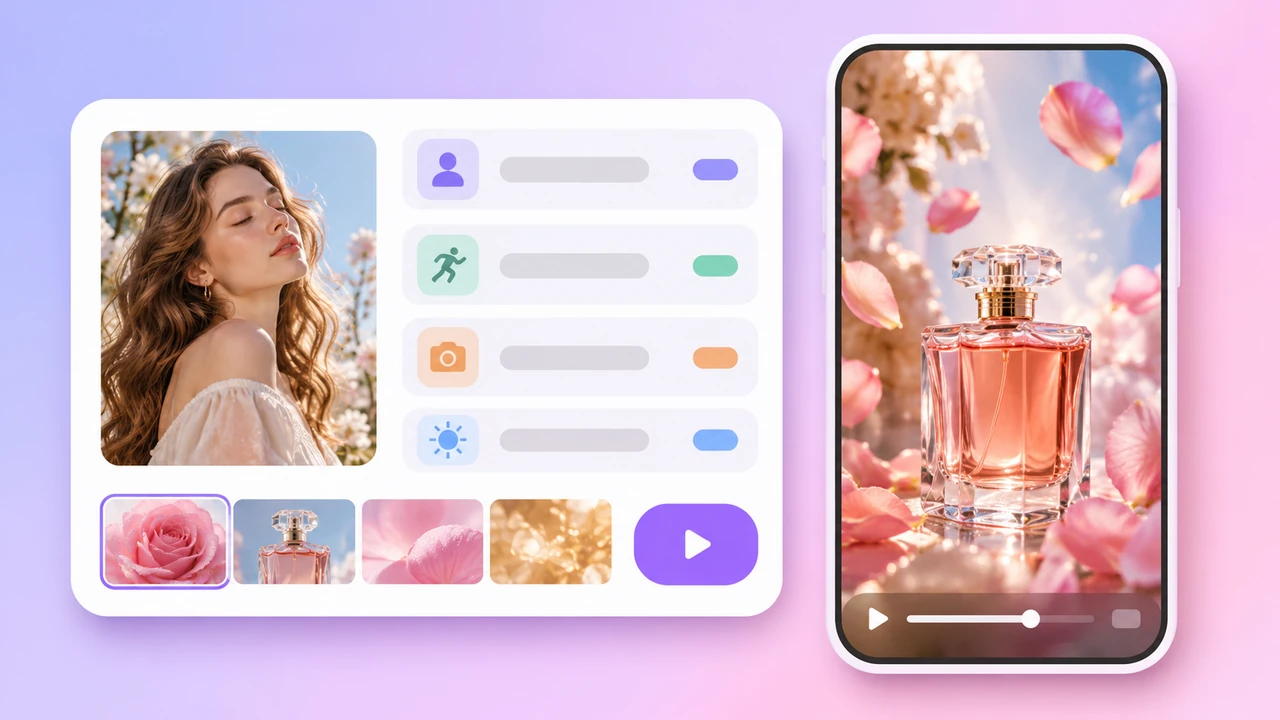
Prompt
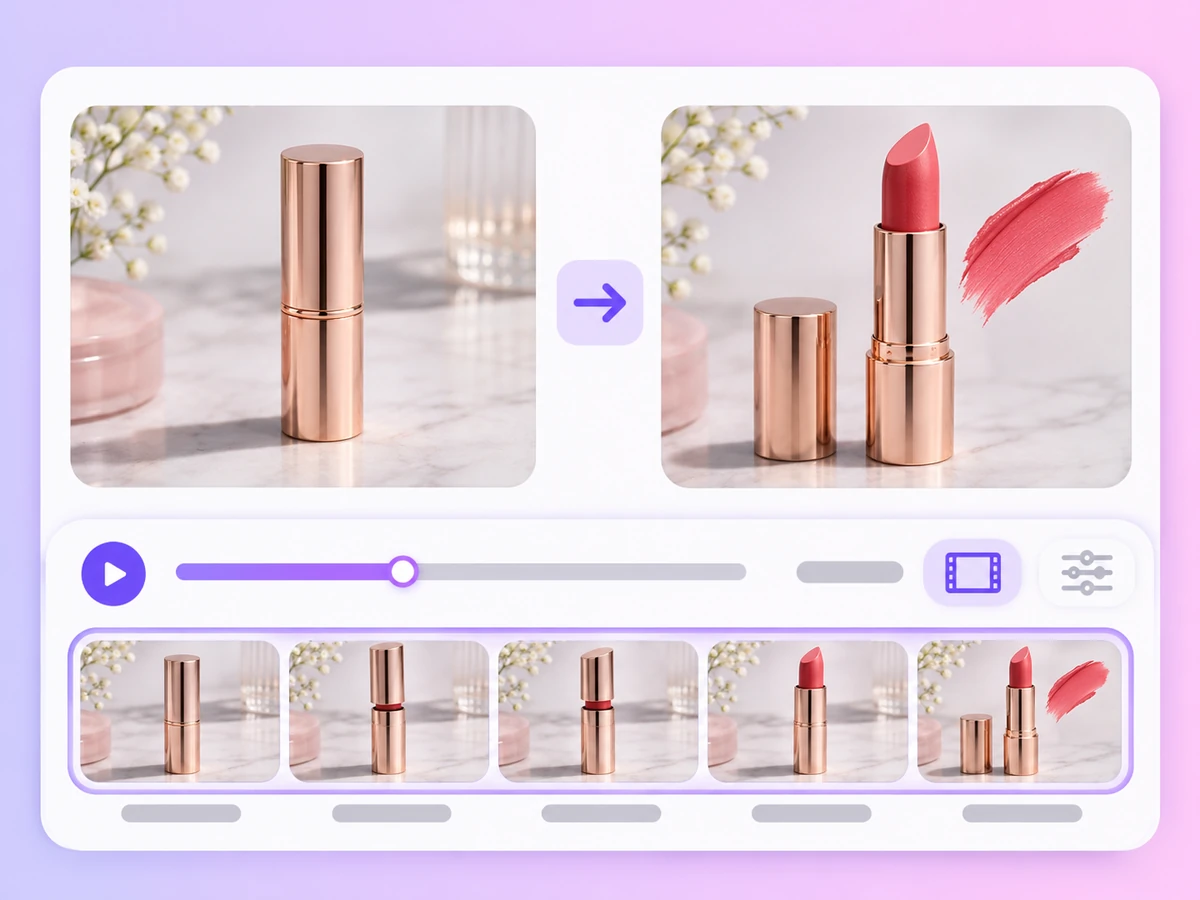
Frames
Want to animate photos with other models too? See Image to Video.
How Veo 3.1 compares with two other video models in the AdsTurbo workspace
Based on the AdsTurbo workspace as of November 2026; models and limits may change. Veo is made by Google, Seedance by ByteDance and Kling by Kuaishou. Video at 1080p and above requires a subscription plan.
Cinematic 16:9 shots for YouTube, websites and campaign launches, up to 4K.
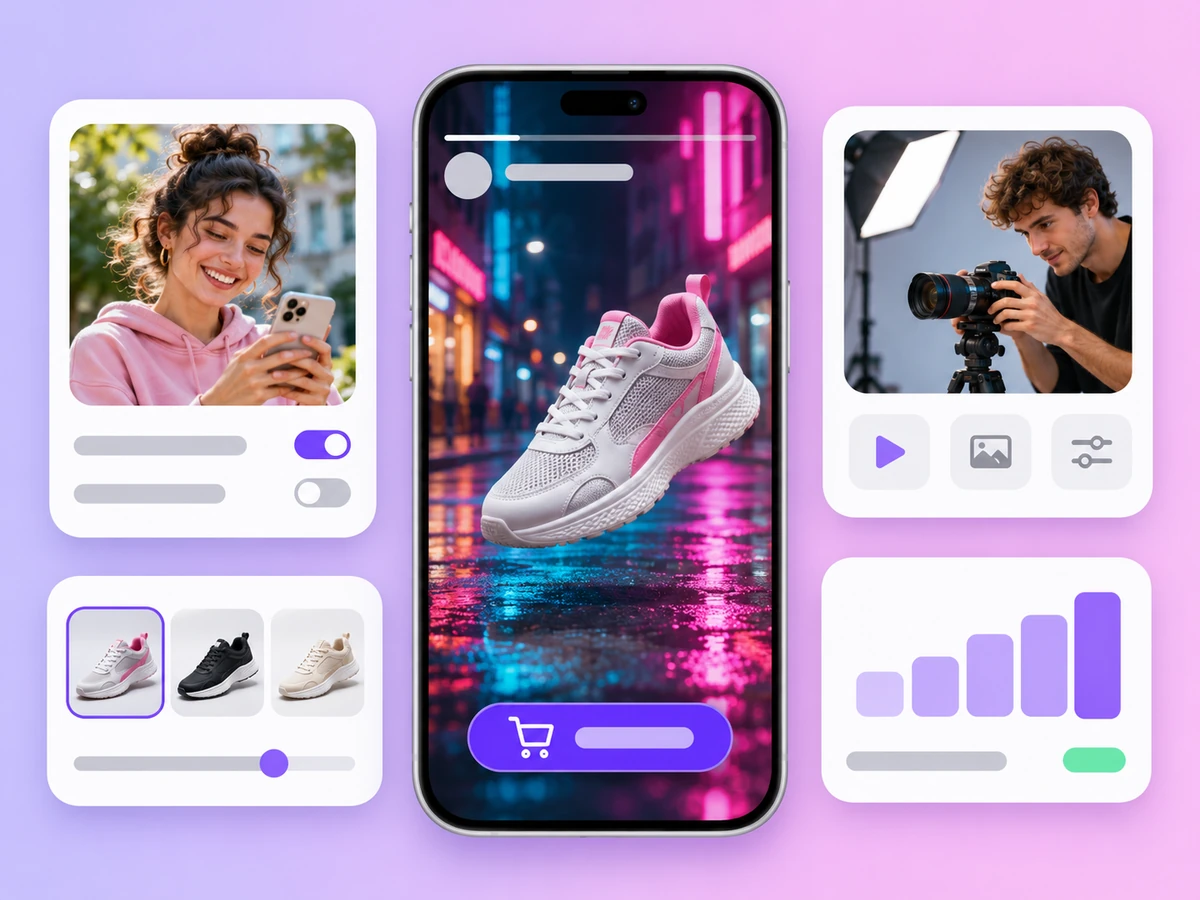
8-second 9:16 hooks for Reels, TikTok and Shorts, with sound.
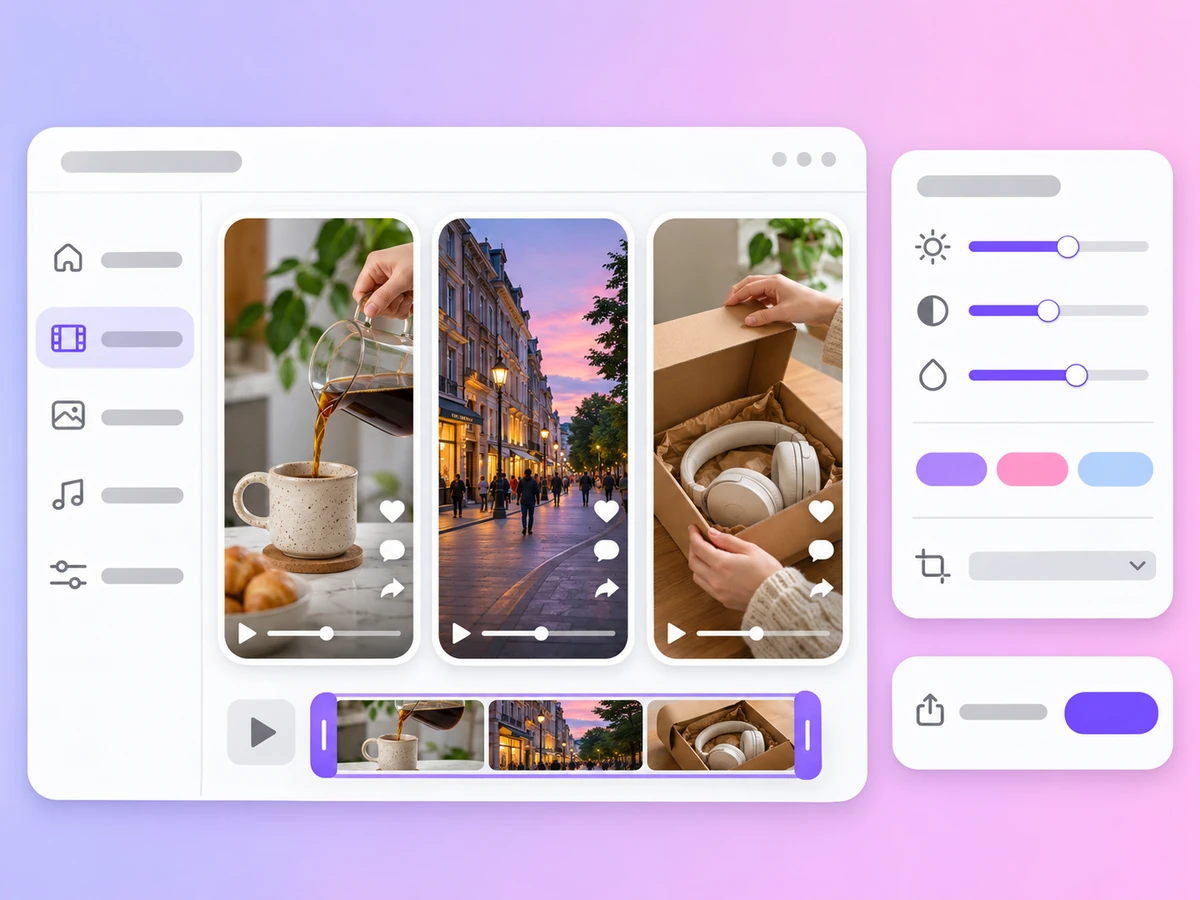
Short scenes to cut into longer edits: pours, streets, unboxings and textures.
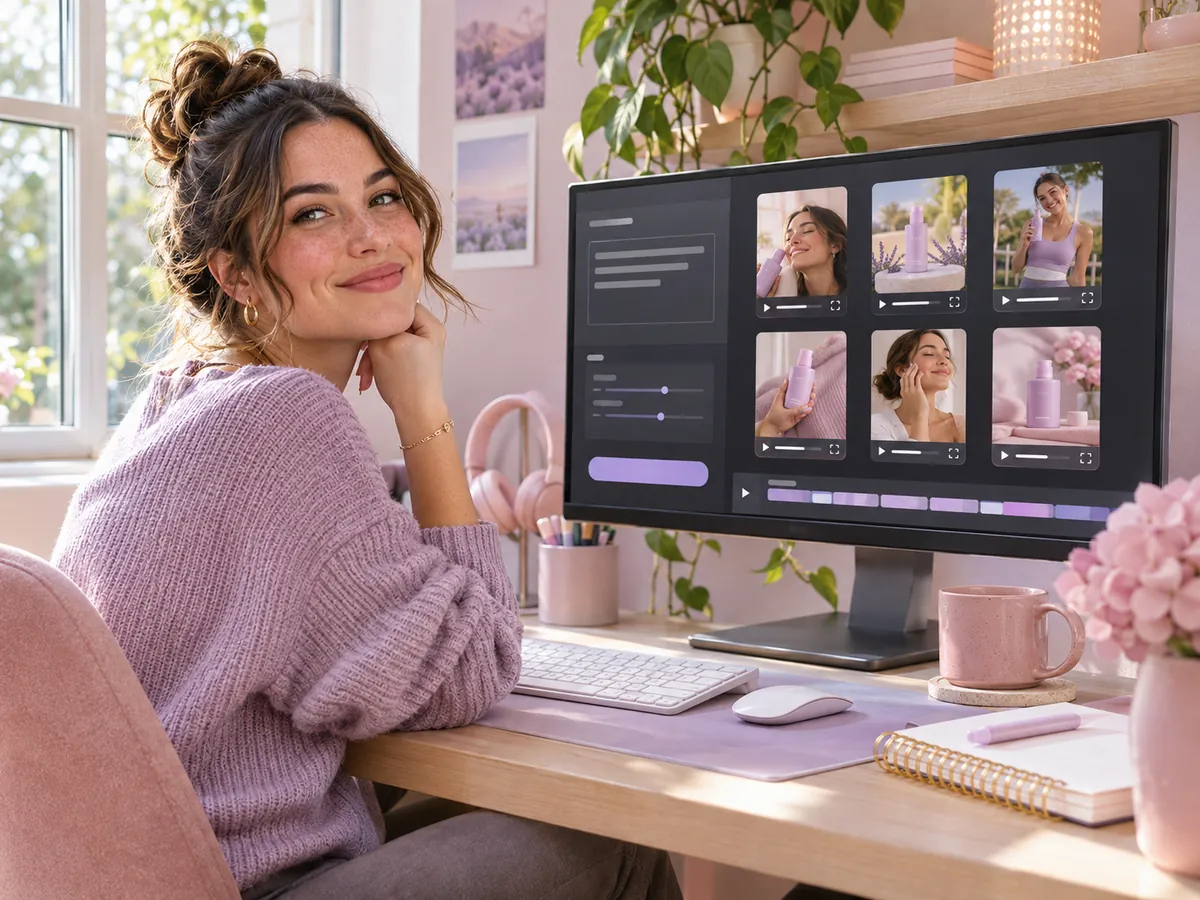
AdsTurbo has no free plan: Veo 3.1 uses credits from a subscription plan or a credit pack. Credit packs are available to all users and stay valid for 2 years, and a Creator plan includes 1,200 credits a month. Credits are returned automatically if a task fails, and the workspace shows the credit estimate before you generate.
Veo 3.1 is billed per second of video, so the total is the rate times the length. 1080p and 4K need a subscription plan.
Open the workspace home, switch to Video, pick Veo 3.1, set the aspect ratio, length and resolution, then write the prompt. A good Veo prompt describes one shot: the subject and setting, one action, one camera move, the light, and the sounds you want to hear.
Copy one of these prompts and swap in your own product:
Veo 3.1 AI Video Generator
Veo 3.1 is a third-party AI video model from Google. In AdsTurbo it turns a text prompt, a start frame, start and end frames, or up to 3 reference images into a clip of 4, 6 or 8 seconds at up to 4K with native audio. AdsTurbo is not affiliated with Google; it gives you access to the model in its workspace.
Open the AdsTurbo workspace home, switch to Video and pick Veo 3.1 from the model list. Choose 9:16 or 16:9, a length of 4, 6 or 8 seconds and the resolution, write a prompt, and optionally add frames or reference images. Sign in and generate, then download the clip.
Not on AdsTurbo. There is no free plan: Veo 3.1 uses credits from a subscription plan or a credit pack, and credits are returned if a task fails. Credit packs are available to all users, so you can try Veo 3.1 at 720p without a subscription.
Veo 3.1 uses 48 credits per second of video, so an 8-second clip uses 384 credits. The workspace shows the estimate before you generate. See Pricing for plans and credit packs.
Each clip is 4, 6 or 8 seconds, at 720p, 1080p or 4K, in 9:16 or 16:9. Clips with reference images render in 16:9. 1080p and 4K need a subscription plan.
Yes. Veo 3.1 generates native sound with the video. Describe the sounds you want in the prompt, such as rain, traffic or music in the background.
Describe one shot: the subject and setting, one action, one camera move such as a slow push-in, then the light and the sound. Keep it to two or three sentences, and add a product photo as a start frame or reference when the product must look exact.
Use Veo 3.1 for short shots that need 4K. Use Seedance 2.5 for clips longer than 8 seconds or when you need many references, up to 30 images, 10 videos and 10 audio clips. See the Seedance AI Video Generator for Seedance 2.5 and 2.0 details.
No. The video models in AdsTurbo are Seedance 2.5, Seedance 2.5 Flash, Seedance 2.0, Kling 4.0, Kling 3.0, Veo 3.1, MiniMax H3, Wan 3.0 and HappyHorse 1.0, plus Auto. Compare them on the AI Video Generator page.
Pick Veo 3.1, write the shot and choose up to 4K. Your first Veo clip is a few clicks away.
 AdsTurbo