

By adsturbo.ai | Published 2026-09-26 | Updated 2026-09-26
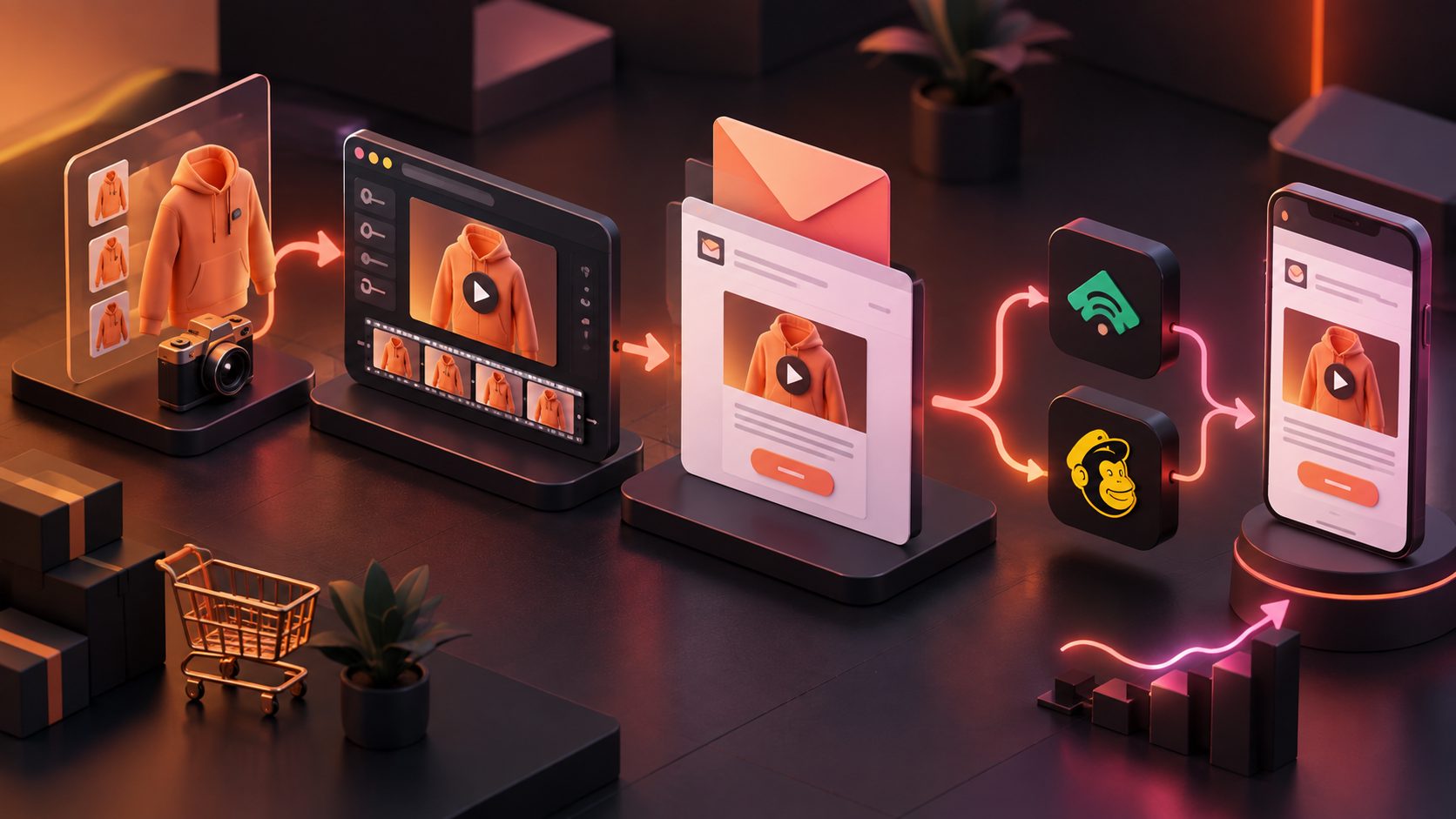
An ecommerce email embedded GIF video maker turns a short product clip into a silent, looping image that can play inside a Klaviyo or Mailchimp email. For replenishment and repeat-purchase campaigns, the best GIF is not a miniature commercial. It is a lightweight visual reminder that communicates one reason to reorder within three seconds.
What Is an Embedded GIF Video in Ecommerce Email?
An embedded GIF video is an animated image placed directly inside an email rather than a true streaming video player. It can demonstrate product use, show a refill action, rotate packaging, or preview a longer video while linking shoppers to a product or reorder page.
True embedded video remains unreliable across major inboxes. Klaviyo therefore recommends a linked thumbnail or short GIF instead of inserting video code, and its editor accepts animated GIF files below 5 MB. Mailchimp likewise identifies GIF as a broadly supported email-animation format while warning that large or complex animations can become heavy. (help.klaviyo.com)
For production, treat 5 MB as a platform ceiling, not a performance target. Klaviyo’s own guidance recommends aiming for approximately 1 MB or less when possible. A smaller asset loads sooner on mobile connections and leaves more room for the rest of the email. (klaviyo.com)
Which GIF Loops Work for Repeat-Purchase Emails?
The strongest reorder GIF makes the customer recognize a familiar use moment. It should connect product motion to consumption, depletion, replacement, or renewed value—not merely add decorative movement.
Use this Reorder Loop Matrix to match the animation to the lifecycle trigger:
| Email trigger | Three-second loop | Supporting line | Primary CTA |
|---|---|---|---|
| Estimated depletion | Container moves from low to refilled | “Running low?” | Reorder now |
| Post-purchase interval | Product completes one familiar use cycle | “Ready for another?” | Buy it again |
| Subscription reminder | Pack count changes from one to three | “Stay stocked” | Manage delivery |
| Loyalty balance | Points meter fills toward a reward | “Your next reward is close” | Redeem points |
| Seasonal return | Product rotates into a seasonal setting | “Back for a limited run” | Restock yours |
This framework keeps the GIF tied to the reason the email was sent. For broader retention planning, pair it with a loyalty reward creative framework or a post-purchase upsell video sequence.
How Do You Build a Lightweight Product GIF?
Build the source as a short, clean video first, then convert only its most informative moment into a GIF. This preserves creative flexibility while preventing a long clip from producing an unnecessarily large email asset.
- Choose one customer action. Show refilling, opening, applying, dispensing, rotating, or replacing the product.
- Create a two-to-four-second source clip. AdsTurbo can generate a product video from a JPG or PNG product image, with optional selling points and promotion information.
- Remove nonessential frames. Use Clip by Clip editing so the action begins immediately rather than after an intro.
- Improve the source before conversion. Background replacement and video upscaling can help clarify the product, but avoid tiny details that will disappear after GIF compression.
- Convert the clip to GIF. Use an image editor or video-to-GIF exporter; AdsTurbo should be used for creating and refining the source video rather than being represented as a native GIF exporter.
- Add the destination link. Send clicks to a prefilled cart, subscription page, loyalty dashboard, or product detail page.
- Upload and test. In Klaviyo or Mailchimp, preview the animation on desktop and mobile and verify that the linked image opens the correct page.
If the source footage is soft or heavily compressed, use a video upscaling workflow for ecommerce assets before reducing it to email dimensions.
What File Size, Duration, and Frame Rate Should You Use?
A practical starting specification is two to four seconds, 6–10 frames per second, and roughly 480–600 pixels wide, with a production target near or below 1 MB. Adjust the width to the email’s actual content block rather than exporting an oversized asset.
The following original frame-budget calculation explains why short loops compress more easily:
- A 3-second GIF at 8 fps contains 24 frames.
- A 1 MB budget allows an average of about 43 KB per frame.
- A 5-second GIF at 12 fps contains 60 frames.
- The same budget allows only about 17 KB per frame.
This is not an exact file-size predictor because frame similarity, colors, dimensions, and compression also matter. It does show why reducing duration and frame rate usually protects image quality better than aggressive compression alone.
Use these optimization priorities in order:
- Remove frames that do not change the message.
- Crop unused background space.
- Reduce dimensions to the displayed width.
- Lower the frame rate.
- Reduce the color palette.
- Apply stronger compression only after the earlier steps.
Mailchimp’s official image guidance also recommends sizing assets for their intended content block rather than relying on automatic resizing. (mailchimp.com)
How Should the First Frame and CTA Be Designed?
The first frame must work as a complete static advertisement because animation behavior can vary by email client. It should show the product, communicate the reorder cue, and remain understandable even if no later frame appears.
A dependable first-frame hierarchy is:
- Product: large enough to identify on a phone.
- Context: a low container, empty package, refill pouch, or familiar usage scene.
- Message: three to six words, such as “Time for a refill?”
- Motion cue: a play icon, arrow, opening lid, or visible before-and-after state.
- Accessible alternative: descriptive alt text and a text CTA below the image.
Do not hide the offer exclusively inside later frames. Discount codes, expiry dates, subscription conditions, and key product claims should also appear as live email text, where they remain readable if images are blocked.
For international retention campaigns, localize the landing page, CTA, and offer—not just the animation. AdsTurbo’s ecommerce video translation workflow can help create translated source-video versions before GIF conversion.
How Do You Add the GIF to Klaviyo or Mailchimp?
In Klaviyo, upload the GIF as an image asset and place it in an image block, then attach the destination URL. Klaviyo’s video and embedded-content documentation specifically suggests GIF for short, silent clips and advises against unsupported embedded video code. (help.klaviyo.com)
In Mailchimp, add the exported file to an image content block, set its link, enter meaningful alt text, and check the mobile preview. Mailchimp’s email image reference notes that GIF offers wider email-client support than CSS animation or embedded video. (templates.mailchimp.com)
Before sending, run a seed test to several inboxes and verify:
- The first frame communicates the offer.
- The loop does not flash or restart distractingly.
- The product remains recognizable on mobile.
- The image and text CTA open the same destination.
- The email still makes sense with images disabled.
- Tracking parameters identify the flow, message, and creative version.
How Should You Measure Reorder GIF Performance?
Judge the GIF by incremental customer action rather than opens, because privacy protections make open-based comparisons less dependable. The primary outcome should be completed reorders or repeat-purchase revenue from the intended lifecycle segment.
Run a controlled A/B test with:
- Version A: static product image.
- Version B: animated GIF using the same offer, copy, CTA, audience, and send timing.
- Primary metric: placed-order rate or revenue per recipient.
- Diagnostic metrics: unique click rate, product-page sessions, cart starts, and unsubscribe rate.
- Creative label: record the loop type, duration, file size, and first-frame message.
Avoid changing the animation, discount, subject line, and send time simultaneously. If the GIF wins, test the next variable—such as depletion cue versus product demonstration—rather than assuming all animation will improve every retention email.
Frequently Asked Questions
Can a GIF play directly inside a Klaviyo email?
Yes. A short GIF can be uploaded as an image and animate inside supported inboxes. Keep it below Klaviyo’s 5 MB limit and preferably near or below 1 MB for faster loading.
Does an ecommerce email embedded GIF video maker add sound?
No. GIF files do not contain audio. Link the animation to a hosted product video or landing page if narration, music, or a full demonstration is necessary.
Is GIF better than embedding an MP4 in Mailchimp?
GIF is generally the safer in-email animation format. An MP4 should usually be represented by a linked thumbnail or animated preview because direct video playback is inconsistent across email clients.
How long should a replenishment GIF be?
Two to four seconds is usually enough to show depletion, refill, or repeated product use. Longer loops add frames and file weight without necessarily adding a stronger reorder message.
What should the GIF link to?
Link it to the shortest path toward the intended action: a prefilled reorder cart, product page, subscription-management screen, loyalty reward page, or localized landing page.