

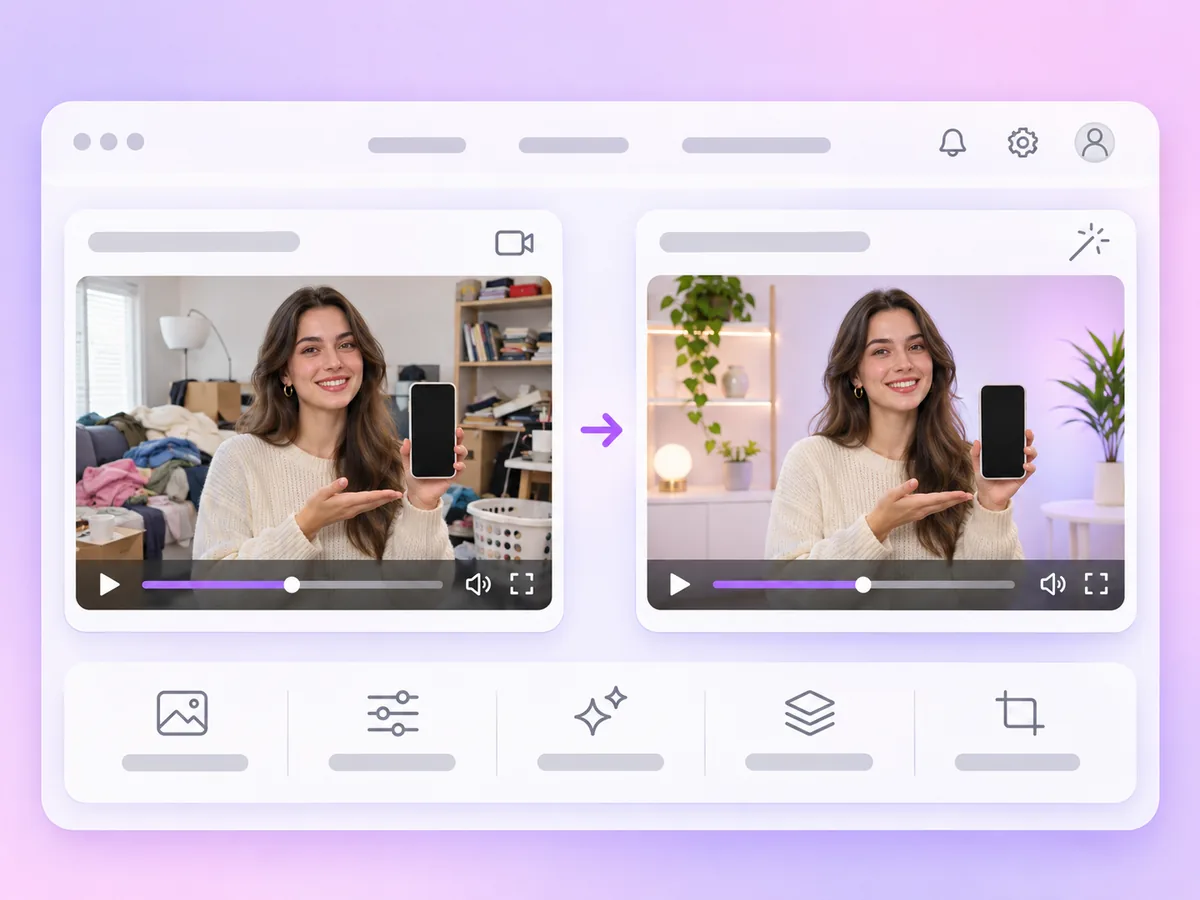
What a video background changer does
Changing the background in a video used to mean a green screen on set or frame-by-frame masking in an editor. A video background changer does the separation for you: it finds the subject in each frame and puts a different scene behind it. That is useful when a clip was filmed in a spare room, a warehouse or a plain studio and the product or presenter deserves a better setting.
In AdsTurbo this is done by Background Replacement. You provide two files: the video whose background you want to change, and one image of the new scene. The AI generates a new clip in which your subject appears in that scene. The background reference is always an image, for video tasks as well as photo tasks, and the current interface has no text field for describing a background.
What to upload
- Video: MP4, AVI or MOV, between 2 and 15 seconds long and no larger than 200 MB.
- Background: one image as JPG, JPEG, PNG, BMP or WEBP that shows the complete scene.
- One video and one background image per task. A second background means a second task.
- Both files can be uploaded from your device or picked from your AdsTurbo asset library.
If your footage is longer than 15 seconds, trim the part you need before uploading. Short product shots, a presenter delivering one line, and b-roll clips for ads are the kind of material this background changer in video is built for.
How to change the background in a video
Add the video
Open Background Replacement and upload the clip, or choose a video from your asset library. Keep the subject fully visible and clear.
Add the background image
Upload or select the scene you want behind the subject. A complete scene without people or objects in the way works best.
Check the credit cost and generate
Video tasks use 18 credits per second of video, and the workspace shows the total before you submit.
Watch the whole result
Open the completed task in the task center, play the clip from start to finish, then download it. Use Re-edit to try another background as a new task.
Choosing a background image that fits the footage
The result looks most natural when the new scene could plausibly have been filmed with the same camera. Before you pick a background, look at where the camera sits in your clip and where the light comes from.
- Match the angle: a clip filmed at eye level sits poorly on a background photographed from above.
- Match the light: if the subject is lit from the left, choose a scene with light from the same side.
- Leave room for the subject: an empty counter, floor or street works better than a scene crowded with objects.
- Avoid heavy filters, stickers and anything that covers the subject in the source video.
What to check before you publish
- Edges, hair and hands in motion: pause on a few frames and look along the outline of the subject.
- Product labels, logos and on-screen text: generated details can differ from the source.
- Timing, motion and audio: these can differ from the original clip, so review the full video with the sound on.
- Size and length: in our 13 October 2026 test a video task returned an 834 × 1112 MP4 (H.264). That is a sample output, not a fixed specification.
If a task ends with the Failed status, its credits are returned automatically under the current terms. Use only footage and background images you have the rights to use.
Frequently asked questions
How do I change the background in a video with AI?
Open Background Replacement in AdsTurbo, upload a 2–15 second MP4, AVI or MOV clip, add one background image, check the credit cost and generate. Review the full clip in the task center before you download it.
How long can the video be?
The source video must be between 2 and 15 seconds long and no larger than 200 MB. Trim longer footage to the part you need before uploading.
Can I use another video or a text prompt as the new background?
No. The new background is one image. The current Background Replacement interface has no background text-prompt field and does not take a video as the background.
How many credits does a video background change use?
Video tasks use 18 credits per second of video. The workspace shows the total before you submit, and credits for a failed task are returned automatically under the current terms.
Does it work on photos too?
Yes. The same tool changes the background of a photo with a background image. Image tasks use 17 credits per task.


