





















 Claude
 Cursor
Remove Text from Product Image AI: A Practical Ecommerce Workflow


Summarize with
Summary
Learn how to remove supplier text from product images with AI, preserve product details, localize visuals, and turn clean assets into English video ads.
By adsturbo.ai | Published 2026-11-27 | Updated 2026-11-27
Supplier product photos often arrive with Chinese copy, outdated prices, marketplace badges, phone numbers, or promotional banners. Remove text from product image AI tools can clean those overlays without rebuilding the product photo from scratch, making the asset easier to localize for English-speaking shoppers and paid social campaigns.
The key is not simply deleting every visible word. A reliable ecommerce workflow separates temporary overlays from text that belongs to the product itself, such as packaging, labels, buttons, or printed instructions.
What does remove text from product image AI mean?
Remove text from product image AI refers to using AI inpainting to erase selected words, stickers, captions, or promotional elements while reconstructing the background behind them. The tool analyzes nearby colors, textures, edges, and lighting instead of leaving a blank patch.
For ecommerce sellers, common removable elements include:
- Supplier-added headlines or benefit claims
- Old prices, discounts, and sale badges
- Chinese or other non-English marketing copy
- Contact details and phone numbers
- Temporary campaign dates
- Social media handles
- Decorative text placed outside the product
AI text removal is most effective when the unwanted copy sits on a simple background. Clean product photos with solid-color backgrounds generally produce more predictable edits. Research on text removal in ecommerce images also emphasizes the need to preserve product appearance while removing distracting digital elements. (bmva-archive.org.uk)
Which text should you remove—and which should you keep?
The safest rule is simple: remove marketing overlays, but preserve product identity and factual information printed on the item.
| Text type | Recommended action | Reason |
|---|---|---|
| Old sale banner | Remove | It may conflict with your current offer |
| Supplier phone number | Remove | It is usually irrelevant to your storefront |
| Chinese headline outside the product | Remove or replace | It may not fit your target market |
| Brand name printed on packaging | Keep | It is part of the product identity |
| Product safety label | Keep | Removing it may create misleading imagery |
| Button labels or screen text | Usually keep | It may explain how the product works |
| Product dimensions or technical markings | Verify first | The information may be commercially important |
This distinction is where many generic AI editors fail: they can identify text, but automatic detection may also target legitimate lettering on the item. Some dedicated text-removal tools explicitly distinguish overlay text from labels or packaging for this reason. (zproductai.com)
How to remove supplier text from a product image
1. Start with an authorized source image
Only edit product images that you have permission to use. Removing text from a supplier image does not transfer ownership or grant permission to reuse the photograph.
Choose the highest-resolution original available. Avoid screenshots, compressed marketplace previews, or images that have already been repeatedly resized.
2. Identify the exact overlay
Before uploading, decide whether you want to remove:
- All visible promotional text
- One language only
- A price or discount badge
- A logo or contact detail
- A text block in a specific corner
A precise target is safer than a vague instruction such as “remove everything.” If the tool supports a brush or selection area, mark only the unwanted overlay.
3. Use a short, controlled instruction
A useful instruction might be:
Remove the promotional text in the upper-left corner. Keep the product, packaging, printed logo, shadows, and background unchanged.
This tells the editor what to modify and what to protect. For a busy lifestyle image, add a background instruction such as:
Reconstruct the wall texture and preserve the original lighting and perspective.
4. Inspect product edges and reflections
After processing, zoom in on the areas around:
- Product outlines
- Transparent packaging
- Metallic surfaces
- Fabric patterns
- Textured backgrounds
- Shadows and reflections
These areas often reveal AI reconstruction errors sooner than the removed text itself. A clean-looking banner removal is not useful if the product shape, color, or surface finish has changed.
5. Export a clean master file
Keep one clean, text-free master image. Create localized versions from that file rather than repeatedly editing an already edited image.
A practical naming structure is:
product-name_clean_master_en.jpg
product-name_tiktok_9x16_en.jpg
product-name_shopify_square_en.jpg
This reduces confusion when the same item is used across listings, ads, email campaigns, and social posts.
What is the best workflow for English localization?
Removing text is only the first step. For cross-border ecommerce, the stronger workflow is:
- Clean the supplier image
- Confirm product fidelity
- Add English benefits and offer details
- Adapt the canvas to each channel
- Turn the image into short-form video
- Add captions and localize the voice or script
- Export multiple creative variants
Do not bake every message into the product image. Keep the master image neutral, then create separate overlays for benefits, discount codes, shipping claims, and calls to action.
This approach gives you more testing flexibility. One clean image can support different hooks, such as “Organize your desk,” “Save space in small rooms,” or “A simpler morning routine,” without repeatedly removing old copy.
For product image creation, AdsTurbo Product Image accepts JPG and PNG uploads and can analyze a product’s shape, color, and category. It can also generate several ecommerce-oriented visual types, including banners, lifestyle images, close-ups, material-detail images, instruction visuals, and brand images.
How can a cleaned product image become a video ad?
A cleaned product image is useful because it gives the video workflow a neutral starting point. You can combine it with product benefits, a reference video, and promotional information to create short-form advertising variations.
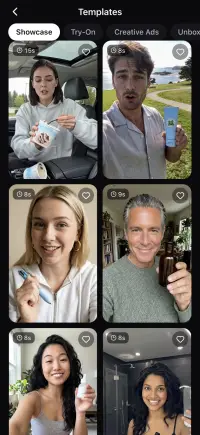
AdsTurbo Product Video supports JPG or PNG product uploads and can generate UGC-style product review, introduction, and demonstration videos. For a broader creative system, an existing reference ad can be analyzed and restructured into new variants with different hooks, pacing, and calls to action.
If the source footage is blurry or heavily compressed, improve it before adding captions or translating the ad. An AI video enhancer can help prepare a clearer source for later editing, although enhancement should not be used to invent product details that were absent from the original.
AdsTurbo also supports video subtitles with automatic speech transcription, synchronized captions, and downloadable subtitle files. This makes it possible to create an English version while retaining a separate subtitle file for future localization.
A practical quality-control checklist
Before publishing a localized product image or video, check the following:
- Is the product shape unchanged?
- Are the product colors still accurate?
- Did the AI remove only the intended text?
- Are packaging labels and safety details preserved?
- Do shadows and reflections remain natural?
- Is the English copy grammatically correct?
- Does the text fit the platform’s safe area?
- Is the offer, price, and discount still accurate?
- Does the final image match the product listing?
- Do the first seconds of the video explain the product clearly?
A useful internal test is the thumbnail test: view the asset at small size and ask whether the product is immediately recognizable. Then use a detail test at full size to inspect edges, labels, and fine textures. Both views matter because social ads are judged quickly, while product pages are inspected closely.
Common questions
Can AI remove Chinese text from a product photo?
Yes, AI inpainting can remove Chinese headlines, banners, prices, and other overlay text when the edit area is clear. However, text printed on the product or packaging should be preserved unless you have a specific reason to alter it.
Can I replace the removed text with English?
Yes. The safer workflow is to remove the original overlay first, inspect the clean image, and then add English copy as a separate editable layer or localized creative version.
Will removing text change my product?
It can, especially when the text overlaps reflective surfaces, fabric, transparent packaging, or detailed textures. Always compare the edited image with the original before publishing.
Is removing a watermark the same as removing supplier text?
No. Removing a temporary promotional overlay from an authorized image is different from removing a creator’s or photographer’s watermark without permission. Use only assets you are authorized to edit and publish. For a broader compliance-focused workflow, see this guide to removing watermarks from product photos.
What file format should I use?
JPG and PNG are practical choices for ecommerce product images. Keep the highest-quality master available, then export platform-specific versions after the cleanup and review process.
Final takeaway
AI text removal works best as part of a controlled ecommerce production workflow—not as a one-click replacement for quality review. Clean the supplier image, protect product-defining details, add English messaging separately, and then reuse the asset across listings, social posts, and video ads.
That process turns one messy source image into a flexible creative base for localization and structured ad testing.