






 Claude
 Cursor
Viggle AI Dance Generator Alternative: Motion Transfer Guide

Summarize with
Summary
Looking for a Viggle AI dance generator alternative? Learn how motion transfer works, compare tools, and create a cleaner dance video from one image and one reference clip.
By AdsTurbo | Published 2026-11-19 | Updated 2026-11-19
If you are searching for a viggle ai dance generator alternative, you probably want one simple result: upload a character image, provide a dance or movement reference, and generate a short video that follows the same performance. The best choice depends less on the word “dance” and more on motion fidelity, image quality, audio handling, output resolution, and commercial-use requirements.
What is an AI dance generator?
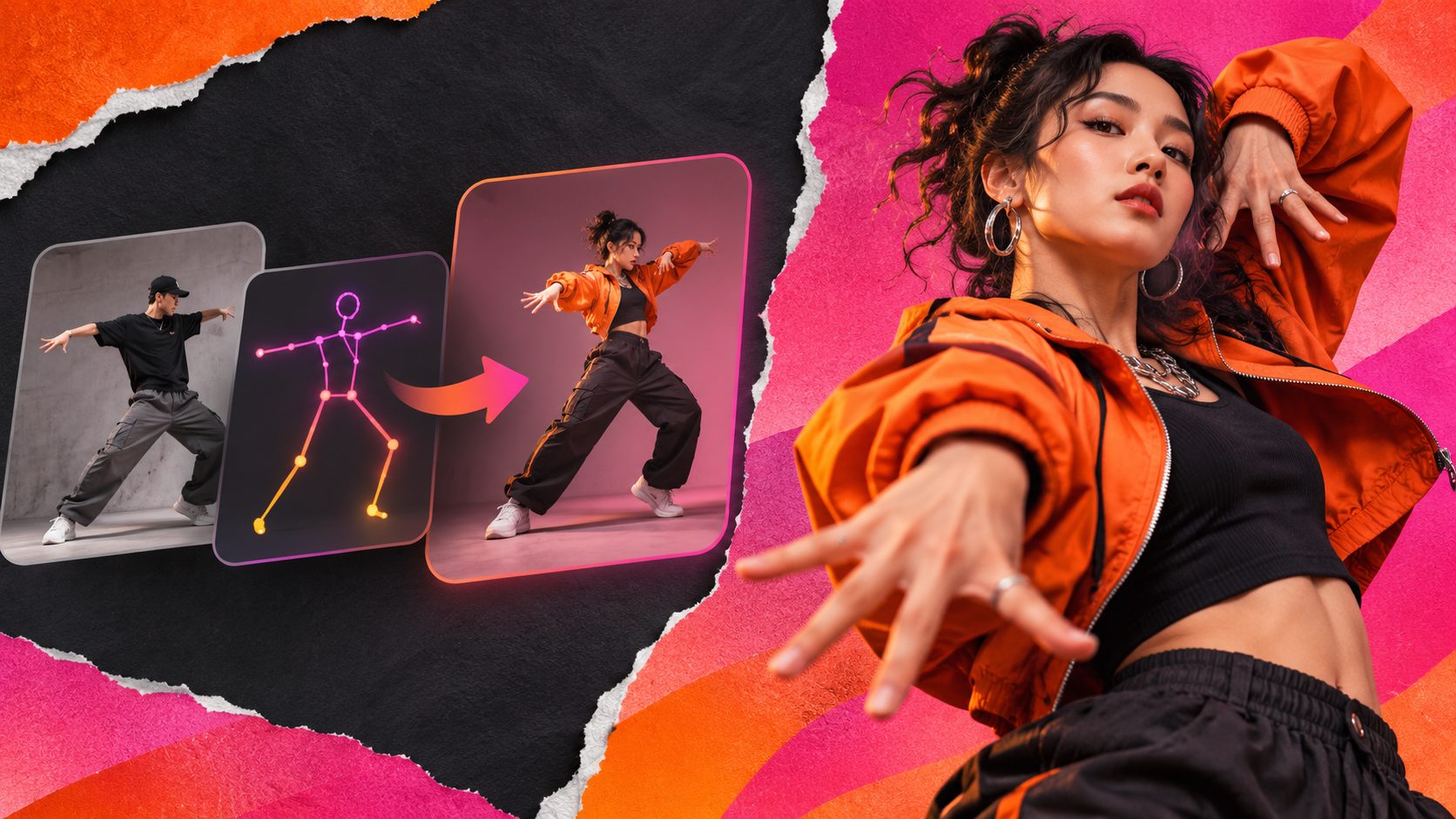
An AI dance generator creates a moving video from a still image, a reference performance, a song, or a text prompt. In a motion-transfer workflow, the system analyzes the reference video’s body movement, timing, poses, and camera relationship, then reconstructs those movements with the person or character in the input image.
The important distinction is that motion transfer is not the same as text-to-video generation. A text-to-video model invents movement from a prompt. An AI motion transfer tool follows a specific performance, which makes it more useful when you want recognizable choreography, gestures, or timing.
Viggle’s own workflow describes the process as combining an image with a motion source, such as a preset or uploaded video, to animate the still character while retaining its visual identity.
How motion transfer works
Most image-to-dance systems follow four broad stages:
- Subject analysis: The tool identifies the person, character, clothing, silhouette, and visible body structure in the image.
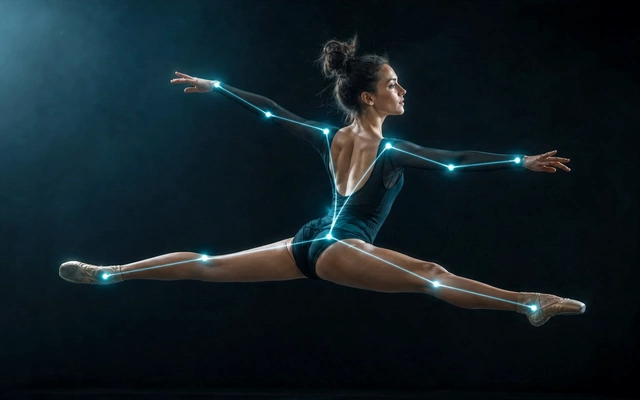
- Motion extraction: It reads body pose, limb direction, timing, and sometimes facial or camera movement from the reference video.
- Motion mapping: The reference performance is applied to the target character while the system attempts to preserve appearance.
- Video synthesis: New frames are generated, checked for temporal consistency, and exported as a short video.
This is why a full-body image and a clear reference performance usually work better than a cropped portrait or a crowded group clip.
What should you compare in a Viggle alternative?
A useful comparison should focus on production risk, not just whether a sample looks impressive. The following framework helps creators and ecommerce marketers evaluate an AI dance video generator more consistently.
| Evaluation factor | What to check | Why it matters |
|---|---|---|
| Input requirements | Full-body image, portrait, video, audio, or prompt | Determines how much preparation is needed |
| Motion fidelity | Foot placement, hand movement, body turns, and timing | Weak transfer creates distracting visual errors |
| Subject consistency | Face, clothing, hair, and body proportions | Important for recognizable characters and branded creatives |
| Audio handling | Preserved source audio, uploaded music, or separate editing | Determines whether post-production is required |
| Output resolution | Preview quality and export resolution | Affects social publishing and ad delivery |
| Commercial rights | Permission for the source image, video, music, and likeness | Reduces avoidable legal and platform risks |
| Workflow speed | Queue time, rerolls, and batch support | Matters when producing multiple creative variants |
A practical improvement is to score each tool with two separate ratings: motion accuracy and commercial usability. A video may follow the dance well but still be unsuitable for an ad if the input rights are unclear, the output is too soft, or the original audio cannot be edited.
Which types of alternatives are worth testing?
There is no universal best replacement because different tools solve different versions of the same problem.
1. Dedicated motion-transfer tools
These are designed to move one character image according to one reference video. They are usually the closest match for people searching for a Viggle-style result. They are suitable for dance clips, meme formats, character animation, and short social videos.
AdsTurbo Motion Control takes one reference motion video and one character image. The reference video can be 3–30 seconds when matching video orientation or 3–10 seconds when matching image orientation, with a maximum file size of 200 MB. Outputs are available in 720p or 1080p.
The AI motion control workflow preserves the original audio from the reference video. That audio cannot be replaced inside Motion Control, so add a separate editing step if the final ad needs different music or voiceover.
2. Music-led AI dance generators
A music-led AI dance generator may create choreography from a song, beat, or prompt rather than copy an existing performance. This approach is useful when you want an original dance concept, but it offers less control over exact gestures and timing.
Use this category when originality matters more than reproducing a known routine. For product marketing, it can work well as an attention-grabbing opening, followed by a product-focused shot or offer.
3. Character replacement and video-to-video tools
These tools preserve more of the source scene, including camera framing, background, and sometimes the original audio, while changing the visible subject. That is different from animating a standalone character image.
For creators who already have a finished dance clip, character replacement can be more practical. For ecommerce sellers starting with a product mascot, avatar, or isolated character image, motion control is usually the clearer workflow. When the task involves replacing a person in an existing scene, use AdsTurbo’s character swap feature page to review that separate workflow.
How to make a dance video in AdsTurbo
AdsTurbo’s AI dance generator workflow is best approached as a controlled two-input process.
-
Prepare a target character image.
Use a clear image with the full subject visible. Avoid extreme cropping, heavy blur, or hands hidden behind objects. -
Choose a short reference motion video.
Select one continuous performance with a visible subject. A simple solo dance is easier to transfer than fast cuts, multiple dancers, or frequent camera changes. -
Match the orientation.
If the target image and reference video use similar framing and orientation, the system has less visual ambiguity to resolve. -
Generate the motion transfer.
AdsTurbo generation typically takes around 3–4 minutes on average. The output is rendered at 720p or 1080p. -
Inspect hands, face, and transitions.
Generated details can differ from the reference. Review fingers, facial features, clothing edges, feet, and moments where the subject turns sideways. -
Finish the edit for its destination.
Add captions, product benefits, a discount, or a CTA in a separate editing stage if the clip is intended for TikTok, Reels, Shorts, or paid ads.
How to prepare a cleaner reference video
Reference quality often matters more than prompt wording. Use this production checklist:
- Record one person rather than a group.
- Keep the entire body visible from head to feet.
- Use stable lighting and avoid strong backlighting.
- Choose a simple background with clear contrast.
- Avoid rapid cuts, overlapping bodies, and severe motion blur.
- Start and end with a stable pose.
- Keep the camera mostly fixed when accurate body transfer is the priority.
- Use a movement that matches the target character’s body proportions.
For ecommerce content, a useful original workflow is the hook–motion–product–CTA sequence: use the transferred dance for the first few seconds, cut to a clear product demonstration, then end with the offer. This prevents the dance from becoming the entire message and gives the creative a measurable commercial purpose.
If the reference is visually soft, sharpen the finished clip with an AI video enhancer. Upscaling can improve presentation, but it cannot reliably repair missing hands, incorrect limbs, or a poorly tracked subject.
Commercial-use and review checklist
Only use images, videos, music, and likenesses that you have permission to use. AdsTurbo outputs can be used in commercial content when you have permission to use the inputs.
Before publishing, check:
- Does the source video permit commercial reuse?
- Do you have permission for the character image or person’s likeness?
- Is the music licensed for the intended platform?
- Are the face and hands consistent throughout the clip?
- Does the final video include captions where needed?
- Does the CTA remain readable on mobile screens?
The safest workflow treats AI generation as a production accelerator, not a substitute for rights review or final creative inspection.
Frequently asked questions
Is a Viggle AI dance video generator different from motion transfer?
Usually, the terms describe closely related workflows. A Viggle-style dance generator commonly takes a character image and a dance reference, while “motion transfer” emphasizes the technical process of mapping movement from one video to another subject.
Can I make a dancing video from one image?
Yes. A single character image can be animated when paired with a compatible reference motion video. A full-body image generally gives the system more information than a close-up portrait.
Does the original audio stay in the generated video?
In AdsTurbo Motion Control, the reference video’s original audio is preserved and cannot be replaced inside the Motion Control workflow. Replace or remix the audio during post-production when needed.
What causes distorted hands or faces?
Common causes include small or blurry input images, fast movement, hidden limbs, overlapping subjects, strong camera motion, and poses that are difficult to infer from a single view. Review several short outputs rather than relying on one generation.
Can the result be used in an ecommerce ad?
Yes, when you have permission to use the input image, reference video, music, and likeness. Always review the finished clip for visual errors, rights issues, platform requirements, and accurate product claims.